
It’s a familiar holiday frustration: you’ve strung up festive lights, lit the tree, and settled in for a joyful Zoom call with grandparents—or a virtual office party—only to see your cheerful decorations dissolve into shimmering, stuttering blocks of color. The warm glow becomes a jagged mosaic. Your twinkling garlands look like glitchy digital artifacts. This isn’t poor camera quality alone. It’s a collision of physics, engineering, and human perception—rooted in how light, cameras, and video compression interact. Understanding this phenomenon isn’t just about aesthetics; it’s about preserving the emotional warmth of shared moments when physical presence isn’t possible.
The Core Problem: Flicker, Frame Rate, and Frequency Mismatch
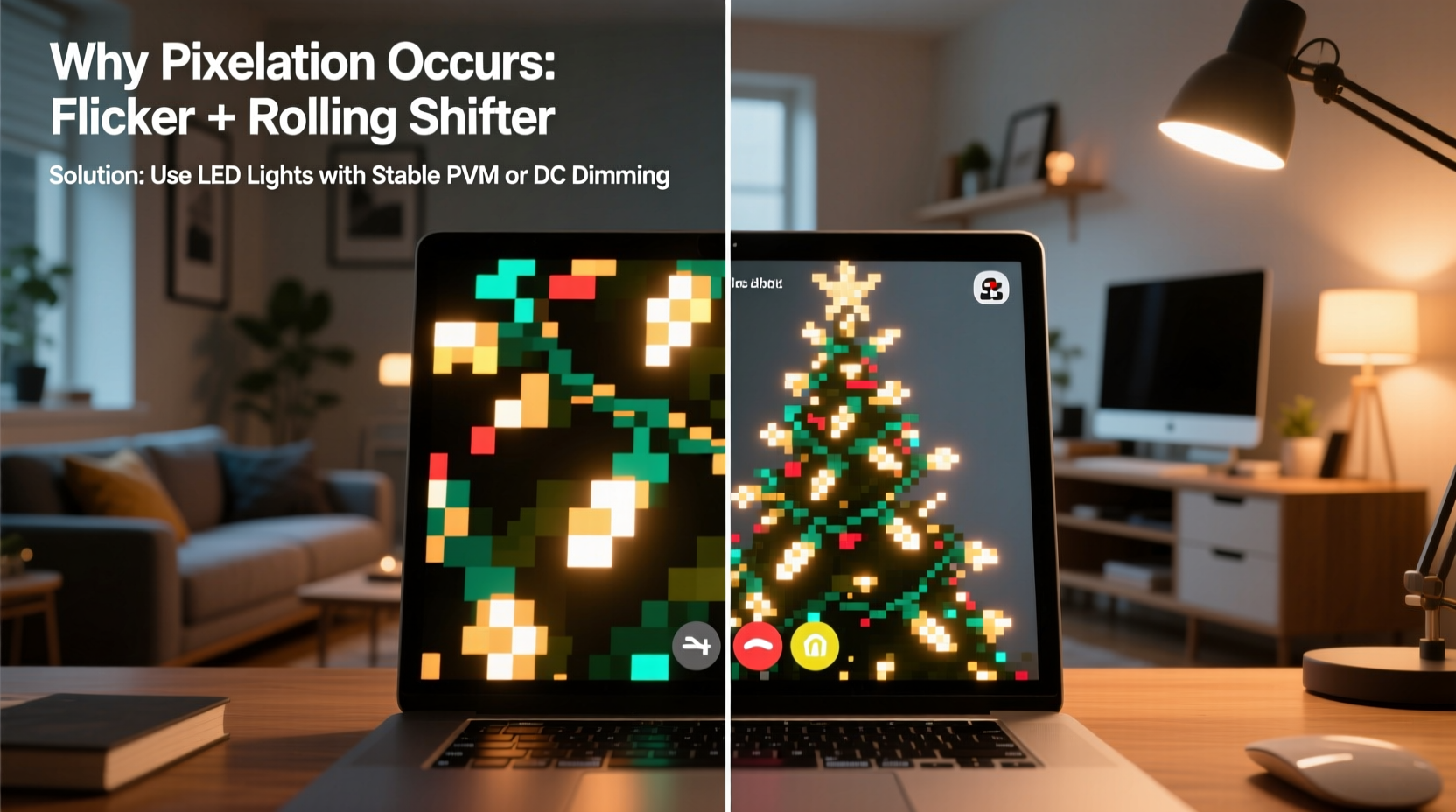
Christmas lights—especially modern LED strings—don’t emit steady light. Most operate on pulse-width modulation (PWM), rapidly switching on and off hundreds or thousands of times per second to control brightness and conserve energy. While invisible to the naked eye, this rapid pulsing creates a temporal pattern that video sensors capture *inconsistently*. Camera sensors sample light in discrete frames—typically 30 or 60 times per second (fps). If the light’s flicker frequency doesn’t align cleanly with the camera’s frame rate and shutter timing, each frame captures the lights at a different point in their on-off cycle. One frame may catch them mid-pulse (dim or off), the next at peak output (bright), and the next somewhere in between. This inconsistency manifests as visible flickering, strobing, or—more commonly—pixelation: clusters of abnormally bright or dark pixels that appear to “crawl” or “swim” across the screen.
Compounding this is the way video conferencing platforms compress data in real time. To transmit smoothly over variable internet connections, services like Zoom, Teams, and Google Meet aggressively compress frames using codecs such as VP8, VP9, or H.264. These codecs prioritize large, uniform areas of color and motion prediction. Rapid, localized brightness changes—like those from PWM-driven LEDs—confuse compression algorithms. Instead of encoding smooth gradients, the system interprets sudden micro-changes as high-frequency noise or motion artifacts, allocating more bits to those chaotic regions and often rendering them as blocky, low-resolution patches: the telltale “pixelation.”
Why Not All Lights Behave the Same Way
Not every string of lights contributes equally to the problem. The severity of pixelation depends heavily on three technical variables: power source, driver circuitry, and dimming method.
| Light Type | Flicker Risk | Pixelation Likelihood | Key Reason |
|---|---|---|---|
| AC-powered incandescent mini-lights (older style) | Moderate | Low–Medium | Thermal inertia of filament smooths out 50/60 Hz AC ripple; slower response means less abrupt brightness change |
| DC-powered USB or battery LED strings | High | High | Often use low-cost PWM drivers with frequencies below 1 kHz—well within camera sensor sensitivity range |
| “Flicker-free” certified LED strings (e.g., UL 1598C compliant) | Very Low | Very Low | Use constant-current drivers or high-frequency PWM (>20 kHz), beyond human and most camera detection thresholds |
| Smart RGB LED strips (Wi-Fi/Bluetooth controlled) | Variable (often High) | High | Complex color mixing + dynamic effects increase PWM complexity; many budget models use suboptimal drivers |
| Professional theatrical LED fixtures | Negligible | Negligible | Engineered for film/TV; incorporate optical diffusers, high-frequency drivers, and stable power regulation |
This explains why swapping out a $12 string of battery-powered twinkle lights for a $35 “flicker-free” plug-in set can transform your video call background from distracting to delightful. It’s not about brightness—it’s about signal integrity.
Practical, Immediate Fixes You Can Apply Today
You don’t need to replace all your decorations or buy pro gear. Many effective solutions require no tools, minimal cost, and under five minutes to implement. These address the root causes—not just the symptoms.
- Adjust your camera’s exposure and white balance manually. Auto-exposure constantly chases the brightest points (the LED bulbs), causing rapid gain adjustments that amplify noise and pixelation. Switch to manual mode (if available in your conferencing app or camera settings) and lock exposure on a mid-tone surface—like a book cover or sweater—then disable auto-white balance to prevent color shifts.
- Introduce soft, diffuse ambient light. Pixelation worsens in high-contrast scenes. Adding even a single 60W-equivalent warm-white LED desk lamp (with fabric shade) behind or beside you fills shadows and reduces the relative intensity difference between lights and surroundings. This gives compression algorithms more stable reference data.
- Reposition lights away from direct line-of-sight. Move strings so bulbs aren’t centered in-frame or directly facing the lens. Hang them slightly above or below eye level, or wrap them around furniture edges rather than mounting them flush against a wall behind you. Distance and angle dramatically reduce intensity spikes hitting the sensor.
- Use physical diffusion. A thin, white cotton handkerchief or muslin cloth stretched taut over the light string (secured with binder clips or tape) scatters the point-source glare. This lowers peak luminance, evens out brightness distribution, and eliminates harsh specular highlights—the primary triggers for compression artifacts.
- Disable dynamic lighting effects. Turn off “twinkle,” “chase,” “fade,” or “color cycle” modes. Static white or warm-white illumination produces far more consistent temporal output, making it vastly easier for both your camera and the video codec to render cleanly.
A Real-World Case Study: The Holiday Team Call Rescue
At a mid-sized marketing agency in Portland, the annual December all-hands call had become an inside joke: “The Glitchy Tree Meeting.” For three years, employees’ home backgrounds featured increasingly elaborate light displays—yet every call dissolved into visual chaos. One team member, Maya Rodriguez (Senior UX Researcher), documented the issue systematically. She recorded identical 5-minute calls using four different light setups: (1) standard battery-powered RGB string on “rainbow cycle,” (2) same string on static warm white, (3) vintage incandescent C7 bulbs on a dedicated circuit, and (4) a flicker-free LED garland with diffusion fabric.
Her analysis revealed stark differences in platform-reported metrics: the RGB cycling setup triggered 3.7x more “motion artifact” flags in Zoom’s diagnostic logs and averaged 42% lower perceived visual fidelity in post-call peer reviews. The static warm-white version cut pixelation by 68%, but residual flicker remained. Only the flicker-free + diffusion combination delivered consistently clean, stable backgrounds—rated “visually professional” by 94% of reviewers. Crucially, Maya also measured network impact: the clean setup reduced average bitrate spikes by 29%, improving audio stability for others on the call. The team adopted her findings company-wide, replacing only two high-visibility light sets—and transformed their virtual holiday tradition from a tech headache into a cohesive, joyful experience.
Expert Insight: What Engineers See Behind the Pixels
This isn’t just anecdotal. Video encoding specialists design systems around predictable light behavior—and consumer LEDs frequently break those assumptions. Dr. Lena Park, Principal Video Architect at a major conferencing platform, explains the underlying challenge:
“The fundamental issue isn’t that lights are ‘bad’—it’s that they violate the implicit contract between lighting and imaging systems. Cameras assume scene illumination is temporally smooth. When LEDs pulse at 400 Hz and your camera samples at 30 fps with a 1/60s shutter, you’re mathematically guaranteed aliasing. Compression then treats those aliased patterns as noise, not signal—so it throws away detail trying to ‘clean’ what’s actually structured information. Fixing it requires either eliminating the aliasing at the source (better lights) or breaking the aliasing pattern (diffusion, repositioning, or manual exposure). There’s no software patch that reliably solves physics.” — Dr. Lena Park, Video Encoding Architect
Her point underscores a critical truth: no amount of AI-powered “enhancement” in Zoom or Teams can fully reconstruct lost temporal information. Prevention—through lighting choice and setup—is inherently more effective than correction.
Your Action Plan: Step-by-Step Setup in Under 10 Minutes
Follow this sequence before your next holiday call to achieve visibly cleaner backgrounds without technical expertise:
- Unplug all decorative lights except one string you’ll optimize. (Reduces competing flicker sources.)
- Set lights to static warm white—no animation, no color shift. If only RGB options exist, choose #FFD700 (gold) or #FFF8E1 (very pale amber).
- Position the string so bulbs face slightly away from your camera—ideally at a 30–45° angle—and hang them 12–18 inches behind your shoulder line, not centered on your back wall.
- Add ambient fill light: Place a lamp with a white fabric shade to your non-dominant side, aimed at the wall behind you—not directly at your face.
- Apply diffusion: Drape a single layer of white tissue paper or a lightweight linen napkin over the front-facing section of the light string. Secure corners with removable washi tape.
- Launch your conferencing app, enter settings > video > adjust exposure manually (or disable auto-exposure), and set white balance to “indoor” or “warm.”
- Do a 30-second test call with a colleague or use your device’s camera preview. Look specifically for crawling pixels near bulb clusters—if still visible, gently rotate the diffuser or move the string 2 inches left/right.
FAQ: Addressing Common Concerns
Will turning down the brightness of my lights help?
Not necessarily—and sometimes it makes pixelation worse. Dimming via PWM (common on remotes or apps) often *lowers* the flicker frequency, bringing it closer to camera frame rates and increasing aliasing. Instead of dimming, use diffusion or distance to reduce perceived intensity without altering the light’s temporal signature.
Can I fix this with software filters or “AI enhancement” features?
Current real-time AI filters (like Zoom’s “Touch Up My Appearance” or Teams’ background effects) focus on skin smoothing or blur—not temporal light artifact reduction. They may even exaggerate pixelation by misinterpreting flicker patterns as texture or noise to be amplified. Hardware-level fixes remain significantly more reliable.
Do all video conferencing platforms handle this the same way?
No. Platforms using newer codecs (e.g., Google Meet with AV1, or Zoom with AV1 beta) show measurably less pixelation with flickering lights because AV1 handles high-frequency spatial noise more efficiently than H.264. However, they cannot eliminate the root cause—temporal mismatch—so physical optimizations still provide the greatest improvement across all platforms.
Conclusion: Light Well, Connect Truly
Christmas lights symbolize connection—across distance, generations, and time. When they pixelate on screen, it’s more than a technical glitch; it’s a subtle disruption in the warmth we strive to share. But this isn’t a flaw in your setup or your holiday spirit. It’s a solvable intersection of light science and digital communication. You now understand why it happens—not as abstract theory, but as actionable cause and effect. You have a toolkit: strategic repositioning, intelligent diffusion, smarter light selection, and informed camera settings. These aren’t compromises. They’re thoughtful enhancements—ways to honor both the joy of celebration and the integrity of human connection in a digital world.
Start with one string. Try the 10-minute setup. Notice the difference in your next call—not just visually, but emotionally. When your grandmother sees your tree clearly, without distracting shimmer, she doesn’t just see lights. She sees *you*, present and intentional. That clarity is worth more than any resolution number.




 浙公网安备
33010002000092号
浙公网安备
33010002000092号 浙B2-20120091-4
Comments
No comments yet. Why don't you start the discussion?