
Anyone who’s waited eagerly for a new game to install has likely experienced the frustration: the download bar races forward, hits 75%, 90%, or sometimes even 99%, then suddenly crawls to a near halt. It’s not your imagination—this slowdown is real, and it happens across platforms like Steam, PlayStation, Xbox, and the Epic Games Store. While it might feel like a glitch, there are logical technical reasons behind these mid-download decelerations. Understanding them can help you diagnose issues, optimize your setup, and reduce waiting time.
The phenomenon isn’t random. It stems from how modern digital distribution systems manage data delivery, verify integrity, and interact with your hardware and network. From server-side throttling to local disk performance bottlenecks, multiple factors converge during the final stages of a download. This article breaks down the core causes, offers actionable fixes, and provides insight from networking experts to help you get back to gaming faster.
The Hidden Mechanics Behind Download Speed Fluctuations
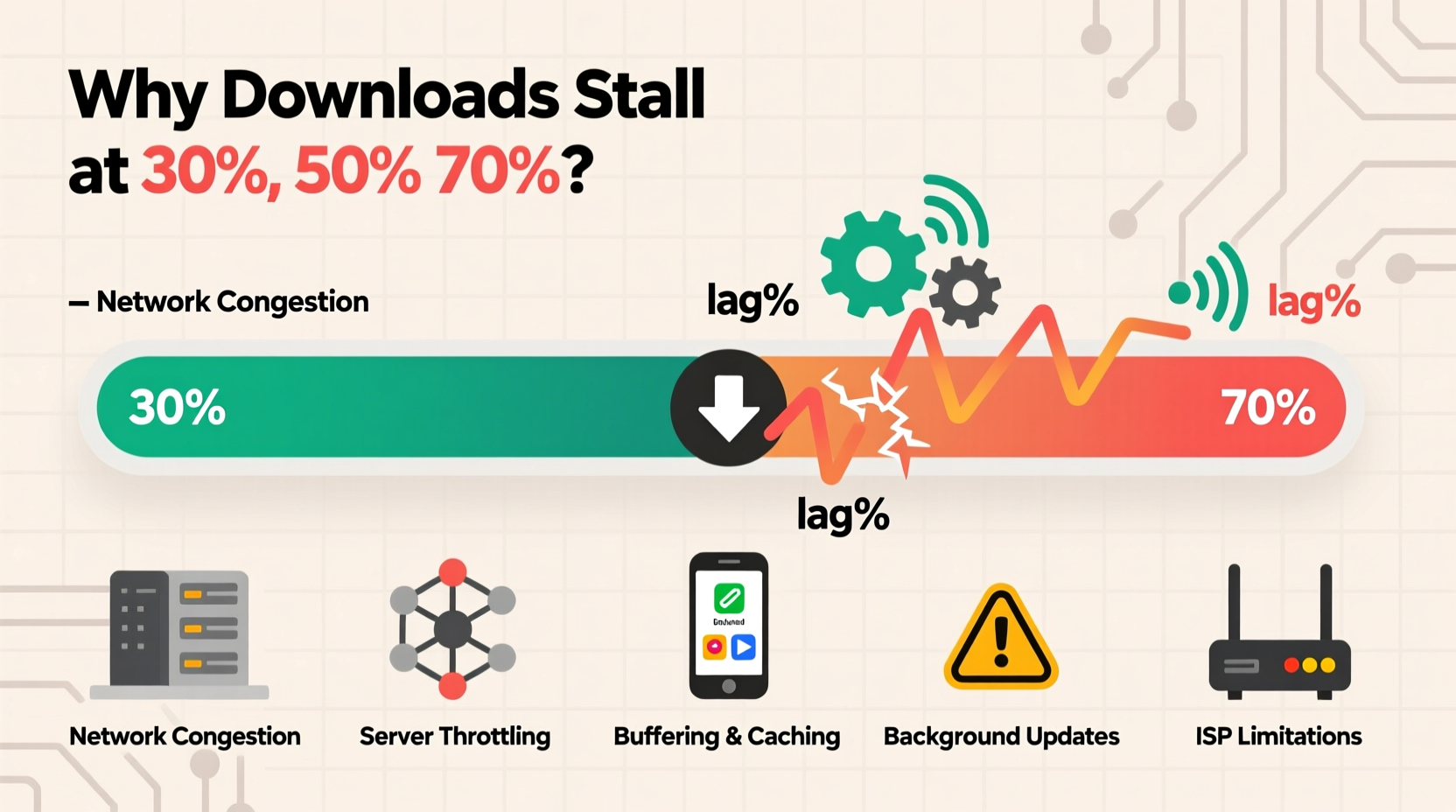
At first glance, downloading a game appears linear: bits stream from a remote server to your device until completion. In reality, the process involves multiple phases—initial data transfer, file verification, decompression, and integration into the platform’s library. The perceived \"slowdown\" often occurs not during pure downloading but during post-transfer operations that happen after most data has arrived.
For example, when a game reaches 90% on Steam, that percentage may reflect downloaded size rather than completed installation. The remaining 10% could involve unpacking compressed archives, verifying checksums, or writing files to slower sectors of your hard drive. These tasks don’t consume bandwidth but take time, creating the illusion of a stalled or sluggish connection.
Platforms use delta compression and differential updates to minimize data usage. Instead of re-downloading entire games, they send only changed portions (patches). However, reconstructing the full file from these fragments requires additional processing, especially toward the end of the download. This reconstruction phase spikes CPU and disk usage, which can bottleneck performance on older systems.
Server-Side Throttling and Peer Distribution Models
Not all control lies with your hardware. Game distribution networks often employ dynamic bandwidth allocation based on demand, region, and time of day. During peak hours, servers may throttle individual connections to maintain stability across thousands of concurrent users. This can cause speeds to drop sharply as more players come online in your region.
Additionally, platforms like Steam use a hybrid peer-to-peer (P2P) model. While primary data comes from official servers, some chunks are pulled from other nearby users who already own the game. If few peers are available for the final segments—especially rare or newly released titles—you may rely solely on distant servers with limited throughput, slowing progress at critical percentages.
Xbox Live and PlayStation Network also adjust delivery rates based on quality-of-service algorithms. These systems prioritize fairness over raw speed, meaning your connection might be intentionally capped if the network detects sustained high bandwidth usage. As the download nears completion, background maintenance tasks such as metadata syncing or license validation can further divide available resources.
“Bandwidth isn’t always the bottleneck. Modern delivery systems balance load across infrastructure, which means your ‘last mile’ experience depends as much on server logic as your own connection.” — Marcus Lin, Senior Network Engineer at CloudEdge Technologies
Hardware Limitations That Impact Final Stages
Your local hardware plays a decisive role in how smoothly a game installs. Solid-state drives (SSDs) handle write operations far better than traditional hard disk drives (HDDs), particularly when dealing with thousands of small files common in modern games. As a download progresses, the system shifts from streaming large binary chunks to writing fragmented assets—textures, scripts, audio clips—across the drive.
This shift increases input/output operations per second (IOPS), stressing mechanical drives that must physically reposition read/write heads. An HDD might sustain 100–150 MB/s during initial bulk transfers but drop to under 30 MB/s during file extraction, making the last 5–10% feel interminable.
Ram and CPU matter too. Game clients decompress data in memory before writing it to storage. Insufficient RAM forces the system to swap to virtual memory (page file), drastically reducing efficiency. Similarly, weak processors struggle with real-time decryption and integrity checks required by digital rights management (DRM) systems.
Do’s and Don’ts for Hardware Optimization
| Action | Impact |
|---|---|
| Do: Install games on an SSD | Reduces write latency and improves IOPS handling |
| Do: Close background applications during downloads | Preserves RAM and CPU for decompression tasks |
| Don’t: Use external USB 2.0 drives for large installations | Limited to ~30 MB/s, creating major bottlenecks |
| Don’t: Run virus scans mid-download | Antivirus software can lock files, delaying writes |
Network Congestion and Time-Based Patterns
Internet performance varies throughout the day. Evening hours, when most gamers are active, often see increased latency and reduced throughput due to ISP congestion. If your download crosses into these peak windows—say, starting at 6 PM and finishing past 9 PM—you may notice significant drops around the 80–95% mark simply because network conditions worsened.
Some ISPs implement traffic shaping policies that deprioritize long-duration downloads after a certain threshold. For instance, a user might enjoy gigabit speeds for the first few minutes, only to have their connection throttled once they exceed a temporary quota. This is especially common with mobile hotspots or capped broadband plans.
To test whether timing affects your downloads, try scheduling large installations overnight. Many users report faster completion rates between 2 AM and 6 AM, when network loads are lowest and server maintenance cycles are less frequent.
Step-by-Step Guide to Minimize Download Slowdowns
While you can't control server behavior entirely, you can optimize your environment to reduce delays. Follow this sequence to maximize efficiency:
- Check your current download source settings. On Steam, go to Settings > Downloads > Download Region and select the closest server. On consoles, ensure your DNS is set to automatic or use a fast resolver like Google DNS (8.8.8.8).
- Upgrade to an SSD if using an HDD. Even a SATA SSD offers 5x faster write speeds than a 7200 RPM drive, dramatically improving installation times.
- Limit bandwidth-heavy background tasks. Pause cloud backups, video streams, and automatic updates on other devices sharing the same network.
- Restart your router and client app periodically. Memory leaks in game launchers can degrade performance over long sessions. A fresh start often restores optimal speeds.
- Verify disk space and health. Low free space reduces write efficiency. Use built-in tools (e.g., Windows Check Disk, macOS First Aid) to scan for errors.
- Adjust download rate limits manually. Counterintuitively, setting a slightly lower cap (e.g., 90% of max speed) can prevent timeouts caused by aggressive throttling.
- Monitor actual vs. reported progress. Use Task Manager (Windows) or Activity Monitor (macOS) to view real-time disk and network activity. If network usage is low but disk usage is high, the bottleneck is local.
Mini Case Study: The 98% Stall on a New Release
Consider Alex, a PC gamer excited to play a highly anticipated RPG. He begins downloading the 120 GB title Friday evening at 8 PM. The first 90 GB install quickly over two hours, averaging 60 MB/s. But at 98%, the speed plummets to 3 MB/s. Frustrated, he restarts Steam, checks his Wi-Fi, and even reboots his PC—no change.
After reading about post-download processing, Alex opens Task Manager and notices 95% disk utilization and steady CPU usage despite minimal network activity. He realizes the client is now extracting and validating files, not downloading them. The next morning, after leaving the system idle overnight, the game completes and launches normally.
The issue wasn’t his internet—it was his aging 1TB HDD struggling with fragmentation and high IOPS demands. After upgrading to a 1TB NVMe SSD, subsequent game installations completed 40% faster, with no noticeable slowdowns near the end.
Expert-Backed Checklist for Smooth Game Downloads
- ✅ Confirm your internet speed meets or exceeds the game platform’s recommended bandwidth
- ✅ Install games on an SSD, preferably NVMe for fastest performance
- ✅ Set download region to the nearest geographic server
- ✅ Disable automatic updates on secondary devices during main downloads
- ✅ Keep at least 15–20% of your drive’s capacity free for optimal write performance
- ✅ Avoid running antivirus scans or system backups simultaneously
- ✅ Schedule large downloads during off-peak network hours (e.g., overnight)
- ✅ Restart the game client every 6–8 hours during extended downloads to clear memory overhead
Frequently Asked Questions
Is it normal for game downloads to slow down at 90% or higher?
Yes, it’s common. The apparent slowdown often reflects a shift from downloading to local processing—file extraction, verification, and writing to storage. True bandwidth-related slowdowns can also occur due to server load or network throttling, but many cases are tied to hardware limitations rather than internet speed.
Can my router cause download speeds to drop near completion?
Indirectly, yes. Older routers may struggle with sustained connections or suffer from overheating during long downloads. Additionally, Quality of Service (QoS) settings might deprioritize prolonged transfers. Rebooting the router or updating its firmware can resolve such issues.
Why does my download finish faster on one platform than another?
Different platforms use varying compression methods, server infrastructures, and update models. For example, Steam’s P2P sharing can accelerate downloads in densely populated regions, while standalone launchers without peer support rely solely on centralized servers, which may become overloaded during launches.
Conclusion: Take Control of Your Gaming Experience
The slowdowns you experience during the final stretch of a game download aren’t arbitrary—they’re symptoms of complex interactions between global networks, local hardware, and software design. Recognizing that the last few percentage points often involve intensive local work—not just data transfer—can shift your troubleshooting focus from internet speed alone to a broader system-wide optimization strategy.
By upgrading to faster storage, managing network timing, and understanding what happens behind the scenes, you can significantly reduce wait times and enjoy smoother access to your favorite titles. Don’t just wait for the bar to fill—optimize the entire pipeline.




 浙公网安备
33010002000092号
浙公网安备
33010002000092号 浙B2-20120091-4
Comments
No comments yet. Why don't you start the discussion?