
If your AirPods frequently drop connection when paired with your laptop, you're not alone. Thousands of users report intermittent audio cuts, sudden disconnections, or pairing failures—especially during video calls, music playback, or while switching between devices. While AirPods are designed for seamless integration within the Apple ecosystem, cross-platform use with laptops (particularly non-Mac systems) introduces compatibility variables that can destabilize the Bluetooth link.
The root causes range from outdated drivers and software bugs to environmental interference and hardware limitations. The good news: most issues are fixable without replacing equipment. This guide walks through practical, step-by-step solutions backed by technical insight and real-world testing. Whether you're using a MacBook, Windows PC, or dual-boot setup, these methods will help restore reliable connectivity.
Understanding the Root Causes of Disconnection
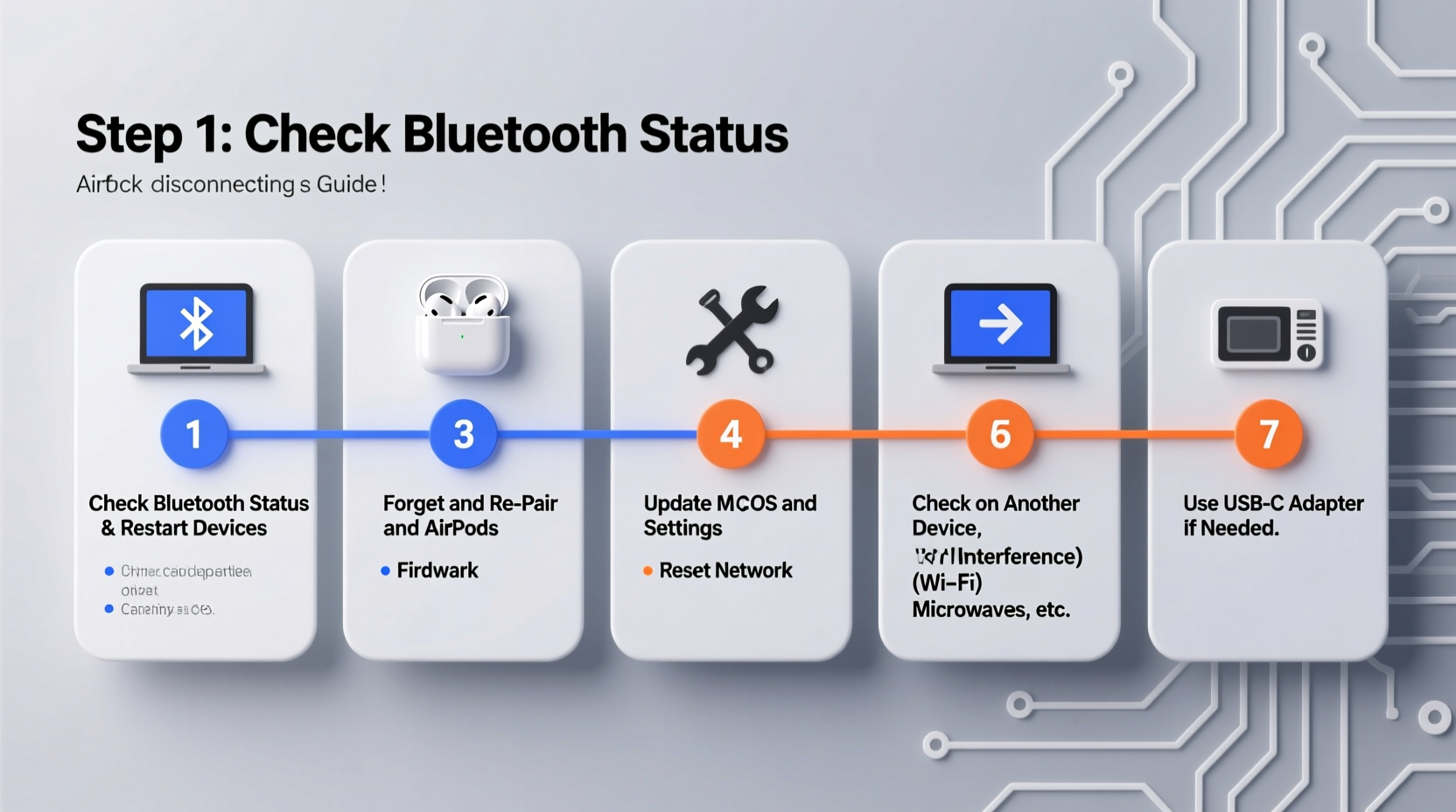
Before jumping into fixes, it's essential to understand why AirPods disconnect in the first place. Unlike wired headphones, Bluetooth relies on short-range radio signals vulnerable to multiple disruptions:
- Bluetooth interference: Nearby wireless devices like routers, cordless phones, or even microwaves can interfere with the 2.4 GHz band used by Bluetooth.
- Driver or firmware issues: Outdated Bluetooth drivers (on Windows) or unpatched operating system bugs can prevent stable pairing.
- Battery imbalance: If one AirPod drains faster than the other, the system may drop the connection entirely.
- Multitasking across devices: Automatic switching between iPhone, iPad, and laptop can cause confusion in device priority.
- Hardware degradation: Physical damage or moisture exposure—even minor—can impair wireless performance over time.
“Bluetooth stability isn’t just about signal strength—it’s a balance of protocol compatibility, power management, and environmental factors.” — Dr. Lena Patel, Wireless Communications Engineer at MIT Lincoln Lab
Recognizing which factor applies to your situation is half the battle. The following sections break down targeted actions based on platform, behavior, and symptom type.
Step-by-Step Troubleshooting Guide
Follow this logical sequence to isolate and resolve the disconnection issue. Start with basic checks before moving to advanced configurations.
- Check battery levels: Ensure both AirPods and the charging case have sufficient charge. A low battery (below 20%) increases disconnection risk.
- Restart Bluetooth: Turn Bluetooth off and on again on your laptop. On macOS: > System Settings > Bluetooth. On Windows: Action Center > Bluetooth icon.
- Re-pair your AirPods: Remove the device from your Bluetooth list, then re-pair it as if new. This clears corrupted pairing data.
- Test with another device: Pair your AirPods with an iPhone or tablet. If they disconnect there too, the issue may be with the AirPods themselves.
- Update your OS: Install pending updates for macOS or Windows. Many Bluetooth fixes come via system patches.
- Reset Bluetooth module (macOS): Hold Shift + Option, click the Bluetooth menu bar icon, and select “Debug > Reset the Bluetooth module.”
- Update Bluetooth drivers (Windows): Open Device Manager, expand “Bluetooth,” right-click your adapter, and choose “Update driver.”
- Disable Bluetooth power-saving (Windows): In Device Manager, go to your Bluetooth adapter’s Properties > Power Management, and uncheck “Allow the computer to turn off this device to save power.”
- Forget all paired devices: On your AirPods, press and hold the setup button on the case for 15 seconds until the status light flashes amber, then white. This resets the AirPods’ pairing history.
- Use a USB Bluetooth adapter (if applicable): Older laptops with weak internal antennas benefit from external Bluetooth 5.0+ dongles.
Platform-Specific Fixes
Different operating systems handle Bluetooth differently. Here’s how to optimize each environment.
For macOS Users
Apple devices generally offer the smoothest AirPods experience—but even MacBooks aren’t immune to glitches.
- Ensure Handoff is enabled: Go to System Settings > General > AirDrop & Handoff and turn on “AirPods.” This enables seamless audio handoff.
- Check audio output settings: Click the sound icon in the menu bar and confirm your AirPods are selected as the output device.
- Reset NVRAM/PRAM: Shut down your Mac, then power on while holding Option + Command + P + R for about 20 seconds. This clears cached hardware settings.
For Windows Users
Windows lacks native optimization for AirPods, leading to higher dropout rates. However, several workarounds improve reliability.
- Install Apple’s Bluetooth drivers (if available): Some older Boot Camp setups include optimized drivers. Check your system’s Boot Camp folder.
- Switch to AAC codec manually: AirPods perform best with AAC, but Windows defaults to SBC. Use third-party tools like Bluetooth Audio Receiver or AutoBlue to force AAC support.
- Run the Bluetooth troubleshooter: Settings > System > Troubleshoot > Other troubleshooters > Bluetooth > Run.
| Issue | macOS Fix | Windows Fix |
|---|---|---|
| Random disconnections | Reset Bluetooth module | Update Intel/Ralink Bluetooth driver |
| No sound after connect | Select AirPods in Sound Output | Set as default communication device |
| Lag during video calls | Close background apps | Disable Bluetooth power saving |
| Fails to appear in device list | Reset AirPods via case | Delete device, restart Bluetooth service |
Common Mistakes That Worsen the Problem
Sometimes, well-intentioned habits actually make disconnections worse. Avoid these pitfalls:
- Leaving Bluetooth on unnecessarily: Running Bluetooth 24/7 drains resources and increases interference exposure.
- Ignoring firmware updates: AirPods receive silent firmware updates through connected iOS devices. If you don’t own an iPhone, your AirPods may run outdated firmware.
- Using AirPods near metal surfaces: Laptops with aluminum chassis can reflect or block Bluetooth signals, especially if the AirPods case is placed directly on the surface.
- Overloading the USB ports: On Windows machines, plugging in multiple USB 3.0 devices can generate electromagnetic noise that disrupts 2.4 GHz wireless signals.
Real-World Case Study: Remote Worker Regains Stability
Jamal, a freelance copywriter based in Denver, relied on his AirPods Pro for daily Zoom meetings with clients. Over two weeks, he experienced increasing disconnections—sometimes mid-sentence—on his Windows 10 Dell XPS. He tried restarting, re-pairing, and even bought a new charging cable, assuming it was a power issue.
After reading about Bluetooth interference, he noticed his laptop sat directly next to a high-gain Wi-Fi router. He moved his workspace six feet away and disabled the “Allow computer to turn off Bluetooth” setting in Device Manager. He also installed the latest Bluetooth driver from Dell’s support site.
Result: No disconnections over the next 14 days. His call quality improved, and client complaints ceased. The fix wasn’t a new gadget—it was understanding signal ecology.
Preventative Maintenance Checklist
To avoid future disconnections, follow this monthly maintenance routine:
- ✅ Re-pair your AirPods with your primary laptop
- ✅ Check for OS and driver updates
- ✅ Clean AirPods mesh with a dry, soft brush
- ✅ Verify firmware version via an iOS device (Settings > Bluetooth > AirPods info > Firmware Version)
- ✅ Test microphone and audio balance in system preferences
- ✅ Store in a dry, room-temperature environment
Frequently Asked Questions
Can AirPods connect reliably to non-Apple laptops?
Yes, but with limitations. AirPods function as standard Bluetooth headphones on Windows or Linux, meaning you’ll lose features like automatic switching, spatial audio, and precise battery tracking. Connection stability depends heavily on the laptop’s Bluetooth hardware and driver support. For best results, use Bluetooth 5.0 or higher adapters.
Why do my AirPods disconnect when I close my laptop lid?
This is usually a power management setting. On Windows, go to Power Options > Choose what closing the lid does, and set it to “Do nothing” or ensure Bluetooth isn’t suspended. On macOS, if your Mac goes to sleep, Bluetooth may disconnect unless Wake for Wi-Fi Access is enabled in Energy Saver settings.
How do I check my AirPods' firmware version?
You need an iPhone or iPad. Go to Settings > Bluetooth, tap the “i” icon next to your AirPods, and view the firmware version. Current versions start with 6B38 (AirPods Pro 2), 5B57 (AirPods 3), or later. Firmware updates install automatically when your AirPods are charged and connected to an iOS device.
Final Recommendations for Long-Term Reliability
Sustained AirPods performance on a laptop requires proactive care. Treat your wireless connection like any critical tool: maintain it regularly, respect its limitations, and optimize your environment. Prioritize driver updates, minimize RF congestion, and reset pairing data periodically—even if no issues are present.
For Windows users, consider investing in a dedicated USB-C Bluetooth 5.2 adapter. These cost under $20 and often outperform built-in laptop radios. On macOS, leverage Continuity features fully by keeping an iPhone nearby for seamless handoff.
“Stability in wireless audio isn’t magic—it’s maintenance.” — Adrian Lowe, Senior Acoustics Analyst at SoundReview Labs
Take Control of Your Listening Experience
Disconnections don’t have to be part of your daily routine. With the right adjustments, your AirPods can deliver consistent, high-quality audio whether you’re editing documents, attending virtual meetings, or unwinding with music. Apply the steps in this guide methodically, document what works, and refine your setup over time.




 浙公网安备
33010002000092号
浙公网安备
33010002000092号 浙B2-20120091-4
Comments
No comments yet. Why don't you start the discussion?