
App crashes on Android devices are frustratingly common, but they’re rarely random. Whether it’s your messaging app freezing mid-conversation or your banking app closing unexpectedly, frequent crashes disrupt productivity and erode trust in your device. The good news: most issues have straightforward explanations and even simpler solutions. Understanding the root causes—ranging from outdated software to memory constraints—can help you restore stability quickly. This guide walks through the most likely culprits behind app instability and delivers actionable fixes you can apply immediately.
Common Causes of App Crashes on Android
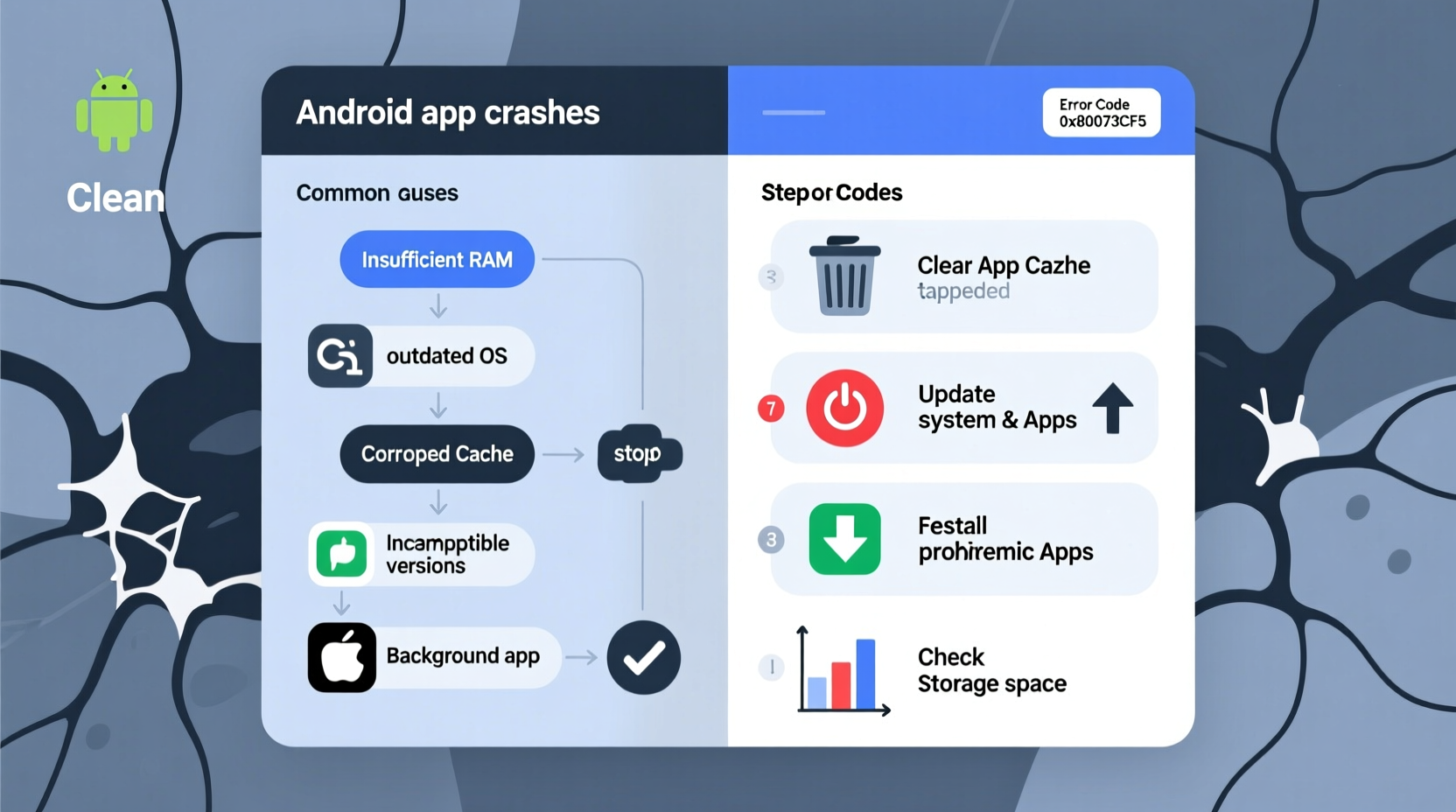
Before jumping into fixes, it helps to understand what’s triggering the instability. Apps crash when they encounter conditions they can’t handle—errors in code, lack of resources, or conflicts with system settings. Below are the top reasons apps fail on Android:
- Incompatible or outdated apps: Developers regularly update apps to patch bugs and support new OS versions. Using an old version on a newer Android build may cause instability.
- Insufficient storage space: When internal storage drops below 10%, the system struggles to manage background processes and cache files, leading to forced closures.
- Corrupted app data or cache: Temporary files accumulate over time and can become corrupted, interfering with normal app operation.
- Conflicting third-party apps: Some apps, especially those with deep system access (like battery savers or security tools), interfere with others.
- Outdated Android OS: Older operating systems may not support current app frameworks, causing compatibility issues.
- Hardware limitations: Low RAM or aging processors can't efficiently run modern, resource-heavy applications.
Step-by-Step Diagnosis and Fixes
Follow this structured approach to identify and resolve the source of app crashes. Start with basic checks and escalate only if needed.
- Restart your phone. A simple reboot clears temporary glitches, resets memory allocation, and stops rogue processes. Many transient crashes disappear after a restart.
- Check for app updates. Open the Google Play Store, tap your profile icon, and select \"Manage apps & device.\" Update any pending apps, especially the ones crashing.
- Update your Android OS. Go to Settings > System > System Update. Installing the latest security patches and feature updates often resolves underlying compatibility bugs.
- Clear the app’s cache. Navigate to Settings > Apps > [Problematic App] > Storage & Cache > Clear Cache. This removes temporary files without deleting your login data or preferences.
- Clear app data (if necessary). If clearing cache doesn’t help, try Clear Data. Note: This logs you out and resets the app to default settings.
- Reinstall the app. Uninstall the app completely, then reinstall it from the Play Store. This ensures a clean, uncorrupted installation.
- Boot in Safe Mode. Hold the power button, press and hold “Power off,” then tap “Reboot to safe mode.” In Safe Mode, only system apps run. If the app works here, a third-party app is likely interfering.
- Check available storage. Go to Settings > Storage. If free space is under 1 GB, delete unused apps, photos, or cached files.
When to Factory Reset (and How to Avoid It)
A factory reset should be a last resort. It wipes all data and returns the phone to its original state. Before taking this step:
- Back up contacts, photos, and documents to Google Drive or a computer.
- Confirm that multiple apps are still crashing after trying all previous fixes.
- Ensure your device is charged above 50%.
To perform a reset: Settings > System > Reset options > Erase all data (factory reset).
“Over 70% of app crashes reported to us were resolved by updating the app or clearing cache. Only 5% required deeper intervention like OS reinstallation.” — Rajiv Mehta, Senior Support Engineer at Android Developer Relations
Do’s and Don’ts: Managing App Stability
| Do | Don’t |
|---|---|
| Keep your apps and OS updated regularly | Ignore update notifications for extended periods |
| Clear app cache monthly as maintenance | Delete app data unless absolutely necessary |
| Monitor storage and remove bloat periodically | Install apps from unknown sources (APKs) |
| Use built-in battery optimization features | Grant excessive permissions to untrusted apps |
| Test new apps gradually to spot issues early | Run too many apps simultaneously on low-RAM devices |
Real-World Example: Fixing WhatsApp Crashes on a Samsung Galaxy S10
Sarah, a freelance designer, noticed WhatsApp kept closing when she tried to send voice notes. She couldn’t send messages reliably, affecting client communication. Her initial reaction was to uninstall and reinstall, but the problem returned within hours.
She followed a diagnostic path:
- First, she restarted her phone—no change.
- She checked for updates: both WhatsApp and her Android OS were current.
- She cleared WhatsApp’s cache via Settings > Apps > WhatsApp > Storage > Clear Cache.
- After clearing cache, the app launched smoothly and sent voice notes without issue.
The root cause? A corrupted audio cache file that grew too large and conflicted with media encoding. By clearing the cache, Sarah restored normal function without losing any messages or settings.
Advanced Troubleshooting: Identifying System Conflicts
If standard fixes don’t work, dig deeper into system-level interactions. Here’s how:
1. Use Google Play Console Messages
The Play Store sometimes displays error codes when an app fails to install or update. Common codes include:
- DF-BPA-09: Corrupted download. Fix: Clear Google Play Store cache (Settings > Apps > Google Play Store > Storage > Clear Cache).
- RPC:S-7:AEC-0: Authentication failure. Fix: Remove and re-add your Google account.
- App not installed: Often due to APK corruption or disabled “Install unknown apps” setting.
2. Check Battery Optimization Settings
Aggressive battery-saving modes can kill background processes prematurely. To adjust:
- Go to Settings > Apps > [App Name] > Battery.
- Select “Unrestricted” instead of “Optimized.”
- Repeat for critical apps like email, navigation, or health trackers.
3. Disable Conflicting Apps
Security apps, task killers, or custom launchers often conflict with normal app behavior. Try disabling them one by one to isolate the culprit. For example:
- Disable battery saver or “performance booster” tools.
- Turn off accessibility services used by third-party apps.
- Temporarily uninstall recently added apps that request broad permissions.
Preventive Maintenance Checklist
To minimize future crashes, adopt these habits as part of your monthly device care routine:
- ✅ Update all apps via Google Play Store
- ✅ Clear cache for top 5 frequently used apps
- ✅ Review storage usage and delete unnecessary files
- ✅ Reboot your phone to refresh system processes
- ✅ Check for Android system updates
- ✅ Audit app permissions and revoke unnecessary access
- ✅ Uninstall apps you haven’t used in over 30 days
This routine takes less than 15 minutes and significantly reduces the risk of instability.
Frequently Asked Questions
Why do apps crash only on my phone and not my friend’s, even though we have the same model?
Differences in installed apps, storage levels, update history, or account sync settings can create unique environments. One device might have a conflicting app or corrupted data that the other doesn’t. Always compare recent changes or installations.
Can malware cause apps to crash?
Yes. Malicious apps can inject code that interferes with legitimate apps or overload system resources. Stick to the Google Play Store, avoid sideloading APKs, and use Google Play Protect to scan apps automatically.
Will increasing RAM fix app crashes?
Physical RAM can’t be upgraded on most Android phones. However, using Lite versions of apps (e.g., Facebook Lite, YouTube Go) or enabling “Lite mode” in Chrome reduces memory load. On devices with 3GB RAM or less, limiting multitasking improves stability.
Conclusion: Take Control of Your Android Experience
App crashes don’t have to be a daily annoyance. With a methodical approach, most issues can be diagnosed and fixed in under 20 minutes. The key is to start simple—restart, update, clear cache—before moving to advanced steps. Regular maintenance prevents small issues from snowballing into major problems. Your Android device is designed to run smoothly for years, but it needs consistent care just like any sophisticated tool.




 浙公网安备
33010002000092号
浙公网安备
33010002000092号 浙B2-20120091-4
Comments
No comments yet. Why don't you start the discussion?