
Bluetooth headphones offer freedom from wires, but nothing is more frustrating than mid-podcast dropouts or music cutting out during a workout. If you've been asking, “Why do my headphones keep disconnecting from Bluetooth?” you're not alone. Millions of users face similar issues across brands like Sony, Apple, Bose, and Samsung. The good news: most connection problems are fixable with simple steps—no technical degree required.
Bluetooth disconnections stem from a mix of hardware limitations, software glitches, environmental interference, and device compatibility. Understanding the root cause helps you apply the right solution fast. This guide breaks down the most common reasons for dropouts and provides actionable fixes that work across devices—whether you’re using an iPhone, Android phone, laptop, or tablet.
Common Causes of Bluetooth Disconnection
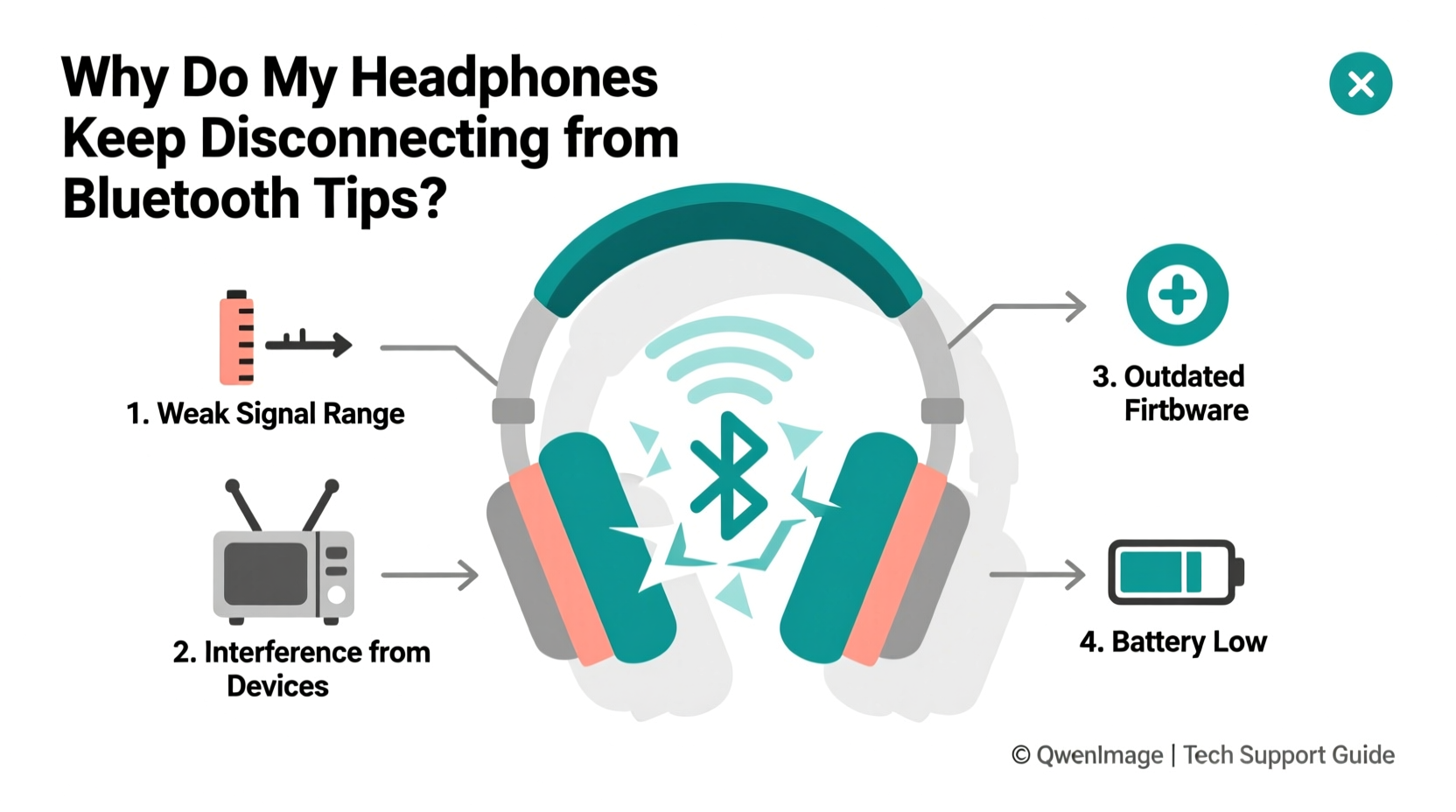
Before jumping into fixes, it's essential to understand what might be causing your headphones to disconnect. Identifying the culprit saves time and prevents unnecessary replacements.
- Signal Interference: Wi-Fi routers, microwaves, and other wireless devices operate on the 2.4 GHz frequency band—the same as Bluetooth. When multiple signals compete, your audio stream can falter.
- Low Battery: A weak battery doesn’t just reduce playtime—it can destabilize the Bluetooth signal. Some headphones disconnect entirely when power drops below a threshold.
- Outdated Firmware: Both your headphones and source device (phone, laptop) rely on firmware updates to maintain stable connections. Missing updates may introduce bugs or compatibility issues.
- Distance and Obstructions: Bluetooth has a limited range—typically up to 30 feet (10 meters) in ideal conditions. Walls, furniture, and even your body can block the signal.
- Device Pairing Limits: Many Bluetooth headphones auto-switch between paired devices. If your earbuds are connected to both your phone and laptop, they may switch unexpectedly, causing a dropout on one device.
- Software Glitches: Temporary bugs in your phone’s operating system or Bluetooth stack can interrupt connectivity without warning.
Step-by-Step Troubleshooting Guide
Follow this systematic approach to diagnose and resolve disconnection issues. Start at Step 1 and move forward until the problem resolves.
- Restart Both Devices
Turn off your headphones and source device (phone/laptop), wait 30 seconds, then power them back on. This clears temporary glitches in the Bluetooth stack—a surprisingly effective first step. - Check Battery Levels
Ensure both your headphones and connected device have sufficient charge. Low power can degrade signal strength. Charge both fully and retest. - Move Closer and Remove Obstacles
Bring your headphones within arm’s length of your device. Avoid placing walls, metal objects, or large electronics between them. - Forget and Re-Pair the Device
On your phone or computer, go to Bluetooth settings, find your headphones, and select \"Forget This Device.\" Then, put your headphones in pairing mode and reconnect them fresh. - Update Firmware and Software
Check the manufacturer’s app (e.g., Sony Headphones Connect, Samsung Wearable, Bose Connect) for headphone firmware updates. Also, ensure your phone’s OS is up to date. - Disable Battery-Saving Modes
Some phones aggressively limit background processes to save power—including Bluetooth. Temporarily disable battery saver mode to test if it’s the cause. - Test with Another Device
Pair your headphones with a different phone, tablet, or laptop. If the issue persists, the problem likely lies with the headphones. If not, the original device is at fault.
Do’s and Don’ts When Fixing Bluetooth Issues
| Do | Don’t |
|---|---|
| Keep devices updated regularly | Ignore firmware update notifications |
| Use headphones within optimal range | Place your phone in a microwave while using Bluetooth |
| Clean Bluetooth cache on Android (via Settings > Apps > Show System Apps > Bluetooth > Storage > Clear Cache) | Reset your entire phone without trying simpler fixes first |
| Limit active Bluetooth devices nearby | Assume all dropouts mean your headphones are defective |
Real-World Example: Office Worker Solves Daily Dropouts
Jamie, a project manager in Toronto, relied on AirPods Pro for back-to-back Zoom calls. Every afternoon around 2 PM, her headphones would disconnect—sometimes mid-sentence. Colleagues noticed awkward silences, and she began missing key points.
After testing several theories, Jamie discovered her office desk sat directly between her laptop and a high-gain Wi-Fi router. Her Bluetooth signal was being drowned out during peak network usage. She moved her laptop six inches to the left—away from the router—and disabled her phone’s hotspot function, which had been running in the background. The disconnections stopped immediately.
This case highlights how subtle environmental factors can disrupt Bluetooth stability—even when everything else seems fine.
Expert Insight: What Engineers Say About Bluetooth Stability
“Many users blame their headphones when the real issue is radio congestion. Modern offices are saturated with 2.4 GHz signals. Simple changes—like switching your Wi-Fi channel or updating firmware—can restore reliable audio.” — Dr. Lena Park, Wireless Systems Engineer at IEEE
Engineers emphasize that Bluetooth 5.0 and later versions offer better range and interference resistance. However, these benefits only materialize when both transmitting and receiving devices support the standard. Older phones—even if they support Bluetooth—may use outdated chipsets that struggle with modern audio demands.
Quick Tips Checklist
Use this checklist whenever you experience unexpected disconnections:
- ✅ Restart headphones and source device
- ✅ Confirm both devices are charged above 30%
- ✅ Move closer—within 3–6 feet of the audio source
- ✅ Forget and re-pair the Bluetooth connection
- ✅ Disable battery saver or power-saving modes
- ✅ Update headphone firmware via manufacturer app
- ✅ Test with a second device to isolate the problem
- ✅ Reduce nearby wireless interference (turn off unused Bluetooth devices)
When Hardware Might Be the Issue
Sometimes, no amount of troubleshooting resolves the problem. Persistent disconnections after trying all software fixes may indicate hardware failure. Common signs include:
- One earbud consistently dropping before the other
- Firmware updates failing repeatedly
- No sound despite successful pairing
- Physical damage to charging case or earbud housing
If your headphones are under warranty, contact the manufacturer. Many companies offer free replacements for units less than 12–24 months old. Even out-of-warranty models may qualify for discounted repairs.
Note: Cheap third-party Bluetooth adapters or counterfeit cables can damage internal components over time. Always use certified chargers and avoid unofficial accessories.
Frequently Asked Questions
Why do my Bluetooth headphones disconnect when I walk away?
Bluetooth has a limited range—usually 30 feet in open space. Walls, furniture, and appliances weaken the signal further. If you leave the room or go beyond line of sight, disconnection is expected. To minimize dropouts, stay close and reduce obstacles between devices.
Can Wi-Fi affect my Bluetooth headphones?
Yes. Both Wi-Fi and Bluetooth use the 2.4 GHz frequency band. High network traffic—from video calls, streaming, or downloads—can interfere with audio signals. Try switching your router to the 5 GHz band for Wi-Fi, leaving 2.4 GHz less congested for Bluetooth.
Why do my headphones keep disconnecting only on one device?
This usually indicates a software issue with that specific device. Clear the Bluetooth cache (on Android), reset network settings, or update the OS. It could also be due to aggressive power management—disable battery saver mode and see if stability improves.
Final Thoughts: Stay Connected With Confidence
Bluetooth disconnections are annoying but rarely permanent. Most issues stem from correctable factors like distance, interference, or outdated software—not faulty gear. By following the steps outlined here, you can restore reliable audio in minutes.
Start with the basics: restart, re-pair, and update. Then refine your environment to reduce signal competition. Over time, develop habits—like regular firmware checks and mindful placement—that prevent problems before they start.
Remember, technology should serve you—not frustrate you. A few small adjustments can transform an unreliable listening experience into seamless, wire-free enjoyment.




 浙公网安备
33010002000092号
浙公网安备
33010002000092号 浙B2-20120091-4
Comments
No comments yet. Why don't you start the discussion?