
If your headphones keep cutting out or dropping connection from your laptop, you're not alone. Whether you're using wireless Bluetooth earbuds, over-ear headphones, or even USB-C or 3.5mm wired models, intermittent disconnections are a common but frustrating issue. The causes vary widely — from software glitches and outdated drivers to interference and hardware faults. The good news is most problems can be resolved with systematic troubleshooting. This guide walks through the real reasons behind headphone dropouts and delivers tested solutions that actually work.
Understanding the Root Causes of Disconnection
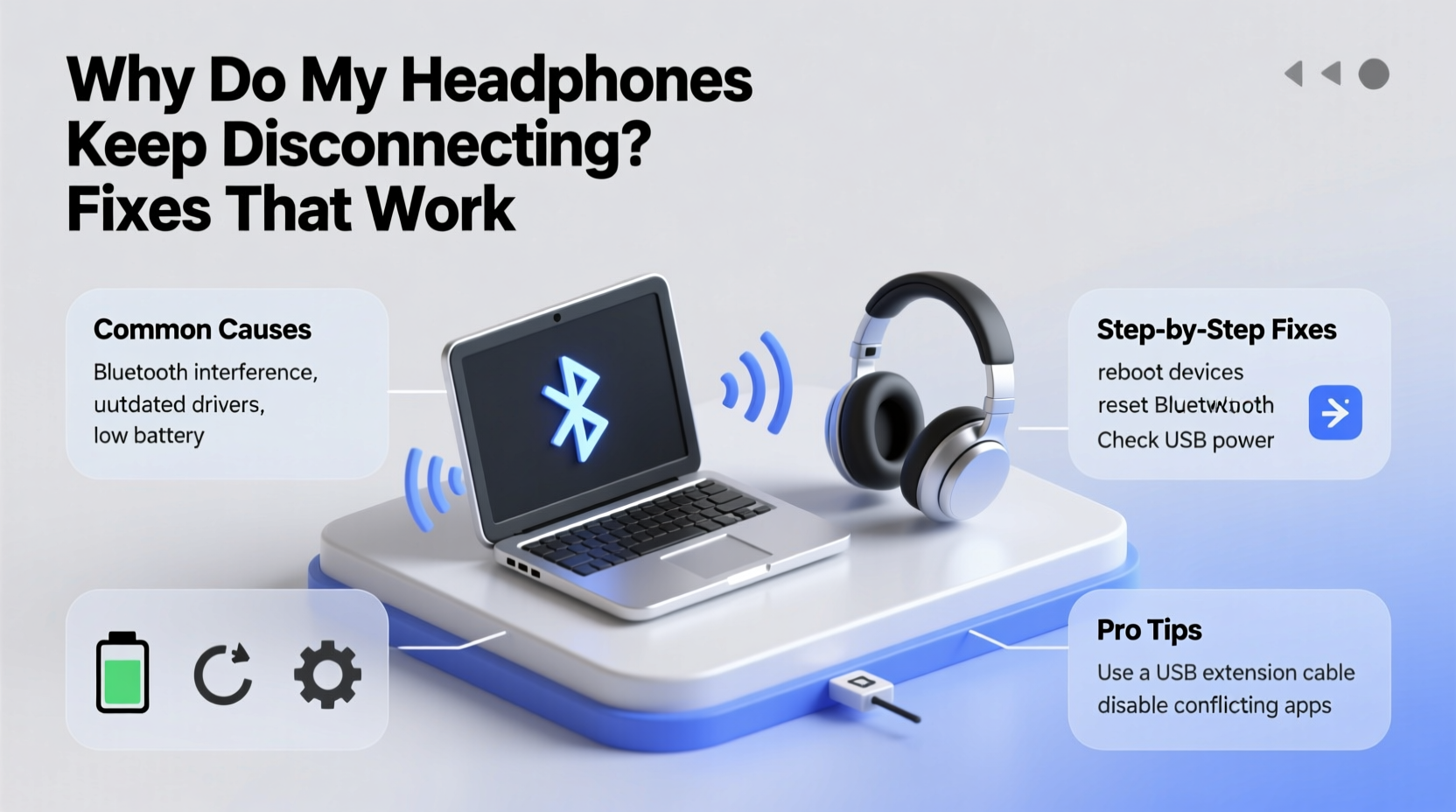
Before jumping into fixes, it helps to understand why disconnections happen. Headphones — especially wireless ones — rely on a stable signal path between your laptop and the audio device. Any disruption in that link can cause audio to cut out, stutter, or disconnect entirely. Common culprits include:
- Bluetooth interference from nearby devices like microwaves, routers, or other Bluetooth gadgets.
- Outdated or corrupted audio drivers that fail to maintain a consistent connection.
- Power-saving settings that disable USB or Bluetooth adapters to conserve energy.
- Low battery in wireless headphones triggering auto-shutdown or unstable performance.
- Hardware defects such as damaged cables (for wired) or faulty internal components in either device.
- Software conflicts from third-party audio applications or background processes.
Pinpointing the exact source requires methodical testing. Jumping straight to factory resets or buying new gear often isn’t necessary — many issues can be fixed in under 10 minutes.
Step-by-Step Fixes That Work
Follow this structured approach to identify and resolve the root cause. Start with the simplest checks and progress to more advanced solutions if needed.
- Check Battery and Physical Condition
For wireless headphones, ensure they’re sufficiently charged. Low power can cause erratic behavior. Also inspect for visible damage — frayed wires, cracked casings, or loose connectors — which may interrupt signal transmission. - Restart Both Devices
A soft reboot clears temporary glitches. Turn off your headphones, shut down your laptop completely, then power both back on. Re-pair if necessary. - Move Closer and Reduce Interference
Bluetooth range is typically 30 feet (10 meters) in open space. Obstacles like walls or metal furniture weaken signals. Move closer and turn off nearby wireless devices temporarily to test stability. - Forget and Re-Pair Bluetooth Connection
Go to your laptop’s Bluetooth settings, select your headphones, and click “Remove Device” or “Forget.” Then put your headphones in pairing mode and reconnect them fresh. This clears corrupted pairing data. - Update Audio and Bluetooth Drivers
Outdated drivers are a leading cause of instability. On Windows, open Device Manager, expand \"Bluetooth\" and \"Sound, video and game controllers,\" right-click each relevant device, and select \"Update driver.\" Choose automatic search or download the latest version from your laptop manufacturer’s support site. - Disable Power Management for Bluetooth
Windows sometimes turns off Bluetooth to save power. In Device Manager, right-click your Bluetooth adapter (e.g., Intel Wireless Bluetooth), go to Properties > Power Management, and uncheck \"Allow the computer to turn off this device to save power.\" - Run the Audio Troubleshooter
On Windows 10/11, go to Settings > System > Sound > Troubleshoot common sound problems. Let the tool scan for issues and apply recommended fixes automatically. - Clear Paired Device Limits
Some laptops struggle when too many Bluetooth devices are remembered. Remove old or unused devices from your Bluetooth list to free up resources. - Test with Different Audio Output
Plug in wired headphones or use built-in speakers. If those work without interruption, the issue is isolated to your current headphones or their wireless connection. - Reset BIOS/UEFI Settings (Advanced)
In rare cases, firmware-level misconfigurations affect USB or Bluetooth functionality. Access your BIOS during boot (usually by pressing F2, Del, or Esc), and reset to default settings. Save and exit.
Common Mistakes That Make It Worse
Sometimes, well-intentioned actions make the problem worse. Avoid these pitfalls:
| Mistake | Why It's Harmful | Better Alternative |
|---|---|---|
| Constantly re-pairing without forgetting first | Creates duplicate entries and confusion in the Bluetooth stack | Always forget the device before re-pairing |
| Using third-party driver updaters | Often install incompatible or bloatware drivers | Download drivers only from official manufacturer websites |
| Ignoring system updates | Missing critical patches for Bluetooth stability | Enable automatic OS updates |
| Assuming it’s the headphones’ fault immediately | Leads to unnecessary returns or replacements | Test across multiple devices first |
Expert Insight: What Engineers Say About Bluetooth Stability
Bluetooth technology has improved dramatically, but it still operates on shared radio frequencies vulnerable to congestion. Experts emphasize proper configuration over replacement.
“Most ‘faulty headphone’ complaints we see are actually due to outdated host drivers or improper pairing procedures. Before replacing hardware, audit the full ecosystem — OS, firmware, and environment.” — Rajiv Mehta, Senior Firmware Engineer at Nordic Semiconductor
Mehta also notes that Bluetooth 5.0+ devices perform significantly better in dense wireless environments, thanks to improved coexistence algorithms and dual-band support. If you're using older headphones (pre-2016), upgrading may be justified — but only after exhausting software fixes.
Mini Case Study: Fixing Persistent Dropouts on a Dell XPS
A freelance writer using a Dell XPS 13 reported her Sony WH-1000XM4 headphones would disconnect every few minutes during Zoom calls. She tried multiple reboots and even considered returning the headphones. After testing, here’s what worked:
- She confirmed the headphones worked flawlessly with her iPhone, ruling out hardware failure.
- The issue persisted across two different Wi-Fi networks, eliminating local interference as the sole cause.
- Checking Device Manager revealed an outdated Intel Bluetooth driver dated June 2021.
- She downloaded the latest driver directly from Dell’s support page, installed it, and disabled power saving for the adapter.
- After re-pairing, the disconnections stopped completely.
This case highlights how a single outdated component can undermine an otherwise high-performing setup. The fix took less than 15 minutes and cost nothing.
Wired Headphones Can Disconnect Too — Here’s Why
Even non-Bluetooth headphones aren't immune. If your wired pair keeps cutting out, the issue might not be the cable. Modern laptops often treat 3.5mm jacks as configurable audio ports (supporting headsets with mics), and software bugs can cause detection failures.
Try these steps:
- Plug and unplug the headphones several times to trigger re-detection.
- Check if the port supports both output and input — some apps switch modes unexpectedly.
- Clean the headphone jack gently with compressed air — dust or lint can interfere with contact.
- In Windows, open Sound settings and ensure your headphones are set as the default playback device.
- Update your audio driver (Realtek, Conexant, etc.) via Device Manager.
If crackling or one-sided audio occurs, the cable itself may be damaged. Wiggle the cord near the plug while playing audio to check for intermittent breaks.
Troubleshooting Checklist
Use this concise checklist to quickly diagnose and fix headphone disconnections:
- ✅ Charge headphones fully
- ✅ Test with another device
- ✅ Restart laptop and headphones
- ✅ Forget and re-pair Bluetooth device
- ✅ Update Bluetooth and audio drivers
- ✅ Disable power-saving for Bluetooth adapter
- ✅ Run Windows Audio Troubleshooter
- ✅ Remove other paired Bluetooth devices
- ✅ Check for OS updates
- ✅ Clean headphone jack (wired models)
Frequently Asked Questions
Why do my Bluetooth headphones randomly disconnect when my laptop wakes from sleep?
This is typically caused by Windows allowing the system to power down the Bluetooth adapter during sleep. To fix it, go to Device Manager, find your Bluetooth adapter, right-click > Properties > Power Management, and uncheck “Allow the computer to turn off this device to save power.”
Can a crowded Wi-Fi network affect my Bluetooth headphones?
Yes. Bluetooth uses the 2.4 GHz band, which is shared with many Wi-Fi networks, microwaves, and cordless phones. If your area has heavy wireless traffic, consider switching your router to 5 GHz (if supported) to reduce congestion. Alternatively, move closer to your laptop to strengthen the Bluetooth signal.
I’ve tried everything — should I replace my headphones?
Not yet. If all software fixes fail and the issue persists across multiple laptops or phones, then hardware failure is likely. But if the headphones work fine elsewhere, the problem is with your laptop’s Bluetooth module or configuration. Consider using a USB Bluetooth 5.0+ dongle as a reliable workaround.
Final Thoughts: Don’t Replace — Repair and Optimize
Headphone disconnections are rarely due to irreparable hardware flaws. More often, they stem from overlooked settings, outdated software, or environmental factors that are easily corrected. By following a disciplined troubleshooting process — starting with simple resets and progressing to driver updates and configuration changes — you can restore stable audio without spending a dime.
Modern laptops and headphones are designed to work together seamlessly, but that harmony depends on maintenance. Regular driver updates, mindful placement, and clean pairing histories go a long way toward preventing future issues. Treat your audio setup like any other critical tech system: occasional care prevents major breakdowns.




 浙公网安备
33010002000092号
浙公网安备
33010002000092号 浙B2-20120091-4
Comments
No comments yet. Why don't you start the discussion?