
Smart lighting promises seamless ambiance—gentle sunrise simulations, gradual dimming at bedtime, or dynamic color shifts during movie nights. But when your programmable lights skip steps in a Google Home schedule, the experience falls flat. Instead of a smooth transition from bright white to warm amber, the lights might jump instantly or ignore intermediate settings altogether. This inconsistency isn’t random; it’s usually rooted in how Google Home interprets commands, device communication delays, or limitations in automation logic. Understanding these causes is the first step toward achieving reliable, fluid lighting routines.
How Google Home Schedules Work with Smart Lights
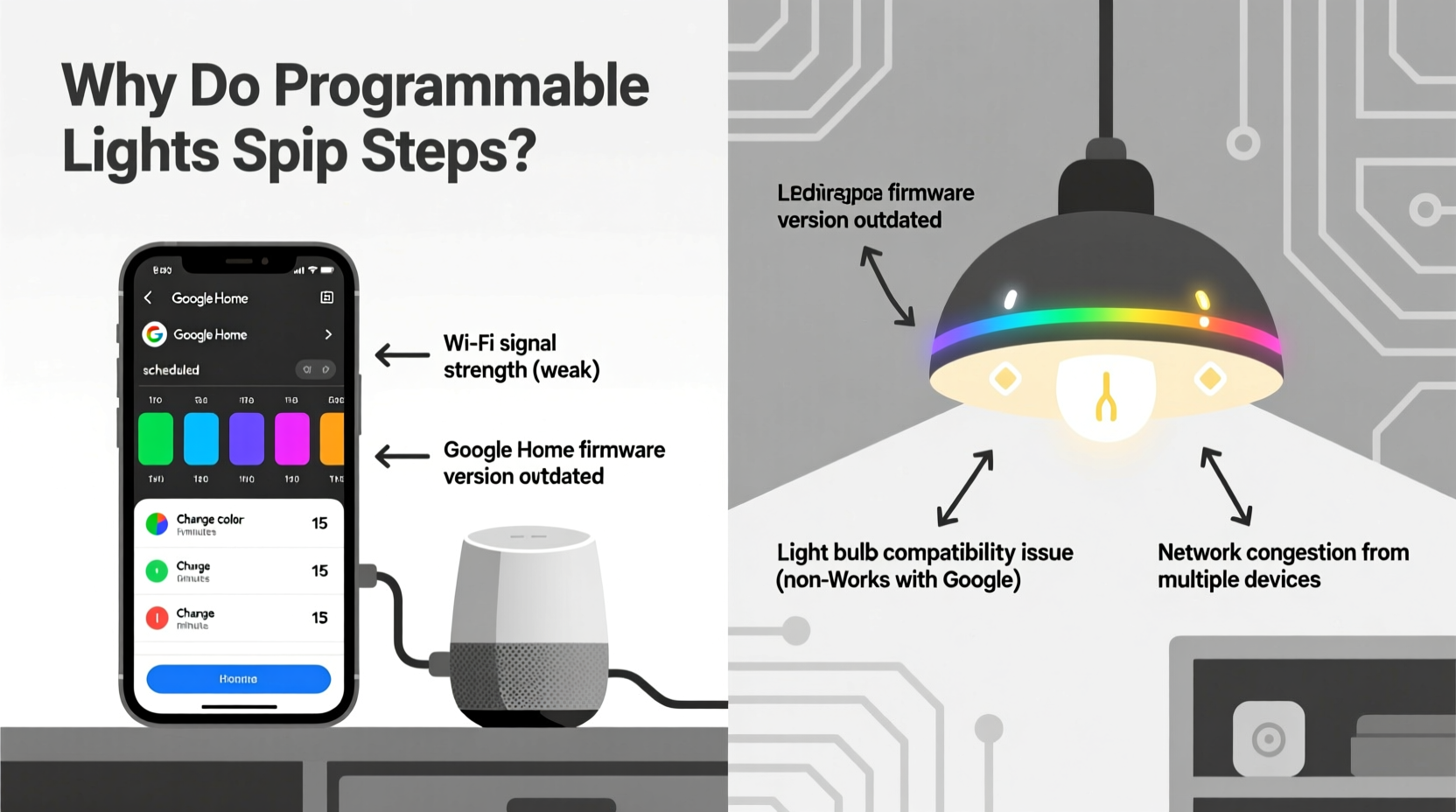
Google Home automations rely on a cloud-based scheduling engine. When you create a routine like “Sunset Wind Down,” Google Home sends timed commands to your smart lighting system—whether it's Philips Hue, LIFX, Nanoleaf, or another brand integrated via the Google Assistant SDK. These commands are not continuous streams but discrete instructions executed at specific moments.
For example, a three-step dimming sequence might be set as:
- 6:00 PM – Set living room lights to 75% brightness
- 6:10 PM – Reduce to 50%
- 6:20 PM – Lower to 25%
In theory, this should produce a gradual fade. But in practice, users often report that the first command executes, then the second and third are either skipped or compressed into a single abrupt change. The root issue lies in the gap between user expectations and how Google Home handles time-based triggers.
Common Causes of Skipped Steps in Lighting Routines
Several technical and configuration factors contribute to inconsistent behavior in scheduled lighting sequences.
1. Command Execution Latency
Every command sent from Google Home travels through Google’s servers, reaches your lighting hub (if applicable), and is relayed to individual bulbs. Network congestion, Wi-Fi interference, or slow response times from the bulb manufacturer’s cloud can delay execution. If Step 2 is delayed by even 15 seconds, and Step 3 follows shortly after, the system may override the pending instruction entirely.
2. Lack of Native Transition Support
Google Home does not natively support gradual transitions between states. It sends “set to X brightness” commands without built-in fade duration parameters. Some devices interpret rapid successive commands as conflicts and choose the last one, skipping intermediate stages.
3. Device Sync and Firmware Issues
Outdated firmware on smart bulbs or hubs can cause miscommunication. A Philips Hue bridge running old software may not process rapid commands correctly. Similarly, if a bulb disconnects briefly due to signal loss, it might miss a scheduled update and only respond to the next valid trigger.
4. Overlapping or Conflicting Routines
If multiple routines affect the same lights—such as a “Good Morning” scene and an ambient music sync—the most recent command takes precedence. This can inadvertently cancel out earlier steps in a sequence.
5. Time Zone and Clock Sync Errors
If your phone, Google Nest device, or smart hub has incorrect time settings—even by a few minutes—it can desynchronize the intended schedule flow. This is especially common after daylight saving time changes or when traveling with a synced account.
“Most skipped-step issues stem from timing granularity. Google Home operates on a coarse schedule resolution compared to local automation platforms like Home Assistant.” — Daniel Reeves, Smart Home Systems Engineer
Troubleshooting Checklist: Fixing Skipped Light Steps
Follow this checklist to diagnose and resolve inconsistent lighting behavior in Google Home routines.
- ✅ Ensure all smart lights and hubs are updated to the latest firmware
- ✅ Confirm stable Wi-Fi signal strength near each bulb (minimum -70 dBm)
- ✅ Separate scheduled steps by at least 2–3 minutes to avoid command overlap
- ✅ Disable conflicting routines or voice-triggered automations affecting the same lights
- ✅ Re-sync devices in the Google Home app after making changes
- ✅ Verify time zone and clock settings on controlling devices (phone, tablet, Nest Hub)
- ✅ Test the routine manually to confirm individual steps work in isolation
Step-by-Step Guide to Smoother Transitions
To achieve more reliable, gradual lighting effects, restructure your approach using these steps:
- Break down complex routines – Instead of packing five brightness levels into 10 minutes, spread them across longer intervals. For instance, use 5-minute gaps between changes.
- Use scenes instead of raw values – Define named scenes (e.g., “Relax,” “Dinner,” “Bedtime”) in your lighting app and trigger those via Google Home. Scenes reduce variability because they’re preconfigured states rather than interpreted commands.
- Test command spacing – Start with 3-minute intervals. If no steps are skipped, gradually reduce to 2 minutes. Avoid going below 90 seconds.
- Leverage local execution (if available) – Devices supporting Matter or Thread may allow faster, more reliable control. Prioritize these over cloud-dependent models.
- Monitor logs (advanced) – If using a hub like Hue Bridge, check its API logs or companion apps to see whether commands were received and processed on time.
Comparison: Google Home vs. Native Lighting Apps for Scheduling
| Feature | Google Home | Native App (e.g., Hue, LIFX) |
|---|---|---|
| Transition Control | Limited – no fade duration settings | Full – adjustable ramp times (e.g., 30s fade) |
| Command Precision | ±15–30 second variance possible | ±1–5 seconds with local processing |
| Offline Reliability | Poor – requires internet | Better – some local automation support |
| User Interface Simplicity | High – easy voice integration | Moderate – steeper learning curve |
| Multi-Device Sync | Good – works across brands | Limited – brand-specific |
This comparison shows that while Google Home excels in convenience and cross-platform compatibility, it sacrifices precision and smoothness compared to native lighting applications. For critical routines like wake-up simulations or bedtime wind-downs, consider using the original app for scheduling and triggering it via Google Assistant as a workaround.
Real Example: Fixing a Skipped Sunset Routine
Sarah had programmed her living room LIFX bulbs to dim in four stages between 6:00 PM and 6:30 PM using Google Home. She expected a gentle descent from 100% to 20%, but noticed the lights jumped directly from 100% to 40%, skipping two steps.
After reviewing her setup, she discovered:
- All steps were set 7 minutes apart—seemingly sufficient.
- Her router was located on the opposite side of the house, leading to intermittent signal drops.
- A competing “Movie Mode” routine activated at 6:15 PM, overriding the dimming sequence.
Sarah resolved the issue by:
- Moving her Wi-Fi extender closer to the living room.
- Renaming the conflicting routine to “Movie Mode (Manual Only)” and disabling its schedule.
- Spacing her dimming steps by 10 minutes instead of 7.
- Switching to predefined scenes (“Evening Glow,” “Night Shift”) for consistency.
Within two days, the routine ran smoothly every evening, with each stage executing as intended.
When to Bypass Google Home for Better Control
While Google Home is ideal for voice commands and basic automation, advanced lighting sequences often require alternative tools. Consider these options when precision matters:
- Native mobile apps – Offer granular control over timing, color temperature, and transition speed.
- Home Assistant or Node-RED – Allow scripting custom light curves with millisecond-level accuracy.
- Matter-enabled automations – Provide faster, more secure local execution without cloud dependency.
- Ifttt or Zapier (with caution) – Useful for bridging services, though they introduce additional latency.
One effective hybrid strategy is to build the actual lighting schedule in the native app and assign it a unique scene name. Then, use Google Home to trigger that scene via voice or time-based routine. This leverages Google’s ease of use while relying on the lighting platform’s superior control logic.
Frequently Asked Questions
Can I add fade effects between steps in Google Home?
No, Google Home does not support specifying transition durations between brightness or color changes. Any fade effect must be handled by the bulb itself if it supports gradual state changes. Some brands like Nanoleaf or Hue will interpolate smoothly between close values, but this behavior is inconsistent and not guaranteed.
Why do my lights respond fine to voice commands but fail in schedules?
Voice commands are processed in real time with immediate feedback, while scheduled routines depend on background cloud services that may delay or batch actions. Additionally, schedules lack error recovery—if a command fails, there’s no automatic retry.
Will using a Google Nest Hub improve scheduling reliability?
Not significantly. While Nest Hubs can act as local executors for simple on/off commands, complex multi-step routines still route through Google’s cloud infrastructure. Local execution support is limited and varies by device type and protocol (e.g., Thread vs. Wi-Fi).
Conclusion: Achieving Reliable, Smooth Lighting Automation
Skipped steps in programmable lighting schedules are frustrating but solvable. The key is recognizing that Google Home prioritizes simplicity and broad compatibility over precision. By adjusting your expectations, increasing time gaps between commands, eliminating conflicts, and improving network stability, you can restore consistency to your routines.
For the best results, consider offloading complex sequences to native lighting apps or advanced home automation platforms, using Google Home only as a trigger or interface layer. As Matter and Thread adoption grows, local, responsive control will become more accessible—reducing reliance on cloud bottlenecks.
Don’t accept jerky, unpredictable lighting as inevitable. With careful tuning and the right tools, your smart home can deliver the seamless, cinematic ambiance it was designed to provide.




 浙公网安备
33010002000092号
浙公网安备
33010002000092号 浙B2-20120091-4
Comments
No comments yet. Why don't you start the discussion?