
Wireless earbuds have become essential for daily life—whether you're commuting, working out, or just relaxing at home. But nothing disrupts the experience more than sudden audio dropouts. One moment you’re immersed in music or a call, and the next, silence. These random disconnections aren’t just annoying—they can damage trust in a device you rely on. The good news is that most of these issues are fixable with the right knowledge. Understanding the root causes—from Bluetooth interference to firmware flaws—and applying targeted solutions can restore seamless performance. This guide breaks down the science behind disconnections and delivers actionable steps to resolve them permanently.
Understanding the Root Causes of Random Disconnections
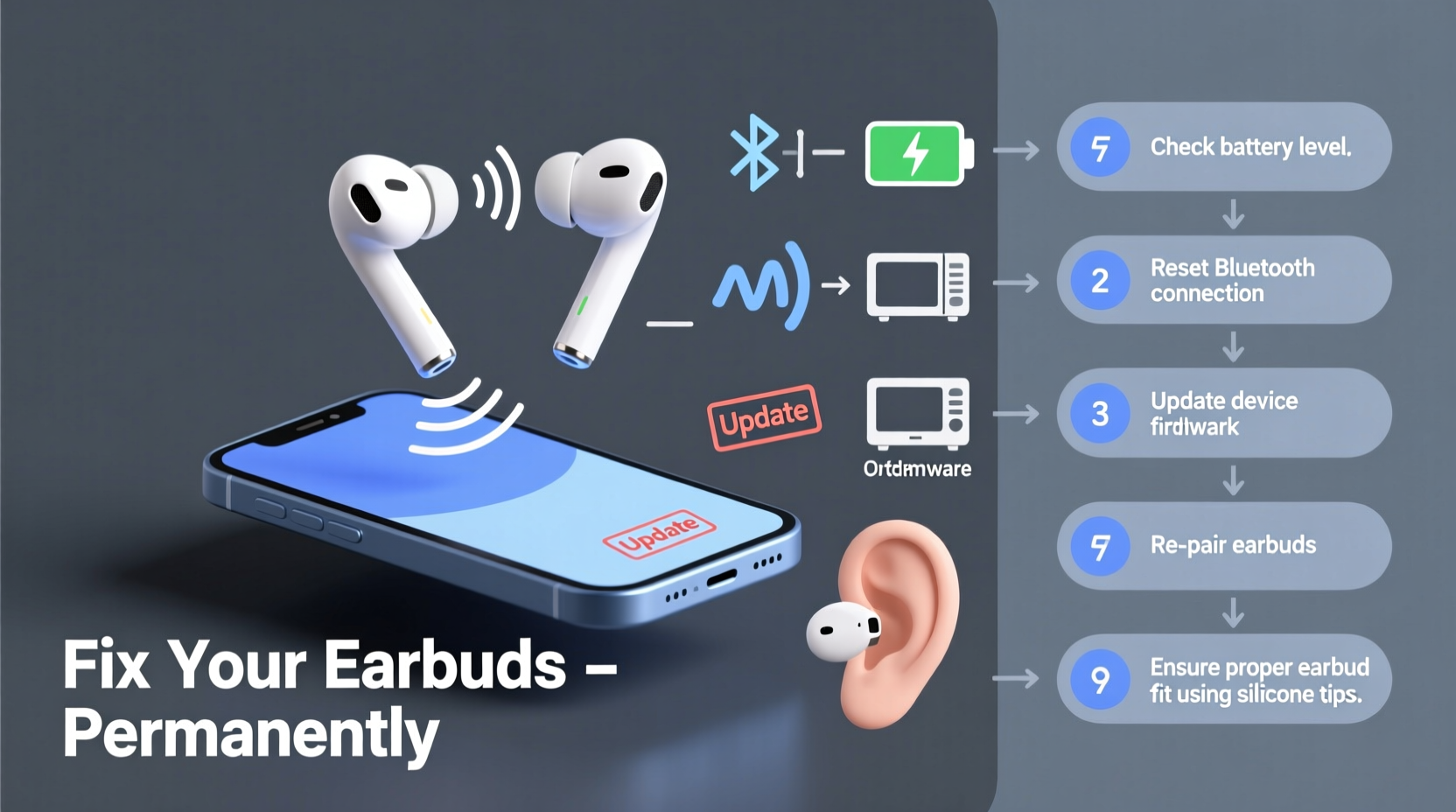
Before attempting fixes, it’s crucial to identify what’s causing the interruptions. Wireless earbuds rely on Bluetooth technology, which transmits data over short distances using radio waves. However, this system is sensitive to various environmental and technical factors.
- Bluetooth Interference: Other wireless devices—Wi-Fi routers, microwaves, cordless phones—operate on the same 2.4 GHz frequency band, creating signal congestion.
- Distance and Obstacles: Moving too far from your connected device or placing physical barriers (like walls or your body) between the source and earbuds weakens the signal.
- Low Battery: When battery levels drop below a critical threshold, some earbuds reduce transmission power or disconnect entirely to conserve energy.
- Firmware Bugs: Outdated or corrupted firmware can introduce instability in the Bluetooth stack, leading to erratic behavior.
- Poor Pairing History: If your earbuds were previously paired with multiple devices, residual connections can cause conflicts.
- Hardware Defects: In rare cases, damaged internal antennas or faulty Bluetooth chips may be responsible.
Not all disconnections are due to user error. Some stem from design limitations, especially in budget models that use older Bluetooth versions with weaker range and stability.
Step-by-Step Guide to Diagnose and Fix the Issue
Follow this structured troubleshooting sequence to isolate and eliminate the cause of disconnections. Start with the simplest fixes before moving to advanced options.
- Restart Both Devices: Power off your earbuds and source device (phone, tablet, laptop), then turn them back on. This clears temporary glitches in the Bluetooth stack.
- Check Battery Levels: Ensure both your earbuds and connected device have sufficient charge. Low power can trigger unstable connections.
- Remove Physical Barriers: Stand in an open space without walls or large metal objects between your earbuds and device.
- Forget and Re-Pair the Earbuds:
- Go to your device’s Bluetooth settings.
- Select your earbuds and choose “Forget This Device.”
- Place the earbuds back in the case, close the lid for 10 seconds, then reopen.
- Press and hold the case button (if applicable) until the pairing light flashes.
- Reconnect via your device’s Bluetooth menu.
- Test with Another Device: Pair the earbuds with a different phone or tablet. If the problem persists, the issue lies with the earbuds. If not, the original device may have Bluetooth driver issues.
- Update Firmware: Use the manufacturer’s app (e.g., Sony Headphones Connect, Samsung Galaxy Wearable, Jabra Sound+) to check for and install firmware updates.
- Reset Network Settings (Mobile): On iOS or Android, resetting network settings clears all saved Wi-Fi and Bluetooth configurations. This often resolves deep-seated pairing conflicts.
This process eliminates common software-related causes. If disconnections continue after completing these steps, investigate environmental and hardware factors.
Environmental and Usage Factors That Affect Connectivity
Your surroundings play a bigger role in Bluetooth stability than many realize. Even high-end earbuds struggle in electromagnetically noisy environments.
| Factor | Impact on Connection | Solution |
|---|---|---|
| Dense Wi-Fi Networks | Signal crowding on 2.4 GHz band | Switch router to 5 GHz if possible; move away from routers |
| Metal Structures | Blocks or reflects Bluetooth signals | Avoid wearing near elevators, refrigerators, or steel beams |
| Crowded Public Spaces | Multiple Bluetooth devices competing | Use wired mode if available; limit usage during peak hours |
| Body Position | Your body absorbs 2.4 GHz signals | Keep phone in front pocket or hand while walking |
| USB 3.0 Devices | Known to emit electromagnetic interference | Keep USB 3.0 drives or hubs away from audio devices |
In one documented case, a user experienced constant dropouts during morning commutes. After testing various scenarios, they discovered the issue only occurred near subway stations with dense Wi-Fi networks and security scanners. By switching to airplane mode and re-enabling Bluetooth manually, they restored stability. This highlights how location-specific interference can mimic hardware failure.
“Bluetooth isn’t magic—it’s physics. Signal strength degrades with distance, obstacles, and noise. Users must treat it like any wireless system, not expect flawless performance in every environment.” — Dr. Lena Patel, RF Communications Engineer
Advanced Fixes for Persistent Disconnection Problems
If basic troubleshooting fails, consider deeper interventions that address firmware, hardware compatibility, and device settings.
Update Source Device Operating System
Outdated OS versions may lack optimized Bluetooth drivers. For example, Android 10 introduced improved Bluetooth audio stability, while iOS 14 fixed several pairing bugs. Always keep your phone or laptop updated.
Use Bluetooth Codecs Strategically
Some codecs prioritize quality over stability. For instance:
- SBC: Basic, widely compatible, but lower quality.
- AAC: Better for Apple devices, but less efficient in noisy environments.
- aptX: Higher quality, but requires both devices to support it.
- aptX Adaptive or LDAC: High bitrate, but more prone to dropouts under interference.
If you’re experiencing disconnections, try forcing SBC codec (via developer options on Android) to improve reliability—even if it means sacrificing some audio quality.
Factory Reset the Earbuds
This wipes all pairing data and restores factory defaults. The method varies by brand:
- Apple AirPods: Press and hold the setup button on the case for 15 seconds until the light flashes amber, then white.
- Samsung Buds: Hold touchpad for 15+ seconds while in case.
- Jabra: Insert earbuds, press both touch sensors for 10 seconds.
Consult your model’s manual for exact instructions.
Check for Hardware Damage
Inspect the charging case and earbud contacts for corrosion or debris. Clean gently with a dry cotton swab. Also, verify that the earbuds charge consistently—if one charges slower, its internal circuitry may be failing, affecting synchronization.
Prevention Checklist: How to Maintain Stable Connections Long-Term
Once you’ve resolved the immediate issue, adopt these habits to prevent future disconnections:
- ✅ Regularly update firmware using the official app.
- ✅ Avoid pairing with more than three devices simultaneously.
- ✅ Clean earbuds and case weekly to maintain electrical contact.
- ✅ Disable unused Bluetooth devices nearby (e.g., smartwatches, headphones).
- ✅ Keep your source device’s Bluetooth cache clear by forgetting unused devices.
- ✅ Use a protective case to prevent physical damage to internal components.
- ✅ Charge earbuds fully before long sessions to avoid low-power disconnections.
Consistent maintenance reduces the likelihood of unexpected failures. Think of your earbuds like any precision electronic tool—they perform best when cared for properly.
Frequently Asked Questions
Can Wi-Fi really interfere with my Bluetooth earbuds?
Yes. Both Wi-Fi and Bluetooth use the 2.4 GHz frequency band. When multiple devices transmit on this band—especially high-bandwidth ones like video streaming routers—they create interference. This is particularly common in apartments, offices, or public spaces. Using 5 GHz Wi-Fi where possible reduces congestion.
Why do my earbuds disconnect when I move my head?
This typically happens when your phone is behind you (e.g., in a back pocket). Your body absorbs Bluetooth signals, especially at higher frequencies. Turning your head changes the path between the transmitter and receiver, sometimes breaking the link. Keeping your phone in a jacket pocket or bag in front of you minimizes this effect.
Is it worth repairing earbuds that keep disconnecting?
It depends. If the earbuds are under warranty, contact the manufacturer. Many brands offer free replacements for connectivity issues. For out-of-warranty units, weigh repair cost against replacement. Most consumer earbuds aren’t designed for user-repairable components. In many cases, investing in a newer model with Bluetooth 5.2 or 5.3—which offer better range, lower latency, and improved interference resistance—is more cost-effective than repeated fixes.
Conclusion: Achieve Reliable, Permanent Connectivity
Random disconnections don’t have to be a permanent flaw in your wireless experience. While Bluetooth technology is convenient, it’s not immune to environmental stressors, software bugs, or wear and tear. By systematically diagnosing the issue—starting with simple resets and progressing to firmware updates and environmental adjustments—you can eliminate most causes of instability. The key is persistence and attention to detail. Don’t accept dropouts as normal; modern earbuds are capable of near-flawless performance when properly maintained.
Take action today: clean your earbuds, update their firmware, re-pair them cleanly, and test in a low-interference environment. Small changes yield dramatic improvements. If you’ve struggled with unreliable audio, now is the time to reclaim seamless listening. Share your success story or ask questions in the comments—your insight could help others solve the same frustrating issue.




 浙公网安备
33010002000092号
浙公网安备
33010002000092号 浙B2-20120091-4
Comments
No comments yet. Why don't you start the discussion?