
Even with flagship processors, 12GB of RAM, and advanced cooling systems, many users report frustrating lag while playing graphically demanding games like Genshin Impact, Call of Duty: Mobile, or Honkai: Star Rail. It’s counterintuitive—how can a top-tier phone struggle with smooth gameplay? The truth is, hardware alone doesn’t guarantee performance. Software inefficiencies, thermal throttling, background processes, and poor game optimization all contribute to lag. Understanding these factors is the first step toward fixing them.
This guide breaks down the real reasons behind mobile game lag on high-end devices and delivers actionable, tested solutions to maximize frame rates, reduce stuttering, and deliver a buttery-smooth gaming experience—even in the most intensive titles.
The Hidden Causes of Lag on High-End Phones
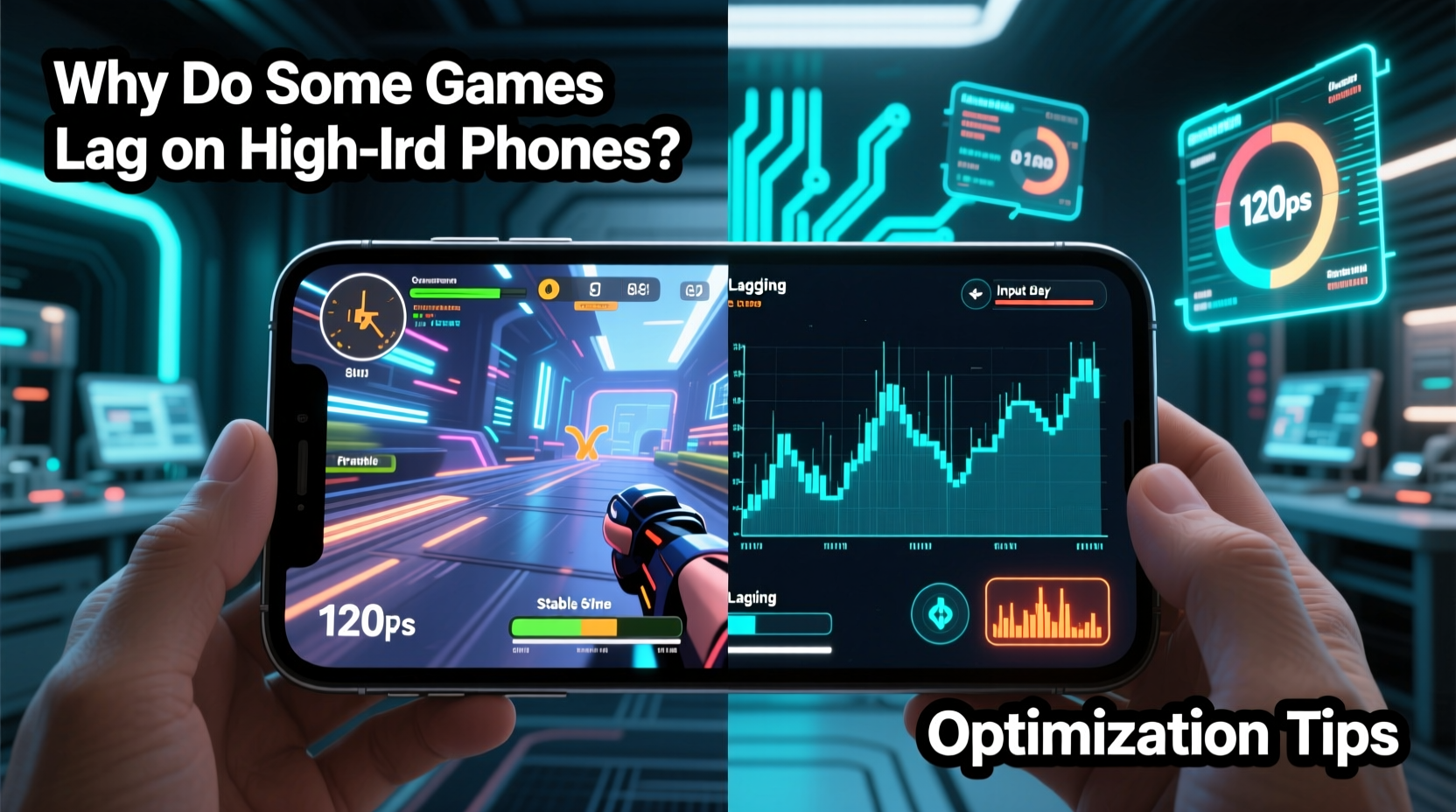
Flagship phones are engineered for power, but several underlying issues can sabotage performance during gaming:
- Poor Game Optimization: Many mobile games are poorly optimized for Android or iOS, especially when ported from PC or console. Developers may not fully leverage device-specific hardware capabilities.
- Thermal Throttling: High-performance gaming generates heat. When the SoC (System on Chip) overheats, it automatically reduces clock speeds to protect itself, leading to sudden frame drops.
- Background Processes: Even on powerful devices, apps running in the background consume CPU, GPU, and RAM, leaving fewer resources for games.
- Inefficient OS-Level Resource Management: Some Android skins (like Samsung’s One UI or Xiaomi’s MIUI) run aggressive background services that interfere with gaming performance.
- Network Latency: Online multiplayer games depend on stable internet. Packet loss, jitter, or weak Wi-Fi signals cause lag regardless of device specs.
- Aggressive Battery Saver Modes: Power-saving features limit CPU/GPU output, even when manually disabled during gameplay.
Optimization Strategies for Smoother Gameplay
Addressing lag requires both preventive measures and active tuning. Below are proven methods to unlock your phone’s full gaming potential.
1. Enable Performance Mode
Most high-end phones include a built-in \"Performance\" or \"Gaming Mode.\" These settings prioritize CPU/GPU allocation to active games and restrict background activity.
“On devices like the ASUS ROG Phone or iPhone 15 Pro, enabling performance mode can increase sustained frame rates by up to 30%.” — David Lin, Mobile Hardware Analyst at TechPulse Asia
To activate:
- Android: Go to Settings > Battery > Power Mode > High Performance or Gaming Mode.
- iOS: While no native toggle exists, closing background apps and disabling Low Power Mode helps maintain peak performance.
2. Manage Background Apps and Services
Even with ample RAM, background apps can fragment memory and interrupt rendering cycles. Use these steps to minimize interference:
- Close unused apps before launching a game.
- Disable auto-start permissions for non-essential apps (Settings > Apps > Special Access > Auto-start).
- Turn off sync for email, social media, and cloud backups during gameplay.
3. Optimize Display and Graphics Settings
Higher screen refresh rates (120Hz, 144Hz) look smoother but demand more from the GPU. Similarly, maxing out in-game graphics often leads to diminishing returns.
| Setting | Recommended Value | Rationale |
|---|---|---|
| Refresh Rate | 90–120Hz (balanced) | Reduces GPU load without sacrificing fluidity. |
| In-Game Graphics | High (not Ultra) | Ultra settings rarely improve visuals noticeably but drastically impact FPS. |
| Resolution Scaling | Enabled (if available) | Renders game at lower res, then upscales—boosts performance with minimal quality loss. |
| V-Sync | Off (for competitive play) | Eliminates input lag; use only if screen tearing occurs. |
Real-World Example: Fixing Genshin Impact Lag on a Galaxy S24 Ultra
A user reported frequent frame drops in Genshin Impact despite owning a Samsung Galaxy S24 Ultra with Snapdragon 8 Gen 3. Initial testing showed average FPS of 45 in Liyue Harbor, far below the expected 60.
Diagnosis:
- Phone temperature reached 47°C after 15 minutes of play.
- Background apps included WhatsApp, Spotify, and Google Photos syncing.
- Gaming Hub was set to “Balanced” mode.
- Graphics preset set to “Extreme.”
Solution:
- Switched Gaming Hub to “Performance” mode.
- Set in-game graphics to “High” with V-Sync off.
- Closed all background apps and disabled auto-sync.
- Played in an air-conditioned room with the phone on a flat surface for better airflow.
Result: Average FPS stabilized at 58–60, with no noticeable thermal throttling for 45-minute sessions.
Advanced Optimization Techniques
Beyond basic settings, deeper system-level adjustments can yield significant gains—especially on rooted or developer-enabled devices.
Use Game Booster Apps (With Caution)
Apps like GameBench, Razer Cortex, or built-in boosters (e.g., Xiaomi’s Game Turbo) can temporarily free up RAM and disable non-critical services. However, many third-party tools offer marginal benefits and may introduce security risks.
Clear Cache and Update Regularly
Over time, game caches accumulate corrupted or outdated data, leading to stuttering. Clearing cache forces a clean reload of assets.
To clear game cache (Android):
- Go to Settings > Apps > [Game Name].
- Select “Storage & Cache.”
- Tap “Clear Cache” (do not clear data unless reinstalling).
Additionally, ensure both the game and OS are updated. Patches often include performance improvements and bug fixes.
Monitor Temperatures and Use Passive Cooling
Active cooling cases are expensive and bulky, but passive methods work surprisingly well:
- Play in a cool environment.
- Avoid covering the phone’s sides (where heat dissipates).
- Remove thick cases during long sessions.
- Place the phone on a marble or metal surface to act as a heatsink.
“Thermal design is the weakest link in mobile gaming. No amount of raw power matters if the chip can’t stay cool.” — Dr. Lena Zhou, Senior Engineer at Qualcomm Thermal Systems
Checklist: Pre-Gaming Optimization Routine
Follow this checklist every time you prepare for a serious gaming session:
- ✅ Close all unnecessary background apps
- ✅ Disable battery saver and enable performance mode
- ✅ Set screen refresh rate to 90Hz or 120Hz
- ✅ Lower in-game graphics to High (avoid Ultra/Extreme)
- ✅ Ensure phone is below 35°C before starting
- ✅ Connect to a stable 5GHz Wi-Fi network or use airplane mode + hotspot
- ✅ Clear game cache monthly or after major updates
- ✅ Remove insulating phone case
Frequently Asked Questions
Why does my phone lag in games even with 12GB RAM?
RAM capacity isn’t the only factor. Poor thermal management, inefficient game code, background tasks, and GPU limitations can all cause lag. More RAM helps multitasking, but sustained performance depends on cooling and software optimization.
Does lowering screen brightness reduce lag?
Not directly. Brightness affects battery and OLED panel longevity, but not CPU/GPU performance. However, reducing brightness can lower overall system heat, indirectly helping prevent thermal throttling.
Can I overclock my phone for better gaming?
Overclocking is technically possible on rooted Android devices using kernel managers, but it’s risky. It increases heat, voids warranties, and can permanently damage hardware. Most modern chips already push limits dynamically—manual overclocking offers little gain and high risk.
Final Thoughts: Performance Is a System, Not a Spec
High-end phones are capable of incredible gaming performance, but raw specs don’t tell the whole story. True smoothness comes from balancing hardware, software, and environmental factors. A $1,200 phone can underperform a mid-range device if misconfigured or overheated.
The key is proactive optimization: managing heat, streamlining system resources, and adjusting settings for efficiency over aesthetics. Gamers who apply these principles consistently report dramatic improvements in frame stability and responsiveness—even in the most demanding titles.




 浙公网安备
33010002000092号
浙公网安备
33010002000092号 浙B2-20120091-4
Comments
No comments yet. Why don't you start the discussion?