
Large PowerPoint files can be frustrating—difficult to email, slow to upload, and prone to crashing during presentations. While rich visuals and multimedia enhance engagement, they often come at the cost of file bloat. Understanding what inflates your presentation's size and how to efficiently reduce it ensures smoother sharing and better performance across devices.
The good news: you don’t need advanced technical skills to shrink a bloated PPTX. With targeted adjustments and smart formatting choices, even multi-hundred-megabyte files can be trimmed down to manageable sizes—often by 70% or more.
Why Your PowerPoint File Is Too Large
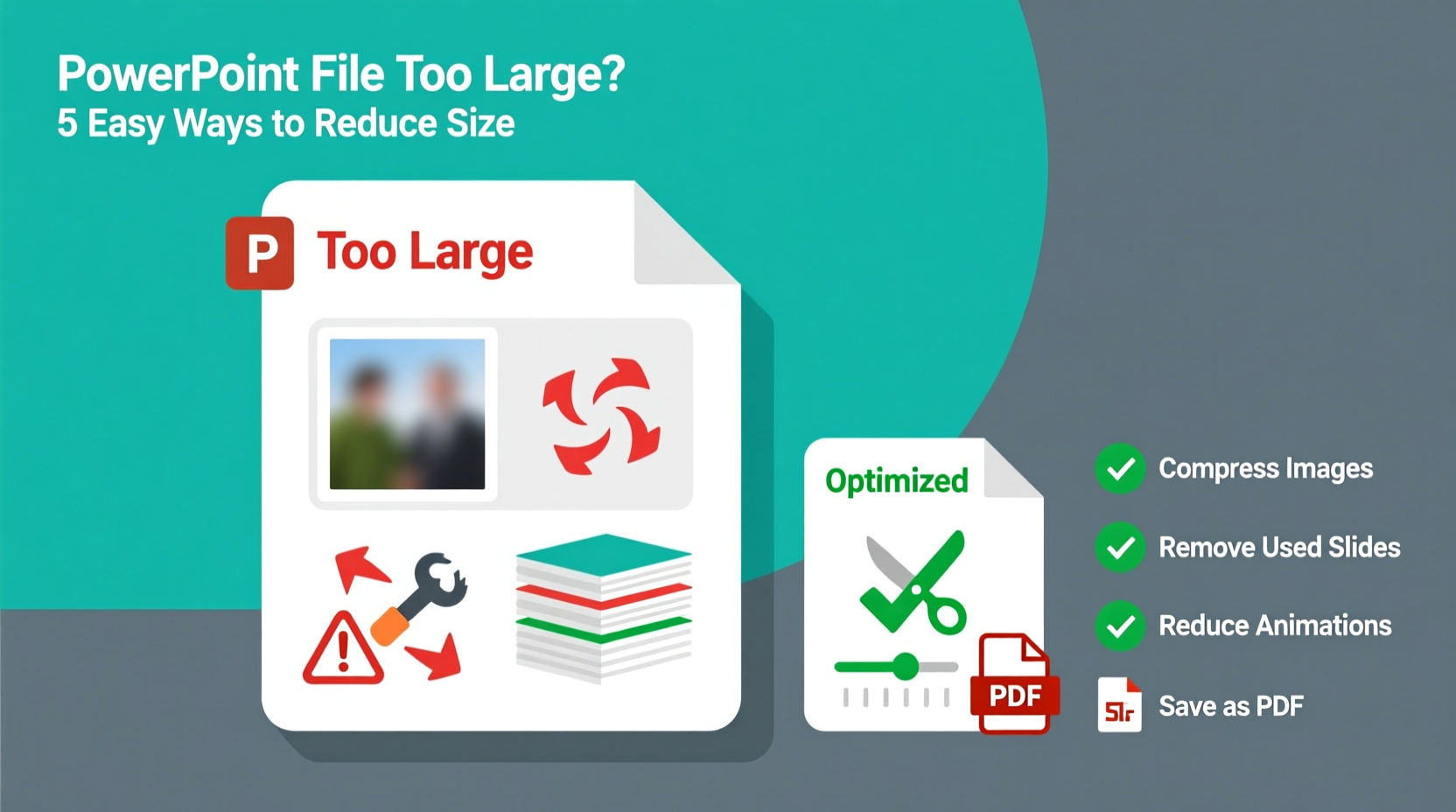
Several factors contribute to oversized PowerPoint presentations. Identifying the root causes helps you apply precise fixes instead of guessing.
- High-resolution images: Inserting full-size photos from digital cameras (often 3–20 MB each) without compression dramatically increases file size.
- Embedded videos and audio: Media files stored directly in the presentation add bulk. A single minute of HD video can exceed 50 MB.
- Duplicate media: Copying slides with images duplicates the embedded data, multiplying file weight unnecessarily.
- Unoptimized fonts and effects: Custom fonts embedded for compatibility and excessive animations increase overhead.
- Hidden content: Deleted slides or objects that weren’t fully removed may still reside in the file.
- Excessive slide count: More slides mean more data—even simple ones accumulate over time.
“Over 80% of oversized PowerPoint files suffer from unoptimized images. That’s usually the fastest fix.” — David Lin, Corporate Training Technologist
Step-by-Step Guide to Reduce PowerPoint File Size
Follow this structured process to systematically reduce your file size while preserving visual quality and functionality.
- Compress all images
Select any image > go to Pictures Format tab > click Compress Pictures. Choose “Apply only to this picture” if needed, then select “Email (96 ppi)” for web/email use or “Screen (150 ppi)” for presentations. Check “Delete cropped areas of pictures” to permanently remove hidden image data. - Remove unused slides and hidden content
Review every slide. Delete those not essential. Also check for accidentally duplicated slides or placeholder content left behind after editing. - Link instead of embed media
Replace embedded videos and audio with links to external sources (e.g., YouTube, OneDrive, Google Drive). Right-click the media > Edit Media > ensure it’s linked, not embedded. This keeps your file lightweight while maintaining access during playback—if internet is available. - Clear unused theme elements and fonts
Go to Design > Variants > drop-down arrow > Colors > Customize Colors. Avoid embedding full font sets unless required. Under File > Options > Save, uncheck “Embed fonts in the file” unless absolutely necessary. - Save as optimized file
Navigate to File > Save As > choose location > click Tools (next to Save) > Compress Pictures again if needed, then save. Alternatively, use “Reduce File Size” option in newer versions under File > Info.
Do’s and Don’ts: Best Practices for Smaller Files
| Do | Don't |
|---|---|
| Use compressed.jpg images at 150 dpi for slides | Insert raw camera photos without resizing |
| Link large videos externally | Embed full-length HD videos directly |
| Delete invisible or redundant objects on slides | Leave off-slide graphics or hidden layers |
| Use built-in PowerPoint charts instead of image-based graphs | Copy-paste screenshots of spreadsheets |
| Save final version using \"PowerPoint Show (.ppsx)\" for distribution | Send .pptx files with editable assets when not needed |
Real Example: Shrinking a 180MB Report to 28MB
A financial analyst at a mid-sized firm created a quarterly review deck with 45 slides, including high-res product photos, three embedded training videos, and custom branding fonts. The initial file size was 180MB—too large for internal email limits (25MB).
Using the steps above:
- All 22 images were compressed to 150 ppi, reducing their total footprint from ~140MB to 12MB.
- The three embedded videos (totaling 35MB) were replaced with hyperlinks to secure company cloud folders.
- Unused slide masters and duplicate layouts were cleared via the Slide Master view.
- Font embedding was disabled since recipients had standard access to the typeface.
After optimization, the final file measured just 28MB—a 84% reduction—with no visible loss in quality. It played flawlessly during the board meeting using local network streaming for videos.
Tips for Preventing Large Files in Future Projects
Proactive habits prevent bloat before it becomes a problem.
- Create a media checklist: Note file types and sizes before adding them to your deck.
- Use vector graphics where possible: SVGs and shapes created in PowerPoint scale perfectly and take up minimal space.
- Work in stages: Maintain two versions—one editable master (.pptx), one compressed delivery version (.ppsx or .pdf).
- Leverage cloud collaboration: Share via SharePoint, Teams, or Google Slides to avoid attachment limitations entirely.
FAQ: Common Questions About PowerPoint File Size
Can I reduce file size without losing image quality?
Yes. Most screens display at 150 dpi or lower. Compressing images to 150 ppi maintains clarity on projectors and monitors while drastically cutting file size. Avoid unnecessary 300+ dpi settings unless printing.
Why is my file still large after deleting images?
Deleted images may leave behind cached data. To fully purge remnants, save the file as HTML or RTF and re-import into a new presentation, or use Microsoft’s free PPTX Repair Tool or third-party optimizers like NXPowerLite.
Is saving as PDF a good way to reduce size?
Saving as PDF can help, but it flattens interactivity. Animations, transitions, and hyperlinks may be limited. Use PDF only when presenting statically. For dynamic content, optimize the original .pptx instead.
Final Checklist Before Sharing Your Presentation
- All images are compressed and cropped appropriately.
- Videos and audio are linked, not embedded (unless offline use is required).
- No hidden slides or off-slide objects remain.
- Custom fonts are either standard or stripped out if unnecessary.
- The file has been saved using “Reduce File Size” or equivalent tool.
- A backup of the original is stored separately.
- The final size is under platform limits (e.g., 25MB for email, 100MB for LMS uploads).
Take Control of Your Presentation Files Today
Large PowerPoint files shouldn’t hinder your communication. By understanding the main contributors to file bloat and applying consistent optimization techniques, you gain control over deliverability, performance, and professionalism. Whether you're sending a quick update or delivering a keynote, a lean, efficient presentation reflects preparation and respect for your audience’s time and technology.




 浙公网安备
33010002000092号
浙公网安备
33010002000092号 浙B2-20120091-4
Comments
No comments yet. Why don't you start the discussion?