
Upgrading to a solid-state drive (SSD) is often considered the single most effective upgrade for improving system responsiveness and game loading times. However, many users report a frustrating paradox: despite having a high-speed SSD, certain games still load slowly—sometimes even slower than expected compared to older drives or benchmarked performance. This isn’t always due to faulty hardware. A range of factors, from software misconfigurations to storage architecture limitations, can undermine your SSD’s potential. Understanding these hidden bottlenecks is essential to unlocking real-world performance.
The SSD Performance Paradox: Speed on Paper vs. Reality
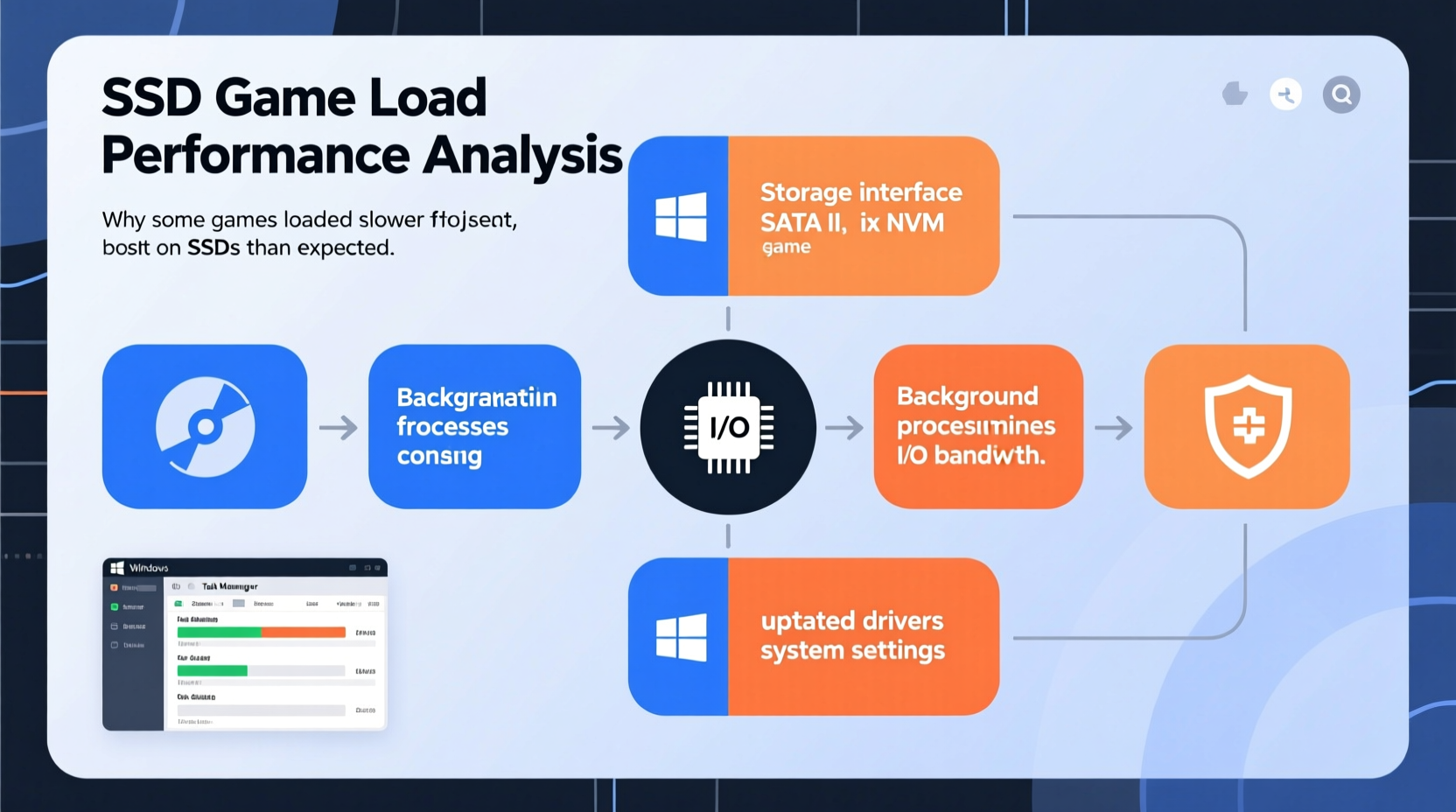
Modern NVMe SSDs boast sequential read speeds exceeding 7,000 MB/s, while SATA SSDs typically reach up to 550 MB/s. These figures are impressive, but they represent ideal lab conditions—large file transfers with minimal fragmentation and direct access. Game loading, however, relies heavily on random read performance, small file access, and system-level coordination between storage, RAM, CPU, and GPU.
When a game loads, it doesn’t just read one large file—it pulls hundreds or thousands of small assets: textures, audio clips, model files, scripts, and configuration data. The speed at which an SSD can retrieve these scattered files depends more on its random IOPS (Input/Output Operations Per Second) than its peak throughput. Some budget or older SSDs may have strong sequential speeds but lag in random access, leading to inconsistent real-world performance.
“An SSD’s theoretical speed is only as good as the system’s ability to use it efficiently. Game engines, drivers, and OS settings all play critical roles.” — Dr. Alan Reyes, Storage Systems Engineer at TechInsight Labs
Common Causes of Slow Game Loading on SSDs
Even with a top-tier SSD, several technical and environmental factors can degrade loading performance:
- Drive health degradation: Over time, NAND flash memory wears out, especially if the drive is near full capacity or has endured heavy write cycles.
- Poor thermal throttling: High-end NVMe SSDs generate significant heat. Without adequate cooling, they throttle down to prevent damage, cutting speeds by up to 50%.
- Inadequate driver support: Outdated chipset, SATA/AHCI, or NVMe drivers can limit communication efficiency between the OS and the drive.
- Background processes: Antivirus scans, Windows updates, or cloud sync tools can monopolize disk I/O during game startup.
- Game engine inefficiencies: Some older or poorly optimized games were designed with HDDs in mind and don’t fully leverage SSD capabilities.
- Storage location confusion: The game may be installed on the SSD, but save files, mods, or streaming assets could be pulling from a slower secondary drive.
Troubleshooting Steps to Restore SSD Game Performance
Before assuming your SSD is defective, follow this systematic approach to diagnose and resolve performance issues.
Step 1: Confirm the Game Is Installed on the SSD
Double-check that the game directory is actually located on your SSD. Many launchers like Steam, Epic, or Battle.net allow multiple installation paths. Right-click the game in your library, go to Properties > Local Files, and verify the install location.
Step 2: Check SSD Health and Performance
Use built-in or third-party tools to assess drive health:
- Open Command Prompt as administrator and run
wbemtest, then connect toroot\\wmiand queryMSStorageDriver_FailurePredictStatusfor raw SMART data. - Alternatively, use CrystalDiskInfo (free) to view health status, temperature, and real-time transfer rates.
- Look for warnings like “Caution” or “Bad” health, high temperature (>70°C), or low spare blocks.
Step 3: Update Firmware and Drivers
Manufacturers regularly release firmware updates that improve stability and performance. Visit your SSD maker’s website (e.g., Samsung Magician, WD Dashboard, Crucial Storage Executive) to check for available updates. Also update your motherboard’s chipset drivers via the manufacturer’s support page.
Step 4: Disable Superfetch and Prefetch (If Not Needed)
Windows’ Superfetch service, designed for HDDs, can sometimes cause unnecessary disk activity on SSDs. While disabling it isn’t always beneficial, you can test its impact:
- Press Win + R, type
services.msc. - Locate “SysMain” (formerly Superfetch).
- Right-click > Properties > Startup type: Disabled.
- Restart and test game load times.
Step 5: Ensure TRIM Is Enabled
TRIM helps maintain SSD performance over time by allowing the OS to inform the drive which blocks are no longer in use. To verify TRIM status:
- Open Command Prompt as admin.
- Type
fsutil behavior query DisableDeleteNotify. - If the result is
0, TRIM is enabled. If1, enable it withfsutil behavior set DisableDeleteNotify 0.
Step 6: Optimize BIOS and M.2 Settings
Enter your UEFI BIOS and confirm:
- NVMe mode is enabled (not IDE or RAID unless required).
- For dual-M.2 motherboards, ensure the correct PCIe lane allocation. Some boards reduce speed on the second slot when both are populated.
- Enable XMP/DOCP if using fast RAM—some games rely on memory bandwidth for asset decompression.
Performance Comparison: Expected vs. Actual Load Times
| Drive Type | Avg. Sequential Read | Random 4K Read (IOPS) | Typical Game Load Time (e.g., Elden Ring) | Common Bottlenecks |
|---|---|---|---|---|
| SATA SSD (e.g., Crucial MX500) | 550 MB/s | ~90,000 | 35–45 seconds | Limited by SATA III interface; not bottlenecked by CPU |
| NVMe Gen3 SSD (e.g., Samsung 970 EVO) | 3,500 MB/s | ~500,000 | 18–25 seconds | Thermal throttling; outdated firmware |
| NVMe Gen4 SSD (e.g., WD Black SN850X) | 7,300 MB/s | ~1,000,000 | 12–18 seconds | BIOS misconfiguration; background apps |
| HDD (7200 RPM) | 160 MB/s | ~10,000 | 70–90 seconds | Fragmentation; slow seek times |
Note: Real-world results vary based on game optimization, system RAM, and background load.
Real-World Case: Why Did Cyberpunk 2077 Load Slower After SSD Upgrade?
Mark, a PC gamer, upgraded from a 1TB HDD to a high-end Gen4 NVMe SSD expecting dramatic improvements in Cyberpunk 2077 load times. Instead, initial loads dropped only from 80 seconds to 65 seconds—far below community-reported averages of under 20 seconds on similar hardware.
After investigation, he discovered two key issues:
- His motherboard’s second M.2 slot was running in PCIe 3.0 mode instead of 4.0 due to a shared bandwidth conflict with the GPU.
- He had a background Google Drive sync process locking small files during startup, causing intermittent I/O delays.
After relocating the SSD to the primary M.2 slot and pausing cloud sync during gaming sessions, his load times dropped to 19 seconds—matching expectations. This case illustrates how non-drive factors can mask SSD performance.
Optimization Checklist: Maximize Game Load Speeds on SSD
Follow this checklist to ensure your SSD delivers optimal gaming performance:
- ✅ Confirm the game is installed on the SSD (check launcher settings).
- ✅ Verify SSD health using CrystalDiskInfo or manufacturer tool.
- ✅ Update SSD firmware and motherboard NVMe drivers.
- ✅ Enable TRIM via Command Prompt (
fsutil behavior set DisableDeleteNotify 0). - ✅ Check BIOS settings: NVMe mode enabled, correct PCIe generation.
- ✅ Monitor temperatures; add M.2 heatsink if above 70°C.
- ✅ Disable unnecessary startup programs and background sync tools.
- ✅ Perform a clean boot to rule out software conflicts.
- ✅ Defragment other drives (but never SSDs—this reduces lifespan).
- ✅ Ensure Windows is updated (especially storage stack improvements).
Frequently Asked Questions
Can an SSD get slower over time?
Yes. As an SSD fills up and undergoes repeated write cycles, its performance can degrade due to reduced free blocks for wear leveling and garbage collection overhead. Keeping at least 10–15% of the drive free helps maintain speed. Additionally, older TLC NAND without sufficient SLC caching may slow down during sustained writes.
Why does my game load faster on a friend’s PC with a slower SSD?
Differences in CPU, RAM speed, driver versions, or game settings (like texture quality) can influence loading. Your friend might also have fewer background processes or a better-optimized system. Game engines sometimes prioritize CPU decompression over raw storage speed, so a faster processor can offset a slightly slower drive.
Should I reinstall Windows to fix SSD loading issues?
Not immediately. Reinstalling should be a last resort after ruling out driver issues, firmware problems, and software conflicts. A clean install can help if your OS has accumulated bloat or corrupted system files, but it’s time-consuming and rarely the root cause of SSD-specific slowness.
Conclusion: Unlock Your SSD’s True Potential
An SSD is only as fast as the ecosystem around it. Slow game loading doesn’t automatically mean your drive is faulty—it often signals a configuration issue, thermal problem, or software bottleneck. By methodically checking drive health, updating firmware, optimizing BIOS settings, and managing background activity, you can reclaim the performance you paid for. Modern games are increasingly designed to exploit fast storage, but they require a well-tuned system to deliver on that promise.




 浙公网安备
33010002000092号
浙公网安备
33010002000092号 浙B2-20120091-4
Comments
No comments yet. Why don't you start the discussion?