
It’s a frustrating experience: you’ve invested in a brand-new PC with high-end components, only to find that certain games stutter, lag, or fail to reach expected frame rates. On paper, your system should handle modern titles with ease, yet performance remains inconsistent. This disconnect between hardware capability and real-world gaming performance is more common than many realize. The reasons are rarely due to faulty hardware but stem from complex interactions between software optimization, driver compatibility, game engine limitations, and user settings. Understanding these factors—and knowing how to address them—can transform a choppy experience into smooth, responsive gameplay.
The Myth of “Newer = Better Performance”
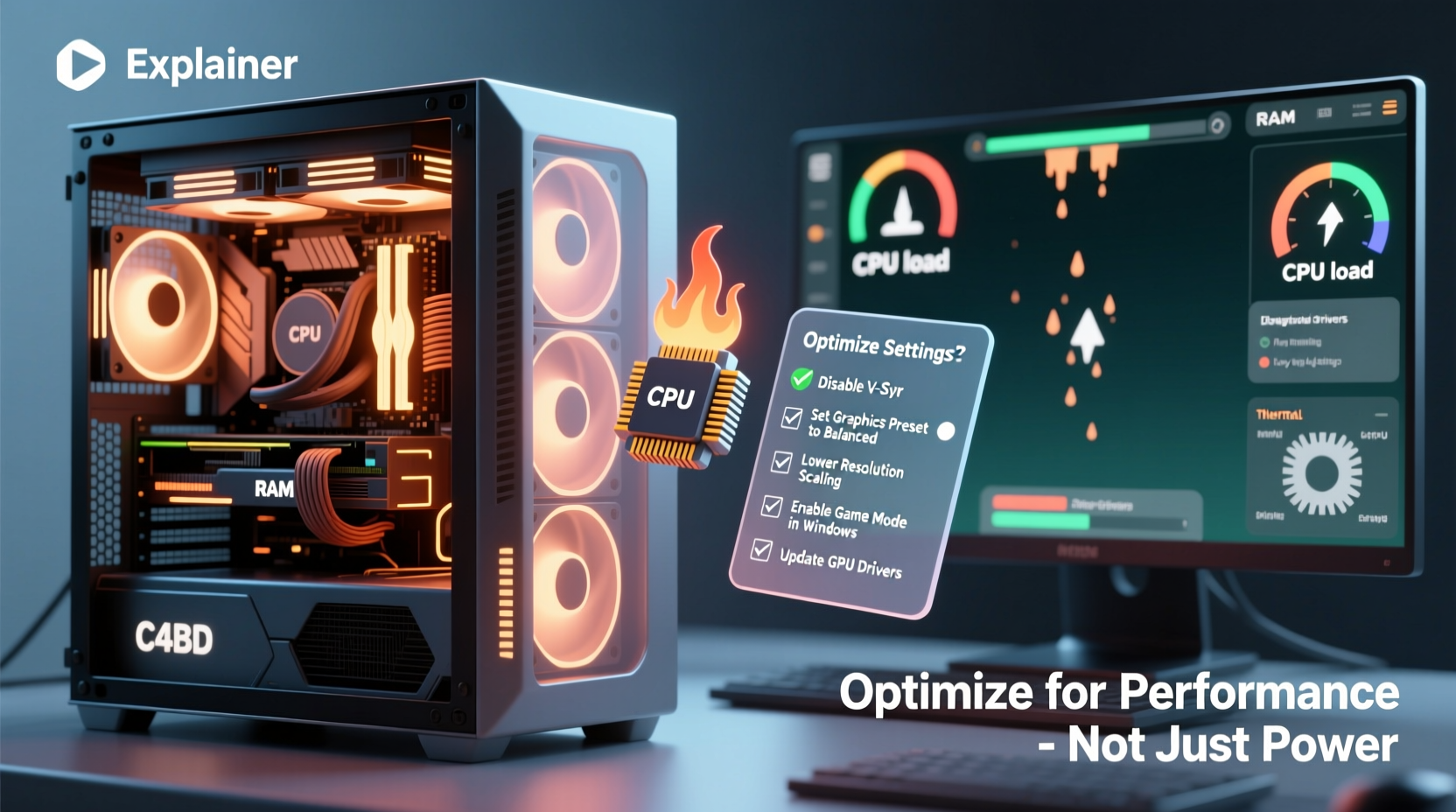
A powerful CPU, cutting-edge GPU, and ample RAM don’t automatically guarantee flawless gaming. While hardware advancements continue at a rapid pace, software development often lags behind in terms of optimization. Game developers must balance visual fidelity, feature sets, and cross-platform compatibility, sometimes at the expense of efficient code. As a result, even systems equipped with top-tier specs can struggle when running poorly optimized titles.
Moreover, newer PCs often come preloaded with background applications, default power plans, and unoptimized drivers that can silently degrade performance. Windows updates, third-party software, and firmware settings also play a role. The gap between theoretical performance and actual gameplay stems not from inadequate hardware, but from misalignment between the system’s configuration and the game’s demands.
Common Causes of Poor Game Performance on Modern Systems
Several interrelated factors explain why games underperform despite strong hardware.
Inefficient Game Optimization
Some games are built using outdated engines or rushed development cycles, leading to inefficient resource usage. For example, a title might rely heavily on single-threaded performance, bottlenecking even a high-core-count CPU if one thread becomes overloaded. Others may suffer from memory leaks or poor asset streaming, causing frame drops over time.
Driver and Firmware Issues
Graphics drivers act as the bridge between your operating system and GPU. Outdated, buggy, or improperly configured drivers can severely limit performance. Even newly released GPUs may ship with early drivers that lack optimizations for specific games. Similarly, motherboard BIOS versions can affect PCIe lane allocation, CPU boost behavior, and memory stability—all critical for gaming responsiveness.
Background Processes and System Bloat
New PCs frequently come with preinstalled software (often called bloatware) such as trial antivirus programs, cloud sync tools, or manufacturer utilities. These consume CPU cycles, memory, and disk I/O, reducing resources available to games. Additionally, Windows features like Game Bar, telemetry services, and automatic updates can interfere during gameplay.
Thermal Throttling and Power Settings
High-performance components generate heat. If cooling is insufficient—due to poor case airflow, dust buildup, or subpar thermal paste—CPUs and GPUs will throttle clock speeds to prevent damage. This results in sudden frame rate drops. Likewise, default power plans may prioritize energy efficiency over performance, limiting component output.
Mismatched Hardware Scaling
Even within a high-end build, imbalances can create bottlenecks. A top-tier GPU paired with a mid-range CPU may lead to CPU-limited performance in CPU-intensive games like strategy titles or MMOs. Similarly, slow storage (e.g., SATA SSD instead of NVMe) can cause texture pop-in and long load times, especially in open-world games.
“Hardware is only as good as the software that uses it. A $2,000 PC can perform worse than a $1,000 rig if settings and drivers aren't tuned correctly.” — Jordan Lee, Senior Systems Engineer at FrameTime Labs
Step-by-Step Guide to Optimizing Game Performance
Follow this structured approach to maximize gaming performance on your new PC.
- Update Your Graphics Drivers
Visit the official website of your GPU manufacturer—NVIDIA, AMD, or Intel—and download the latest WHQL-certified drivers. Use clean installation options to remove old configurations. - Disable Background Applications
Open Task Manager (Ctrl+Shift+Esc), go to Startup tab, and disable unnecessary programs. Also, close apps like Discord, Chrome, or Dropbox before launching games. - Adjust Windows Power Plan
Navigate to Control Panel > Hardware and Sound > Power Options. Select \"High Performance\" or create a custom plan ensuring minimum processor state is set to 100%. - Optimize In-Game Settings
Start by setting resolution and graphics presets to match your monitor and GPU tier. Then fine-tune individual settings based on performance impact (see table below). - Enable Game Mode and Disable Xbox Game Bar
Go to Settings > Gaming > Game Mode and ensure it's on. Turn off Game Bar and DVR features, which can introduce input lag and overhead. - Check Thermal Performance
Use tools like HWMonitor or MSI Afterburner to monitor CPU and GPU temperatures during gameplay. Sustained temps above 85°C indicate throttling risk. - Upgrade Storage (if needed)
If using an HDD or older SSD, consider migrating games to an NVMe SSD. Faster load times and reduced stuttering are immediate benefits. - Update BIOS and Chipset Drivers
Check your motherboard manufacturer’s site for BIOS updates that improve CPU compatibility, memory support, and PCIe bandwidth utilization.
Key In-Game Settings and Their Performance Impact
Not all graphical settings affect performance equally. Prioritize adjustments that yield the biggest gains with minimal visual loss.
| Setting | Performance Impact | Visual Impact | Recommendation |
|---|---|---|---|
| Resolution | Very High | Very High | Match native monitor resolution; avoid scaling |
| Texture Quality | Medium-High | High | Set to High unless VRAM is limited (8GB+ allows Ultra) |
| Shadows | High | Medium | Reduce to Medium or High; shadows are computationally expensive |
| Anti-Aliasing | High | Medium-High | Use TAA or FXAA over MSAA; DLSS/FSR if supported |
| Ray Tracing | Very High | High | Disable unless GPU is RTX 3070+/RX 6800 or higher |
| View Distance | Medium | Low-Medium | Lower slightly to reduce draw calls and pop-in |
| Post-Processing | Low-Medium | Medium | Can be left on; minor performance cost |
Real-World Example: Optimizing Cyberpunk 2077 on a New Build
Consider Alex, who built a high-end PC with an Intel Core i7-13700K, NVIDIA RTX 4070, and 32GB DDR5 RAM. Despite this, Cyberpunk 2077 ran at unstable 45–60 FPS on High settings at 1440p. Frustrated, Alex assumed the game was simply too demanding.
After investigation, several issues were found: the system used a balanced power plan, Game Bar was active, and the GPU driver was two versions behind. More critically, ray tracing was enabled by default, and DLSS was set to Off.
By switching to Performance mode in Windows, updating the NVIDIA driver, disabling Game Bar, and changing in-game settings—disabling ray tracing and enabling DLSS Balanced—Alex achieved a steady 90+ FPS. The hardware was capable all along; it just needed proper tuning.
Essential Optimization Checklist
- ✅ Update GPU drivers to the latest version
- ✅ Disable startup bloatware and background apps
- ✅ Set Windows power plan to \"High Performance\"
- ✅ Enable Game Mode and disable Xbox Game Bar
- ✅ Monitor temperatures during gameplay
- ✅ Use DLSS, FSR, or XeSS if supported
- ✅ Adjust key settings: shadows, anti-aliasing, ray tracing
- ✅ Ensure BIOS and chipset drivers are up to date
- ✅ Store games on an NVMe SSD for faster loading
- ✅ Test performance after each change to isolate improvements
Frequently Asked Questions
Why does a game run worse on my new PC than on an older laptop?
This can happen due to poor optimization for desktop hardware, incorrect drivers, or aggressive background processes. Laptops sometimes benefit from vendor-specific tuning and lower resolutions, making them appear smoother despite weaker specs.
Should I overclock my GPU or CPU to improve game performance?
Overclocking can help, but it’s not necessary for most users. Modern GPUs auto-boost efficiently, and gains from manual tuning are often marginal. Only attempt overclocking if you understand thermal and voltage risks and have adequate cooling.
Does closing other programs really make a difference?
Yes. Applications like web browsers, communication tools, and cloud services consume RAM and CPU resources. Even idle, they can increase memory pressure and context-switching overhead, leading to micro-stutters in games.
Final Thoughts: Performance Is a System, Not a Spec Sheet
A new PC doesn’t guarantee great gaming performance—optimization does. The fastest hardware in the world can be held back by a single misconfigured setting or outdated driver. Conversely, a well-tuned system can exceed expectations, delivering smooth, immersive gameplay even in demanding titles.
Gaming performance isn’t just about what’s inside the case; it’s about how every layer—from firmware to application settings—works together. Taking control of your system’s configuration empowers you to get the most out of your investment. Don’t settle for subpar performance because a game “should” run well. Diagnose, adjust, and optimize.




 浙公网安备
33010002000092号
浙公网安备
33010002000092号 浙B2-20120091-4
Comments
No comments yet. Why don't you start the discussion?