
Streaming video should be seamless—yet many users experience constant buffering over WiFi while the same content plays flawlessly on mobile data. This paradox frustrates viewers, especially during critical moments of a movie or live event. The issue isn't imaginary: WiFi networks often underperform compared to cellular data due to interference, network congestion, outdated hardware, and configuration flaws. Understanding why this happens—and how to fix it—is essential for anyone relying on home internet for entertainment, remote work, or education.
The root causes are rarely about raw speed alone. Instead, they stem from signal stability, bandwidth distribution, and network architecture differences between WiFi and cellular connections. By identifying these factors, you can take targeted actions to eliminate buffering and enjoy uninterrupted streaming.
How WiFi and Mobile Data Differ in Video Delivery
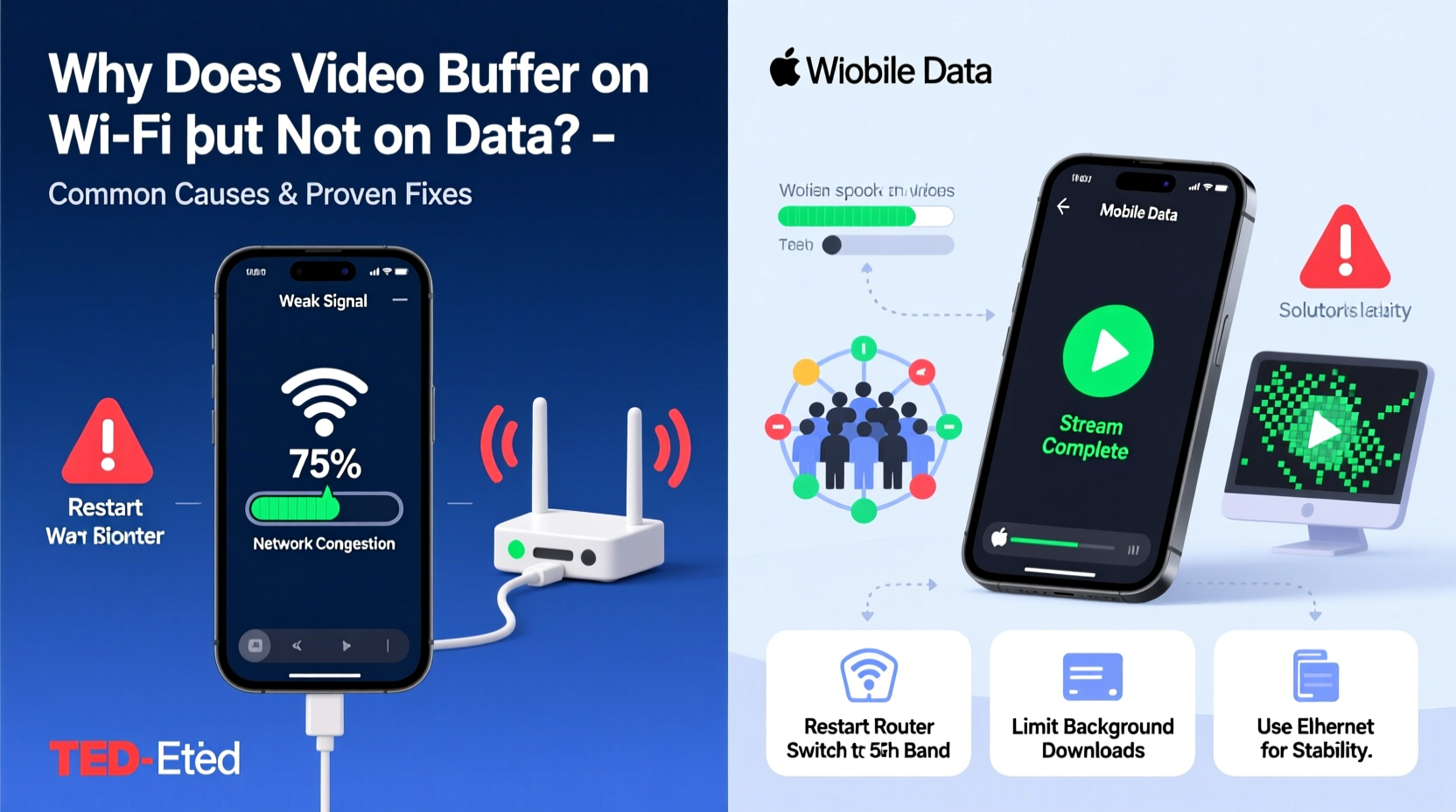
At first glance, both WiFi and mobile data transmit digital information wirelessly. However, their underlying technologies, infrastructure, and performance characteristics vary significantly.
WiFi relies on a local wireless router connected to a broadband modem. Its performance depends on proximity to the router, building materials, number of connected devices, and interference from other electronic signals. In contrast, mobile data uses cellular towers operated by carriers like Verizon, AT&T, or T-Mobile. These networks are engineered for mobility and consistent coverage, with dynamic load balancing and frequency management that often outperforms consumer-grade routers.
Moreover, modern 4G LTE and 5G networks use adaptive bitrate streaming and advanced error correction. When signal strength drops slightly, the network automatically adjusts without interrupting playback. WiFi lacks this level of sophistication in most homes, leading to abrupt buffering when packet loss or latency spikes occur.
Common Causes of WiFi Buffering (Even with Fast Speeds)
You might have a 300 Mbps internet plan, yet still face buffering. Here’s why:
- Network Congestion: Multiple devices streaming, gaming, or downloading simultaneously consume available bandwidth.
- Signal Interference: Microwaves, cordless phones, baby monitors, and neighboring WiFi networks operate on the same 2.4 GHz band, causing disruptions.
- Router Overload: Older or low-end routers struggle to manage multiple high-bandwidth connections efficiently.
- Distance and Obstacles: Thick walls, floors, and metal structures weaken WiFi signals, reducing throughput.
- ISP Throttling: Some Internet Service Providers slow down video traffic during peak hours.
- DNS Latency: Slow domain resolution delays initial connection to streaming servers.
Mobile data avoids many of these issues through carrier-managed optimization. For example, 5G networks offer lower latency (often under 10ms) compared to typical home WiFi (20–50ms), which directly impacts video loading times.
“Many people assume their internet speed is the issue, but in reality, it's often network quality—latency, jitter, and packet loss—that disrupts streaming.” — Dr. Alan Reyes, Network Engineer at OpenSignal Labs
Step-by-Step Guide to Eliminate WiFi Buffering
Follow this structured approach to diagnose and resolve buffering issues:
- Test Your Actual Speed: Use tools like Speedtest.net or Fast.com near your streaming device. Compare results with and without other devices active.
- Check for Interference: Switch your router to the 5 GHz band if possible. It’s faster and less crowded than 2.4 GHz.
- Reposition Your Router: Place it centrally, elevated, and away from appliances. Avoid basements or enclosed cabinets.
- Restart Equipment: Power cycle your modem and router every few days to clear memory leaks and reset connections.
- Limit Connected Devices: Disconnect unused smartphones, tablets, or smart home gadgets during streaming.
- Enable QoS (Quality of Service): Access your router settings and prioritize media devices or streaming applications.
- Update Firmware: Ensure your router runs the latest firmware version for security and performance improvements.
- Switch DNS Servers: Replace default DNS with Google (8.8.8.8) or Cloudflare (1.1.1.1) for faster lookups.
- Use Ethernet When Possible: Connect TVs, gaming consoles, or streaming boxes directly via cable for maximum stability.
- Contact Your ISP: If problems persist, request a line test or inquire about throttling policies.
Comparative Analysis: WiFi vs. Mobile Data Performance
| Metric | Typical Home WiFi | 4G/5G Mobile Data | Impact on Streaming |
|---|---|---|---|
| Latency (Ping) | 20–50 ms | 10–30 ms | Lower = faster response, smoother playback |
| Jitter | High (especially on 2.4 GHz) | Low (network-controlled) | High jitter causes audio/video sync issues |
| Bandwidth Consistency | Variable (shared locally) | More stable (carrier-managed) | Consistent flow prevents rebuffering |
| Interference Sources | Multiple (appliances, walls, neighbors) | Fewer (tower-based beamforming) | Less interference = fewer dropouts |
| Peak Download Speed | Up to 1 Gbps (ideal) | 50–1000 Mbps (5G) | Speed matters less than reliability |
This comparison shows that even when WiFi offers higher theoretical speeds, its inconsistency makes it more prone to buffering than optimized cellular networks.
Real-World Example: Buffering at Home vs. On the Go
Consider Sarah, a remote worker and avid Netflix viewer. At home, her 200 Mbps fiber connection frequently buffers during evening shows. She tests her speed—it reads 180 Mbps—so she assumes the connection is fine. Yet, when she disables WiFi and switches to her phone’s hotspot using the same ISP’s mobile plan (T-Mobile 5G), the show plays without a single pause.
The difference? Her aging dual-band router operates on 2.4 GHz by default, congested by her neighbor’s network and her microwave. Her laptop sits two floors away, receiving a weak signal. Meanwhile, the 5G connection uses dynamic spectrum sharing and edge computing nodes closer to her location, delivering lower latency and better error recovery.
After following the troubleshooting steps—upgrading her router firmware, switching to 5 GHz, and relocating the router—Sarah eliminates buffering entirely. The solution wasn’t faster internet, but smarter network management.
Preventive Checklist for Smooth Streaming
To maintain optimal performance, follow this checklist monthly:
- ✅ Reboot modem and router
- ✅ Verify all devices are on 5 GHz band where supported
- ✅ Update router firmware
- ✅ Audit connected devices; remove unknown ones
- ✅ Test speed at different times of day
- ✅ Set up QoS rules for streaming devices
- ✅ Clean dust from router vents (overheating degrades performance)
- ✅ Consider mesh WiFi if dead zones exist
Proactive maintenance prevents gradual degradation that users often overlook until buffering becomes unbearable.
When to Upgrade Your Hardware
Sometimes, no amount of tweaking can compensate for outdated equipment. Consider upgrading if:
- Your router is more than 3–4 years old.
- It doesn’t support Wi-Fi 5 (802.11ac) or newer standards.
- You frequently experience disconnections or overheating.
- Devices far from the router get poor signal despite minimal obstacles.
Modern solutions like Wi-Fi 6 (802.11ax) routers offer improved efficiency, better handling of multiple devices, and enhanced range. Mesh systems like Google Nest Wifi or Eero provide whole-home coverage, eliminating dead zones that cause buffering.
“Wi-Fi 6 can handle up to four times more devices than Wi-Fi 5 with lower latency—ideal for households with multiple streamers.” — TechRadar Networking Report, 2023
FAQ: Common Questions About WiFi Buffering
Why does YouTube buffer on my tablet over WiFi but not on mobile data?
This usually indicates a weak or unstable WiFi signal. Even with full bars, your device may be experiencing packet loss or high latency. Try moving closer to the router or switching to 5 GHz. Also, ensure background apps aren’t consuming bandwidth.
Can my ISP really throttle video streaming?
Yes. While net neutrality laws restrict outright blocking, some ISPs engage in “reasonable network management,” which can include slowing video traffic during congestion. Use a VPN to test—if buffering stops, throttling may be occurring.
Does restarting my router really help?
Yes. Routers run on limited RAM and CPU. Over time, memory leaks, IP conflicts, and cached errors accumulate. A restart clears temporary issues and refreshes the connection with your ISP, often restoring smooth performance.
Conclusion: Take Control of Your Streaming Experience
Buffering on WiFi while mobile data works perfectly isn’t a mystery—it’s a sign of suboptimal network conditions. Unlike carrier-managed cellular networks, home WiFi requires active oversight. By understanding the technical differences and applying practical fixes, you can achieve the same reliability on WiFi as you do on data.
Start with simple steps: reboot your router, switch to 5 GHz, and reduce interference. Then move to advanced optimizations like QoS and DNS changes. If needed, invest in modern hardware. The goal isn’t just to stop buffering today, but to build a resilient network that supports all your digital needs tomorrow.




 浙公网安备
33010002000092号
浙公网安备
33010002000092号 浙B2-20120091-4
Comments
No comments yet. Why don't you start the discussion?