
If you've noticed your AirPods losing charge faster than they used to—even after a short listening session—you're not alone. Many users report rapid battery depletion, which can be frustrating when you rely on them for calls, music, or podcasts. While some decline is natural over time, sudden or excessive drain often points to fixable issues. Understanding the root causes and applying practical solutions can restore performance and extend the lifespan of your earbuds.
Understanding AirPods Battery Health
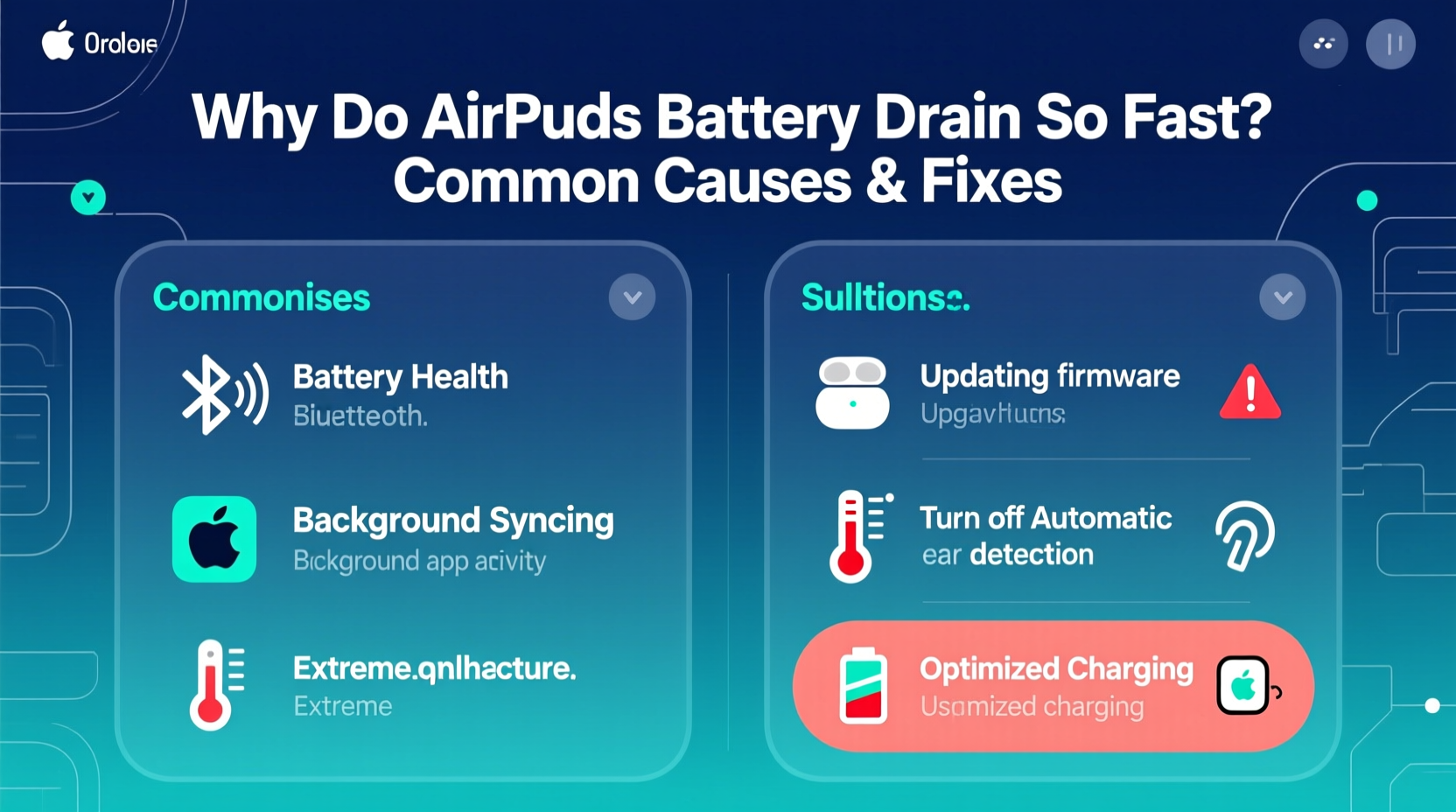
AirPods use lithium-ion batteries, known for high energy density and long cycle life. However, these batteries degrade over time due to usage patterns, environmental conditions, and software factors. Apple estimates that AirPods retain up to 80% of their original capacity after about 500 full charge cycles. Beyond that, noticeable degradation becomes common.
But if your AirPods are relatively new and already struggling to last a few hours, the issue likely isn’t age-related. Instead, it may stem from settings, connectivity problems, or firmware glitches. Identifying whether the problem affects one or both earbuds—and whether it’s the case or the earbuds themselves—can help narrow down the cause.
“Battery degradation in wireless earbuds is accelerated by heat exposure and constant charging habits.” — Dr. Alan Reyes, Electronics Engineer at MIT Media Lab
Common Causes of Rapid AirPods Battery Drain
Several factors contribute to premature battery loss. Some are user-controllable; others require troubleshooting or servicing.
1. Background App Refresh and Active Features
Features like Automatic Ear Detection, Siri voice activation, and spatial audio enhance convenience but consume extra power. If enabled constantly, they force the AirPods to remain in active sensing mode, even when idle.
2. Poor Bluetooth Connection
Interference from Wi-Fi routers, microwaves, or other Bluetooth devices can weaken the signal between your AirPods and device. When the connection struggles, the earbuds work harder to maintain pairing, increasing power consumption.
3. Outdated Firmware
Apple periodically releases firmware updates that optimize battery efficiency and fix bugs. If your AirPods aren’t updated, outdated software could be causing unnecessary background processes or inefficient power management.
4. High Volume Levels and Bass-Heavy Audio
Listening at high volumes, especially with bass-rich music or movies, demands more power from the drivers. This significantly reduces playback time compared to moderate volume levels.
5. Extreme Temperatures
Lithium-ion batteries perform poorly in extreme heat or cold. Leaving your AirPods in a hot car or using them in freezing weather can temporarily reduce battery life—or permanently damage cells over time.
6. Physical Damage or Moisture Exposure
Although newer models have sweat and water resistance, moisture ingress or physical impact can compromise internal components, including the battery. Even minor damage may lead to increased discharge rates.
Step-by-Step Fixes to Improve AirPods Battery Life
Before assuming your AirPods need replacement, try these systematic fixes. Many users see immediate improvements after adjusting settings or updating firmware.
- Update Your AirPods Firmware
Connect your AirPods to an iPhone or iPad, go to Settings > General > About > AirPods, and check the firmware version. The latest versions (as of 2024) start with 6A300 or higher. If it's outdated, place the AirPods in the case, connect the case to power, and keep it near your iOS device. Updates install automatically over time. - Reset Bluetooth Settings on Your Device
Go to Settings > Bluetooth, tap the info (i) icon next to your AirPods, and select \"Forget This Device.\" Then, reconnect them as if pairing for the first time. This clears corrupted connection data that might be forcing repeated reconnections. - Disable Power-Intensive Features
Navigate to Settings > Bluetooth > [Your AirPods] > Tap the “i” icon.
Turn off:- Automatic Ear Detection
- Siri Voice Activation (\"Hey Siri\")
- Spatial Audio (if not needed)
- Reduce Volume and Avoid Bass Overload
Keep volume below 70%. Use EQ settings (Settings > Music > EQ) to reduce bass boost, which requires more amplification and drains battery faster. - Clean Charging Contacts
Use a dry, soft-bristled brush (like a clean toothbrush) to gently clean the metal contacts on the AirPods stems and inside the charging case. Dust buildup can prevent proper charging, leading to false low-battery readings and incomplete top-ups. - Use Original Charging Equipment
Non-MFi (Made for iPhone/iPad) cables or third-party wireless chargers may deliver inconsistent voltage, resulting in inefficient charging and potential battery stress.
Battery Optimization Checklist
Follow this daily and weekly checklist to maximize AirPods battery longevity:
- ✅ Store AirPods in the case when not in use
- ✅ Charge only when below 20%, avoid constant 100% charging
- ✅ Keep firmware updated via regular iOS updates
- ✅ Disable \"Hey Siri\" unless actively used
- ✅ Turn off Spatial Audio during non-movie listening
- ✅ Clean charging contacts monthly
- ✅ Avoid leaving in direct sunlight or hot environments
- ✅ Limit continuous usage to under 3 hours without breaks
Comparing AirPods Models: Battery Performance Overview
Different AirPods generations offer varying battery life and efficiency. Knowing what to expect helps determine if your experience falls within normal range.
| Model | Playtime (per charge) | Case Charging Boost | Common Battery Issues |
|---|---|---|---|
| AirPods (1st Gen) | Up to 5 hours | +15 hours | Firmware lag, sensor drift |
| AirPods (2nd Gen) | Up to 5 hours | +19 hours | Microphone overheating |
| AirPods (3rd Gen) | Up to 6 hours | +30 hours (MagSafe) | Overuse of spatial audio |
| AirPods Pro (1st & 2nd Gen) | Up to 6 hours (ANC on), 7.5 hrs (off) | +30 hours | Active Noise Cancellation power draw |
| AirPods Max | Up to 20 hours | N/A (no case charging) | Inefficient sleep mode |
Note: Active Noise Cancellation (ANC) and Transparency mode increase power consumption. Turning them off when unnecessary adds significant runtime.
Real-World Example: Sarah’s AirPods Fix
Sarah, a freelance graphic designer, relied on her AirPods Pro for client Zoom calls and focus music. She noticed her right earbud dying after just 1.5 hours—half the usual time. Initially suspecting hardware failure, she considered buying new ones.
Instead, she checked her settings and discovered \"Hey Siri\" was enabled, along with Spatial Audio always-on. After disabling both and resetting the Bluetooth connection, her AirPods regained nearly full expected battery life. A quick cleaning of the charging pins also resolved slow charging. Total fix time: 10 minutes. Cost: $0.
This case highlights how easily overlooked settings can mimic hardware failure.
When to Seek Professional Help
If all troubleshooting steps fail, the issue may be hardware-related. Consider professional service if:
- One AirPod consistently dies much faster than the other
- The battery drops from 80% to 20% in under 30 minutes during normal use
- The charging case shows full but fails to charge the AirPods
- You receive frequent “Low Battery” alerts despite recent charging
Visit an Apple Store or authorized service provider. They can run diagnostics using Apple’s internal tools and assess whether the battery needs replacement. Under Apple’s limited warranty or AppleCare+, battery service may be free if capacity is below 80% and the device is eligible.
Frequently Asked Questions
How do I check my AirPods’ battery health?
iOS doesn’t show detailed battery health for AirPods like it does for iPhones. However, you can get a general sense by checking how long they last on a full charge compared to when new. You can also view current charge level via the battery widget or by opening the case near your iPhone. Significant deviation from original specs suggests degradation.
Can I replace the AirPods battery?
Yes. Apple offers out-of-warranty battery service for individual AirPods or the charging case. As of 2024, pricing starts at $49 per earbud. Replacement restores near-original performance and is often more cost-effective than buying a new pair.
Does turning off ANC really save battery?
Yes. On AirPods Pro, Active Noise Cancellation uses microphones and processing chips continuously, consuming additional power. Disabling ANC can extend listening time by up to 1.5 hours per charge, depending on model and usage.
Final Thoughts and Action Plan
Rapid AirPods battery drain rarely happens without cause. More often than not, it’s a combination of settings, environment, and maintenance habits. By systematically reviewing your usage, disabling unnecessary features, and ensuring optimal charging practices, you can reclaim lost battery life and delay the need for costly replacements.
Start today: open your iPhone’s Bluetooth settings, disable “Hey Siri” and Automatic Ear Detection, clean the charging contacts, and ensure your firmware is up to date. These small changes yield measurable results.
If you’ve tried everything and still face issues, don’t hesitate to contact Apple Support. Battery wear is inevitable, but with smart care, your AirPods can deliver reliable performance for years—not months.




 浙公网安备
33010002000092号
浙公网安备
33010002000092号 浙B2-20120091-4
Comments
No comments yet. Why don't you start the discussion?