
If you're like many Apple Watch owners, you may have noticed that your device no longer lasts a full day on a single charge — or worse, it struggles to make it through a morning workout. While Apple promises up to 18 hours of battery life under typical use, real-world conditions often fall short. The good news is that rapid battery drain isn’t always a sign of hardware failure. More often than not, it’s caused by settings, usage patterns, or background behaviors that can be adjusted.
Understanding what’s eating your Apple Watch battery and applying targeted fixes can dramatically improve longevity and restore confidence in your wearable. From optimizing notifications to managing software updates, this guide walks through the most common culprits and offers practical, tested solutions to extend battery life.
Common Causes of Rapid Battery Drain
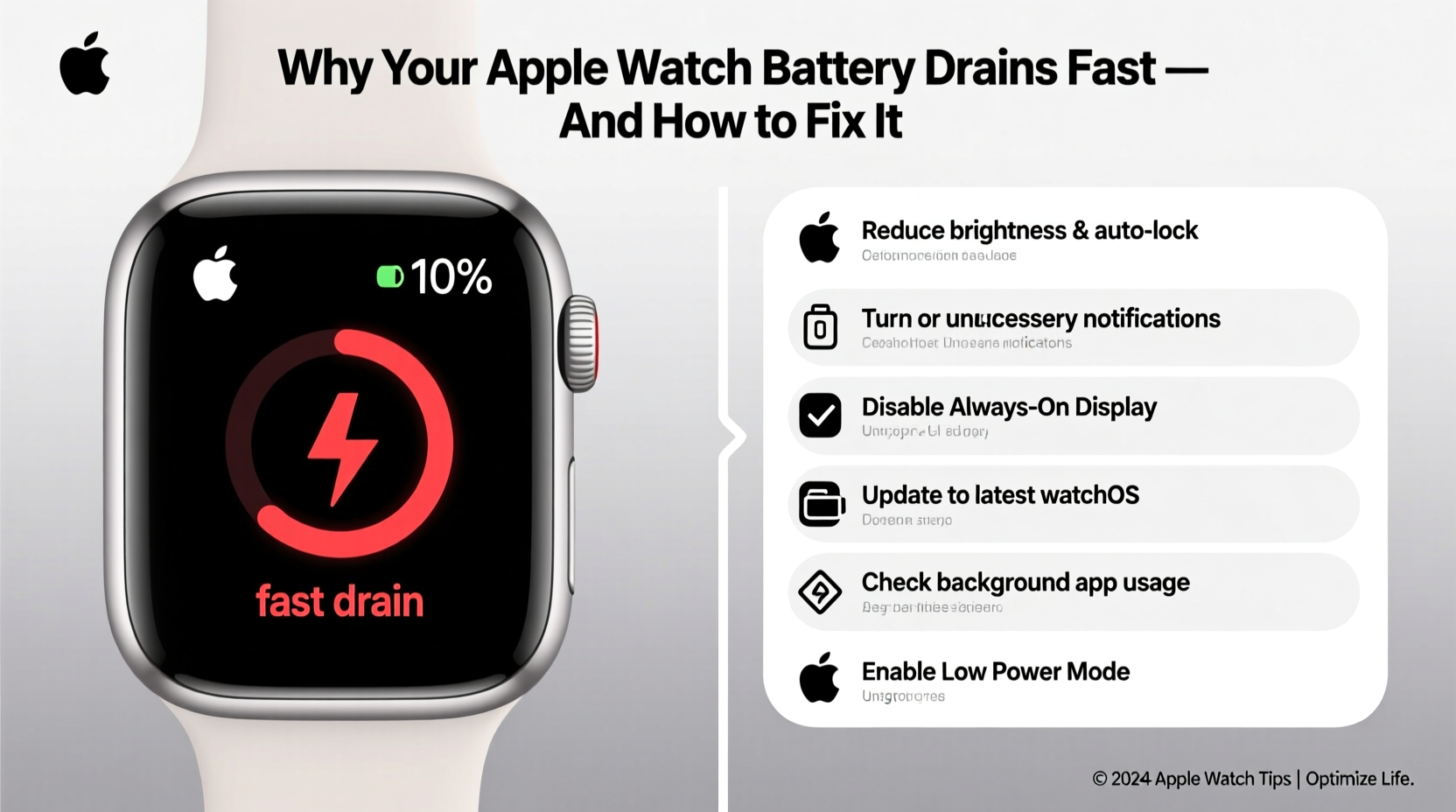
The Apple Watch is packed with sensors, connectivity features, and apps that enhance daily life — but they also consume power. Identifying which features are overworking your battery is the first step toward improvement.
- Background app refresh: Apps running in the background can continue syncing data even when not in use.
- Frequent notifications: Constant alerts from emails, messages, and social media trigger screen wake-ups and haptic feedback.
- Always-On Display: On Series 5 and later models, keeping the screen dimly lit increases energy consumption.
- Workout tracking: GPS, heart rate monitoring, and motion sensors during exercise sessions are major power draws.
- Bright screen settings: High brightness levels, especially outdoors, require more power to maintain visibility.
- Software bugs: Occasionally, iOS or watchOS updates introduce inefficiencies or glitches that affect battery performance.
7 Proven Fixes to Extend Apple Watch Battery Life
Before assuming your battery needs replacement, try these actionable steps. Most users report noticeable improvements after just a few adjustments.
1. Disable Always-On Display (If Applicable)
If you own an Apple Watch Series 5 or newer, the Always-On Display feature keeps the time visible even when your wrist is down. While convenient, it continuously powers the OLED screen.
To turn it off:
- Open Settings on your Apple Watch.
- Tap Display & Brightness.
- Toggle off Always On.
This change alone can add several hours to your battery life, especially if you frequently glance at your watch throughout the day.
2. Reduce Notification Frequency
Every notification wakes the screen, triggers haptics, and may activate apps in the background. Over time, hundreds of alerts accumulate significant power usage.
Consider:
- Turning off non-essential app notifications via the Watch app on iPhone.
- Using Notification Groups to batch alerts and reduce interruptions.
- Enabling Do Not Disturb during sleep or focused work hours.
3. Lower Screen Brightness and Auto-Brightness
A bright screen consumes more energy. While auto-brightness adjusts based on environment, it sometimes defaults to higher levels unnecessarily.
Adjust manually:
- Swipe up from the watch face to open Control Center.
- Tap the brightness slider icon (sun symbol).
- Drag the slider down to a comfortable but lower level.
You can also disable Auto-Brightness in Settings > Display & Brightness if you prefer consistent manual control.
4. Turn Off Wrist Raise for Display
By default, your Apple Watch lights up every time you raise your wrist. This is useful but can lead to dozens of unintended activations per day.
To modify this behavior:
- Go to Settings > Display & Brightness > Wake Duration.
- Select “Wake for 70 Seconds” instead of “Wake on Wrist Raise.”
- Now, the screen only stays on longer when tapped — reducing passive activation.
5. Limit Background App Refresh
Some third-party apps continue fetching data in the background, even when unused. This silently drains battery.
To manage:
- On your iPhone, open the Watch app.
- Navigate to General > Background App Refresh.
- Turn off refresh for apps you don’t use regularly.
Alternatively, delete apps you no longer need. Fewer apps mean fewer processes competing for resources.
6. Disable Unnecessary Complications and Watch Faces
Watch faces with live complications — such as weather, activity rings, or stock tickers — update frequently and draw extra power.
Switch to simpler faces like Simple, Time Travel, or Memoji without dynamic elements. You’ll still get core functionality without constant syncing.
7. Restart and Update Software Regularly
Occasional reboots clear temporary files and stop rogue processes. A simple restart can resolve phantom battery drain caused by software hiccups.
Also, ensure both your iPhone and Apple Watch are running the latest version of watchOS. Apple frequently releases optimizations targeting battery efficiency.
“Battery issues are often software-related. A clean restart and updated OS can resolve up to 60% of reported drain cases.” — David Lin, Senior Wearable Technician at iFixTech Support
Optimization Checklist for Long-Term Battery Health
Use this checklist weekly or monthly to maintain optimal battery performance:
| Action | Frequency | Impact Level |
|---|---|---|
| Restart Apple Watch | Weekly | High |
| Review battery-hungry apps | Bi-weekly | High |
| Update watchOS | When available | Very High |
| Reduce screen brightness | Ongoing | Medium |
| Disable Always-On Display | One-time setting | High |
| Delete unused apps | Monthly | Medium |
| Use Power Reserve mode during travel | As needed | Very High (temporary) |
Real-World Example: Sarah’s Marathon Training Fix
Sarah, a fitness coach and Apple Watch Series 6 user, found her watch dying mid-run during long-distance training. She relied on GPS tracking and heart rate monitoring but expected at least 6–7 hours of use.
After checking battery usage, she discovered that Strava and Spotify were syncing data aggressively in the background. She also had Do Not Disturb disabled, leading to constant message alerts during runs.
She applied the following changes:
- Disabled background refresh for Spotify.
- Enabled Theater Mode before workouts to mute vibrations and prevent screen wake.
- Switched to a minimalist watch face with no live complications.
- Turned off wrist raise during exercise.
Result: Her Apple Watch now lasts over 8 hours during continuous GPS use — enough to complete marathons without charging mid-race.
When Hardware Might Be the Issue
Even with perfect settings, aging batteries lose capacity. Lithium-ion batteries degrade over time, typically retaining about 80% of original capacity after 500 full charge cycles.
Signs your battery may need replacement:
- Battery drops from 80% to 20% within an hour of idle use.
- Device shuts down unexpectedly despite showing charge.
- Charging becomes erratic or takes significantly longer.
Apple offers battery service for out-of-warranty devices. As of 2024, the cost ranges from $69 to $99 depending on model. Third-party providers may offer lower prices, but using non-OEM parts can affect future software updates and water resistance.
Frequently Asked Questions
Does using cellular drain the battery faster?
Yes. When your Apple Watch uses its own cellular connection instead of staying paired to your iPhone via Bluetooth, it consumes more power. If you’re near your phone, consider turning off cellular to preserve battery. You can toggle it quickly in Control Center.
Is it bad to charge my Apple Watch overnight?
No. Apple Watches are designed to stop charging automatically once they reach 100%. The system manages trickle charging to avoid overcharging. However, consistently keeping it at 100% for days may accelerate long-term degradation. For best longevity, aim to keep charge between 20% and 80% when possible.
Why does my Apple Watch die faster in cold weather?
Lithium-ion batteries temporarily lose efficiency in low temperatures. Cold environments slow chemical reactions inside the battery, causing sudden shutdowns even at moderate charge levels. Once warmed up, the device often regains normal function. Avoid exposing your watch to extreme cold for extended periods.
Conclusion: Take Control of Your Apple Watch Battery Life
Your Apple Watch doesn’t have to struggle to last a day. With thoughtful configuration and regular maintenance, you can reclaim hours of usage and rely on your wearable throughout even the busiest days. The key lies in balancing functionality with efficiency — disabling what you don’t need, updating what matters, and understanding how your habits impact performance.
Battery life isn’t just about hardware limits; it’s about smart usage. Start with one or two fixes today — maybe turning off Always-On Display or reviewing your notification load — and build from there. Small changes compound into lasting improvements.




 浙公网安备
33010002000092号
浙公网安备
33010002000092号 浙B2-20120091-4
Comments
No comments yet. Why don't you start the discussion?