
Bluetooth technology has become an essential part of daily life—connecting headphones, smartwatches, car systems, speakers, and more. Yet, few frustrations match the sudden drop of a Bluetooth connection mid-call or during your favorite playlist. If your Bluetooth device frequently disconnects from your phone, you're not alone. Millions face similar issues due to software bugs, hardware limitations, interference, or misconfigurations. The good news: most problems are fixable with systematic troubleshooting. This guide breaks down the root causes and delivers practical, tested solutions to restore stable wireless performance.
Understanding Common Causes of Bluetooth Disconnection
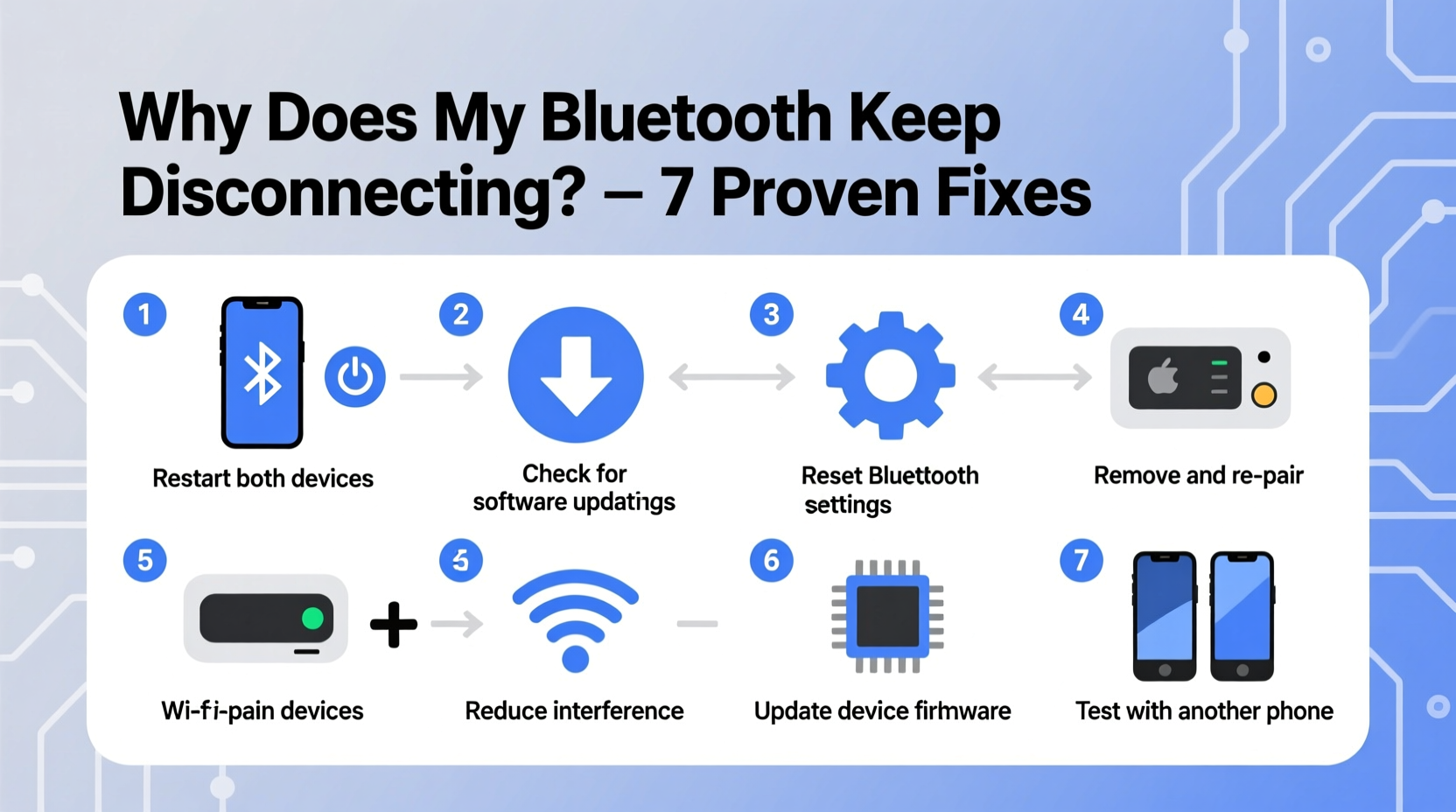
Before jumping into fixes, it's crucial to understand what might be triggering disconnections. Bluetooth operates on the 2.4 GHz frequency band, which is also used by Wi-Fi routers, microwaves, and other wireless devices. This shared spectrum can lead to interference. Beyond signal conflicts, several factors contribute to instability:
- Outdated firmware or operating system – Older versions may lack patches for known Bluetooth bugs.
- Low battery on connected device – Earbuds or watches with low power often reduce transmission strength or shut off Bluetooth entirely.
- Physical obstructions or distance – Walls, furniture, or simply moving too far from your phone disrupt signal integrity.
- Pairing conflicts – Devices previously paired but not properly forgotten can interfere with current connections.
- Hardware defects – Faulty antennas or worn-out components in either the phone or accessory may cause intermittent drops.
- Background app interference – Some apps consume excessive resources or override audio routing, forcing disconnections.
Step-by-Step Guide to Fix Bluetooth Disconnections
Follow this structured approach to identify and resolve the underlying issue. Start with basic checks before progressing to advanced troubleshooting.
- Restart Both Devices
A simple reboot clears memory leaks and resets network stacks. Turn off your phone and Bluetooth accessory, wait 30 seconds, then power them back on. - Check Battery Levels
Ensure both your phone and Bluetooth device have sufficient charge. Low power modes can disable non-essential functions like Bluetooth. - Remove Obstacles and Reduce Distance
Stay within 30 feet (10 meters) of your phone with minimal barriers. Avoid placing your phone in pockets or bags that block the antenna. - Forget and Re-Pair the Device
Go to Settings > Bluetooth, tap the gear icon next to your device, and select “Forget.” Then re-pair it from scratch. - Update Software
Install the latest OS updates for your phone and firmware updates for your Bluetooth device via its companion app (e.g., Sony Headphones Connect, Samsung Wearable). - Disable Battery Optimization for Bluetooth Services
On Android, go to Settings > Apps > [Your Bluetooth App] > Battery > set to “Unrestricted.” On iOS, ensure Background App Refresh is enabled. - Reset Network Settings
This erases saved Wi-Fi networks, Bluetooth pairings, and cellular settings but often resolves deep-seated connectivity issues. Found under Settings > System > Reset Options (Android) or General > Transfer or Reset iPhone (iOS).
Do’s and Don’ts When Troubleshooting Bluetooth Issues
| Do’s | Don’ts |
|---|---|
| Keep devices updated with the latest firmware | Ignore repeated disconnection warnings—they often indicate deeper issues |
| Use Bluetooth devices within recommended range | Overload your phone with background apps while using Bluetooth audio |
| Store accessories in cases when not in use to prevent physical damage | Assume the problem is always with the phone—test with another device |
| Test multiple Bluetooth devices to isolate the issue | Leave Bluetooth on unnecessarily; it drains battery and increases vulnerability to interference |
Real-World Example: Commuter Struggles with Car Kit Drops
Mark, a daily commuter in Chicago, experienced frequent disconnections between his Android phone and factory-installed car Bluetooth system. Calls would drop every 5–7 minutes, especially near downtown tunnels. He initially assumed poor signal, but after testing, he discovered the real culprit: aggressive battery optimization in his phone’s settings was suspending the Bluetooth service during navigation.
After disabling battery restrictions for his phone’s Bluetooth and location services, and updating his car’s infotainment system through the dealership, Mark achieved consistent connectivity—even in high-interference zones. His case highlights how software policies, not just signal strength, impact Bluetooth reliability.
“Many Bluetooth issues stem from power management features designed to extend battery life. Users need to balance efficiency with functionality.” — Dr. Lena Torres, Wireless Systems Engineer at MobileTech Labs
Advanced Fixes for Persistent Problems
If standard steps fail, consider these deeper interventions:
Clear Bluetooth Cache (Android Only)
Corrupted cache files can prevent proper device recognition. To clear:
- Go to Settings > Apps.
- Show system apps (tap menu > Show system).
- Find “Bluetooth” under system services.
- Tap Storage > Clear Cache.
Note: Do not tap “Clear Data” unless necessary—it removes all pairings.
Check for Interference Sources
Other electronics emit signals on the same 2.4 GHz band. Common culprits include:
- Wi-Fi routers (especially older models)
- Cordless phones
- Microwave ovens
- Nearby Bluetooth devices (e.g., coworker’s speaker)
Try turning off nearby wireless devices temporarily to test if stability improves.
Use Airplane Mode Strategically
Toggle Airplane Mode on for 10 seconds, then off. This resets all wireless radios simultaneously. Afterward, manually re-enable Bluetooth. This quick reset often resolves transient glitches better than a full reboot.
Test with Another Phone or Device
To determine whether the fault lies with your phone or the Bluetooth accessory, pair the accessory with a different smartphone. If disconnections persist, the issue is likely with the accessory. If the connection holds, focus troubleshooting on your original phone.
Checklist: Bluetooth Stability Action Plan
Use this checklist to methodically address disconnection issues:
- ✅ Restart both phone and Bluetooth device
- ✅ Ensure both devices are fully charged
- ✅ Move closer and remove physical obstructions
- ✅ Forget and re-pair the Bluetooth device
- ✅ Update phone OS and accessory firmware
- ✅ Disable battery optimization for Bluetooth-related apps
- ✅ Reset network settings as a last resort
- ✅ Test accessory with another phone
- ✅ Identify and minimize sources of wireless interference
- ✅ Clean device contacts and ports (for earbuds, watches, etc.)
Frequently Asked Questions
Why does my Bluetooth disconnect when I lock my phone?
This typically occurs due to aggressive battery-saving settings. On Android, check if the Bluetooth app is restricted in battery usage. On iOS, ensure Background App Refresh is enabled for relevant apps. Some manufacturers (e.g., Xiaomi, Huawei) aggressively kill background processes unless apps are added to a \"protected apps\" list.
Can a phone case cause Bluetooth disconnection?
While rare, thick metal-lined cases or magnetic wallets can partially block radio signals. Try removing the case temporarily to see if connectivity improves. Most modern phones are designed to route antennas away from common blockage zones, but extreme shielding materials can still interfere.
Does Bluetooth version affect connection stability?
Yes. Newer versions like Bluetooth 5.0 and above offer better range, speed, and interference resistance compared to older 4.0 or 4.2 models. If your phone and accessory both support Bluetooth 5.0+, you’ll experience fewer dropouts and faster reconnection times. Check device specs to confirm compatibility.
Conclusion: Regain Control Over Your Wireless Experience
Bluetooth disconnections are frustrating but rarely unsolvable. By understanding the interplay between hardware, software, and environment, you can systematically eliminate causes and restore seamless connectivity. Most issues stem from simple oversights—outdated software, forgotten pairings, or overly aggressive power settings—that take minutes to correct. The key is patience and methodical testing. Don’t settle for constant dropouts. Apply the steps outlined here, use the checklist to stay organized, and reclaim reliable wireless performance across all your devices.




 浙公网安备
33010002000092号
浙公网安备
33010002000092号 浙B2-20120091-4
Comments
No comments yet. Why don't you start the discussion?