
There’s nothing more frustrating than settling in with your favorite playlist, only for the music to stutter or stop entirely—again. If your Bluetooth speaker keeps cutting out without warning, you're not alone. Millions of users face intermittent connectivity issues that disrupt everything from backyard parties to focused work sessions. While Bluetooth technology has come a long way, it’s still vulnerable to interference, hardware limitations, and user habits that degrade performance.
The root causes behind random disconnections are often a mix of environmental factors, device compatibility, and settings mismanagement. Understanding these triggers is the first step toward restoring seamless playback. This guide breaks down the science behind Bluetooth instability, identifies common pitfalls, and delivers actionable solutions to keep your speaker connected and performing at its best.
Understanding Bluetooth Signal Behavior
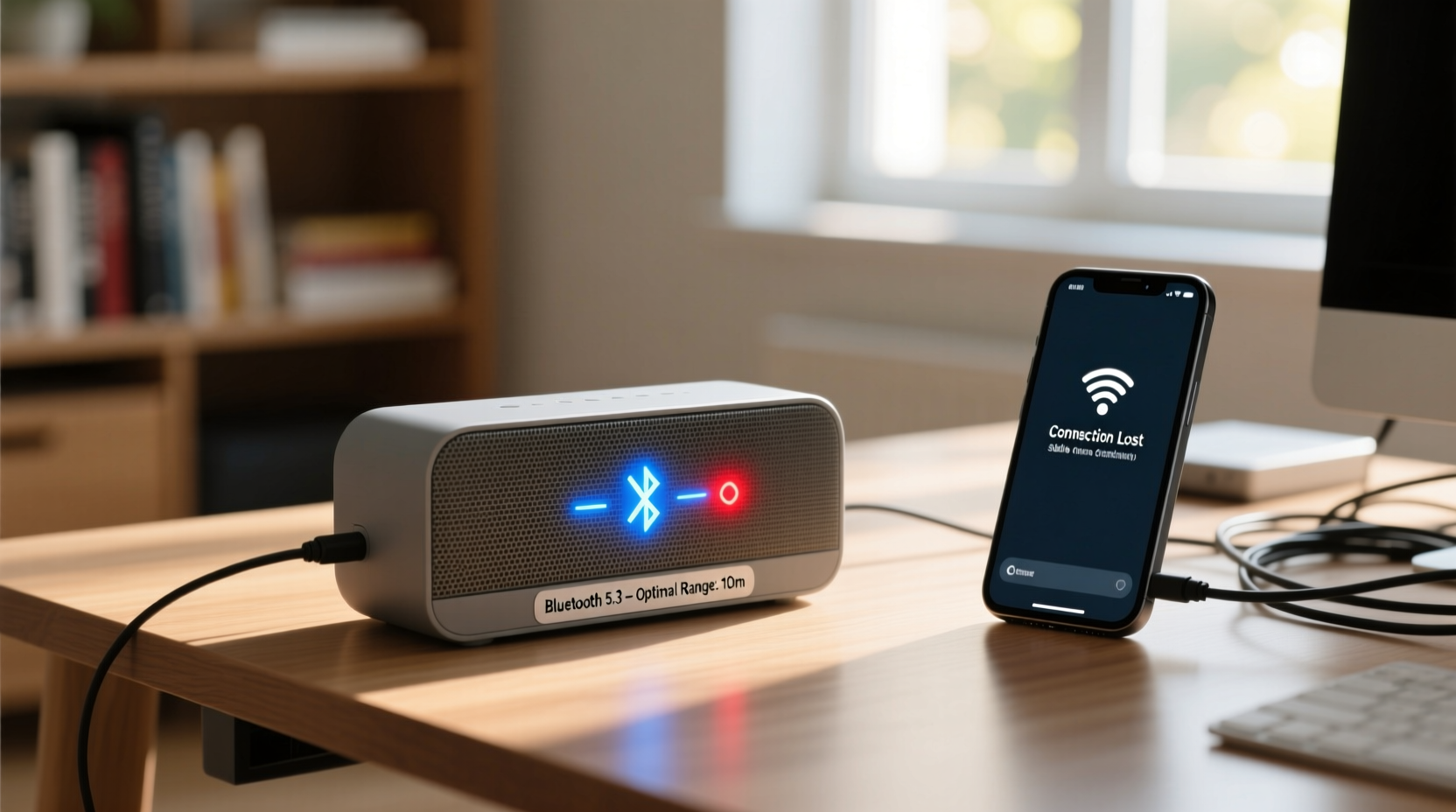
Bluetooth operates on the 2.4 GHz frequency band—the same as Wi-Fi routers, microwaves, cordless phones, and many smart home devices. This shared spectrum means congestion is inevitable in modern homes. When multiple wireless signals compete for bandwidth, data packets from your audio stream can be delayed or dropped, leading to audio cutouts or lag.
Bluetooth uses adaptive frequency hopping (AFH), which allows it to switch between 79 different channels within the 2.4 GHz band to avoid interference. However, if too many devices occupy overlapping frequencies, even AFH may not compensate fully. Additionally, physical barriers like walls, furniture, and even human bodies absorb or reflect radio waves, weakening signal strength over distance or through obstacles.
Another critical factor is Bluetooth version compatibility. Older versions like 4.0 or 4.2 have lower bandwidth and range compared to Bluetooth 5.0 and above. A mismatch between your source device (phone, tablet) and speaker can result in unstable connections, especially when streaming high-bitrate audio or moving beyond close proximity.
“Even minor signal degradation can cause buffer underruns in audio transmission, resulting in dropouts. It's not always about range—it's about signal clarity.” — Dr. Lena Park, Wireless Communications Engineer
Common Causes of Random Cutouts
- Signal Interference: Other electronics operating on 2.4 GHz can drown out Bluetooth signals.
- Distance and Obstacles: Exceeding the effective range (typically 30 feet for Class 2 devices) or placing walls/furniture between devices weakens the link.
- Low Battery: Both the speaker and source device may reduce power to radios when battery levels are critically low.
- Outdated Firmware: Manufacturers release updates to fix bugs and improve pairing stability; skipping them risks unresolved issues.
- Overloaded Source Device: Background apps consuming CPU or network resources can delay audio output.
- Poor Codec Support: Mismatched or inefficient audio codecs (like SBC vs. aptX) affect compression and transmission reliability.
- Dual Device Pairing: Some speakers auto-switch between two paired devices, causing unexpected disconnections if both are active.
Step-by-Step Guide to Stabilize Your Connection
Follow this sequence to systematically eliminate potential causes of instability:
- Reboot Both Devices: Power off your speaker and smartphone/tablet completely, wait 30 seconds, then restart. This clears temporary glitches in the Bluetooth stack.
- Forget and Re-Pair: Go to your phone’s Bluetooth settings, select the speaker, and choose “Forget This Device.” Then re-pair from scratch to establish a clean connection.
- Update Firmware: Check the manufacturer’s app or website for firmware updates. Many brands like JBL, Bose, and Sony release patches specifically for connection improvements.
- Reduce Physical Distance: Move closer to the speaker—ideally within 10–15 feet—and remove any large objects blocking the path.
- Minimize Wireless Competition: Turn off nearby devices using 2.4 GHz (e.g., microwave, baby monitor) or temporarily disable Wi-Fi on your router to test if performance improves.
- Close Background Apps: On your source device, close unused apps, especially those syncing data or streaming media.
- Test with Another Device: Pair the speaker with a different phone or tablet to determine if the issue lies with the original source device.
- Reset the Speaker: Use the reset button (if available) or follow the factory reset procedure in the manual. This removes all pairings and settings, giving you a fresh start.
Do’s and Don’ts for Stable Bluetooth Performance
| Do’s | Don’ts |
|---|---|
| Maintain line-of-sight between devices when possible | Place the speaker inside cabinets or behind metal objects |
| Keep both devices charged above 30% | Use the speaker while charging if it causes interference |
| Use wired connections for critical listening (aux-in or USB) | Stream lossless audio over Bluetooth without checking codec support |
| Limit the number of simultaneously connected Bluetooth devices | Pair multiple speakers unless using a supported multi-speaker mode |
| Store firmware update notifications and apply them promptly | Ignore recurring disconnection warnings—they often indicate deeper issues |
Real-World Example: Fixing a Problematic Backyard Setup
Mark, a homeowner in Austin, regularly hosted weekend gatherings where he used a portable Bluetooth speaker on his patio. Despite being only 20 feet from his phone, the audio would cut out every few minutes, especially when guests moved around. He tried restarting the speaker, but the issue persisted.
After reviewing his setup, he realized his Wi-Fi router was mounted on the opposite side of the same wall as the speaker, creating significant 2.4 GHz interference. His neighbor also had a strong mesh network extending into his yard. Mark switched his home Wi-Fi to the 5 GHz band (reserving 2.4 GHz for essential IoT devices), moved the speaker slightly forward away from the brick wall, and updated its firmware via the brand’s mobile app. The combination eliminated dropouts entirely, allowing smooth playback throughout his events.
This case illustrates how layered issues—interference, placement, and outdated software—can compound. Addressing just one might not resolve the problem; a holistic approach is often required.
Troubleshooting Checklist
Use this checklist to diagnose and fix Bluetooth speaker instability:
- ✅ Reboot both speaker and source device
- ✅ Ensure both devices are adequately charged
- ✅ Remove and re-pair the speaker
- ✅ Update firmware on the speaker and source device OS
- ✅ Reduce distance and remove obstructions
- ✅ Disable other Bluetooth devices nearby
- ✅ Switch Wi-Fi to 5 GHz to reduce 2.4 GHz congestion
- ✅ Test with a second source device (e.g., tablet or laptop)
- ✅ Perform a factory reset on the speaker
- ✅ Try audio via auxiliary cable to confirm speaker hardware integrity
Frequently Asked Questions
Why does my Bluetooth speaker disconnect when I take a call?
This typically happens because your phone switches the audio profile from A2DP (high-quality stereo) to HFP (Hands-Free Profile) during calls. Some older or budget speakers don’t handle this transition smoothly and may appear to disconnect. Once the call ends, audio should resume automatically. To prevent confusion, consider using headphones for calls while keeping the speaker dedicated to music playback.
Can walls really affect Bluetooth performance?
Yes. Drywall causes mild attenuation, but materials like concrete, brick, metal, and mirrors significantly weaken or block 2.4 GHz signals. Even water-filled objects (like fish tanks or humans) absorb radio waves. For best results, maintain a direct line of sight and minimize the number of solid barriers between your device and speaker.
Is Bluetooth 5.0 really better for stability?
Absolutely. Bluetooth 5.0 doubles the range (up to 800 feet in ideal conditions), quadruples data transfer speed, and improves broadcast messaging efficiency. It also enhances coexistence with Wi-Fi by refining frequency hopping algorithms. If your current devices use Bluetooth 4.2 or earlier, upgrading to 5.0+ hardware can dramatically reduce dropouts and latency.
Optimizing Long-Term Speaker Health
Beyond immediate fixes, maintaining your speaker’s long-term performance requires consistent care. Dust buildup around internal antennas, corrosion in charging ports, and degraded batteries can all indirectly impact wireless stability. Clean the exterior gently with a dry microfiber cloth monthly, and store the speaker in a climate-controlled environment when not in use for extended periods.
Additionally, avoid leaving the speaker at full charge for days on end. Lithium-ion batteries perform best between 20% and 80% capacity. Regularly discharging and recharging—not letting it die completely—helps preserve battery health, which in turn supports stable Bluetooth operation under load.
If you frequently experience issues despite following best practices, consider whether the speaker has reached end-of-life. Entry-level models often lack advanced interference filtering and memory management found in premium units. Investing in a higher-tier model with multipoint connectivity, noise cancellation, and dual-band support may be the most effective long-term solution.
Final Thoughts and Action Plan
Random Bluetooth speaker cutouts aren't inevitable—they’re usually solvable with targeted adjustments. Start by isolating the cause: Is it environmental? Device-related? Or a configuration flaw? Use the troubleshooting steps and checklist provided to methodically rule out variables. Most users find resolution within one or two attempts, especially after updating firmware and optimizing placement.
Remember, Bluetooth is designed for convenience, not perfection. In environments with heavy wireless traffic or demanding audio needs, switching to a wired connection or using a speaker with Wi-Fi/AirPlay/Chromecast capabilities may offer superior reliability.




 浙公网安备
33010002000092号
浙公网安备
33010002000092号 浙B2-20120091-4
Comments
No comments yet. Why don't you start the discussion?