
Modern web browsers are powerful tools, capable of handling everything from high-definition video streaming to complex web applications. But even the most robust browsers can begin to lag after weeks or months of regular use. Pages take longer to load, tabs freeze unexpectedly, and simple searches feel sluggish. If you've noticed your browser slowing down, you're not alone—and more importantly, it's fixable. The slowdown isn't usually due to hardware failure or outdated software alone; instead, it's often the result of accumulated digital clutter, inefficient settings, and unchecked background processes. Understanding the root causes and applying targeted cleanup strategies can dramatically improve performance—often within minutes.
The Hidden Causes of Browser Slowdown
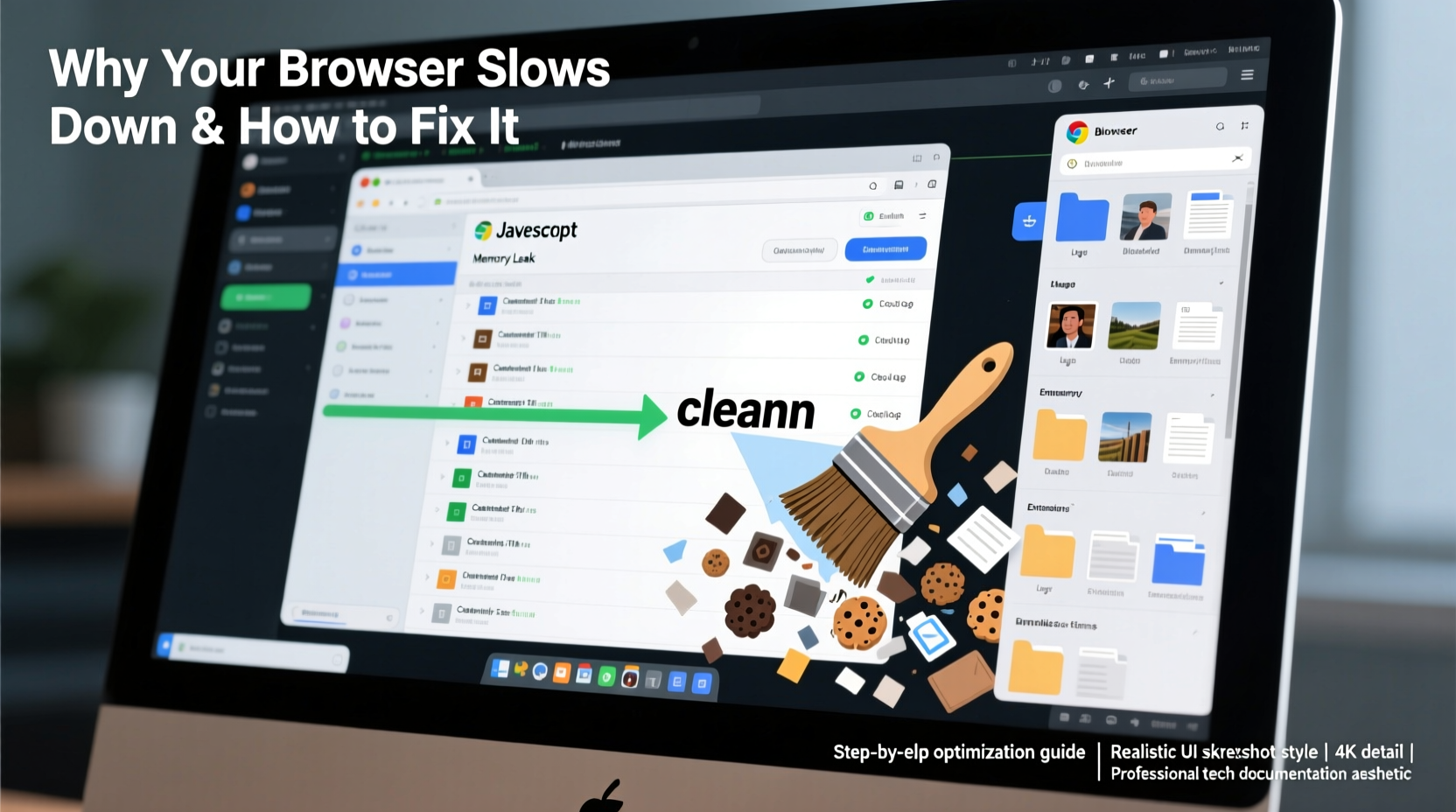
Browsers accumulate data every time you go online. While some of this—like cached files and cookies—helps speed up future visits by storing elements locally, too much of it leads to bloat. Over time, excessive cache, outdated extensions, fragmented storage, and persistent tracking scripts all contribute to degraded performance. Additionally, modern websites are increasingly resource-heavy, relying on JavaScript frameworks, embedded ads, and real-time updates that strain older systems or browsers with poor memory management.
Another major factor is tab overload. Keeping dozens of tabs open may seem harmless, but each one consumes RAM and CPU cycles—even when minimized. Background tabs continue to run scripts, play audio, or refresh content, silently draining system resources. Combine this with poorly optimized extensions running in the background, and it’s no surprise that your browser begins to crawl.
“Browser slowdown is rarely about the browser itself—it’s about what we let accumulate inside it.” — Dr. Alan Reed, Senior UX Researcher at WebPerf Labs
Step-by-Step: How to Clean Up Your Browser
Cleaning your browser doesn’t require technical expertise. With a systematic approach, you can reclaim speed and responsiveness. Follow these steps in order for best results.
- Close Unnecessary Tabs and Restart the Browser
Start by closing unused tabs. Then fully quit the browser (don’t just close the window) and relaunch it. This clears temporary memory leaks and resets active processes. - Clear Browsing Data
Navigate to your browser’s settings and clear cache, cookies, and site data. Focus on time ranges like “Last 4 weeks” or “All time” to remove deep-seated clutter. - Remove or Disable Unused Extensions
Go to your extensions page and disable anything you don’t actively use. Some extensions auto-run on startup and consume resources even when idle. - Reset Browser Settings (If Needed)
If performance issues persist, consider resetting the browser to default settings. This removes custom configurations that may be causing conflicts. - Update Your Browser
Ensure you’re running the latest version. Updates often include performance improvements and security patches that directly impact speed.
Optimizing Browser Settings for Long-Term Speed
Prevention is key. Once you’ve cleaned your browser, adjust settings to maintain peak performance. Many default configurations prioritize convenience over efficiency—such as preloading pages or allowing unlimited cookies.
For example, disabling \"preloading\" or \"prefetching\" features can reduce background bandwidth usage. Similarly, limiting JavaScript permissions for untrusted sites prevents malicious scripts from hogging CPU cycles. You can also set your browser to automatically clear cookies and cache when closed, ensuring a fresh start each session.
| Setting | Action | Benefit |
|---|---|---|
| Clear cache on exit | Enable | Prevents buildup of outdated files |
| Site permissions (camera, location, etc.) | Set to ask before access | Reduces background tracking |
| Hardware acceleration | Enable (if stable) | Offloads rendering to GPU for smoother performance |
| Auto-updates | Enable | Ensures access to latest performance fixes |
| Startup pages | Limit to one or none | Reduces launch time and memory use |
Real Example: Recovering a Sluggish Work Browser
Sarah, a freelance graphic designer, relied on Chrome for client communication, design tools, and research. After six months, her browser became nearly unusable—tabs took 10–15 seconds to load, and Zoom meetings frequently froze during screen sharing. She assumed her aging laptop was the issue and considered upgrading.
Instead, she followed a browser cleanup routine. She discovered she had 1.2 GB of cached data, 37 active extensions (many installed for one-time tasks), and 47 tabs open across multiple windows. After clearing data, removing unused extensions, and resetting settings, her browser launched in under two seconds. Tab switching became instant, and her overall system responsiveness improved. Sarah avoided a costly hardware upgrade simply by cleaning her browser.
Essential Maintenance Checklist
To keep your browser fast and secure, perform these actions regularly. Mark them as monthly habits to prevent slowdowns before they happen.
- ✅ Clear cache and cookies monthly
- ✅ Review and remove unused extensions
- ✅ Update browser and operating system
- ✅ Close unused tabs and avoid tab hoarding
- ✅ Check for rogue scripts using Task Manager (Shift + Esc in Chrome)
- ✅ Enable automatic security updates
- ✅ Backup bookmarks and important data quarterly
- ✅ Test performance in incognito mode periodically
Common Mistakes That Worsen Browser Performance
Even well-intentioned users can accidentally make things worse. Here are common pitfalls to avoid:
- Installing too many extensions: Each extension has access to your browsing activity and often runs background scripts. More than 10–15 can significantly degrade performance.
- Ignoring updates: Delaying updates means missing out on critical optimizations and security patches that affect stability.
- Leaving tabs open for weeks: Open tabs retain memory. Even inactive ones can trigger background syncs or ads.
- Using outdated hardware with modern browsers: Newer browsers demand more RAM and processing power. If your device has less than 8GB of RAM, consider lightweight alternatives like Firefox with privacy mode enabled or Brave.
- Storing passwords and history indefinitely: While convenient, large password databases and extensive history logs can slow down search functions and autofill.
“Performance tuning isn’t just about cleaning up—it’s about changing habits. The fastest browser is the one that’s used wisely.” — Lena Park, Web Optimization Consultant
Frequently Asked Questions
How often should I clear my browser cache?
For most users, clearing the cache once a month is sufficient. Heavy users—those who browse multiple hours daily or work with web apps—may benefit from doing it biweekly. However, avoid clearing it too frequently, as it forces your browser to re-download assets, temporarily slowing down page loads.
Can malware hide in browser extensions?
Yes. Some malicious extensions masquerade as useful tools but secretly track your activity, inject ads, or mine cryptocurrency. Always install extensions from official stores, check reviews and permissions, and remove any that request excessive access (e.g., “read all website data”).
Is it better to use one browser or switch between several?
Using a single primary browser simplifies maintenance and syncing. However, having a secondary browser (e.g., Firefox or Safari) for testing or sensitive tasks can isolate risks and reduce overall load on your main browser. Just ensure both are kept updated and cleaned regularly.
Conclusion: Take Control of Your Browsing Experience
Your browser shouldn’t get slower the more you use it. With regular maintenance and smart habits, you can sustain fast, reliable performance for years. The slowdown you’re experiencing isn’t inevitable—it’s a sign that your digital workspace needs tidying. By clearing accumulated junk, optimizing settings, and managing extensions wisely, you’ll not only regain speed but also improve security and focus.
Don’t wait until your browser becomes unbearable. Apply these steps today and experience the difference a clean browser makes. A few minutes of upkeep can save hours of frustration.




 浙公网安备
33010002000092号
浙公网安备
33010002000092号 浙B2-20120091-4
Comments
No comments yet. Why don't you start the discussion?