
Modern web browsers are powerful tools that handle everything from streaming video to complex web applications. Yet, even the most robust browsers can start to feel sluggish after weeks or months of regular use. Pages take longer to load, tabs freeze unexpectedly, and simple searches become frustratingly slow. This isn’t just a sign of aging hardware—it’s often the result of accumulated digital clutter and misconfigured settings. Understanding the root causes and knowing how to reset your browser correctly can restore speed, stability, and peace of mind.
Why Browsers Degrade Over Time
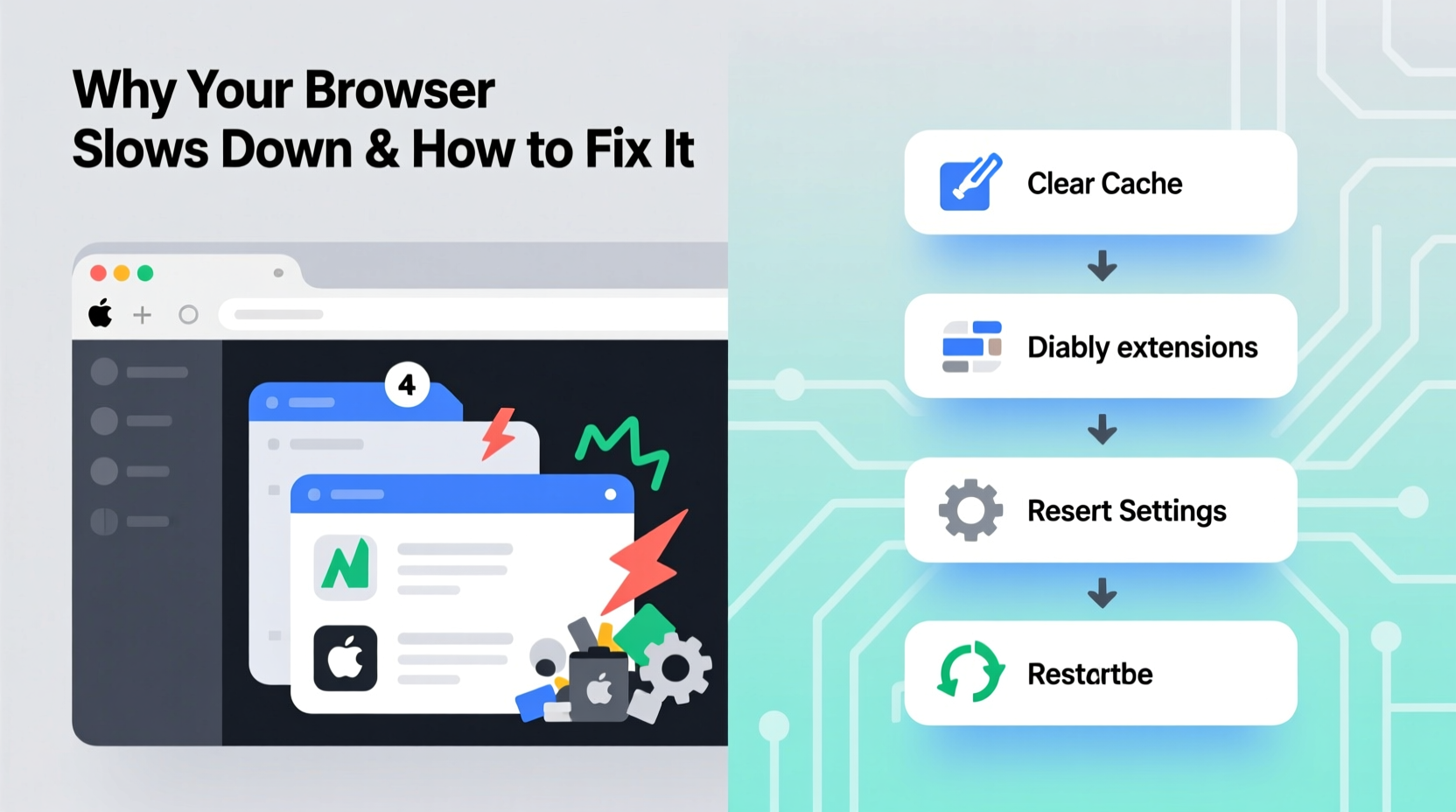
Browsers are designed to remember your habits: saved passwords, autofill data, site permissions, cached files, and cookies. While these features improve convenience, they also accumulate silently in the background. Over time, this buildup consumes memory, fragments storage space, and increases processing overhead. The more you browse, the heavier the load becomes—especially if you frequently visit media-rich sites or keep dozens of tabs open.
Extensions are another major contributor. Each installed extension runs scripts in the background, monitoring pages or injecting content. Some are poorly optimized or contain hidden trackers that drain resources. Even seemingly harmless add-ons like grammar checkers or ad blockers can conflict with each other or outdated browser components.
Additionally, websites increasingly rely on JavaScript-heavy frameworks and auto-playing media. Without proper management, these elements remain active in background tabs, consuming CPU and RAM long after you’ve moved on. Combined with outdated browser versions or corrupted profile data, this creates a perfect storm for performance decline.
Common Causes of Browser Slowdown
- Cache and Cookie Buildup: Temporary files meant to speed up loading eventually bloat storage and slow access times.
- Too Many Extensions: Each extension adds overhead; some run constantly, even when not in use.
- Outdated Browser Version: Older versions lack performance improvements and security patches that optimize speed.
- Corrupted Profile Data: User profiles store settings, history, and preferences—when damaged, they cause instability.
- Hardware Acceleration Issues: When enabled but unsupported by your GPU, it can cause lag or crashes.
- Malware or Adware Infections: Hidden scripts may inject ads or mine cryptocurrency in the background.
- Sync Conflicts: Cloud sync errors between devices can create redundant or conflicting data.
“Browser slowdown is rarely about the browser itself—it’s usually the ecosystem around it: extensions, cache, and user behavior.” — David Lin, Senior Web Performance Engineer at Mozilla
Step-by-Step Guide to Resetting Your Browser
Resetting your browser clears problematic configurations while preserving core functionality. It's not the same as reinstalling—it targets corrupted settings without removing the application. Follow these steps carefully to avoid losing important data.
- Backup Critical Data: Export saved passwords, bookmarks, and open tabs. Most browsers allow exporting via settings menus.
- Clear Cache and Cookies: Go to Settings > Privacy & Security > Clear Browsing Data. Select “All Time” and check boxes for cookies, cached images, and hosted data.
- Disable All Extensions: Navigate to Extensions or Add-ons, then toggle off every item. Restart the browser to see if performance improves.
- Turn Off Hardware Acceleration: In Settings > System (or Advanced), disable hardware acceleration. Restart the browser and test responsiveness.
- Reset Settings to Default: Find the \"Reset Settings\" option (usually under Reset and Cleanup). Confirm the action—this will revert search engines, startup pages, and flags.
- Delete Corrupted Profile (Advanced): If issues persist, locate your browser’s profile folder (e.g., Chrome’s
User Data/Default) and rename it. The browser will create a fresh one on restart. - Re-enable Essential Extensions One by One: After resetting, re-add only necessary extensions, testing performance after each.
Comparison: Do’s and Don’ts When Resetting Your Browser
| Do | Don’t |
|---|---|
| Backup bookmarks and passwords before resetting | Assume your data is automatically synced—verify first |
| Update the browser to the latest version | Ignore update notifications—they often include critical fixes |
| Clear cache weekly as part of maintenance | Delete everything without understanding what it affects |
| Test performance after disabling extensions | Keep unused or unknown extensions installed “just in case” |
| Use incognito mode to diagnose extension issues | Run multiple antivirus tools simultaneously—they can conflict |
Real Example: Recovering a Frozen Chrome Session
Sarah, a freelance researcher, relied on Chrome with over 30 open tabs across four windows. After two months without maintenance, her browser began freezing daily. Pages wouldn't load, and typing in forms lagged by seconds. She tried restarting her computer and closing tabs, but the issue returned within hours.
She followed the reset process: first backing up her bookmarks, then clearing all cached data. She disabled all 17 extensions—among them were three duplicate ad blockers and an old password manager no longer in use. After resetting Chrome to default settings, she noticed immediate improvement. Re-enabling extensions one at a time, she identified a weather widget extension consuming 40% of her CPU. Removing it restored full performance.
Now, Sarah schedules a monthly cleanup: clearing cache, auditing extensions, and reviewing open tabs. Her browser has remained fast and stable for over six months since.
Essential Maintenance Checklist
To prevent future slowdowns, follow this routine monthly or whenever you notice lag:
- ✅ Clear browsing history, cache, and cookies
- ✅ Review and remove unused extensions
- ✅ Update the browser to the latest version
- ✅ Check for malware using built-in scanner (e.g., Chrome Cleanup Tool)
- ✅ Disable hardware acceleration if causing instability
- ✅ Backup bookmarks and passwords externally
- ✅ Restart the browser completely (not just windows)
- ✅ Use task manager (Shift + Esc in Chrome) to identify resource-heavy tabs
Frequently Asked Questions
Will resetting my browser delete my saved passwords?
Yes, unless they are synced to a cloud account like Google, Apple iCloud, or Firefox Account. Always export or confirm sync status before resetting. Password managers like Bitwarden or 1Password can provide secure backups outside the browser.
How often should I reset my browser?
You shouldn’t need a full reset more than once every few months. Regular maintenance—clearing cache, updating software, and managing extensions—can delay or eliminate the need entirely. Think of it like car maintenance: small checks prevent major repairs.
Can malware hide inside browser extensions?
Yes. Some extensions distributed through official stores still contain malicious code, especially those with low ratings or vague permissions. Only install extensions from trusted developers, and review requested permissions. If an extension asks to “read and change all your data on websites,” consider whether it truly needs that level of access.
Expert Insight: The Hidden Cost of Convenience
Modern browsers prioritize usability over efficiency. Features like session restore, predictive preloading, and persistent login states make life easier—but at a cost. These conveniences generate background processes that accumulate quietly until they overwhelm system resources.
“The average user installs five to eight extensions without realizing each one is a mini-application running in real time. That’s like having five extra apps open all day.” — Lena Patel, UX Performance Analyst at Brave Software
Even private browsing modes aren’t immune. While they don’t save history, they still execute scripts and load content. True performance gains come from reducing complexity, not just hiding traces.
Conclusion: Take Control of Your Browsing Experience
Your browser doesn’t have to slow down over time. With regular care and informed resets, you can maintain peak performance indefinitely. The key is proactive maintenance—not waiting for problems to escalate. Clear cache, audit extensions, and reset settings before issues become unmanageable. A few minutes of maintenance each month can save hours of frustration later.




 浙公网安备
33010002000092号
浙公网安备
33010002000092号 浙B2-20120091-4
Comments
No comments yet. Why don't you start the discussion?