
Over time, even the fastest browsers can begin to feel sluggish. Pages take longer to load, tabs freeze unexpectedly, and simple searches become frustratingly slow. While it’s tempting to blame aging hardware or internet issues, the real culprit often lies within the browser itself. Accumulated cache, bloated extensions, outdated settings, and background processes silently degrade performance. The good news: most slowdowns are preventable—and reversible—with targeted maintenance.
Understanding why browsers degrade helps users take proactive steps. This article explores the root causes of browser slowdowns, offers practical cleaning techniques, and provides a structured plan to keep your browsing experience fast, secure, and smooth for years.
The Hidden Causes of Browser Slowdowns
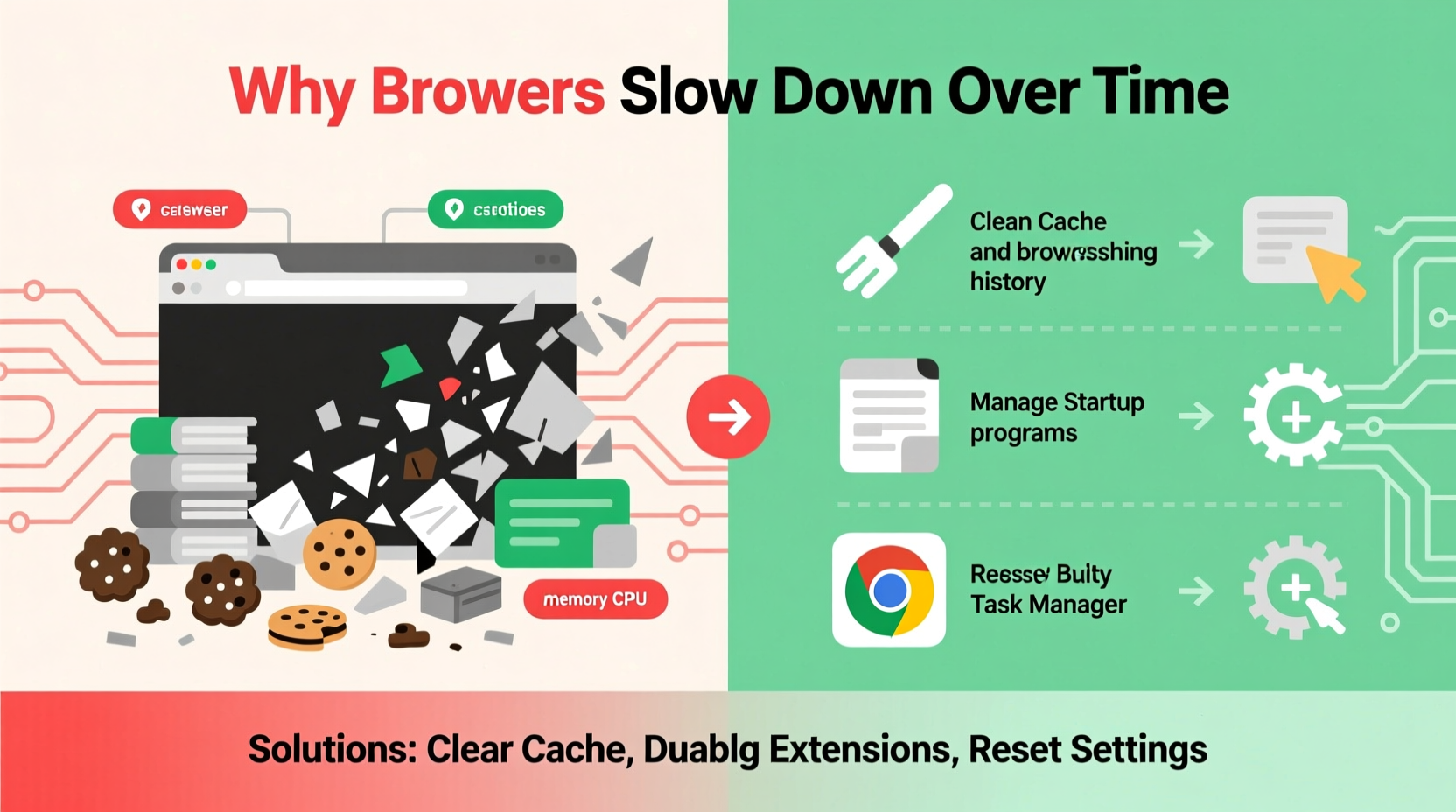
Browsers are complex applications that manage far more than just web pages. They store data, run scripts, handle media, and support dozens of background services. Over months or years, these functions accumulate digital clutter. Unlike desktop applications, browsers rarely prompt users to clean up—so problems build unnoticed.
Here are the most common contributors to declining browser performance:
- Excessive cache and cookies: While designed to speed up loading, too much cached data can overwhelm storage and processing.
- Too many active extensions: Each extension runs in the background, consuming memory and CPU even when unused.
- Outdated browser versions: Older builds may lack performance optimizations and security patches.
- Accumulated session data: Saved passwords, autofill entries, and browsing history grow large and slow database queries.
- Unused or malicious add-ons: Some extensions inject ads or track behavior, draining resources and privacy.
- Multiple open tabs and sessions: Keeping dozens of tabs open fragments memory and increases crash risk.
These factors compound over time. A browser that once launched in under two seconds may take five or more after months of use—especially on mid-range devices or systems with limited RAM.
Step-by-Step Guide to Clean and Optimize Your Browser
Restoring browser speed doesn’t require technical expertise—just consistency. Follow this six-step process to reset performance and prevent future slowdowns.
- Update your browser
Ensure you’re running the latest version. Updates include performance improvements, bug fixes, and security patches. Check for updates in Settings > About [Browser Name]. - Clear cache and cookies selectively
Navigate to Settings > Privacy and Security > Clear Browsing Data. Choose “All time” as the time range. Select “Cookies and other site data” and “Cached images and files.” Avoid clearing saved passwords unless necessary. - Review and remove unnecessary extensions
Go to Extensions or Add-ons manager. Disable any you don’t actively use. Remove suspicious or unknown tools. Prioritize lightweight, well-reviewed extensions from trusted developers. - Reset tab behavior
Close all unused tabs. Consider using a tab suspender extension (like The Great Suspender or OneTab) to freeze inactive tabs and reduce memory usage. - Clear download and form history
In the same privacy menu, clear download history and autofill form data if they’ve grown excessively long. This reduces local database bloat. - Reset browser settings (if needed)
If performance remains poor, consider resetting the browser to default settings. This removes custom configurations but eliminates hidden misconfigurations. It does not delete bookmarks or saved passwords.
This routine takes less than 15 minutes and can dramatically improve responsiveness. For best results, perform it every three to four months—or immediately if you notice lag.
Cleaning Solutions Compared: What Works Best?
Not all optimization methods are equally effective. Some offer quick wins; others provide long-term stability. The table below compares common cleaning approaches by impact, ease, and sustainability.
| Solution | Speed Improvement | Effort Required | Long-Term Benefit |
|---|---|---|---|
| Clear cache & cookies | High | Low | Moderate |
| Remove unused extensions | Very High | Medium | High |
| Update browser | Moderate | Low | Very High |
| Use built-in task manager | Medium | Low | High |
| Reset to default settings | Very High | Medium | Moderate |
| Switch to a lighter browser | High | High | High |
As shown, removing extensions and updating the browser deliver the strongest balance of impact and effort. Resetting settings is powerful but disruptive—best reserved for persistent issues.
Expert Insight: Why Maintenance Matters
Digital performance isn't just about convenience—it's tied to security and productivity. Experts emphasize that neglected browsers pose risks beyond slowness.
“An outdated browser with unchecked extensions is one of the weakest links in personal cybersecurity. Performance drops are often early symptoms of deeper issues like tracking scripts or memory leaks.” — Dr. Alan Reyes, Cybersecurity Researcher at NetSecure Labs
Dr. Reyes notes that many users ignore browser health until a crash or breach occurs. Regular cleaning isn’t just about speed; it’s part of digital hygiene. Just as you update your operating system, your browser needs ongoing care.
He also warns against relying solely on third-party \"cleaner\" apps. Many such tools bundle adware or make unnecessary changes. Instead, he recommends using only built-in browser tools and verified developer extensions.
Real Example: From Lag to Lightning-Fast
Consider Sarah, a freelance writer who relies on her browser for research, communication, and client work. After two years of continuous use, her Chrome browser began freezing during video calls and taking over 30 seconds to launch. She had 47 extensions installed—including several she no longer remembered installing—and over 18 months of cached data.
She followed the cleaning steps outlined above: updated Chrome, cleared all-time cache and cookies, removed 32 unused extensions, and reset settings. The result? Launch time dropped from 32 seconds to under 4. Tab switching became instant, and her system’s overall responsiveness improved. Most importantly, she noticed fewer pop-up ads—a sign that tracking extensions had been quietly running in the background.
Sarah now schedules a quarterly browser tune-up. She also uses a password manager instead of browser-stored logins, reducing reliance on autofill databases.
Prevention Checklist: Keep Your Browser Fast Long-Term
Once cleaned, maintain peak performance with consistent habits. Use this checklist monthly:
- ✅ Audit installed extensions—remove anything unused
- ✅ Clear cache and cookies older than 30 days
- ✅ Check for browser updates
- ✅ Close inactive tabs or use a tab manager
- ✅ Review saved passwords and remove outdated ones
- ✅ Monitor battery and memory usage in browser task manager
- ✅ Avoid auto-installing extensions from websites
Sticking to this routine prevents the gradual buildup that leads to slowdowns. It’s especially important for shared computers or devices used across multiple roles (work, school, entertainment).
Frequently Asked Questions
How often should I clean my browser?
Perform a full cleanup every three to four months. Light maintenance—like clearing recent cache or closing tabs—should happen weekly. If you notice lag, crashes, or high memory usage, clean immediately regardless of schedule.
Can too many bookmarks slow down my browser?
No, bookmarks themselves don’t impact performance. However, storing thousands of bookmarks in unorganized folders can slow down the bookmark manager interface. To stay efficient, archive old links and use folders to categorize by topic or project.
Is it safe to clear all cookies?
Yes, but you’ll need to re-login to most websites. Some personalized settings (like language or region preferences) may reset. If convenience matters, selectively clear cookies from sites you no longer visit, or use incognito mode for temporary sessions.
Conclusion: Take Control of Your Browsing Experience
Your browser shouldn’t get slower just because time passes. Degradation is not inevitable—it’s a symptom of neglect. With a few deliberate actions, you can restore speed, enhance security, and extend the life of your device. The tools are already built into your browser; you just need to use them.
Start today. Update your browser, review your extensions, and clear out the digital dust. Then, commit to regular maintenance. Small efforts compound into lasting performance. A faster, cleaner browser isn’t just more pleasant—it makes you more productive, secure, and in control of your digital world.




 浙公网安备
33010002000092号
浙公网安备
33010002000092号 浙B2-20120091-4
Comments
No comments yet. Why don't you start the discussion?