
Opening several browser tabs at once has become second nature in today’s digital workflow—research, shopping, messaging, streaming. But when your computer suddenly locks up or crawls to a halt after just a few tabs, it's more than frustrating—it disrupts productivity and strains hardware. The root cause often lies in how your system manages memory, particularly RAM (Random Access Memory). Understanding the relationship between open tabs and memory consumption is key to preventing freezes and maintaining smooth operation.
Modern browsers like Chrome, Firefox, and Edge are powerful but resource-intensive. Each tab runs as a separate process, consuming its own chunk of RAM. When too many tabs accumulate, especially those with video, animations, or background scripts, they can quickly exhaust available memory. Once RAM is full, your computer starts using slower virtual memory on the hard drive, leading to lag, unresponsiveness, and eventually, complete freezing.
The good news? You don’t need to upgrade your hardware immediately. With smart habits and system optimizations, you can significantly reduce memory strain—even on older machines.
How Browser Tabs Consume Memory
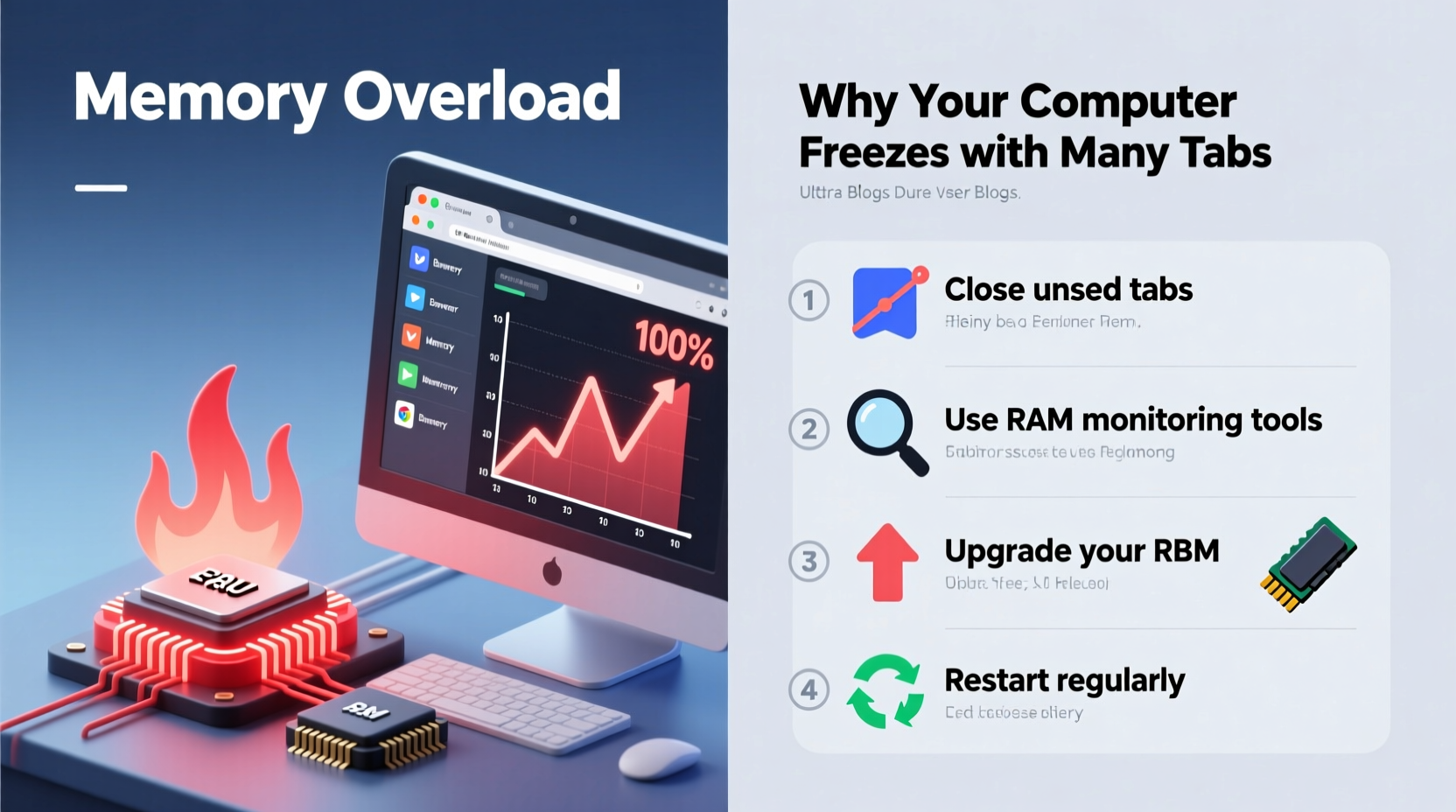
Every time you open a webpage, your browser downloads HTML, CSS, JavaScript, images, and sometimes videos or embedded apps. These elements load into RAM for quick access. Unlike older browsers that shared memory across tabs, modern ones use a multi-process architecture for stability and security. That means each tab operates independently, which prevents one crashing tab from bringing down the whole browser—but at a cost: higher memory usage.
For example:
- A simple text-based page might use 30–50 MB of RAM.
- A social media feed with auto-playing videos can consume 200+ MB.
- Streaming platforms like YouTube or Netflix may use over 500 MB per tab.
- Web applications such as Google Docs, Figma, or dashboards can exceed 700 MB when active.
If you have 10 tabs open, even conservatively averaging 200 MB each, that’s already 2 GB of RAM consumed by the browser alone. On a machine with only 4 GB or 8 GB total RAM, this leaves little room for the operating system and other essential programs.
Common Causes of Freezing with Multiple Tabs
Freezing isn’t always about raw tab count—it’s about how resources are allocated and managed. Here are the most frequent culprits:
- Insufficient RAM: Systems with less than 8 GB struggle under heavy multitasking. Even 8 GB can be tight if running background apps like antivirus, Slack, or music players.
- Memory Leaks in Browsers: Some websites contain poorly optimized code that continues to consume memory even after interaction stops.
- Too Many Background Processes: Extensions, autoplaying media, push notifications, and tracking scripts run silently but add up.
- Outdated Software: Older versions of browsers or operating systems lack memory optimization features found in updates.
- Using HDD Instead of SSD: When RAM fills up, the system uses swap space on disk. Hard drives are much slower than SSDs, causing delays during memory overflow.
“Modern web experiences are essentially mini-applications. Running ten of them simultaneously is like launching ten desktop programs at once.” — Dr. Alan Reed, Systems Performance Analyst
Practical Memory-Saving Tips to Prevent Freezes
You don’t need to limit yourself to three tabs. With smarter browsing habits and system tweaks, you can keep dozens open without slowdowns.
1. Limit Active Tabs with Tab Suspension Tools
Rather than closing tabs you want to revisit, use extensions that suspend inactive ones. Suspended tabs release their memory while preserving state so you can click back in later.
- The Great Suspender (Revived): Automatically suspends tabs after a set time.
- OneTab: Converts all tabs into a list, reducing memory use from hundreds of MB to under 10 MB.
- Auto Tab Discard (Chrome): Built-in functionality to discard unused tabs; lightweight and efficient.
2. Disable Unnecessary Browser Extensions
Each extension runs in the background and consumes memory—even when not actively used. A single ad blocker might use 100 MB, while password managers or grammar checkers add incremental load.
Go to chrome://extensions (or equivalent in your browser), disable those you rarely use, and remove redundant ones.
3. Block Autoplaying Videos and Animations
Media-rich sites drain both CPU and RAM. Prevent automatic playback:
- In Chrome: Settings → Site Settings → Media → Block autoplay.
- Use uBlock Origin to block known video-heavy trackers.
4. Upgrade to a More Efficient Browser
Not all browsers are equal in memory management. Consider switching based on your needs:
| Browser | RAM Efficiency | Best For |
|---|---|---|
| Firefox | High (especially with many tabs) | Privacy-focused users, long-term browsing sessions |
| Brave | Very High (blocks ads/trackers by default) | Low-RAM systems, fast loading |
| Microsoft Edge | Moderate-High (better than Chrome, same engine) | Windows users seeking balance |
| Google Chrome | Moderate (high memory use, but best compatibility) | Developers, enterprise tools |
5. Increase Virtual Memory (Page File) Size
When physical RAM runs out, Windows uses a portion of your hard drive as virtual memory. Increasing this allocation can prevent crashes—though it won’t match RAM speed.
To adjust:
- Press Win + X → System → Advanced system settings.
- Under Performance, click Settings → Advanced → Change (Virtual Memory).
- Uncheck “Automatically manage,” select “Custom size,” and set Initial = 1.5 × RAM, Maximum = 3 × RAM (e.g., 12 GB / 24 GB for an 8 GB system).
- Click Set → OK → Restart.
Step-by-Step Guide to Diagnose and Fix Tab-Related Freezing
Follow this sequence to identify bottlenecks and resolve them systematically.
- Monitor Real-Time Memory Usage
Open Task Manager (Ctrl + Shift + Esc). Watch the “Memory” column under Processes. Sort by memory usage and identify top consumers—likely your browser or specific tabs. - Test with One Browser Instance
Close all browsers, then reopen one with five typical tabs. Wait 5 minutes. Check memory use. Gradually add more tabs until performance dips. This reveals your practical threshold. - Clear Cache and Reset Browser Settings
Accumulated cache and corrupted preferences can increase overhead. In Chrome: Settings → Privacy and Security → Clear Browsing Data (select “Cached images and files”). - Update OS and Browser
Ensure you’re on the latest version. Updates often include memory leak patches and efficiency improvements. - Boot in Safe Mode with Networking
Restart in Safe Mode to rule out third-party software conflicts. If the problem disappears, suspect background apps or startup services. - Upgrade Hardware (If Needed)
If consistently hitting 90%+ memory usage, consider adding RAM. For laptops, upgrading from 8 GB to 16 GB DDR4 can transform performance.
Mini Case Study: From Constant Crashes to Smooth Multitasking
Sarah, a freelance researcher, relied on keeping 20+ tabs open for client projects. Her 2018 laptop with 8 GB RAM began freezing daily, forcing reboots. After consulting a technician, she implemented these changes:
- Switched from Chrome to Brave, cutting browser memory use by 40%.
- Installed OneTab to archive reference pages instead of leaving them open.
- Disabled five unused extensions, including two cryptocurrency miners.
- Upgraded virtual memory settings and cleaned temporary files.
Result: Her system now handles 15 active tabs comfortably, with no freezing. She regained hours lost to crashes and reboot cycles each week.
Essential Checklist to Prevent Future Freezes
- ✔️ Monitor RAM usage weekly via Task Manager
- ✔️ Install a tab suspender (e.g., Auto Tab Discard)
- ✔️ Remove unused browser extensions
- ✔️ Switch to a memory-efficient browser (Brave, Firefox)
- ✔️ Clear cache monthly or use automatic cleanup tools
- ✔️ Adjust virtual memory settings for your RAM size
- ✔️ Keep OS and browser updated
- ✔️ Consider RAM upgrade if consistently over 80% usage
Frequently Asked Questions
Can having too many tabs open damage my computer?
No, excessive tabs won’t physically damage your hardware. However, prolonged high memory and CPU usage can increase heat output, potentially shortening component lifespan over years. It also increases wear on SSDs due to frequent read/write during swapping.
Is it better to have many tabs open or multiple browser windows?
From a memory standpoint, it makes little difference. Each tab consumes resources regardless of window placement. However, organizing related tasks into separate windows can help mentally—and some browsers allow per-window suspension or profile separation, improving control.
Does incognito mode use less memory?
Not inherently. Incognito mode disables cache and cookies but still loads full web content. However, since extensions are often disabled in incognito, and tracking scripts blocked, memory use may be slightly lower—typically 10–15% less than regular mode.
Conclusion: Take Control of Your System’s Performance
Your computer freezing with multiple tabs open isn’t inevitable—it’s a solvable issue rooted in memory management. By understanding how browsers consume RAM, identifying hidden resource drains, and applying targeted optimizations, you can maintain responsiveness even during intensive multitasking.
The strategies outlined here—from using tab managers to upgrading virtual memory—are accessible to all users, regardless of technical skill. Start small: clean up extensions today, try a lighter browser tomorrow, and monitor your progress. Over time, these adjustments compound into a faster, more reliable computing experience.




 浙公网安备
33010002000092号
浙公网安备
33010002000092号 浙B2-20120091-4
Comments
No comments yet. Why don't you start the discussion?