
There’s nothing more frustrating than pressing the power button, only to wait two or three minutes—or longer—for your desktop to finally load. A slow boot-up process doesn’t just waste time; it disrupts workflow, delays productivity, and signals deeper performance issues. While computers naturally age, a sluggish startup isn’t inevitable. The good news is that most causes of delayed booting are fixable with the right knowledge and tools.
This guide breaks down the real reasons behind prolonged boot times, identifies common culprits, and provides actionable solutions. Whether you're using Windows 10, Windows 11, or even an older system, these recovery tips will help you reclaim those lost seconds—and sometimes minutes—every time you start your machine.
Understanding the Boot Process: What Happens When You Turn On Your PC
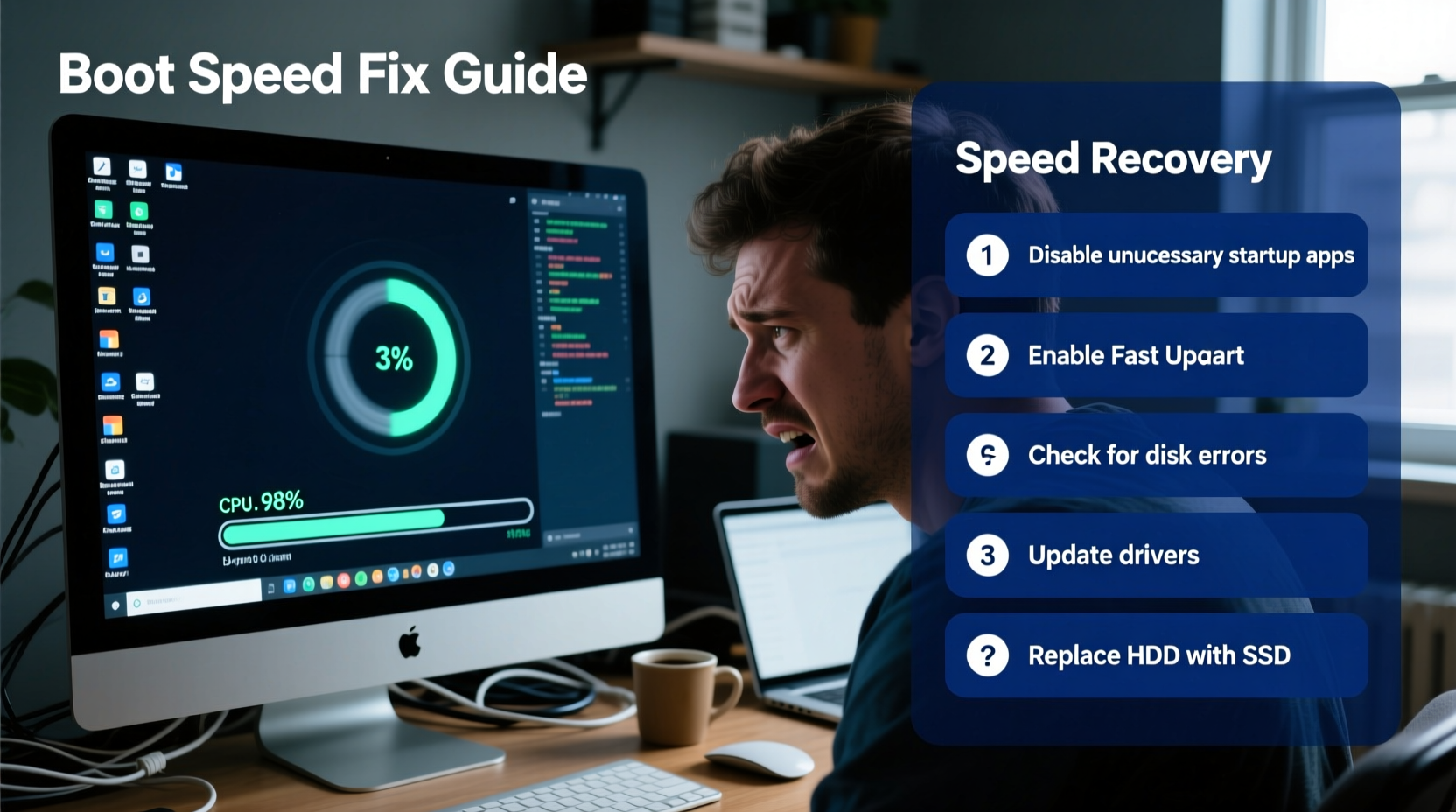
Before diving into fixes, it helps to understand what actually happens during startup. The boot process consists of several distinct phases:
- Power-On Self-Test (POST): The motherboard checks essential hardware like RAM, CPU, and storage devices.
- BIOS/UEFI Initialization: Firmware loads and determines which drive to boot from.
- Operating System Loading: The OS kernel starts, followed by core drivers and services.
- User Session Startup: Login screen appears, then background applications launch automatically.
Delays can occur at any stage. For example, outdated firmware might slow POST, while bloated startup programs can clog the final phase. Knowing where the bottleneck lies determines the best fix.
Common Causes of Slow Boot Times
Not all slow boots stem from aging hardware. Often, software issues or user habits are to blame. Here are the most frequent offenders:
- Too many startup programs: Email clients, cloud sync tools, and chat apps often run automatically, consuming valuable RAM and CPU during boot.
- Fragmented or failing hard drives: Traditional HDDs suffer performance loss when files are scattered across the disk or sectors begin failing.
- Outdated or corrupted drivers: Faulty graphics, chipset, or storage drivers can cause the system to hang during initialization.
- Virus or malware infections: Malicious software may inject processes into startup routines, slowing everything down.
- Insufficient RAM: Systems with less than 8GB of memory struggle when loading multiple background services at once.
- Full system drive: If your C: drive is near capacity, especially below 10% free space, Windows struggles to write temporary files during boot.
Identifying which factor affects your system is the first step toward recovery.
Actionable Speed Recovery Tips
You don’t need to replace your computer to get faster startups. Try these proven techniques in order of impact and complexity.
1. Reduce Startup Program Load
One of the fastest ways to improve boot time is limiting which apps launch automatically. Many users install software without realizing they’ve enabled auto-start.
- Press Ctrl + Shift + Esc to open Task Manager.
- Navigate to the Startup tab.
- Sort by “Impact” and disable high-impact entries you don’t need immediately (e.g., Spotify, Adobe Creative Cloud, Steam).
Disabling five unnecessary apps can cut boot time by 30–50 seconds.
2. Upgrade to an SSD (If Still Using an HDD)
If your computer uses a traditional spinning hard drive, upgrading to a solid-state drive (SSD) is the single most effective upgrade for boot speed. SSDs have no moving parts and access data up to 10x faster than HDDs.
“Switching from HDD to SSD typically reduces boot time from over a minute to under 15 seconds.” — David Lin, Senior Hardware Analyst at TechPerformance Labs
Even budget NVMe or SATA SSDs deliver dramatic improvements. The investment pays off quickly in daily use.
3. Run a Disk Cleanup and Defragmentation (HDD Only)
Over time, temporary files, logs, and cached data accumulate. Use Windows’ built-in tools to clean house:
- Disk Cleanup: Search for “Disk Cleanup,” select your system drive, and delete temporary files, recycle bin contents, and system cache.
- Defragmentation: Only for HDDs. Go to “Defragment and Optimize Drives” and run optimization weekly. SSDs do not need defragmentation and can be harmed by it.
4. Check for Malware and Unwanted Bloatware
Some pre-installed software (bloatware) runs silently in the background. Others, like adware, inject themselves into startup without permission.
Run a full scan using Windows Security or a trusted third-party antivirus. Additionally, review installed programs in Settings > Apps and uninstall anything unfamiliar or unused.
5. Update Drivers and BIOS
Outdated drivers can create compatibility bottlenecks. Visit your PC manufacturer’s support site or use Device Manager to check for updates on critical components like:
- Chipset
- Storage controllers (SATA/AHCI)
- Graphics card
Similarly, updating your BIOS/UEFI firmware can resolve boot delays caused by hardware initialization bugs. But proceed with caution—improper BIOS updates can brick your system. Always follow the manufacturer’s instructions precisely.
Step-by-Step Boot Optimization Timeline
Follow this 7-day plan to systematically improve boot performance without overwhelming yourself:
| Day | Action | Expected Benefit |
|---|---|---|
| 1 | Disable unnecessary startup apps via Task Manager | Immediate 10–30 second improvement |
| 2 | Run Disk Cleanup and clear browser caches | Frees up space, improves system responsiveness |
| 3 | Scan for malware using Windows Defender or Malwarebytes | Removes hidden background processes |
| 4 | Update key drivers (chipset, graphics, storage) | Fixes hardware communication delays |
| 5 | Uninstall bloatware and unused programs | Reduces system clutter and conflicts |
| 6 | Optimize drive (defrag HDD only; TRIM for SSD) | Improves file access efficiency |
| 7 | Monitor boot time using Task Manager’s “Boot” tab | Measure progress and identify remaining issues |
By the end of the week, most users report significantly faster startups. If problems persist, consider hardware upgrades or a clean OS reinstall.
Mini Case Study: Recovering a 3-Minute Boot Time
Mark, a freelance graphic designer, noticed his 5-year-old laptop was taking nearly 3 minutes to become usable. He relied on it for client work, and the delay disrupted his morning routine.
He began by opening Task Manager and found 12 startup apps running—including Dropbox, Slack, Zoom, and an outdated antivirus trial. After disabling all but essential ones, boot time dropped to 1 minute 40 seconds.
Next, he ran Disk Cleanup, freeing over 12GB of space. Then, he discovered his hard drive was 95% full. After offloading old project files to an external drive, he re-ran cleanup and optimized the drive.
The final step was replacing his aging 500GB HDD with a $60 500GB SSD. Post-installation, his system booted in **under 12 seconds**. Mark reported regaining nearly 10 minutes per week just from faster startups—a small change with measurable impact.
Do’s and Don’ts of Boot Optimization
| Do | Don’t |
|---|---|
| Regularly review startup programs | Enable every app to run at startup |
| Keep at least 15% of your drive free | Fill your system drive to near capacity |
| Use SSDs for operating system installation | Run Windows on a fragmented HDD long-term |
| Update drivers and firmware carefully | Download drivers from untrusted third-party sites |
| Perform monthly maintenance checks | Ignore recurring slowness as “normal aging” |
When Hardware Is the Limiting Factor
Sometimes, no amount of software tweaking can overcome outdated hardware. Consider these thresholds:
- RAM: Less than 8GB severely limits multitasking at startup.
- CPU: Older dual-core processors struggle with modern OS demands.
- Storage: HDDs are inherently slower than SSDs, regardless of condition.
If your system has 4GB RAM and a mechanical drive, upgrading either component will yield better results than months of optimization. Even modest upgrades—like adding 8GB of RAM and a 256GB SSD—can breathe new life into a 6–7 year old machine.
FAQ
How long should a normal boot take?
A healthy Windows 10 or 11 system with an SSD should boot in 10–20 seconds. Systems with HDDs may take 30–60 seconds. Anything longer indicates an issue.
Can a clean Windows reinstall fix slow boot times?
Yes. Over time, Windows accumulates registry clutter, broken links, and corrupted settings. A clean install removes all bloat and resets the system to optimal performance. Always back up data first.
Is Fast Startup in Windows helpful or harmful?
Fast Startup (hybrid boot) can reduce boot time by saving part of the shutdown state. It’s generally safe but may cause issues with dual-boot systems or certain peripherals. If you encounter wake-up problems, disable it in Power Options.
Final Checklist: 7 Steps to Faster Booting
- Open Task Manager > Startup and disable non-critical apps.
- Run Disk Cleanup on your system drive.
- Ensure your drive has at least 15% free space.
- Scan for malware using Windows Security or a trusted antivirus.
- Update chipset, storage, and graphics drivers.
- Replace HDD with SSD if possible.
- Re-evaluate boot time after each step—measure progress.
Conclusion
A slow-booting computer doesn’t have to be a permanent condition. Most delays stem from correctable software issues, avoidable bloat, or outdated hardware that can be upgraded affordably. By understanding the boot process and applying targeted fixes, you can restore snappy startup times and regain control over your daily workflow.
The steps outlined here require no advanced technical skills—just attention to detail and consistency. Start today with one simple action, like disabling startup apps, and build from there. Small changes compound into major gains.




 浙公网安备
33010002000092号
浙公网安备
33010002000092号 浙B2-20120091-4
Comments
No comments yet. Why don't you start the discussion?