
If you've ever been in the middle of writing an important email or document only for your cursor to suddenly leap to another part of the text, you're not alone. This common issue—where the cursor jumps unexpectedly during typing—can be maddening. While software glitches often get blamed, many cases stem from underlying hardware problems. Understanding the root causes and knowing which hardware components to inspect can save hours of frustration and prevent long-term damage to your workflow.
The jumping cursor phenomenon typically occurs on laptops but can also affect external mice and touchpads connected to desktops. Although drivers, operating system updates, or accidental palm contact are frequent culprits, persistent issues after troubleshooting software point directly to hardware failure or malfunction. This article explores the most likely hardware-related reasons behind erratic cursor behavior and provides practical, tested solutions to fix them.
Common Hardware Causes of Cursor Jumping
Before diving into fixes, it's essential to understand what physical components might be responsible for the problem. Unlike software issues that can often be resolved with a quick update or setting adjustment, hardware failures require inspection, maintenance, or replacement.
- Faulty Touchpad Sensors: Over time, the capacitive sensors beneath your laptop’s touchpad can degrade or become overly sensitive due to dust, moisture, or wear.
- Damaged Internal Cables: The ribbon cable connecting the touchpad to the motherboard may loosen, fray, or develop poor contact, leading to intermittent signals.
- Loose or Misaligned Components: Physical impact or repeated opening/closing of the laptop lid can shift internal parts, affecting how input signals are transmitted.
- Power Supply Interference: In some cases, unstable voltage delivery to the touchpad (due to failing power circuits) introduces erratic behavior.
- Contaminated or Worn Surface: Dirt, oils, or minor surface cracks on the touchpad can trick the sensor into registering false touches.
These issues don’t always manifest immediately. Instead, they tend to worsen gradually—starting as occasional jumps and evolving into near-unusability if ignored.
Step-by-Step Guide to Diagnose Hardware Issues
To determine whether your cursor jumping is rooted in hardware, follow this systematic diagnostic process. Skipping steps may lead to misdiagnosis and wasted effort.
- Disconnect External Input Devices: Unplug any USB or Bluetooth mice, trackballs, or drawing tablets. Restart your computer to ensure no residual signals interfere.
- Boot into Safe Mode: On Windows, hold Shift while clicking Restart, then choose Troubleshoot → Advanced Options → Startup Settings → Restart → Enable Safe Mode. In macOS, restart and hold Shift until the login screen appears. This disables third-party drivers and services.
- Test the Touchpad in Isolation: With only the built-in touchpad active, type a paragraph. Does the cursor still jump? If yes, software conflicts are less likely.
- Use an External Mouse: Connect a known-good external mouse. If movement is smooth and stable, the issue is isolated to the touchpad or its circuitry.
- Inspect for Physical Damage: Examine the touchpad surface for scratches, warping, or visible debris under the edges. Gently press around the corners to check for uneven resistance or clicking sounds.
- Check Device Manager (Windows): Open Device Manager, expand \"Mice and other pointing devices,\" right-click your touchpad, and select \"Uninstall device.\" Reboot—the system will reinstall the driver. Observe if behavior improves.
This sequence helps rule out software and peripheral causes. If the problem persists across clean boots and driver reinstalls, hardware is almost certainly involved.
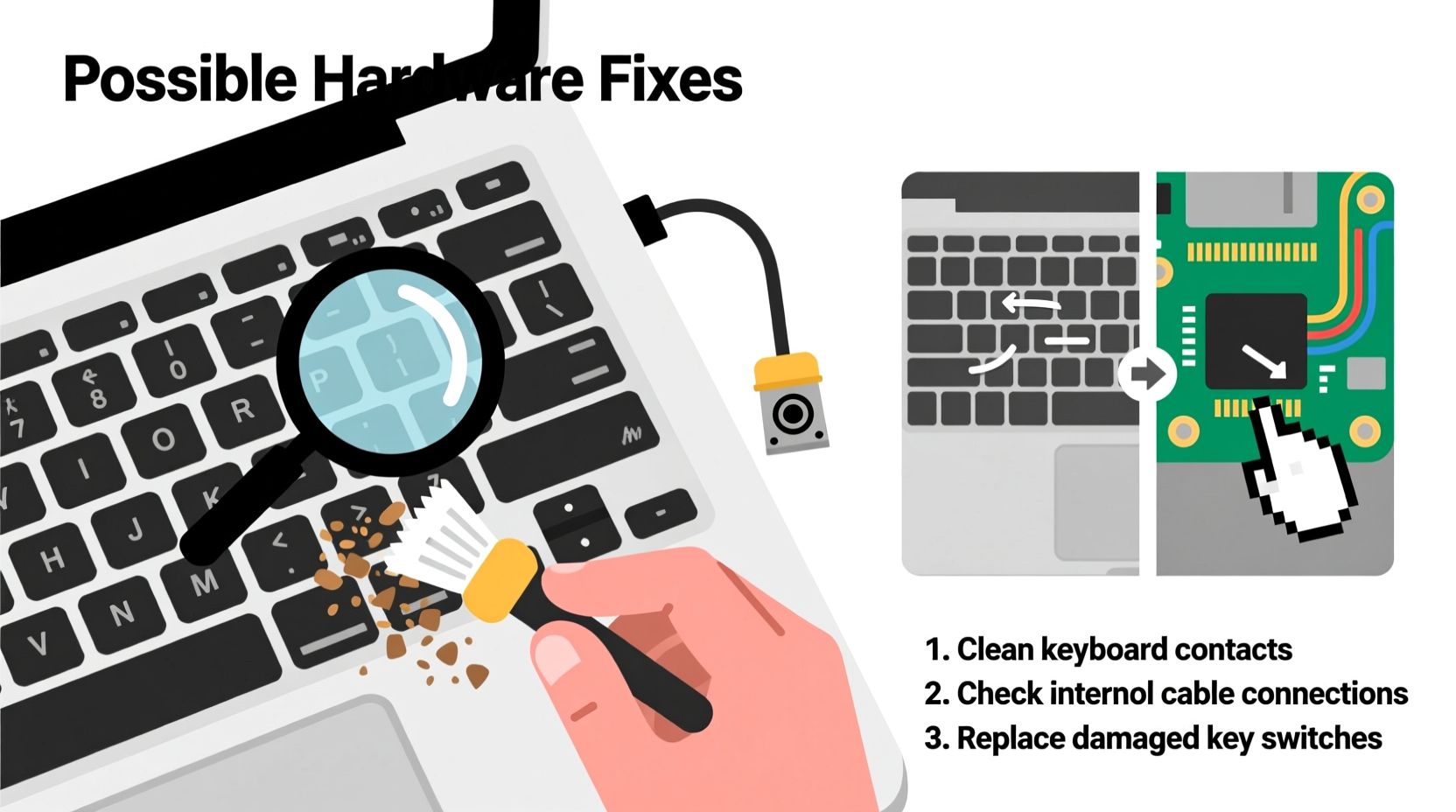
Possible Hardware Fixes You Can Try
Once you’ve confirmed a hardware origin, consider these actionable repairs. Some require technical confidence; others are simple enough for beginners.
1. Clean the Touchpad and Surrounding Area
Accumulated grime can create phantom touch signals. Use a soft microfiber cloth slightly dampened with 70% isopropyl alcohol. Wipe the entire touchpad surface and the bezel around it. Avoid excess moisture. Let dry completely before use.
2. Reseat the Touchpad Ribbon Cable
Inside most laptops, the touchpad connects via a flat ribbon cable plugged into the motherboard. Over time, vibrations or flexing can loosen this connection.
To reseat it:
- Power off the laptop and disconnect the charger.
- Remove the bottom panel using a precision screwdriver.
- Locate the touchpad cable (usually labeled “TP,” “TouchPad,” or similar).
- Gently unclip the connector, wait five seconds, then reinsert it firmly.
- Reassemble and test.
This fix resolves intermittent signal loss in many mid-range laptops like Dell Inspiron, HP Pavilion, and older Lenovo models.
3. Replace the Touchpad Assembly
If cleaning and reseating fail, the touchpad itself may be defective. Replacement parts are available online for most models (e.g., iFixit, eBay, Amazon). Prices range from $15–$50 depending on brand and complexity.
Installation involves removing screws, disconnecting the old unit, attaching the new one, and securing it. Follow model-specific teardown guides closely. For example, MacBook users should note that newer models integrate the touchpad with the battery and logic board, making DIY risky.
4. Shield Against Electrical Interference
In rare cases, electromagnetic interference from nearby components (like the Wi-Fi card or speakers) affects touchpad performance. Adding thin shielding tape (copper or aluminum foil tape) between the touchpad and adjacent parts can reduce noise. Ensure no metal makes contact with circuits to avoid shorts.
5. Check Battery Swelling (Laptops)
A swollen battery can physically push up against the keyboard deck, warping the touchpad and causing pressure-induced cursor movement. Shut down the device, remove the back cover, and inspect the battery. If it’s bulging or lifting components, replace it immediately—a fire hazard risk exists.
“Over 30% of ‘ghost touch’ and cursor drift cases we see in repair shops are due to either loose ribbon cables or contaminated touchpad surfaces. Simple fixes, but often overlooked.” — Rajiv Mehta, Senior Technician at TechFix Labs
Do’s and Don’ts: Hardware Maintenance Table
| Action | Do | Don't |
|---|---|---|
| Cleaning the touchpad | Use isopropyl alcohol and a lint-free cloth | Use window cleaners or abrasive pads |
| Opening the laptop | Power off and unplug all sources first | Work on carpeted surfaces (risk of static discharge) |
| Handling internal cables | Disconnect power and handle by edges | Bend or twist ribbon cables sharply |
| Replacing parts | Buy OEM-compatible components with reviews | Force-fit connectors that don’t align easily |
| Testing after repair | Type continuously for 2+ minutes to simulate real use | Assume success after a 10-second test |
Real Example: Fixing a Persistent Jump on a Lenovo ThinkPad
Sarah, a freelance writer, reported her Lenovo T480 cursor would jump two lines up every few minutes while typing. She updated drivers, disabled palm detection, and even tried Linux—no change. After ruling out software, she opened the case and found the touchpad ribbon cable partially dislodged from its ZIF (zero insertion force) socket due to repeated flexing of the chassis.
She carefully reopened the connector latch, inserted the cable fully, and closed the latch. Upon reassembly, the jumping stopped entirely. Sarah later noted that tightening the bottom screws evenly helped maintain internal alignment and prevent recurrence.
This case illustrates how a seemingly complex issue had a simple mechanical cause—one that wouldn’t appear in automated diagnostics but was evident upon physical inspection.
When to Seek Professional Repair
While many hardware fixes are accessible, certain situations demand expert help:
- The laptop is under warranty—voiding it with self-repair isn’t worth the risk.
- You’re uncomfortable handling small connectors or static-sensitive components.
- The issue persists after replacing the touchpad, suggesting deeper motherboard-level faults.
- Your model has glued or fused components (common in MacBooks and ultrabooks).
Professionals have specialized tools like multimeters to test continuity, ESD-safe workstations, and access to genuine spare parts. Paying $50–$100 for diagnosis could prevent costly mistakes.
FAQ: Common Questions About Cursor Jumping
Can a dirty keyboard cause cursor jumping?
Not directly. However, stuck keys (especially Control, Alt, or Function keys) can trigger unintended shortcuts that move the cursor. Clean the keyboard thoroughly and test individual keys for responsiveness.
Is cursor jumping a sign of malware?
Rarely. Malware typically manifests as pop-ups, slowdowns, or unauthorized network activity—not precise cursor movements. Still, run a scan with reputable antivirus software if you suspect compromise.
Why does my cursor jump only when I’m charging?
This often indicates electrical noise from a faulty charger or port. Try a different power adapter. If the issue stops, replace the original charger. Ground loops or poor grounding in cheap chargers can induce touchpad interference.
Conclusion: Take Control of Your Input Experience
Cursor jumping isn’t just annoying—it disrupts focus, reduces productivity, and erodes trust in your device. While software tweaks offer temporary relief, lasting solutions often lie beneath the surface, in the physical components that translate your touch into digital action. By methodically diagnosing hardware issues, applying targeted fixes, and knowing when to call in experts, you regain control over one of your most fundamental computing interactions.
Don’t accept glitchy performance as normal. Whether it’s reseating a loose cable, replacing a worn touchpad, or simply keeping the surface clean, proactive maintenance pays off in smoother, more reliable operation. Your fingertips—and your workflow—will thank you.




 浙公网安备
33010002000092号
浙公网安备
33010002000092号 浙B2-20120091-4
Comments
No comments yet. Why don't you start the discussion?