
Experiencing sudden frame rate drops in Call of Duty: Warzone can turn a dominant match into a frustrating struggle. One moment you're securing a kill streak, the next you're rubber-banding across the map while enemies seem to teleport. This isn't just bad luck—it's often a preventable technical issue. Understanding the root causes behind FPS drops and applying targeted fixes can dramatically improve gameplay stability. Whether you're on PC or console, this guide breaks down the most common culprits and delivers immediate, actionable solutions.
Understanding FPS and Why It Matters in Warzone
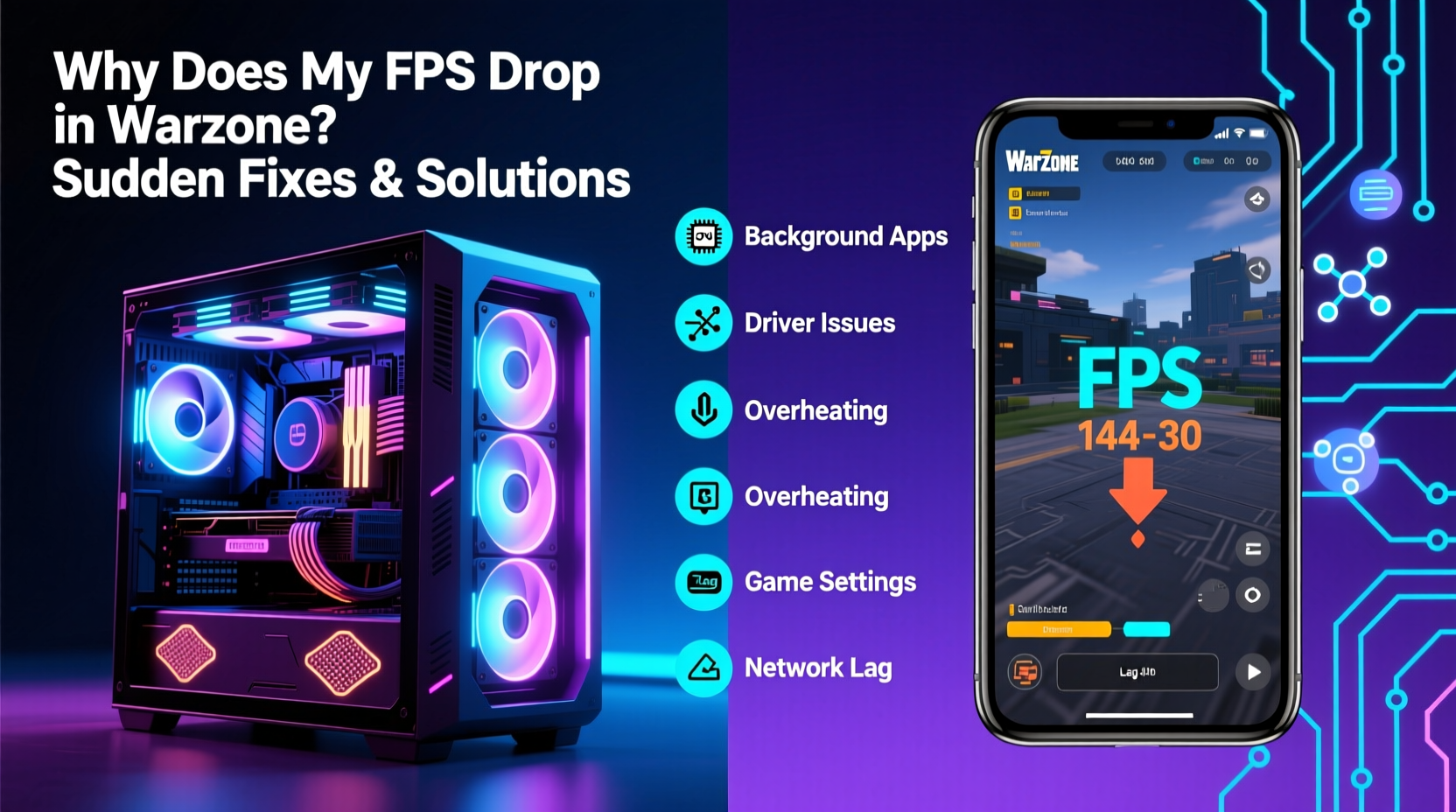
Frames per second (FPS) measures how many images your system renders each second. In fast-paced shooters like Warzone, high FPS is critical. A consistent 60+ FPS ensures smooth movement, accurate aiming, and responsive controls. When FPS drops below 30, even briefly, it introduces input lag, stuttering, and desynchronization—making it nearly impossible to compete at higher skill levels.
Warzone’s large-scale battles, dynamic destruction, and constant asset streaming place heavy demands on hardware. Unlike linear single-player games, Warzone must load terrain, AI, player models, gunfire effects, and physics in real time. This complexity means performance bottlenecks are more likely, especially during intense combat or when multiple players converge in one zone.
“Frame rate consistency is as important as peak FPS in competitive shooters. Even short dips can cost you the match.” — David Lin, Senior Game Performance Analyst at NVIDIA
Common Causes of Sudden FPS Drops in Warzone
FPS instability rarely stems from a single source. More often, it's a combination of hardware limitations, software conflicts, or game-specific inefficiencies. Below are the primary triggers:
- CPU or GPU bottlenecking: Your processor or graphics card may struggle under load during high-action sequences.
- Background processes: Apps running in the background consume memory and CPU cycles needed by the game.
- Thermal throttling: Overheating components reduce clock speeds to protect themselves, leading to sudden performance loss.
- Driver issues: Outdated or corrupted GPU drivers fail to optimize rendering efficiently.
- In-game settings mismatch: Ultra-quality textures and effects can overwhelm mid-tier systems.
- Network jitter: While not directly affecting FPS, severe packet loss can cause visual hitches mistaken for frame drops.
- Game updates and patches: New content sometimes introduces inefficient code or bugs that impact performance.
Immediate Fixes to Stabilize FPS in Warzone
When FPS drops strike mid-session, you need quick remedies. These steps can restore performance within minutes:
- Lower in-game graphics settings temporarily: Reduce render resolution, disable motion blur, shadows, and ambient occlusion. These settings have the highest performance cost.
- Close all non-essential applications: Web browsers, Discord overlays, recording software, and updaters consume resources. Exit them via Task Manager (Ctrl+Shift+Esc).
- Restart your router and gaming device: A full reboot clears memory leaks and resets network buffers that might be contributing to lag.
- Enable Game Mode (Windows): Go to Settings > Gaming > Game Mode and ensure it’s turned on. This prioritizes system resources for active games.
- Cap FPS to match your monitor’s refresh rate: Use in-game limiters or third-party tools to cap FPS at 60 or 144. Uncapped frame rates increase GPU load unnecessarily.
Optimize GPU Drivers On-the-Fly
If you’re using an NVIDIA GPU, open GeForce Experience and check for driver updates. For AMD users, use Radeon Software to apply the latest optimizations. Both platforms offer “gaming” profiles that automatically tune settings for titles like Warzone.
| Setting | Recommended Value | Performance Impact |
|---|---|---|
| Texture Quality | High (not Ultra) | Moderate |
| Render Resolution | 90–100% | High |
| Shadows | Low to Medium | Very High |
| Anti-Aliasing | TAA or FXAA | Medium |
| View Distance | Medium | High |
| Motion Blur | Off | Negligible |
Long-Term Optimization: System and Game Tuning
For lasting improvement, go beyond temporary tweaks. Address underlying system conditions that degrade performance over time.
Monitor Temperatures and Clean Hardware
Sustained FPS drops during long sessions often point to thermal throttling. Use tools like HWMonitor or MSI Afterburner to track CPU and GPU temperatures. If either exceeds 85°C under load, cleaning dust from fans and heatsinks—or repasting the CPU/GPU—can restore cooling efficiency.
Adjust Power Settings for Maximum Performance
On Windows, go to Control Panel > Power Options and select “High Performance.” This prevents the OS from downclocking components to save energy. For laptops, plug in and disable battery-saving modes during gameplay.
Update Firmware and BIOS
Old motherboard firmware can cause PCIe bandwidth issues or memory timing errors. Check your manufacturer’s website for BIOS updates. Similarly, update SSD firmware if using NVMe drives—slow storage access delays asset loading in Warzone.
Reinstall or Repair Warzone
Corrupted game files are a frequent but overlooked cause. Use Battle.net (PC) or PlayStation/Xbox repair tools to validate integrity. On PC:
- Open Battle.net launcher.
- Select Call of Duty: Warzone.
- Click the gear icon > Scan and Repair.
This process can fix missing textures, broken shaders, or misaligned assets that trigger sudden frame stutters.
Real-World Example: Recovering from Persistent FPS Drops
Consider Mark, a competitive Warzone player using a mid-range gaming PC (RTX 3060, Ryzen 5 5600X). He consistently experienced 90 FPS in quiet zones but dropped to 35 FPS during firefights. Initial checks showed no overheating or high CPU usage. After testing various settings, he discovered that “Particle Effects” set to Ultra was the culprit. Lowering it to Medium restored stable 75+ FPS. Further investigation revealed that Discord overlay was consuming 1.2GB RAM and 8% CPU. Disabling it improved response time significantly.
Mark also enabledResizable BAR in his BIOS and updated to the latest NVIDIA driver with Warzone-specific optimizations. Combined, these changes eliminated sudden drops entirely. His experience highlights how layered issues require systematic troubleshooting—not just guesswork.
Expert-Backed Prevention Checklist
To maintain optimal performance, follow this comprehensive checklist monthly:
- ✅ Update GPU drivers every major Warzone patch
- ✅ Clean internal dust from PC/console every 3 months
- ✅ Run disk cleanup and defragmentation (HDDs only)
- ✅ Disable startup programs unrelated to gaming
- ✅ Set Windows power plan to “High Performance”
- ✅ Limit RGB lighting and peripheral software during play
- ✅ Monitor FPS and temps during peak gameplay
- ✅ Reinstall game if persistent stuttering occurs post-update
“Players often overlook background services. Things like antivirus scans or cloud sync tools can spike CPU usage mid-match.” — Lena Park, Lead Systems Engineer at Intel Gaming Division
FAQ: Common Questions About Warzone FPS Drops
Why does my FPS drop only during fights in Warzone?
Combat scenes trigger intense rendering: explosions, particle effects, multiple character models, bullet tracers, and sound cues. These demand more from both CPU and GPU. If your system is near its limit, this surge causes temporary frame drops. Lowering effects quality and ensuring adequate cooling helps maintain stability.
Does internet speed affect FPS in Warzone?
Not directly. Internet speed affects latency (ping), not frame rate. However, severe packet loss or jitter can cause the game to stall or rebuffer visuals, which feels like an FPS drop. True FPS issues are local—originating from your hardware or software setup.
Can RAM cause FPS drops in Warzone?
Yes. Warzone recommends 12GB minimum, but 16GB is ideal. With less than required, the system uses slower virtual memory (page file), causing stutters. Also, mismatched RAM speeds or dual-channel imbalances reduce bandwidth. Ensure your RAM runs in dual-channel mode at rated speed via BIOS.
Conclusion: Take Control of Your Warzone Performance
Sudden FPS drops don’t have to ruin your Warzone experience. By understanding the interplay between hardware, software, and game settings, you can diagnose and resolve issues quickly. Start with immediate fixes—close background apps, tweak graphics, restart your system—then move to long-term strategies like thermal maintenance and driver updates. Consistency matters: regular system care prevents degradation over time.
Every millisecond counts in Warzone. Smoother performance means faster reactions, better accuracy, and more wins. Don’t accept lag as inevitable. Apply these proven methods, monitor your results, and refine your setup until your gameplay runs as smoothly as your aim should.




 浙公网安备
33010002000092号
浙公网安备
33010002000092号 浙B2-20120091-4
Comments
No comments yet. Why don't you start the discussion?