
There’s nothing more immersive than getting lost in a tense moment of a game—until an unexpected electrical buzz creeps in from your headset during a quiet scene. The silence that should heighten suspense instead becomes a distraction, filled with an annoying low-level hum or high-pitched whine. You’re not alone. Many gamers encounter this issue, and while it may seem like a minor annoyance at first, persistent buzzing can degrade both audio quality and long-term listening comfort.
The root causes vary widely, from hardware interference to software misconfigurations. Fortunately, most are fixable without replacing your gear. Understanding what creates the buzz—and how to address it—is key to restoring clean, clear audio.
Understanding the Nature of Headset Buzzing
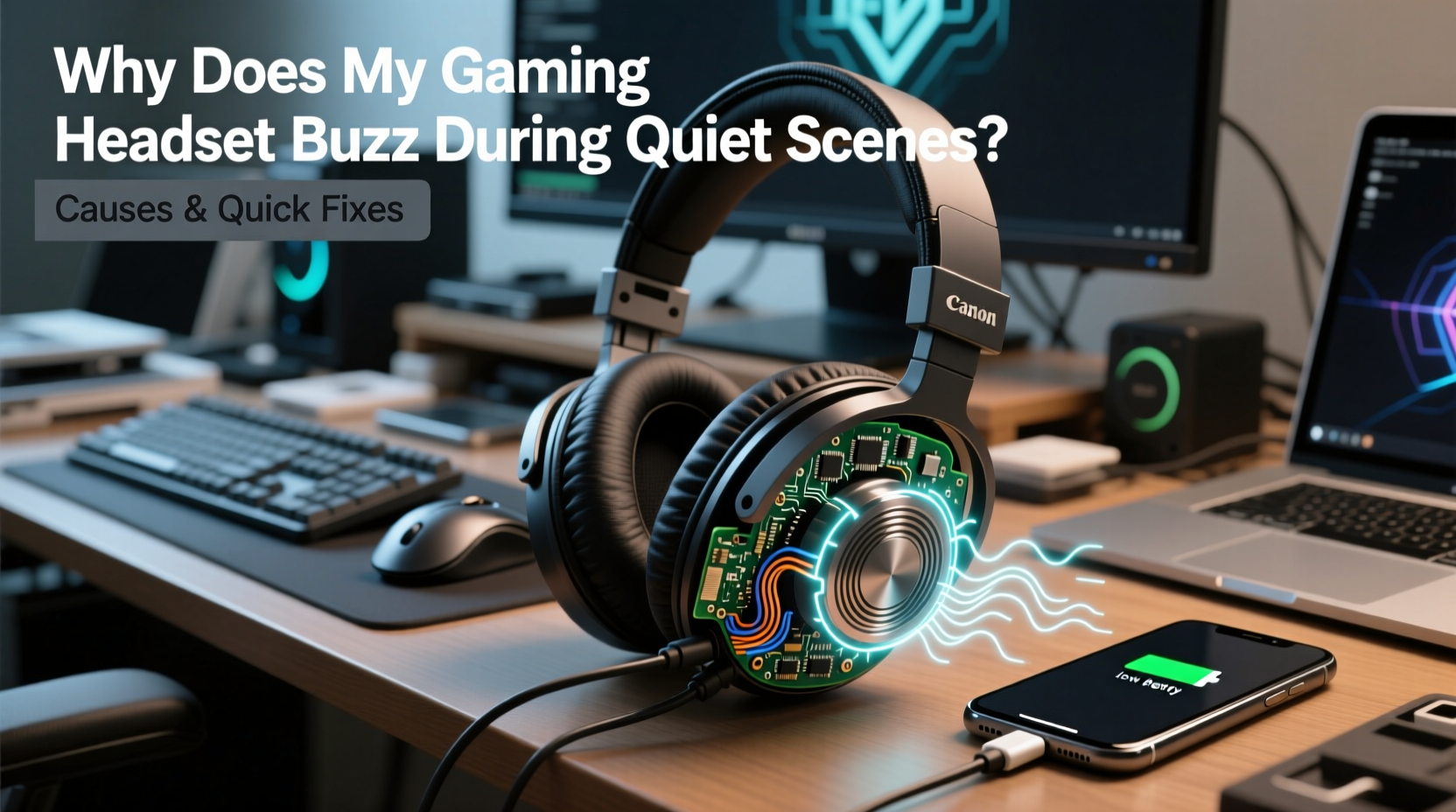
Buzzing in gaming headsets typically manifests as a constant low-frequency hum, a faint hiss, or intermittent crackling. It often becomes noticeable only during quiet moments because background noise from gameplay masks the interference. This doesn’t mean the problem disappears when you're in combat or loud environments—it's just less obvious.
The sound usually originates from one of three sources: electromagnetic interference (EMI), ground loops, or internal electronic issues within the headset, audio interface, or connected devices. In some cases, digital signal processing (DSP) settings or driver conflicts amplify the noise.
Unlike static caused by poor connections, buzzing is often continuous and tied to power cycles or device activity. For example, you might notice the pitch changes slightly when your PC’s fans ramp up or when switching between applications.
Common Causes of Gaming Headset Buzzing
Before attempting fixes, identify the source. Below are the most frequent culprits behind unwanted noise in gaming headsets.
1. Electromagnetic Interference (EMI)
Electronic devices emit electromagnetic fields that can interfere with analog audio signals. Common offenders include routers, smartphones, power supplies, monitors, and even fluorescent lighting. USB headsets and wireless models are particularly vulnerable due to their reliance on radio frequencies or unshielded cables.
2. Ground Loop Issues
A ground loop occurs when multiple devices share different electrical grounds, creating a small voltage difference that results in audible hum. This is common when connecting a headset through an external DAC, amplifier, or mixer powered by a separate outlet than the PC.
3. Poor Cable Shielding or Damage
Cheap or frayed cables lack adequate shielding against interference. Even minor kinks or bends near connectors can expose internal wires, making them susceptible to EMI. Braided cables generally offer better protection than thin rubber-coated ones.
4. Audio Driver Conflicts or Settings
Outdated, corrupted, or misconfigured audio drivers can introduce artifacts into the output signal. Features like audio enhancements, equalizers, or spatial sound processing sometimes generate noise when poorly implemented.
5. Power Supply Noise (Especially in Budget PCs)
Inexpensive power supplies often lack sufficient filtering, allowing ripple current to affect sensitive components like onboard audio chips. This manifests as a faint buzz through connected headphones, especially during low-signal playback.
6. USB Port Interference
For USB headsets, shared bandwidth or unstable power delivery from certain motherboard ports can induce noise. Front-panel USB hubs are notorious for inconsistent grounding and lower power regulation compared to rear I/O ports.
“Even high-end headsets can suffer from buzzing if the surrounding ecosystem—cables, ports, power—isn’t optimized.” — David Lin, Audio Hardware Engineer at SignalPath Labs
Step-by-Step Troubleshooting Guide
Follow this structured approach to isolate and resolve the cause of buzzing.
- Disconnect all non-essential peripherals: Unplug speakers, microphones, webcams, and chargers to reduce potential EMI sources.
- Switch audio ports: Move from front-panel to rear-panel audio jacks or try different USB ports directly on the motherboard.
- Test on another device: Plug the headset into a laptop, phone, or console. If the buzz disappears, the issue lies with your primary system.
- Inspect cables and connectors: Look for visible damage, corrosion, or loose fittings. Gently wiggle the cable near the plug while monitoring for crackling.
- Disable audio enhancements: In Windows, go to Sound Settings > Properties > Additional Device Properties > Enhancements tab, and check “Disable all enhancements.”
- Update or reinstall audio drivers: Use Device Manager to uninstall Realtek, NVIDIA HD Audio, or USB Audio drivers, then restart to trigger automatic reinstallation.
- Check BIOS/UEFI settings: Some motherboards allow disabling onboard audio amplifiers or adjusting power management features that affect signal purity.
- Use a ferrite core: Clip a ferrite choke onto the headset cable near the connector to suppress high-frequency interference.
Do’s and Don’ts When Dealing With Headset Buzz
| Action | Do | Don’t |
|---|---|---|
| Cable Management | Keep audio cables away from power cords and monitors | Run headset cables parallel to AC power lines |
| Driver Maintenance | Regularly update audio drivers via manufacturer website | Install third-party “audio booster” utilities |
| Port Usage | Use rear-panel USB/audio ports over front panel | Plug into unpowered USB hubs |
| Noise Testing | Mute all apps and test in BIOS or UEFI menu | Assume the noise is normal or unavoidable |
| Grounding | Ensure all devices use same power strip if possible | Connect PC and audio interface to outlets on different circuits |
Quick Fixes That Actually Work
Sometimes, immediate relief matters more than permanent solutions. Try these practical workarounds:
- Enable \"Exclusive Mode\" in Windows: Go to Sound > Properties > Advanced, and allow applications to take exclusive control of the device. This reduces background mixing that can introduce noise.
- Lower sample rate temporarily: Changing from 24-bit/96kHz to 16-bit/48kHz may reduce strain on the audio subsystem and minimize buzzing.
- Use a USB isolator: A small inline device that breaks electrical continuity between your PC and USB headset, eliminating ground loops. These cost $15–$30 and require no configuration.
- Adjust volume balance: Set system volume to 80%, then fine-tune in-game levels. Running output at maximum amplification increases sensitivity to noise.
- Try a different DAC or audio adapter: If using a 3.5mm headset, plug it into a portable USB sound card. If the buzz stops, your onboard audio chip is likely the culprit.
Mini Case Study: Solving Persistent Buzz on a High-End Wireless Headset
Jamal, a competitive FPS player, recently upgraded to a premium wireless gaming headset. Despite the investment, he noticed a faint but consistent buzz during stealth missions in games like *Rainbow Six Siege*. It wasn’t loud, but it broke immersion and made it harder to detect subtle footsteps.
He tried updating firmware and drivers, but the noise remained. After disconnecting every peripheral, he realized the buzz intensified whenever his phone charged nearby. Moving the charging station across the room eliminated 70% of the interference. Next, he switched from a front-panel USB-C hub to a direct rear motherboard port for the wireless dongle. The remaining hum vanished.
The final fix? Enabling “High Performance” mode in the headset’s companion app, which disabled unnecessary DSP effects that were subtly distorting the idle signal. Jamal now enjoys silent silence—exactly as intended.
Preventive Checklist for Long-Term Clarity
To avoid future buzzing issues, follow this maintenance checklist monthly:
- ✅ Inspect headset cables for wear or kinks
- ✅ Clean audio jacks with compressed air or contact cleaner
- ✅ Update audio drivers and firmware
- ✅ Audit nearby electronics for new EMI sources
- ✅ Re-test audio in a completely quiet environment
- ✅ Verify all devices are grounded to the same circuit
- ✅ Disable unused audio enhancements in OS and apps
Frequently Asked Questions
Is headset buzzing dangerous?
No, in most cases buzzing is not harmful to your hearing or equipment. However, prolonged exposure to low-level noise can contribute to listener fatigue. While not physically damaging, it degrades audio fidelity and immersion.
Why does my headset buzz only when plugged into my PC but not my phone?
This indicates the issue lies with your PC’s power delivery, grounding, or audio subsystem. Likely causes include a noisy power supply, poor motherboard audio shielding, or driver/software interference. Testing with a USB audio interface can help confirm.
Can a damaged audio jack cause buzzing?
Yes. A bent, dirty, or loosely seated audio jack can create intermittent contact, leading to crackling or humming. Oxidation inside the port also disrupts signal flow. Use electronic contact cleaner or gently straighten pins with a plastic tool to restore connection.
Final Thoughts and Action Plan
Buzzing during quiet scenes isn’t something you should have to accept—even with high-end gear. While modern gaming headsets deliver impressive audio quality, they remain vulnerable to environmental and technical factors beyond their design. The solution rarely lies in simply buying a new headset; instead, it requires systematic troubleshooting and attention to detail.
Start by isolating the source. Is the noise present across devices? Does it change with volume or application? Use process of elimination to narrow down whether the issue stems from hardware, cabling, power, or software. Apply the fixes outlined here—from disabling enhancements to using ferrite cores—and document what works.
Remember, perfect silence is achievable. Once resolved, maintain clean signal paths and keep your setup updated. Your ears—and your gameplay—will thank you.




 浙公网安备
33010002000092号
浙公网安备
33010002000092号 浙B2-20120091-4
Comments
No comments yet. Why don't you start the discussion?