
Random internet disconnections are more than just a minor annoyance—they disrupt video calls, freeze online gaming sessions, and halt critical downloads. While it’s tempting to blame your internet service provider, the real culprit is often closer: your router. Routers manage the flow of data between your devices and the internet, and when they malfunction, even slightly, connectivity suffers. The good news? Most issues can be diagnosed and fixed at home with the right approach. This guide dives into the most common causes of random disconnections and provides actionable, router-specific solutions that deliver lasting results.
Common Causes of Random Internet Drops
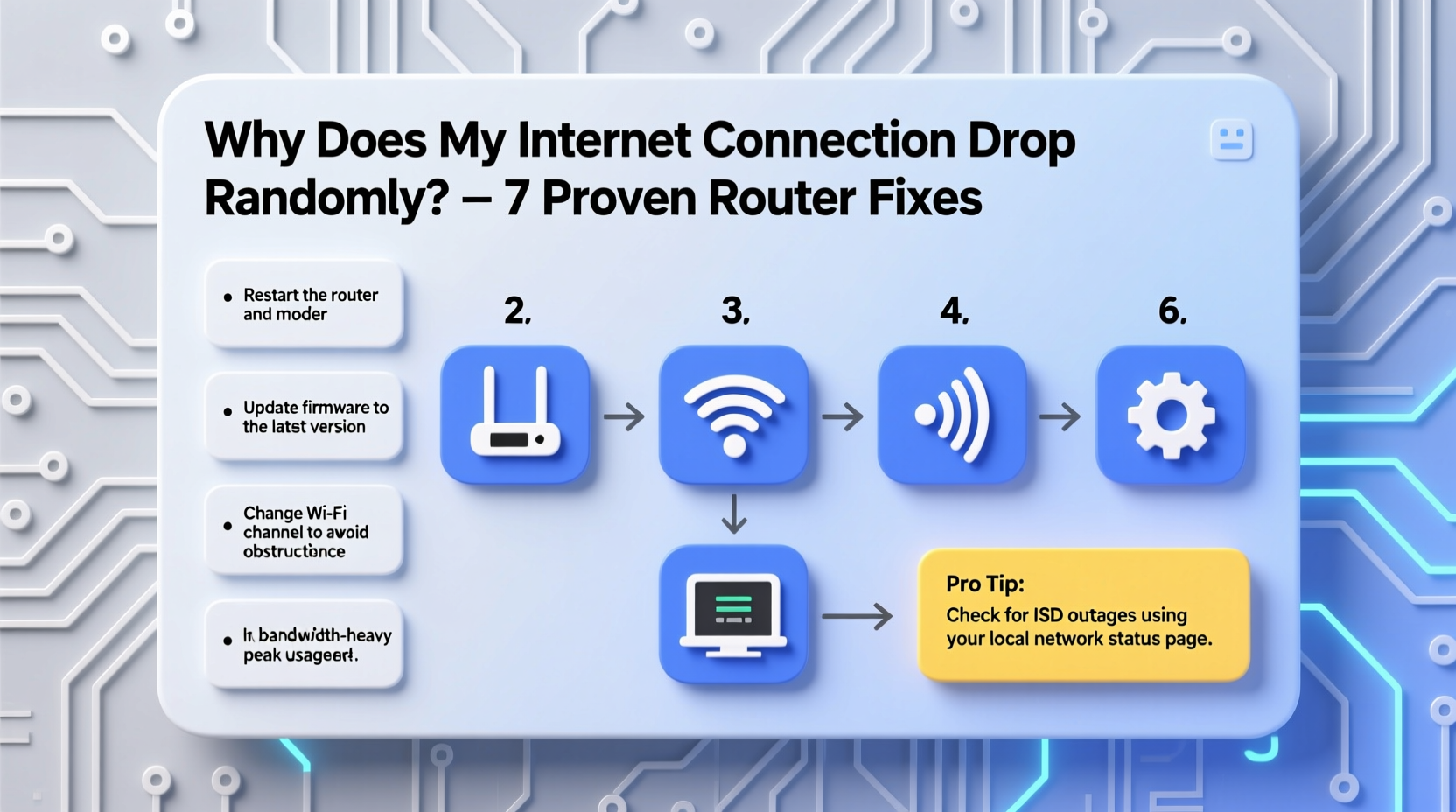
Before applying fixes, it's essential to understand what might be causing the instability. Several factors—ranging from hardware limitations to environmental interference—can trigger intermittent outages.
- Firmware bugs: Outdated or corrupted firmware can cause routers to crash or disconnect under load.
- Overheating: Routers generate heat during operation. Poor ventilation leads to thermal throttling or shutdowns.
- Channel congestion: In dense neighborhoods, overlapping Wi-Fi signals on the same channel create interference.
- ISP signal fluctuations: Weak incoming signal from your modem or line noise can destabilize the connection.
- Device overload: Too many connected devices can overwhelm older routers’ processing capabilities.
- Power supply issues: Faulty power adapters or unstable outlets lead to unexpected reboots.
Identifying the root cause is half the battle. Many users jump to replacing equipment when a simple configuration change would suffice.
Step-by-Step Router Troubleshooting Guide
Follow this logical sequence to isolate and resolve the issue without unnecessary expenses.
- Restart your router and modem. Unplug both for 30 seconds, then power them back on. This clears temporary glitches and resets network handshakes.
- Check physical connections. Ensure Ethernet cables are securely plugged in and undamaged. Replace frayed cables immediately.
- Test with a wired connection. Connect a computer directly via Ethernet. If the wired connection remains stable, the issue likely lies in Wi-Fi configuration or device compatibility.
- Monitor for overheating. Feel the router’s surface. If it’s hot to the touch, improve airflow by relocating it or using a cooling pad.
- Log into your router’s admin panel. Access it via your browser (usually
192.168.1.1or192.168.0.1) and check for error logs or disconnect timestamps. - Update firmware. Navigate to the administration section and look for firmware updates. Install if available.
This process eliminates transient issues and sets the stage for deeper fixes.
Specific Router Fixes That Work
Once basic troubleshooting is complete, apply targeted solutions based on your router model and environment.
1. Update or Reinstall Firmware
Firmware is the operating system of your router. Manufacturers release updates to patch security flaws and improve stability. An outdated version may struggle with modern traffic demands.
To update:
- Visit the manufacturer’s website (e.g., TP-Link, Netgear, ASUS).
- Enter your router model number to find the latest firmware.
- Download the correct file and upload it through the router’s admin interface.
If the router becomes unstable after an update, consider reverting to a previous version known to be stable—a practice some IT professionals recommend for mission-critical networks.
2. Optimize Wi-Fi Channel and Band Settings
Routers operate on 2.4 GHz and 5 GHz bands. The 2.4 GHz band has longer range but is prone to interference from microwaves, baby monitors, and neighboring networks. The 5 GHz band is faster and less congested but has shorter range.
Use a Wi-Fi analyzer app (like WiFi Analyzer on Android) to see which channels are overcrowded. Then:
- Switch your 2.4 GHz band to channels 1, 6, or 11—these don’t overlap.
- Set your 5 GHz band to auto-select the clearest channel.
- Enable band steering if available, so dual-band devices automatically connect to the optimal frequency.
| Band | Best For | Recommended Channel | Interference Risks |
|---|---|---|---|
| 2.4 GHz | Long-range, low-bandwidth tasks | 1, 6, 11 | High (microwaves, Bluetooth) |
| 5 GHz | Streaming, gaming, HD video | Auto (36–165) | Low (fewer household devices) |
3. Adjust DHCP Lease Time
The Dynamic Host Configuration Protocol (DHCP) assigns IP addresses to devices. A short lease time can cause devices to lose connection when renewing their IP, especially in busy networks.
In your router settings, increase the DHCP lease time from the default 1 hour to 24 hours. This reduces the frequency of address renegotiation and minimizes brief dropouts.
4. Enable Quality of Service (QoS)
QoS prioritizes bandwidth for critical applications like video conferencing or online gaming. Without it, a single device downloading large files can saturate the network and cause others to disconnect.
Configure QoS rules to prioritize:
- VoIP calls
- Streaming services
- Gaming consoles
This ensures smooth performance even during high-load periods.
5. Factory Reset as a Last Resort
If all else fails, perform a factory reset. This wipes custom settings and returns the router to its original state. After resetting, reconfigure your network from scratch—don’t restore old backups, as they may carry corrupted settings.
Real-World Example: Fixing a Dropping Home Network
Consider Sarah, a remote worker living in a three-story townhouse. Her video meetings frequently froze mid-call, despite having a 200 Mbps plan. Initial checks showed strong signal bars, but ping tests revealed packet loss during peak hours.
She followed the troubleshooting steps:
- Restarted the router—temporary fix.
- Switched from auto-channel to manual channel 1 on 2.4 GHz after discovering heavy congestion on channels 6 and 11.
- Updated her aging Netgear Nighthawk R7000 firmware to the latest OpenWRT-compatible build.
- Enabled QoS to prioritize Zoom and Slack traffic.
The result? No disconnections over the next two weeks. Her router no longer struggled under daily use, proving that targeted fixes beat costly upgrades.
“Most home Wi-Fi problems aren’t about speed—they’re about stability. A well-tuned router with proper settings outperforms a high-end model with poor configuration.” — David Lin, Network Engineer at Broadband Solutions Inc.
Preventive Maintenance Checklist
Keep your router running smoothly with regular upkeep. Use this checklist monthly:
- ✅ Restart the router and modem to clear memory leaks.
- ✅ Check for firmware updates.
- ✅ Verify all cables are secure and undamaged.
- ✅ Monitor connected devices for unknown entries (potential intrusions).
- ✅ Clean dust from vents using compressed air.
- ✅ Review Wi-Fi channel congestion and adjust if needed.
- ✅ Test internet speed with multiple devices to detect inconsistencies.
Consistent maintenance prevents small issues from escalating into full outages.
Frequently Asked Questions
Why does my internet drop only at night?
Nighttime disconnections are often due to increased network congestion. Neighbors streaming, gaming, or downloading create interference on shared frequencies. Updating your router’s channel and enabling beamforming can help maintain a stable signal during peak hours.
Can a bad router damage my devices?
No, a failing router won’t physically harm your devices. However, inconsistent connections can interrupt software updates, corrupt downloads, or degrade user experience. In rare cases, a faulty power adapter could pose a fire risk—replace any that feel hot, smell burnt, or show frayed wires.
Should I replace my router every few years?
While not mandatory, upgrading every 3–5 years ensures you benefit from improved speed standards (Wi-Fi 5, Wi-Fi 6), better security, and enhanced range. Older routers lack support for modern protocols and are more prone to disconnections under current usage demands.
Conclusion: Take Control of Your Connection
Random internet drops don’t have to be a fact of digital life. By understanding your router’s behavior and applying precise fixes—from firmware updates to channel optimization—you can achieve a reliable, high-performance network. The key is systematic diagnosis and consistent care. Don’t rush to buy new hardware until you’ve exhausted these proven adjustments. A few minutes of configuration today can save hours of frustration tomorrow.




 浙公网安备
33010002000092号
浙公网安备
33010002000092号 浙B2-20120091-4
Comments
No comments yet. Why don't you start the discussion?