
There’s perhaps no more frustrating digital experience than typing a message only to have your iPhone transform a perfectly correct word into something unrecognizable—or worse, embarrassing. You tap “send,” and suddenly you’ve told your boss you’re “feeling feral” instead of “feeling well.” Autocorrect is meant to help, but when it misfires repeatedly, it can feel like the device is working against you. The good news? Most of these issues are fixable. Understanding why your iPhone’s autocorrect behaves erratically—and knowing exactly how to correct it—can restore confidence in your daily communication.
The root causes vary: from outdated language models to learned typos, incorrect keyboard settings, or even regional dialect mismatches. This guide breaks down the most common reasons behind faulty autocorrection, provides practical troubleshooting steps, and shares long-term strategies to keep your typing experience smooth and accurate.
Why iPhone Autocorrect Misbehaves
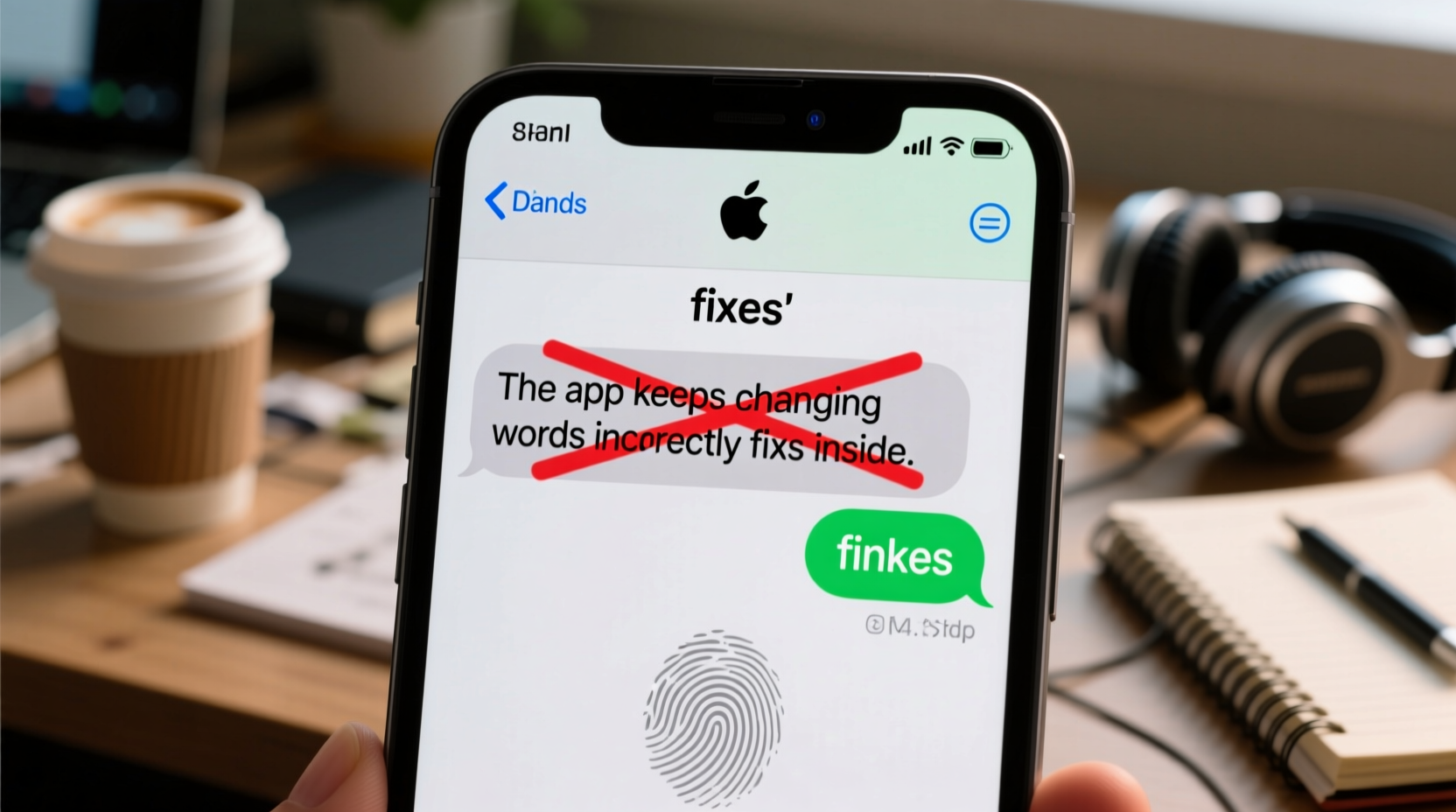
Apple's autocorrect system runs on a combination of predictive text algorithms, personalized learning, and linguistic databases. While generally reliable, several factors can cause it to go off track:
- Personalized Learning Gone Wrong: Your iPhone learns from your typing habits. If you frequently accept incorrect suggestions or mistype certain words, it begins to assume those errors are intentional.
- Language Settings Mismatch: If your keyboard is set to a different region (e.g., U.S. English vs. U.K. English), spelling variations may be flagged as mistakes.
- Damaged or Corrupted Dictionary Data: Over time, the internal dictionary that powers autocorrect can become corrupted, especially after OS updates or frequent app crashes.
- Predictive Text Conflicts: The “predictive” bar above the keyboard sometimes overrides manual input by auto-inserting words without confirmation.
- Third-Party Keyboard Interference: Some downloaded keyboards modify default behavior and introduce their own flawed correction logic.
“Autocorrect isn’t just about grammar—it adapts to user behavior. When users repeatedly accept bad corrections, the system assumes they’re correct.” — Dr. Lena Torres, Human-Computer Interaction Researcher, Stanford University
Step-by-Step Fixes to Stop Incorrect Autocorrections
Before resorting to drastic measures, try this structured troubleshooting sequence. Most users resolve the issue within 15 minutes using one or more of these methods.
- Reset the Keyboard Dictionary
This clears all custom words and learned typos without affecting other data.
Go to: Settings > General > Transfer or Reset iPhone > Reset > Reset Keyboard Dictionary.
Confirm the reset. Afterward, type normally for a few days to let the system relearn your patterns—this time correctly. - Check Language & Region Settings
Ensure your keyboard language matches your preferred spelling standard.
Navigate to: Settings > General > Language & Region.
Verify that your primary language is correct (e.g., English - United States).
Then go to: Settings > General > Keyboard > Keyboards > Add New Keyboard and remove any unused or duplicate language inputs. - Turn Off Auto-Correction Temporarily
Useful for diagnosing whether the problem lies with autocorrect or predictive text.
Go to: Settings > General > Keyboard.
Toggle off Auto-Correction. Type a few messages. If the issue stops, the problem is isolated to the correction engine. - Disable Predictive Text
The suggestion bar above the keyboard often inserts words prematurely.
In Settings > Keyboard, toggle off Predictive.
Test typing again. Many users report immediate improvement once predictive suggestions are disabled. - Update iOS to the Latest Version
Apple regularly patches bugs in text processing through system updates.
Go to: Settings > General > Software Update.
Install any available update. These often include refinements to dictation, autocorrect, and language models.
Common Mistakes That Worsen Autocorrect Issues
Some behaviors unintentionally train your iPhone to make more mistakes. Recognizing these pitfalls can prevent future frustration.
| Mistake | Why It’s Harmful | Better Approach |
|---|---|---|
| Accepting incorrect suggestions | Taught the system that errors are correct | Delete and retype; never tap a wrong suggestion |
| Using slang or abbreviations excessively | System may add them to personal dictionary | Use sparingly or manually delete if misused |
| Ignoring keyboard updates | Misses performance improvements and bug fixes | Enable automatic updates or check monthly |
| Installing too many third-party keyboards | Can conflict with native autocorrect logic | Stick to Apple’s default or trusted apps like Grammarly |
Real-World Example: How One User Fixed Years of Typing Frustration
Sarah, a freelance writer from Portland, had grown so distrustful of her iPhone’s autocorrect that she began drafting all emails on her laptop. For months, her phone changed “client” to “clayton,” “meeting” to “eating,” and once even turned “I appreciate your feedback” into “I appreciate your featherback.”
After reading about keyboard dictionary resets, she decided to try it. She followed the reset process, then spent two days carefully retyping common professional phrases, rejecting any incorrect suggestions. She also disabled predictive text and confirmed her keyboard was set to U.S. English.
Within 72 hours, her autocorrect accuracy improved dramatically. Within a week, she was back to texting clients directly from her phone. “It felt like getting my voice back,” she said. “I didn’t realize how much mental energy I was spending second-guessing every word.”
Long-Term Prevention: Maintaining a Healthy Keyboard System
Once you’ve fixed the immediate issue, maintain performance with these ongoing practices.
Add Frequently Used Words to Your Personal Dictionary
If you often type names, technical terms, or niche vocabulary, add them manually to prevent corrections.
Go to: Settings > General > Keyboard > Text Replacement. Tap the \"+\" icon and enter the word and its shortcut (e.g., “Jonas” → “jns”). The system will now recognize it as correct.
Review Learned Corrections Monthly
Your iPhone silently records corrections. Occasionally, review and clean up erroneous entries.
While there’s no direct interface to view learned words, resetting the keyboard dictionary every 3–6 months (especially if issues return) acts as a maintenance flush.
Use Dictation Wisely
Voice-to-text can introduce errors that get absorbed into your typing behavior. Always proofread dictated messages before sending. If dictation consistently mishears certain words, avoid using it for those phrases or train Siri by repeating corrections aloud.
Avoid Overreliance on Third-Party Apps
Apps like Gboard or SwiftKey offer advanced features but can interfere with iOS’s native correction engine. If you must use them, ensure they’re updated regularly and disable their auto-replace functions if they conflict with your needs.
FAQ: Common Questions About iPhone Autocorrect Problems
Why does my iPhone keep changing the same word over and over?
This usually happens because the system has learned the incorrect version as correct. For example, if you once accepted “form” instead of “from,” and did so multiple times, the phone assumes that’s your intended spelling. Resetting the keyboard dictionary typically resolves this.
Can I turn off autocorrect for specific words?
Not directly—but you can prevent changes by adding the correct version to your text replacement list. For instance, set “teh” to automatically replace with “the,” overriding the incorrect suggestion.
Does iOS 17 have better autocorrect than older versions?
Yes. Starting with iOS 16 and refined in iOS 17, Apple introduced on-device machine learning models that improve contextual understanding. These versions are less likely to make absurd corrections and adapt more intelligently to writing style—provided the keyboard dictionary is clean.
Conclusion: Take Control of Your Typing Experience
Your iPhone should enhance communication, not hinder it. Persistent autocorrect errors aren’t a flaw in your intelligence—they’re a solvable technical issue rooted in settings, learning patterns, and software health. By resetting your keyboard dictionary, fine-tuning language preferences, and avoiding common behavioral traps, you can reclaim accuracy and trust in your device.
The fix doesn’t require technical expertise—just attention to detail and a willingness to break bad habits. Once optimized, your iPhone’s keyboard becomes a seamless extension of your thoughts, not a source of constant correction.




 浙公网安备
33010002000092号
浙公网安备
33010002000092号 浙B2-20120091-4
Comments
No comments yet. Why don't you start the discussion?