
If you've woken up to a notification saying \"Storage Almost Full\" on your iPhone—even though you didn’t install any new apps or download large files the day before—you're not alone. This frustrating phenomenon affects thousands of iPhone users monthly. The mystery isn't magic; it's a combination of background processes, automatic updates, media accumulation, and system behaviors that quietly consume gigabytes while you sleep. Understanding these hidden culprits is the first step toward regaining control of your device’s storage.
iPhones don’t just passively store data—they actively manage it, often without clear user input. From iCloud syncing to photo optimization, from app cache buildup to undetected software bugs, multiple factors can silently inflate your storage usage overnight. The good news? Most of these issues are preventable with the right knowledge and habits.
Common Causes of Overnight Storage Fill-Up
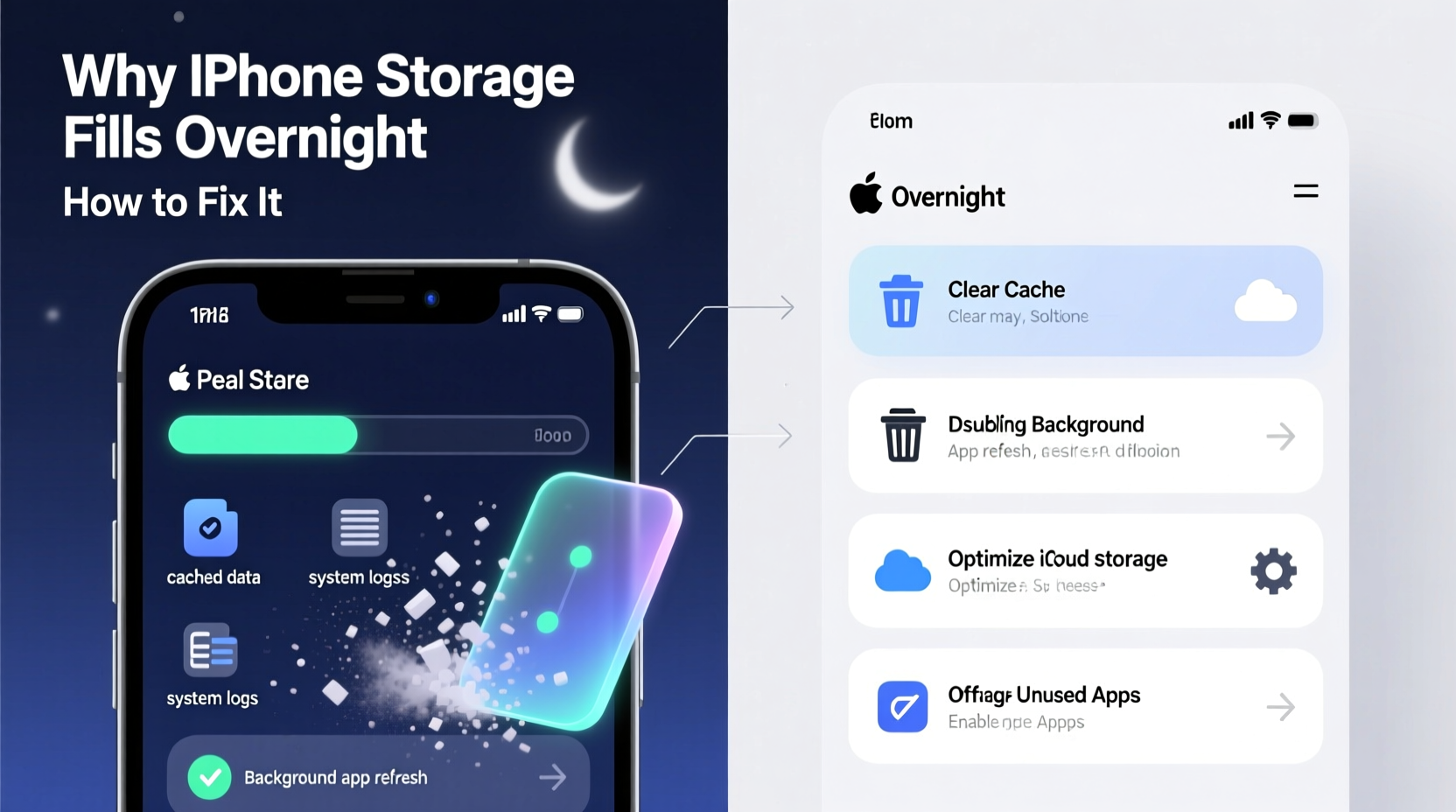
The sudden appearance of low storage warnings typically stems from one or more of the following background activities:
- Photo Library Syncing: If you use iCloud Photos, your device may be downloading optimized versions of older photos or videos during off-peak hours, especially after restoring from backup or switching devices.
- App Cache Accumulation: Apps like social media platforms (Instagram, TikTok), messaging apps (WhatsApp, Telegram), and streaming services (Spotify, YouTube) automatically cache content in the background for faster loading later.
- Automatic iOS Updates: When an update is downloaded overnight, it can take up significant space—sometimes over 5 GB—while remaining invisible until you check Settings.
- Message Attachments: iMessages and MMS messages with photos, videos, or voice memos can accumulate rapidly, especially in group chats.
- Mail App Downloads: If your email accounts are set to sync all messages and attachments, large PDFs or image files may download in the background.
- System Logs and Diagnostics: Occasionally, iOS generates logs for performance monitoring, which can grow unexpectedly under certain conditions.
How Background Processes Consume Space Without Warning
Apple designs iOS to operate efficiently in the background, but this efficiency sometimes comes at the cost of storage transparency. For example, when you browse Instagram or TikTok during the day, the app stores temporary video clips and images locally. These files aren’t immediately purged. Instead, they remain cached until the system decides to clean them—or until storage becomes critically low.
Similarly, iCloud Photos uses a feature called “Optimize iPhone Storage,” which keeps smaller versions of photos on your device and full-resolution copies in the cloud. However, if there’s a sync conflict, network interruption, or recent account change, your iPhone might temporarily re-download full-size assets, creating a sudden spike in usage.
Email is another silent offender. Many users overlook that the default setting for the Mail app downloads messages from the last 30 days—including attachments. A single newsletter with embedded high-res images or a shared document can add up across multiple accounts.
“Background app refresh and automatic syncing are designed for convenience, but they can turn into storage traps if left unchecked.” — David Lin, Mobile Systems Analyst at TechInsight Group
Step-by-Step Guide to Diagnose and Free Up Space
Follow this timeline each week to maintain optimal storage health and catch issues before they escalate.
- Check Storage Usage (Daily/Weekly): Go to Settings > General > iPhone Storage. Wait for the breakdown to load. Identify which apps are using the most space.
- Review Recently Added Items: Scroll through your Photos app and look for unexpected bursts of images or videos. Check the “Recently Deleted” album—items stay there for 30 days and still count against storage.
- Clear Safari Cache: Go to Settings > Safari > Clear History and Website Data. This removes stored cookies, scripts, and cached pages that can accumulate over time.
- Delete Old Message Threads: Open Messages, swipe left on inactive conversations, and tap Delete. For heavy users, go to Settings > Messages > Keep Messages and switch from “Forever” to “30 Days” or “1 Year.”
- Offload Unused Apps: In iPhone Storage settings, enable “Offload Unused Apps.” This removes the app but keeps its documents and data, allowing quick reinstallation later.
- Manage Email Settings: Go to Settings > Mail > Accounts > [Your Account] > Advanced > Download Images. Set fetch limits to “7 Days” instead of “All.”
- Restart Your iPhone Weekly: A simple reboot clears temporary system files and resets memory allocation, which can free up minor but recurring bloat.
Do’s and Don’ts: Managing iPhone Storage Wisely
| Do’s | Don’ts |
|---|---|
| Enable “Optimize iPhone Storage” in Photos settings | Leave “Keep Originals” enabled if you have limited iCloud+ storage |
| Set Messages to auto-delete after 30 days | Allow all apps unrestricted background refresh |
| Use third-party cloud storage (Google Drive, Dropbox) for large files | Store full-length movies or 4K videos directly on your phone |
| Regularly review app storage usage | Ignore system alerts about storage until it’s too late |
| Back up to computer via Finder/iTunes weekly | Assume deleting an app removes all associated data permanently |
Real Example: Sarah’s Sudden Storage Crisis
Sarah, a freelance photographer, woke up one Monday morning to find her iPhone nearly full—despite having deleted hundreds of old photos the previous weekend. Confused, she checked Settings > iPhone Storage and found that WhatsApp was using 18 GB, up from 3 GB just two days earlier.
After investigation, she discovered that a client had sent a series of high-resolution video clips via WhatsApp over the weekend. Because she hadn’t opened the app yet, none of the files were marked as viewed, so WhatsApp continued downloading and caching them in the background. Additionally, WhatsApp doesn’t automatically purge media unless manually configured to do so.
Solution: Sarah went to WhatsApp Settings > Storage and Data > Manage Storage. She selected the largest media files—mostly videos she no longer needed—and deleted them. She then adjusted WhatsApp’s auto-download settings to disable video downloads over Wi-Fi and cellular data. Her storage dropped from 98% to 72% in minutes.
This case illustrates how communication apps can become stealthy storage hogs when media-heavy exchanges occur outside active usage windows.
Prevention Checklist: Secure Your Storage Long-Term
To avoid recurring storage surprises, follow this monthly maintenance checklist:
- ✅ Review iPhone Storage screen and identify top space-consuming apps
- ✅ Delete unnecessary photos, screenshots, and screen recordings
- ✅ Clear message history older than 30 days
- ✅ Disable automatic media downloads in messaging apps (WhatsApp, Telegram, Signal)
- ✅ Turn off Background App Refresh for non-essential apps (Settings > General > Background App Refresh)
- ✅ Ensure iCloud Photos is set to “Optimize iPhone Storage”
- ✅ Back up your iPhone to iCloud or computer and verify successful completion
- ✅ Restart your iPhone after major updates or prolonged uptime
- ✅ Uninstall apps you haven’t used in the past 60 days
- ✅ Use external tools like SanDisk iXpand or cloud services for long-term media archiving
Frequently Asked Questions
Why does my storage increase even when I’m not using my phone?
Your iPhone performs many background tasks automatically—syncing photos, updating apps, caching web content, and receiving messages. These processes can add up quickly, especially if you have multiple accounts or use media-heavy apps. Automatic iOS updates also download in the background and occupy space before installation.
Does restarting my iPhone free up storage?
Restarting clears temporary system files and resets memory allocation, which can reclaim small amounts of space (typically 100–500 MB). While not a major fix, it helps maintain smooth operation and can resolve glitches causing phantom storage use.
Is it safe to delete “Other” storage on my iPhone?
“Other” includes system files, caches, logs, and settings. You cannot directly delete it, but clearing Safari history, removing offline content from streaming apps, and reinstalling bloated apps can reduce it over time. Avoid third-party cleaners claiming to remove “junk”—they’re ineffective and potentially risky.
Expert Insight: What Apple Doesn’t Tell You
While Apple provides robust tools for managing storage, some limitations are rarely discussed. For instance, the “System” category in storage settings can balloon due to firmware remnants after major updates. In rare cases, failed update rollbacks leave behind partial installation files that aren’t automatically cleaned.
“The ‘System’ and ‘Other’ categories are black boxes to most users. But regular backups, clean reinstalls, and disciplined app management are the only proven ways to keep them in check.” — Dr. Lena Torres, iOS Infrastructure Researcher at Stanford Digital Lab
Additionally, end-to-end encrypted data (like Health, Keychain, and some iCloud-synced items) must be stored locally in full, limiting how much optimization can occur. This design prioritizes privacy over space savings—a trade-off worth understanding.
Conclusion: Take Control Before It’s Too Late
Waking up to a full iPhone is more than an annoyance—it disrupts productivity, prevents new memories from being captured, and can even interfere with essential functions like calls and navigation. The root causes are predictable and manageable once you know where to look. By implementing regular checks, adjusting automatic behaviors, and staying informed about how apps use space, you can prevent overnight storage spikes for good.




 浙公网安备
33010002000092号
浙公网安备
33010002000092号 浙B2-20120091-4
Comments
No comments yet. Why don't you start the discussion?