
If you've woken up to a notification that your iPhone is nearly out of storage—despite not downloading anything new—you're not alone. Many users experience what's known as \"phantom storage usage,\" where gigabytes seem to vanish overnight without explanation. This isn't a glitch in the traditional sense, but rather the result of background processes, hidden caches, and system behaviors Apple doesn’t always make transparent. Understanding the root causes and learning how to manage them can save you from constant low-storage warnings and sluggish performance.
What Causes Phantom Storage Usage on iPhones?
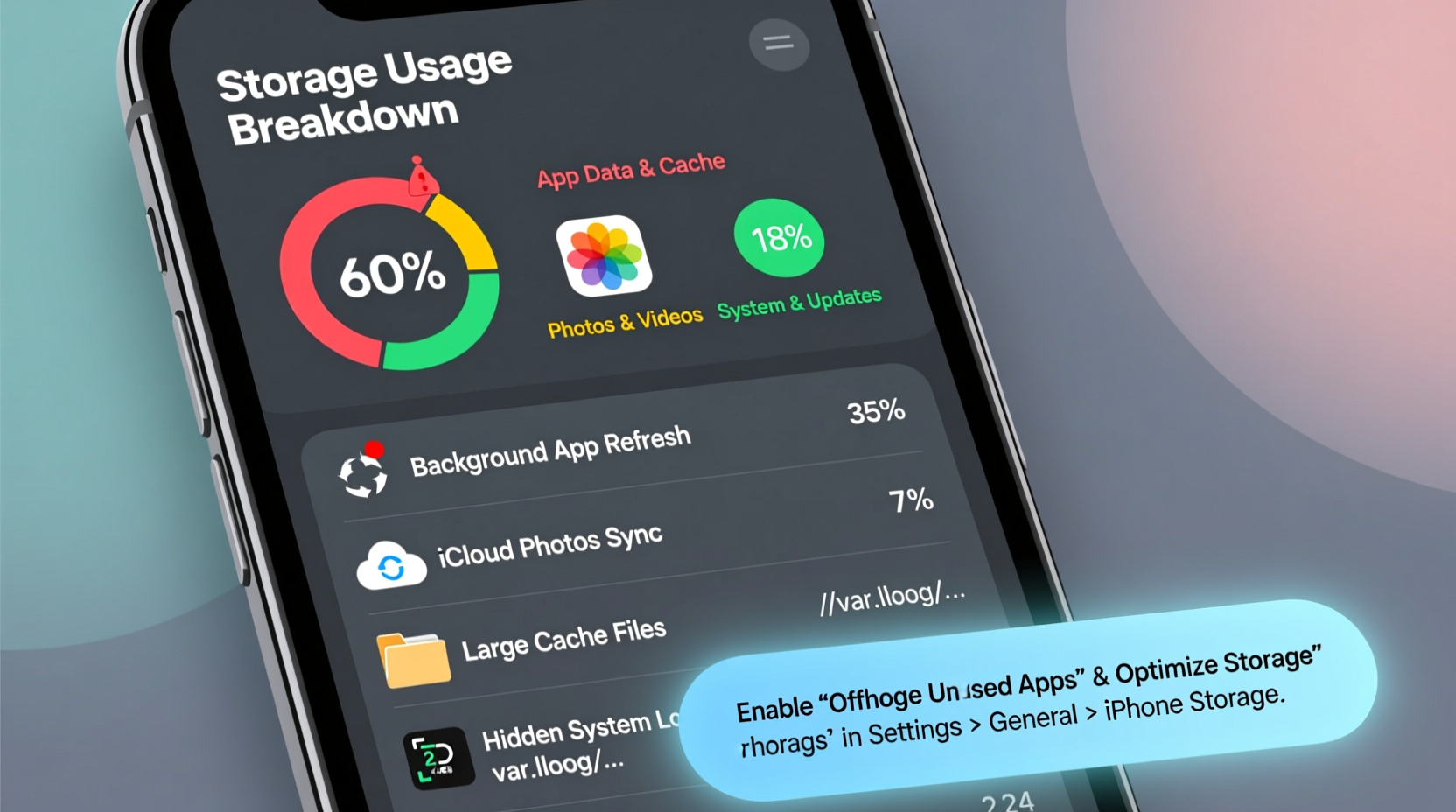
iPhone storage isn’t just about apps and photos you manually add. Behind the scenes, iOS manages temporary files, app caches, message attachments, backups, and system logs that accumulate silently. These elements often grow rapidly, especially when automatic features are enabled. The most common culprits include:
- Message attachments: iMessages and SMS with photos, videos, or audio clips store locally unless configured otherwise.
- App cache buildup: Apps like Safari, social media platforms, and streaming services store large amounts of temporary data.
- Photo optimization and syncing: iCloud Photos may download full-resolution versions during charging or Wi-Fi connection.
- System and app updates: iOS sometimes downloads update files in the background, even if installation is delayed.
- Mail attachments: If you use IMAP or Exchange accounts, emails with embedded images or files can sync automatically.
- Location and analytics data: Continuous location tracking and diagnostic logging consume space over time.
The issue intensifies when these processes run simultaneously overnight while your phone charges and connects to Wi-Fi. What feels like “overnight filling” is usually the culmination of hours of passive data accumulation.
How to Identify What’s Eating Your iPhone Storage
Before you can fix the problem, you need visibility. Apple provides a detailed breakdown of storage usage, but it requires careful navigation to interpret correctly.
- Open Settings.
- Tap General, then select iPhone Storage.
- Wait for the analysis to complete (can take up to a minute).
- Review the bar chart showing used vs. available space.
- Scroll down to see a list of all apps sorted by storage consumption.
Pay attention to apps labeled with unusually high storage values compared to their function. For example:
| App Name | Expected Size Range | Potential Red Flags |
|---|---|---|
| Safari | 50–200 MB | Over 1 GB suggests excessive cache or history |
| Messages | Varies by usage | Growing daily without sending new messages |
| Photos | Depends on library size | Discrepancy between iCloud and local copies |
| 100–500 MB | Multiple GBs indicate attachment caching | |
| System | 3–8 GB | Sudden jump of 2+ GB may signal update residue |
If an app shows significantly more storage than expected, tap it to explore options like “Offload App” or “Delete App.” You can reinstall it later to clear internal junk without losing account data.
“Many users don’t realize that app ‘size’ includes both code and cache. A social media app might only be 200MB in code but could hoard 4GB in cached videos.” — David Lin, Mobile Systems Analyst at TechInsight Labs
Step-by-Step Guide to Stop Overnight Storage Drain
Phantom storage growth isn’t inevitable. With proactive management, you can stabilize your iPhone’s storage and prevent surprise overflows. Follow this sequence to regain control:
Step 1: Disable Automatic Message Downloads
iMessages with media attachments are a top contributor to unexplained storage gains.
- Go to Settings > Messages.
- Set Keep Messages to “30 Days” or “1 Year” instead of “Forever.”
- Under Limit Message History, enable auto-delete.
- Scroll down and toggle off Saved Messages under “Transfers & Storage” to prevent re-downloading old attachments.
Step 2: Clear Safari Cache Regularly
Safari accumulates cookies, history, and website data that rarely get purged automatically.
- Navigate to Settings > Safari.
- Select Clear History and Website Data.
- Confirm deletion. Note: This won’t affect passwords if iCloud Keychain is on.
Step 3: Optimize iCloud Photos Settings
If you have iCloud Photos enabled, ensure you’re using “Optimize iPhone Storage” to keep full-resolution images in the cloud.
- Open Settings > [Your Name] > iCloud > Photos.
- Select Optimize iPhone Storage.
- Disable Download and Keep Originals if active.
- Manually review Recently Deleted albums monthly to permanently erase trashed items.
Step 4: Restrict Background App Refresh
Apps refreshing in the background often preload content that eats space.
- Go to Settings > General > Background App Refresh.
- Turn it off entirely or allow only for essential apps (e.g., Maps, Messages).
- This reduces pre-caching of news, social feeds, and video thumbnails.
Step 5: Manage Email Attachment Behavior
Email clients like Apple Mail can silently download large attachments.
- In Settings > Mail > Accounts, select each account.
- Choose Advanced, then set Download Attachments to “Wi-Fi Only” or “Manually.”
- Periodically delete old threads with embedded files.
Step 6: Delete Old Software Updates
iOS retains downloaded update files for several days after installation, sometimes longer if failed.
- Check Settings > General > iPhone Storage.
- Look for entries labeled “iOS [Version] Update.”
- If found, tap it and select Delete Update.
Step 7: Review System & Other Category
The mysterious “System” or “Other” category can balloon due to logs, temp files, or corrupted caches.
- Restart your iPhone: Sometimes clears transient system bloat.
- Update to the latest iOS version: Fixes bugs related to storage misreporting.
- Back up and restore via iTunes/Finder: As a last resort, this resets system clutter.
Mini Case Study: Recovering 12GB Overnight
Julia, a freelance photographer in Portland, noticed her iPhone 14 Pro Max dropped from 20% free storage to less than 5% overnight. She hadn’t taken new photos or installed apps. After checking Settings > iPhone Storage, she discovered:
- Messages: 7.2 GB (up from 3.1 GB)
- Safari: 2.1 GB
- System: 8.9 GB (previously 6.3 GB)
Investigating further, she found that a client had sent a 4K video via iMessage the previous evening. Though she watched it once, the file remained cached. Additionally, Safari had accumulated months of unreviewed history due to ad-heavy sites she visited. The system spike was traced to a partially downloaded iOS 17.5 update that never completed.
By following the steps above—deleting the message thread, clearing Safari, and removing the stale update—she reclaimed over 11GB within 20 minutes. She now keeps Messages set to auto-delete after 30 days and checks for residual updates weekly.
Essential Checklist to Prevent Phantom Storage Growth
Use this actionable checklist monthly to maintain optimal storage health:
- ✅ Review largest apps in iPhone Storage settings
- ✅ Delete unused apps with high cache (e.g., old games, trial software)
- ✅ Enable “Optimize iPhone Storage” in iCloud Photos
- ✅ Set Messages to auto-delete after 30 days
- ✅ Clear Safari history and website data
- ✅ Turn off Background App Refresh for non-essential apps
- ✅ Check for and delete pending iOS updates
- ✅ Offload infrequently used apps (Settings > App Store > Offload Unused Apps)
- ✅ Restart your iPhone weekly to clear temporary system files
- ✅ Back up to iCloud or computer regularly to avoid local backup clutter
Frequently Asked Questions
Why does my iPhone say “System” is using so much space?
“System” includes core OS files, logs, caches, and temporary data. It can grow due to incomplete updates, diagnostic reports, or background indexing. While some is unavoidable, sudden increases often point to recoverable bloat. Restarting or updating iOS typically reduces excess system usage.
Can I delete “Other” storage on my iPhone?
Not directly. “Other” combines system files, caches, settings, and logs. You can reduce it indirectly by restarting, updating iOS, clearing Safari, or restoring the device. Avoid third-party tools claiming to delete “Other”—they’re ineffective and potentially risky.
Does offloading an app delete my data?
No. Offloading removes the app binary but preserves documents and data. When you reinstall, your login details and preferences usually return. However, for critical apps (e.g., banking), verify functionality before relying on auto-recovery.
Conclusion: Take Control Before Storage Becomes a Crisis
Phantom iPhone storage usage isn’t magic—it’s the quiet accumulation of digital debris. By understanding how iOS manages data and taking consistent, small actions, you can prevent overnight surprises and extend your device’s usability. Don’t wait until your phone warns you at 5% capacity. Implement these strategies now, create a routine, and enjoy a faster, more reliable experience. Your iPhone should serve you—not slow down because of hidden clutter.




 浙公网安备
33010002000092号
浙公网安备
33010002000092号 浙B2-20120091-4
Comments
No comments yet. Why don't you start the discussion?