
If your laptop battery seems to vanish in hours—even when you're not actively using it—you're not imagining things. Many users report significant battery drain during idle periods, often losing 20% or more in just a few hours. This isn't always due to aging hardware. Modern laptops are designed to manage power efficiently, but background processes, misconfigured settings, and hidden software activity can sabotage performance. Understanding what's happening behind the scenes is the first step toward regaining control of your battery life.
The frustration is real: you close the lid after finishing work, expecting several hours of standby, only to return to a dead machine. The good news? Most causes of excessive idle battery drain are diagnosable—and fixable—without replacing hardware. This guide walks through the technical and practical aspects of identifying root causes, measuring actual consumption, and implementing solutions that deliver lasting improvements.
Common Causes of Fast Battery Drain During Idle
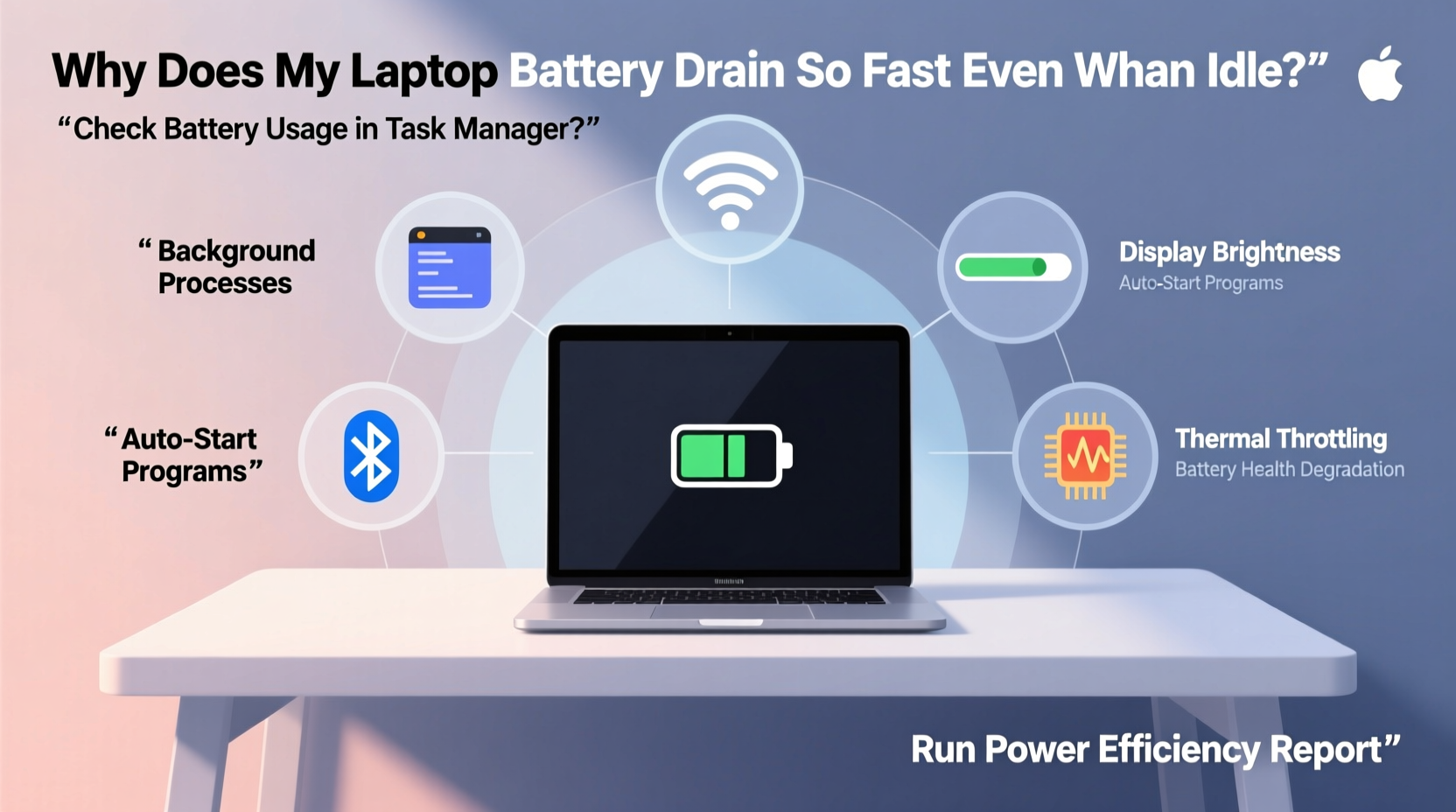
When a laptop appears idle, it doesn’t mean all components have powered down. Several subsystems may still be active, drawing energy even when the screen is off. The most frequent culprits include:
- Background applications: Cloud sync tools (OneDrive, Dropbox), messaging apps (Slack, Teams), and updaters run continuously.
- Wi-Fi and Bluetooth: These radios consume power searching for networks or maintaining connections.
- Poor sleep states: Some laptops fail to enter deep sleep modes due to driver conflicts or peripheral devices.
- Outdated or faulty drivers: Especially graphics and chipset drivers that don’t manage power states correctly.
- Firmware issues: BIOS/UEFI bugs can prevent proper low-power operation.
- Malware or crypto-mining scripts: Hidden processes running at high CPU usage without user knowledge.
A 2022 study by PCMag found that nearly 40% of reported battery issues stemmed from background services rather than battery degradation. This highlights the importance of looking beyond hardware age when diagnosing poor battery performance.
How to Diagnose Battery Drain Using Built-in Tools
Modern operating systems provide detailed insights into power consumption. Use these native tools to pinpoint what’s draining your battery—even when the system appears inactive.
On Windows: Generate a Battery Report
Open Command Prompt as Administrator and run:
powercfg /batteryreport
This creates a detailed HTML report saved to your user folder. Open it in a browser to view:
- Design capacity vs. current full charge
- Recent usage patterns and idle times
- Active discharge rates during sleep
- List of power-hungry processes
Look specifically at the “Usage” section. If the system shows consistent discharge while “System Running” is minimal, suspect background wake events or driver issues.
On macOS: Use Energy Logs
Open Terminal and enter:
sudo pmset -g log | grep \"Wake\"
This reveals what wakes your Mac from sleep. Common entries include:
DarkWake: Partial wake for updates or network checksWake from EC.LidOpen: Physical lid openingWake from XHC1: USB device activity
You can also use the Energy tab in Activity Monitor to see which apps have high “Energy Impact” over time—even if they’re not currently open.
“Most battery complaints I see in diagnostics trace back to incorrect power state transitions, not battery wear.” — Dr. Lin Zhao, Senior Power Systems Engineer at Dell Technologies
Step-by-Step Guide to Identify and Stop Excessive Drain
Follow this systematic process to isolate and eliminate sources of idle battery drain:
- Update your OS and drivers: Ensure your operating system, BIOS, and chipset drivers are current. Manufacturers regularly release power management fixes.
- Disconnect peripherals: Unplug external drives, mice, and phones. These can trigger wake events or draw power directly.
- Disable Wi-Fi and Bluetooth: Turn them off manually or set airplane mode during long idle periods.
- Check wake timers: On Windows, run
powercfg /waketimersto see scheduled tasks waking the system. - Review background apps: Go to Settings > Apps > Startup (Windows) or System Settings > General > Login Items (macOS).
- Test in Safe Mode: Boot into Safe Mode (hold Shift on macOS; hold Shift while restarting on Windows). If battery lasts significantly longer, a third-party app is likely the cause.
- Reset SMC (macOS): For Intel Macs, reset the System Management Controller to recalibrate power delivery.
- Inspect event logs: On Windows, use Event Viewer to check for unexpected wake-ups under System logs.
This sequence helps rule out software and configuration issues before considering hardware replacement.
Do’s and Don’ts of Laptop Battery Management
| Do | Don’t |
|---|---|
| Keep your laptop cool—heat accelerates battery degradation | Leave your laptop in direct sunlight or hot cars |
| Use built-in battery reports to monitor health monthly | Ignore sudden drops in battery capacity |
| Enable Hibernate instead of Sleep on older machines | Rely solely on Sleep mode for multi-day pauses |
| Uninstall unused bloatware that runs in the background | Allow unknown apps to run at startup |
| Charge between 20% and 80% for daily use | Keep the battery at 100% for extended periods |
Real-World Example: Diagnosing a Lenovo ThinkPad’s Idle Drain
Consider the case of Mark, a remote worker using a Lenovo ThinkPad T14. He noticed his battery dropped from 75% to 28% overnight despite closing the lid. No devices were connected, and the laptop was on a desk.
Using powercfg /batteryreport, he discovered:
- Multiple wake events triggered by “USB Peripheral”
- Dropbox and Zoom constantly syncing in the background
- Battery capacity had degraded to 78% of original
Mark took the following actions:
- Updated BIOS and USB drivers via Lenovo Vantage
- Disabled wake-up permission for USB in Device Manager
- Configured Dropbox to sync only when on AC power
- Enabled Hibernate mode instead of Sleep
Result: Overnight idle drain reduced from 47% to less than 8%. While the battery’s overall capacity couldn’t be restored, optimizing software behavior dramatically improved usability.
Advanced Diagnostic Checklist
Use this checklist to systematically troubleshoot persistent battery drain:
- ✅ Run battery health report (Windows/macOS)
- ✅ Check for firmware updates (BIOS/UEFI)
- ✅ Disable wake timers and USB wake capabilities
- ✅ Test battery life in Safe Mode
- ✅ Monitor CPU temperature and fan activity when idle
- ✅ Review installed applications for cloud sync or auto-update features
- ✅ Scan for malware using Windows Defender or Malwarebytes
- ✅ Reset power settings to default
- ✅ Evaluate battery wear level (replace if below 80%)
If all items are addressed and drain persists, consider professional hardware diagnostics. A failing battery cell or defective charging circuit may require replacement.
Frequently Asked Questions
Is it normal for a laptop battery to lose 1–2% per hour when idle?
Yes, a small discharge rate (1–2%) per hour is typical due to background maintenance tasks like memory refresh and clock synchronization. However, anything above 5% per hour indicates an issue with software, drivers, or hardware.
Why does my laptop wake up by itself?
Laptops can wake due to scheduled tasks (like Windows Update), network requests (Wake-on-LAN), or peripheral input (mouse movement, keyboard press). Use powercfg /waketimers (Windows) or pmset -g log (macOS) to identify triggers and disable unnecessary ones in settings.
Should I replace my battery if it drains fast when idle?
Not necessarily. First, rule out software causes. Even a new battery will drain quickly if background apps or misconfigured settings are consuming power. Replace the battery only after confirming it has degraded (via battery report) and eliminating other factors.
Final Thoughts and Action Plan
Fast battery drain during idle periods is rarely inevitable. More often, it’s the result of overlooked settings, outdated software, or background processes masquerading as inactivity. By leveraging built-in diagnostic tools and following a structured approach, you can reclaim hours of usable battery life without spending a dollar on replacements.
Start today: generate a battery report, review your startup apps, and disable unnecessary wake functions. Small changes compound into significant gains. If you’ve recently noticed a sudden drop in battery performance, act quickly—early intervention prevents long-term damage and extends your device’s lifespan.




 浙公网安备
33010002000092号
浙公网安备
33010002000092号 浙B2-20120091-4
Comments
No comments yet. Why don't you start the discussion?