
Many laptop users assume that closing the lid puts their device into a true power-saving state. But if you're returning to a dead or nearly drained battery after only a few hours with the lid shut, something isn't working as expected. Modern laptops are designed to enter sleep mode when closed, preserving battery for extended periods. Yet, real-world experiences often fall short of this ideal. The truth is, multiple background processes, misconfigured system settings, and hardware behaviors can keep your laptop active even when it appears to be off. Understanding these factors is the first step toward reclaiming your battery’s longevity and reliability.
Understanding Sleep Mode vs. What's Actually Happening
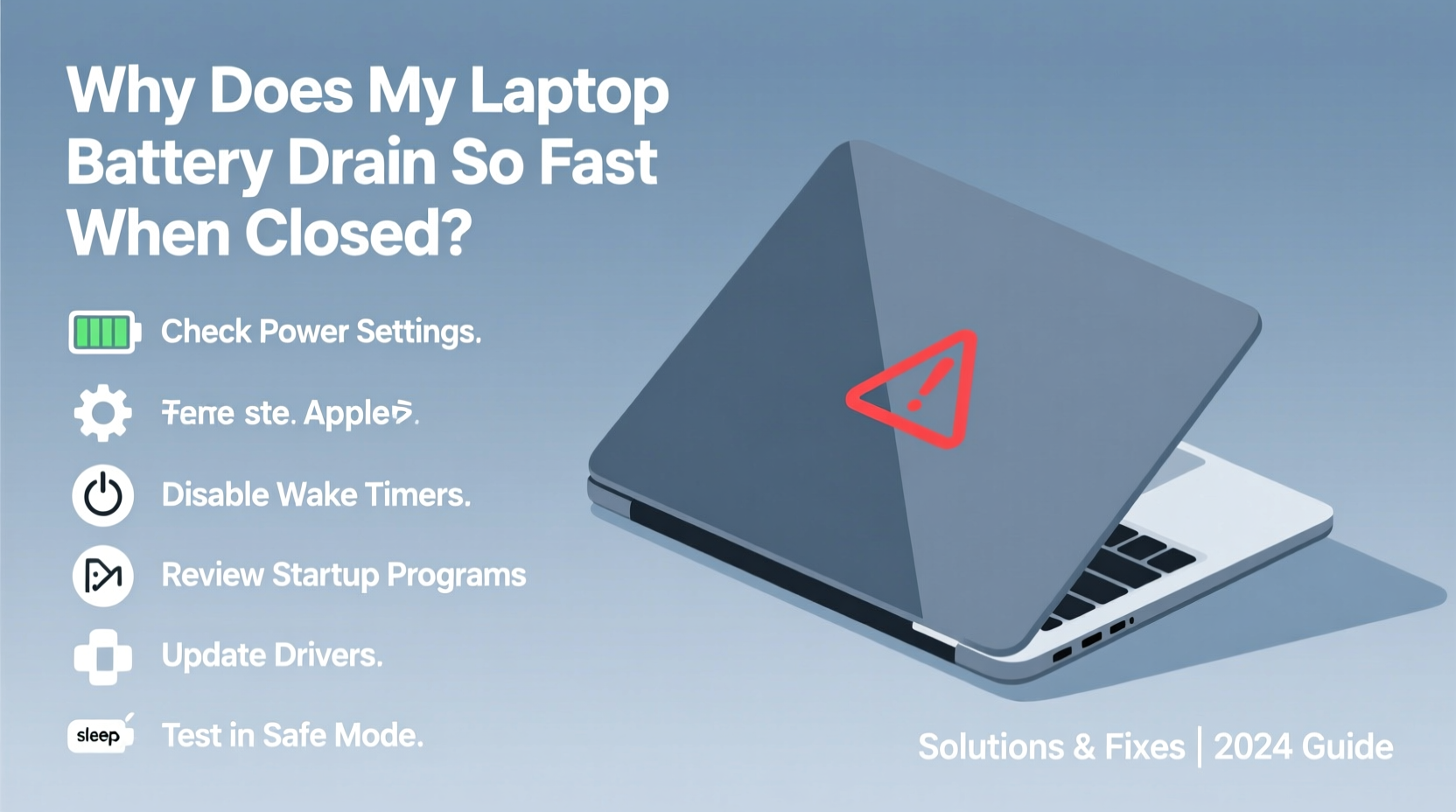
When you close your laptop lid, most operating systems default to \"sleep\" mode — a low-power state where the system saves open documents and running applications to RAM and powers down non-essential components. In theory, this should consume minimal energy. However, various features like Wake-on-LAN, connected peripherals, or scheduled tasks can wake the system intermittently, draining the battery faster than anticipated.
Sleep mode is not the same as hibernation or a full shutdown. While hibernation writes everything to disk and cuts power completely, sleep keeps RAM powered, which still draws energy. If the system wakes frequently during sleep, the cumulative effect can lead to significant battery loss overnight or during short breaks.
“Even in sleep mode, modern laptops maintain network connectivity, USB polling, and background sync services — all of which contribute to battery drain if not properly managed.” — Dr. Alan Reeves, Power Systems Engineer at MobileTech Labs
Common Causes of Excessive Battery Drain When Closed
Battery drain during lid closure isn’t always due to user error. Several technical and configuration-related issues may be at play:
- Wake-on-LAN or Magic Packet settings: Allows the network interface to wake the system remotely, useful for IT management but problematic for mobile users.
- Connected USB devices: External drives, mice, or chargers can trigger wake events or draw power.
- Background apps syncing: Cloud services (OneDrive, Dropbox, Google Drive) may force periodic wake-ups to sync data.
- Outdated drivers or firmware: Can cause improper power state transitions or prevent deep sleep states (like S3).
- Fast Startup enabled (Windows): This hybrid boot feature can interfere with proper shutdown and sleep behavior.
- BIOS/UEFI settings: Some motherboards allow wake timers or USB charging ports to remain active, increasing idle power draw.
Step-by-Step Guide to Diagnose and Fix Battery Drain
Follow this structured approach to identify and resolve the root causes of unexpected battery drain when your laptop is closed.
- Check recent wake events
Open Command Prompt as Administrator and run:powercfg /lastwake
This shows what last woke your system. If it lists a network adapter or USB device, that’s likely your culprit. - Disable wake-up capabilities for devices
In Device Manager, expand sections like Network adapters and Human Interface Devices.
Right-click each relevant device (e.g., Realtek PCIe GbE Family Controller), go to Properties → Power Management.
Uncheck “Allow this device to wake the computer.” Repeat for unnecessary USB hubs or Bluetooth adapters. - Adjust power settings for lid closure
Go to Control Panel → Hardware and Sound → Power Options → Choose what closing the lid does.
Ensure both “On battery” and “Plugged in” are set to “Sleep” or “Hibernate.” Avoid “Do nothing.” - Enable Hibernate instead of Sleep (optional)
Hibernation uses zero power. To enable:
Run Command Prompt as Admin:powercfg /hibernate on
Then change the lid-close action to “Hibernate” in Power Options. - Turn off Fast Startup
Navigate to: Power Options → Choose what the power buttons do → Change settings that are currently unavailable.
Uncheck “Turn on fast startup.” This prevents hybrid states that can increase idle consumption. - Update BIOS and drivers
Visit your laptop manufacturer’s support site. Download and install the latest BIOS, chipset, and power management drivers. These updates often include improved power state handling. - Review scheduled tasks
Open Task Scheduler and look under Task Scheduler Library.
Check for tasks with conditions set to “Wake the computer to run this task.” Disable non-critical ones.
Key Settings to Check and Optimize
The following table summarizes critical settings across different system areas that influence battery behavior when the lid is closed.
| Setting Area | What to Check | Recommended Action |
|---|---|---|
| Power Options (Lid Close) | Action when lid is closed on battery | Set to Sleep or Hibernate |
| Device Manager | Devices allowed to wake the PC | Disable wake for NICs, USB devices unless needed |
| Fast Startup | Enabled by default in Windows | Disable to ensure clean shutdowns |
| Task Scheduler | Tasks configured to wake the system | Review and disable non-essential tasks |
| BIOS/UEFI | Wake on LAN, USB Charging, Always On USB | Disable unless actively used |
| Cloud Sync Apps | OneDrive, Dropbox, etc. | Pause sync before closing lid or adjust frequency |
Mini Case Study: Solving Overnight Drain on a Business Laptop
Mark, a consultant using a Dell Latitude 7420, noticed his laptop battery dropped from 85% to 15% overnight despite being closed and unused. He assumed it was normal until it began affecting back-to-back meetings.
After running powercfg /lastwake, he discovered the Intel I219-LM Gigabit Network Connection had woken the system twice during the night. Further investigation in Device Manager revealed “Allow this device to wake the computer” was enabled — a default setting left over from corporate imaging.
He disabled the wake permission, turned off Fast Startup, and updated his BIOS from version 1.7.0 to 1.14.0, which included power management improvements. After these changes, his overnight battery drain decreased from ~70% to less than 5% over 12 hours.
This case illustrates how a single overlooked setting, combined with outdated firmware, can dramatically impact real-world usability — and how systematic troubleshooting leads to effective resolution.
Battery-Friendly Checklist Before Closing Your Laptop
Use this quick checklist to minimize battery drain every time you shut your laptop lid:
- ✅ Disconnect external USB devices (flash drives, mice, docking stations)
- ✅ Pause large cloud sync operations (e.g., OneDrive file backup)
- ✅ Ensure Wi-Fi is disconnected if not needed (or use Airplane mode)
- ✅ Confirm lid-close action is set to Sleep or Hibernate
- ✅ Disable keyboard backlight and reduce screen brightness before closing
- ✅ Run a manual battery health check monthly via built-in diagnostics or OEM tools
pmset -g log | grep \"Wake\" in Terminal to see recent wake events and their causes.
Frequently Asked Questions
Is it bad to leave my laptop in sleep mode for days?
While convenient, leaving a laptop in sleep mode for extended periods risks deeper battery discharge, especially if background activity occurs. For absences longer than 12 hours, consider hibernation or shutdown to preserve battery health and prevent over-discharge.
Why does my Mac lose battery when closed?
macOS uses a feature called \"Power Nap,\" which allows the system to perform background tasks like email fetching, backups, and iCloud sync while asleep. While useful, it increases power draw. To disable it: Go to System Settings → Battery → Battery & Charging → Options → Turn off Power Nap.
Can a virus cause battery drain when the laptop is closed?
Directly, no — malware cannot run when the system is truly asleep. However, if malicious software schedules tasks or disables sleep states while the system is active, it can prevent proper entry into low-power modes, indirectly leading to faster drain. Always run antivirus scans if unexplained background activity is suspected.
Maximizing Long-Term Battery Health
Beyond immediate fixes, long-term battery preservation requires consistent habits. Lithium-ion batteries degrade faster when kept at high charge levels or exposed to heat. If you regularly close your laptop and store it for hours, consider adjusting your charging behavior:
- Use manufacturer-provided battery conservation modes (e.g., Lenovo Adaptive Charging, Dell Optimized Battery Charging, ASUS Battery Health Charging).
- Aim to keep charge between 40% and 80% for storage periods longer than a day.
- Avoid leaving the laptop in hot environments (e.g., cars, direct sunlight) even when powered off.
These practices slow chemical aging and help maintain capacity over time, ensuring your laptop lasts longer between charges — whether open or closed.
Conclusion: Take Control of Your Laptop’s Power Behavior
Your laptop shouldn’t lose half its charge just because the lid is closed. With the right settings and awareness, you can transform erratic battery drain into predictable, efficient performance. The solutions aren’t complicated — they involve checking wake permissions, disabling unnecessary background activity, and choosing smarter power states like hibernation when appropriate. Small adjustments today can lead to significantly longer battery life tomorrow.




 浙公网安备
33010002000092号
浙公网安备
33010002000092号 浙B2-20120091-4
Comments
No comments yet. Why don't you start the discussion?