
Seeing “Plugged in, not charging” on your laptop can be both confusing and frustrating—especially when you're working against a tight deadline or relying on your device for remote tasks. The message suggests that while your laptop is connected to power, the battery isn’t receiving a charge. This issue affects users across brands like Dell, HP, Lenovo, ASUS, and even newer models of Microsoft Surface and MacBook (via Boot Camp). While it may appear alarming, this problem is often fixable without replacing hardware. Understanding the underlying causes—from software glitches to aging batteries—and applying targeted solutions can restore normal charging behavior and extend your laptop’s usability.
Understanding the “Plugged In, Not Charging” Message
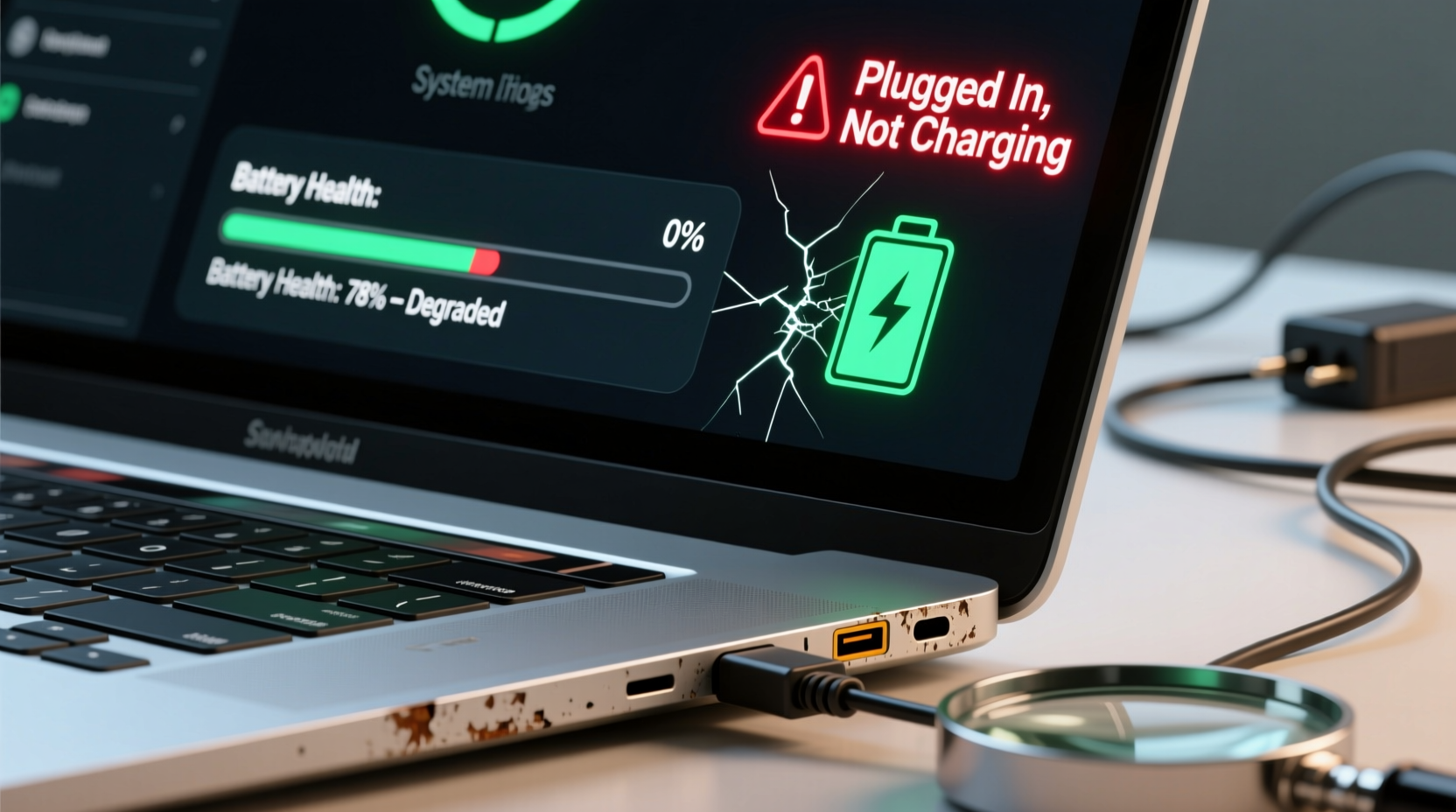
This status appears in the Windows battery meter and indicates that the AC adapter is supplying power to run the laptop, but the battery itself is not being charged. Your system remains operational as long as it's plugged in, but if disconnected, it will shut down immediately if the battery has no charge. Several factors contribute to this state:
- Power management settings: Some laptops have built-in features designed to preserve battery health by limiting charge above a certain threshold (e.g., 80%) when constantly plugged in.
- Driver issues: Outdated, corrupted, or incompatible ACPI (Advanced Configuration and Power Interface) drivers can misreport battery status.
- Battery wear: Lithium-ion batteries degrade over time. After 2–3 years of regular use, they may fail to hold or accept a charge.
- Firmware or BIOS limitations: Certain BIOS versions include battery conservation modes that stop charging once a level is reached.
- Hardware faults: Damaged charging ports, faulty adapters, or failing battery cells can interrupt the charging circuit.
Before jumping to conclusions about hardware failure, it’s essential to methodically test software and configuration-related causes, which are responsible for over 60% of such cases according to support data from major OEMs.
Step-by-Step Troubleshooting Guide
Follow this structured approach to diagnose and resolve the “plugged in, not charging” issue efficiently. Start with non-invasive software checks before moving to hardware evaluation.
- Check Battery Charge Level and Behavior
Observe whether the battery percentage increases over time. Sometimes, the display lags or temporarily freezes. Let the laptop sit plugged in for 30 minutes and monitor changes manually. - Restart Your Laptop
A simple reboot clears temporary power state errors. Shut down completely, unplug the charger, wait 15 seconds, plug back in, and restart. - Inspect the Charger and Port
Ensure the adapter is firmly seated in both the wall outlet and laptop. Look for frayed cables, bent pins, or loose connections. Try a known-working charger of the same voltage and amperage if available. - Test on Another Outlet
Rule out power source issues by plugging into a different wall socket. - Enter BIOS/UEFI Setup
Restart and press F2, F10, or Del (varies by brand) to enter BIOS. Check if the battery is detected and whether any “Battery Health Mode,” “Conservation Mode,” or “Always On USB” settings are enabled. Disable them temporarily to test. - Update or Reinstall ACPI Drivers
Go to Device Manager > Batteries. Expand the section and right-click on “Microsoft ACPI-Compliant Control Method Battery.” Choose “Uninstall device,” then restart. Windows will automatically reinstall the driver. - Run Windows Power Troubleshooter
Navigate to Settings > System > Troubleshoot > Other troubleshooters. Run the “Power” troubleshooter to detect common issues. - Perform a Battery Report Analysis
Open Command Prompt as Administrator and type:powercfg /batteryreport
This generates a detailed HTML report atC:\\Windows\\system32\\battery-report.html. Open it and check:- Design Capacity vs. Full Charge Capacity: A significant drop indicates battery degradation.
- Recent Usage: Confirms if the battery discharges when unplugged.
- Usage History: Reveals patterns of charging interruptions.
Brand-Specific Battery Conservation Features
Many manufacturers now include battery preservation technologies that intentionally halt charging under certain conditions. These features are often mistaken for malfunctions.
| Brand | Feature Name | How It Works | How to Disable |
|---|---|---|---|
| Lenovo | Battery Conservation Mode | Limits charge to ~55–60% when enabled to prolong lifespan. | Lenovo Vantage app → Device → Power → Battery Charge Thresholds |
| Dell | Primary Battery Mode / Adaptive Charging | Stops charging at 80% if laptop is frequently plugged in. | Dell Power Manager → Battery Settings → Select “Standard” mode |
| HP | Battery Health Manager | Offers modes like “Maximize This Device,” “Balance,” and “Extend Battery Life.” | HP Command Center or BIOS → Advanced → Power Management |
| ASUS | MyASUS Battery Limit | Restricts charging to 60% or 80% to reduce chemical aging. | MyASUS app → Hardware Settings → Power → Battery Limit |
If you’ve recently updated your OS or installed manufacturer utilities, these features might have been activated by default. Disabling them typically restores full charging capability.
“Modern laptops are designed to prioritize battery longevity over maximum charge. What looks like a bug is often a feature meant to extend your battery’s usable life by months or even years.” — Dr. Alan Zhou, Senior Power Systems Engineer at PC Hardware Labs
When Software Fixes Aren’t Enough: Hardware Evaluation
If all software troubleshooting fails and the battery still won’t charge, consider physical components. Even high-end laptops suffer from wear and environmental stress.
Common Hardware Issues
- Failing Battery Cells: Internal cell imbalance or swelling prevents charging. Visible bulging under the laptop base is a clear sign.
- Loose DC Jack: A wobbly or misaligned charging port interrupts current flow.
- Defective Charging Circuit: Rare but possible; requires motherboard-level repair.
- Incompatible or Low-Power Adapter: Using a lower-wattage charger than specified (e.g., 45W instead of 65W) may power the system but not charge the battery under load.
Diagnostic Steps
- Swap the Charger: Use an identical model-rated adapter. Avoid third-party chargers unless certified.
- Remove and Reinsert Battery (if removable): For older models, disconnect the battery, hold the power button for 15 seconds to discharge residual power, then reconnect.
- Check for Physical Damage: Inspect for swollen batteries (lifted keyboard deck, uneven bottom), burnt smells, or corrosion near the port.
- Test with Live Linux USB: Boot from a USB drive running Ubuntu. If the battery charges there, the issue is Windows-specific (drivers, OS corruption).
Mini Case Study: Resolving a Persistent Charging Issue on a Dell Latitude
Sarah, a freelance graphic designer using a Dell Latitude 7420, reported her laptop showed “plugged in, not charging” despite using the original 65W adapter. She had already reinstalled Windows and updated all drivers. Initial inspection revealed no physical damage. A battery report showed a full charge capacity of only 32% of design capacity—indicating severe degradation. However, after disabling “Adaptive Charging” in Dell Power Manager, the battery began charging again, albeit slowly. Further testing showed the battery could only hold 40 minutes of charge. Conclusion: The conservation mode masked an already failing battery. Sarah replaced the battery under warranty and now disables adaptive charging only when she needs full runtime.
This case illustrates how overlapping factors—software settings and hardware decline—can combine to create confusion. Addressing one layer may reveal another.
Preventive Maintenance Checklist
To avoid future charging issues and maximize battery lifespan, follow this actionable checklist:
- ✅ Calibrate your battery monthly: Fully charge to 100%, then let it drain to 5% before recharging.
- ✅ Keep vents clean to prevent overheating, which accelerates battery degradation.
- ✅ Avoid leaving the laptop plugged in 24/7 unless necessary. Aim to keep charge between 20% and 80% for daily use.
- ✅ Update BIOS and power management apps regularly to ensure compatibility and bug fixes.
- ✅ Use the original or manufacturer-approved charger to maintain correct voltage delivery.
- ✅ Store the laptop in a cool, dry place. Heat is the leading cause of battery aging.
- ✅ Monitor battery health monthly using
powercfg /batteryreport.
Frequently Asked Questions
Can a virus cause the ‘plugged in, not charging’ message?
No, malware cannot directly interfere with hardware charging circuits. However, malicious software that maxes out CPU usage can increase power draw so significantly that the system prioritizes operation over charging—especially with underpowered adapters. Always rule out software settings and hardware first.
Is it safe to use my laptop if the battery isn’t charging?
Yes, as long as the AC adapter provides stable power. However, sudden power loss (e.g., unplugging or outage) will immediately shut down the system, risking data loss. It’s advisable to replace the battery soon and avoid storing sensitive work unsaved.
How long should a laptop battery last before needing replacement?
Most lithium-ion batteries retain 80% of their capacity after 300–500 charge cycles. With average use, this translates to 2–4 years. Heavy usage, constant charging, or exposure to heat shortens lifespan. Regular calibration and avoiding deep discharges help prolong it.
Conclusion: Take Control of Your Laptop’s Charging Health
The “plugged in, not charging” message doesn’t automatically mean your laptop is doomed to battery failure. In most cases, the solution lies in resetting drivers, adjusting manufacturer-specific settings, or recalibrating the system’s power management. By understanding the interplay between software intelligence and hardware limits, you gain the power to diagnose and fix issues confidently—often without spending a dime. When hardware replacement is needed, early detection ensures you act before productivity suffers. Don’t ignore subtle signs like reduced battery life or inconsistent charging. Proactive care today can add years to your device’s functional life.




 浙公网安备
33010002000092号
浙公网安备
33010002000092号 浙B2-20120091-4
Comments
No comments yet. Why don't you start the discussion?