
It’s a familiar scenario: you settle in to watch a movie or catch up on YouTube, only for your laptop fan to kick into overdrive—whirring like a jet engine. While occasional fan activity is normal, excessive noise during video playback signals underlying issues that can affect both comfort and hardware longevity. Understanding the root causes and knowing how to address them isn’t just about peace and quiet—it’s about protecting your device’s performance and lifespan.
Laptop fans exist to regulate internal temperature by expelling hot air generated by the CPU, GPU, and other components. When you stream high-resolution videos, especially from platforms like Netflix, YouTube, or Disney+, your system works harder than it does during basic tasks like browsing or word processing. This increased workload generates more heat, prompting the cooling system to respond aggressively. But persistent loud fan noise often points beyond normal operation—to dust buildup, outdated software, inefficient settings, or even hardware strain.
Why Video Playback Triggers Fan Noise
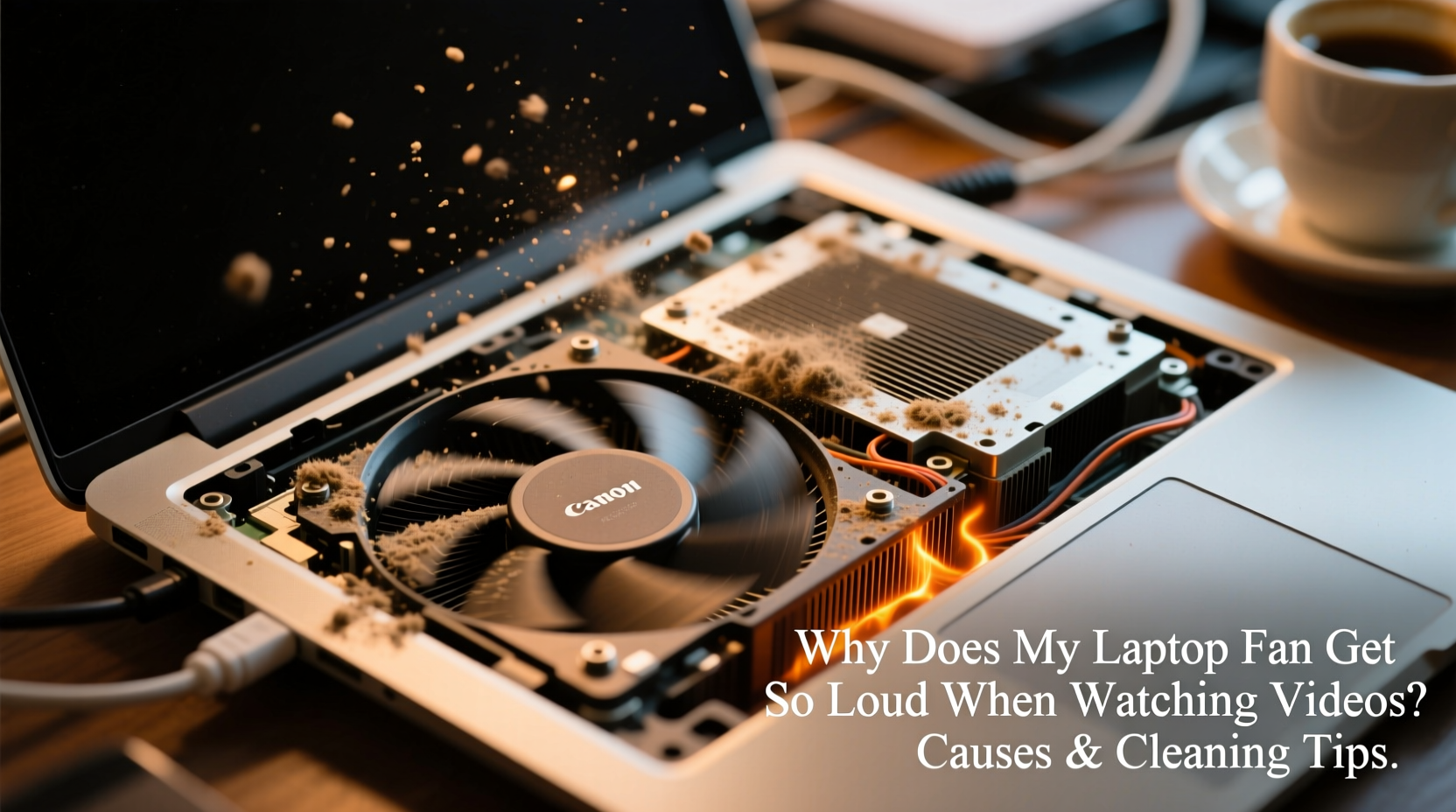
Streaming video may seem passive, but modern online content demands significant processing power. High-definition (HD), 4K, and HDR videos require continuous decoding of complex compression formats such as H.265 (HEVC) or AV1. Unlike text-based browsing, video playback heavily engages the graphics processor (GPU), which increases thermal output. If your laptop lacks hardware acceleration for these codecs, the CPU must step in—a much less efficient process that leads to higher temperatures and louder fans.
Additionally, background processes often run unnoticed while you're watching videos. Browser tabs, ad trackers, auto-updates, and syncing services all consume CPU cycles. Combine this with poor ventilation—such as using your laptop on a bed or cushion—and heat builds up rapidly. The fan responds by spinning faster, creating that disruptive roar.
Common Causes of Excessive Fan Noise During Video Streaming
- Dust accumulation in vents and heatsinks: Over time, dust clogs airflow pathways, reducing cooling efficiency.
- Poor ventilation setup: Using the laptop on soft surfaces blocks intake vents located on the bottom.
- Outdated drivers or firmware: Graphics drivers that aren't updated may fail to optimize video decoding.
- Background applications consuming resources: Antivirus scans, cloud sync tools, or browser extensions increase CPU usage.
- Failing thermal paste: On older laptops, dried-out thermal paste between the CPU and heatsink reduces heat transfer efficiency.
- High screen brightness and performance settings: Maximum brightness and “High Performance” power plans generate more heat.
How Dust Impacts Cooling Efficiency
Dust acts like an insulating blanket inside your laptop. As particles accumulate around the fan blades, heatsink fins, and exhaust ports, they restrict airflow and trap heat. A dusty heatsink cannot dissipate heat effectively, forcing the fan to spin at higher RPMs to compensate. In extreme cases, fans may struggle to maintain safe operating temperatures, leading to throttling—where the CPU slows down to prevent damage—which degrades video playback quality.
“Even a thin layer of dust can raise internal temperatures by 10–15°C. Regular cleaning is one of the most cost-effective ways to extend a laptop’s life.” — Dr. Alan Reyes, Hardware Systems Engineer
Step-by-Step Guide to Safely Clean Your Laptop Fan
Cleaning your laptop’s internals doesn’t require professional help if done carefully. Follow this timeline to safely remove dust and restore quiet operation.
- Power off and unplug: Shut down the laptop completely and disconnect the charger. If possible, remove the battery (on older models).
- Prepare your workspace: Choose a clean, static-free surface. Use an anti-static wrist strap if available.
- Gather tools: You’ll need compressed air, a small Phillips screwdriver, a soft brush (like a clean toothbrush), and lint-free cloths.
- Open the back panel: Refer to your laptop model’s service manual. Most consumer laptops have removable panels covering the RAM and fan area.
- Locate the fan and heatsink: Identify the metal fins and the plastic fan housing near the CPU/GPU.
- Blast with compressed air: Hold the can upright and spray short bursts into the fan blades and heatsink. Avoid spinning the fan manually with the air can.
- Brush away stubborn debris: Gently use the soft brush to dislodge compacted dust. Wipe accessible areas with a slightly damp cloth.
- Reassemble and test: Replace the panel, reconnect the battery (if removed), and power on the device. Monitor fan noise during video playback.
Optimization Tips Beyond Cleaning
Cleaning alone won’t solve every issue. Software and usage habits play a major role in thermal management. Implement these strategies to keep your laptop cool and quiet.
Adjust Power Settings
Switch from “High Performance” to “Balanced” or “Power Saver” mode in your operating system settings. These modes limit CPU speed and reduce heat generation without significantly affecting video playback.
Update Graphics Drivers
Ensure your GPU drivers are current. For Intel, NVIDIA, or AMD chips, visit the manufacturer’s website or use built-in update tools. Updated drivers improve hardware decoding support, reducing CPU load.
Use Efficient Browsers and Players
Not all browsers handle video equally. Brave and Microsoft Edge offer better hardware acceleration than some others. Alternatively, download videos and play them locally using VLC Media Player, which supports GPU-accelerated decoding and puts less strain on the system.
Elevate Your Laptop
Place your laptop on a hard, flat surface. Consider using a laptop cooling pad with external fans to enhance airflow. Even a slight elevation—like placing it on a book—can improve bottom-ventilation intake.
| Solution | Effectiveness | Difficulty |
|---|---|---|
| Compressed air cleaning | ★★★★☆ | Easy |
| Driver updates | ★★★★★ | Easy |
| Using VLC for local playback | ★★★★☆ | Moderate |
| Replacing thermal paste | ★★★★★ | Advanced |
| Adding a cooling pad | ★★★☆☆ | Easy |
Mini Case Study: Reducing Fan Noise on a 4-Year-Old Dell Inspiron
A user reported excessive fan noise when streaming 1080p videos on a Dell Inspiron 15 5000 series laptop. Despite being well-maintained externally, the fan would ramp up within minutes of starting YouTube. Initial diagnostics showed CPU temperatures reaching 88°C during playback.
The solution followed a three-step approach:
- Cleaning: After opening the back panel, a thick layer of dust was found coating the fan and heatsink. Compressed air removed most debris.
- Software update: The Intel UHD Graphics driver was two versions behind. Updating enabled full HEVC hardware decoding.
- Playback change: Switching from Chrome to VLC for downloaded videos reduced CPU usage from 78% to 32%.
Post-intervention, idle temperatures dropped from 65°C to 49°C, and fan noise became barely audible during video playback. This case highlights how combining physical maintenance with smart software choices yields dramatic improvements.
Checklist: Reduce Laptop Fan Noise When Watching Videos
- ✅ Clean fan and vents every 6–12 months
- ✅ Update graphics drivers monthly
- ✅ Use a hard, flat surface for laptop placement
- ✅ Close unused browser tabs and apps before streaming
- ✅ Lower screen brightness during extended viewing
- ✅ Switch to VLC or MPV for local video playback
- ✅ Enable hardware acceleration in browser settings
- ✅ Monitor temperatures using tools like HWMonitor or Core Temp
Frequently Asked Questions
Is it bad if my laptop fan is loud when watching videos?
Occasional fan noise is normal, but constant loud operation suggests inefficiency. Prolonged overheating can shorten component lifespan, cause system instability, or trigger automatic shutdowns. Address the cause promptly to avoid long-term damage.
Can I clean my laptop fan without opening it?
You can use compressed air through the exhaust vent to dislodge some dust, but this method is limited. Without opening the chassis, you won’t reach the heatsink or fully clean the fan assembly. For best results, partial disassembly is recommended.
How often should I clean my laptop fan?
Every 6 to 12 months for typical home or office use. Environments with pets, carpets, or high dust levels may require cleaning every 3–4 months. Users who travel frequently should inspect their devices biannually.
Conclusion: Take Control of Your Laptop’s Performance
Loud fan noise during video playback isn’t something you have to live with. It’s a warning sign—and an opportunity. By understanding the interplay between dust, software, and hardware, you can take meaningful steps to restore quiet operation and protect your investment. Simple actions like regular cleaning, driver updates, and smarter playback choices make a measurable difference.
Your laptop is designed to perform efficiently when maintained properly. Don’t wait for overheating errors or performance drops. Start with one improvement today—clean the vents, adjust your power plan, or switch to a lightweight media player. Small changes compound into lasting benefits: cooler operation, quieter performance, and extended device life.




 浙公网安备
33010002000092号
浙公网安备
33010002000092号 浙B2-20120091-4
Comments
No comments yet. Why don't you start the discussion?