
Laptop fans are designed to regulate internal temperature by expelling heat generated during operation. However, a fan that runs loudly even when the system is idle is more than just an annoyance—it’s often a symptom of underlying issues. Excessive fan noise can signal inefficient cooling, software strain, or hardware degradation. Left unaddressed, it may lead to reduced performance, shortened component lifespan, or even permanent damage. The good news is that most causes are fixable with targeted troubleshooting. This guide explores the most common reasons for persistent fan noise and provides actionable solutions to restore quiet, efficient operation.
Understanding Laptop Cooling Systems
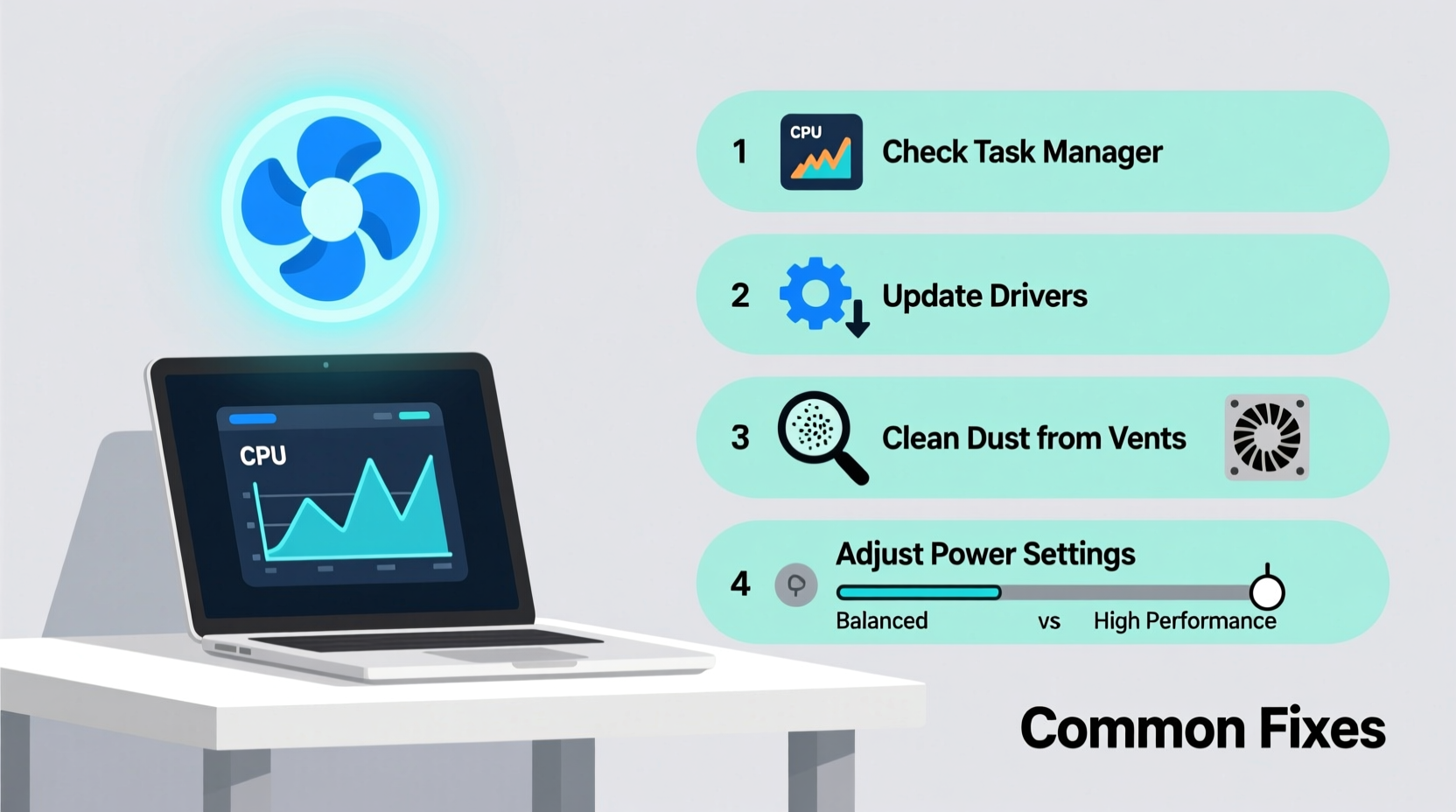
Laptops rely on compact thermal management systems consisting of heat sinks, thermal paste, and one or more fans. When the CPU or GPU heats up—whether from intensive tasks or background processes—the fan activates to maintain safe operating temperatures. Under normal conditions, the fan should spin quietly or remain off during light usage. Persistent loud spinning during inactivity suggests that either the system is generating excess heat or misreporting thermal data.
Modern laptops use dynamic fan control algorithms that adjust speed based on real-time sensor input. If these sensors malfunction or if thermal thresholds are incorrectly calibrated, fans may run unnecessarily. Additionally, dust buildup, outdated firmware, or rogue background processes can all trick the system into thinking it needs aggressive cooling—even when idle.
Common Causes of Loud Fan Noise at Idle
Several factors contribute to excessive fan activity when your laptop appears inactive. Identifying the root cause is essential before applying fixes.
- Dust and debris accumulation: Over time, dust clogs air vents and heat sinks, reducing airflow and insulation efficiency.
- Background processes consuming CPU: Hidden applications, malware, or system updates may run silently but generate significant heat.
- Faulty or degraded thermal paste: Thermal paste between the CPU and heat sink dries out over time, impairing heat transfer.
- Outdated BIOS or drivers: Firmware bugs can mismanage fan curves or fail to respond correctly to thermal events.
- High ambient temperature: Using your laptop on soft surfaces like beds or couches blocks ventilation and increases internal heat.
- Power settings misconfigured: High-performance power plans keep CPU clocks elevated, increasing heat output.
“Over 60% of fan noise complaints stem from software-related CPU load rather than actual overheating.” — Dr. Alan Zhou, Senior Hardware Engineer at TechTherm Labs
Step-by-Step Troubleshooting Guide
Follow this structured approach to diagnose and resolve fan issues systematically.
- Check CPU and GPU usage: Open Task Manager (Windows) or Activity Monitor (macOS). Look for processes using more than 5–10% CPU while idle. End unnecessary tasks.
- Clean air vents and fans: Power off the laptop. Use compressed air to blow dust from intake and exhaust vents. Do not use vacuum cleaners, which can generate static.
- Update system software: Install the latest OS updates, BIOS, and chipset drivers from your manufacturer’s support site.
- Adjust power settings: Switch to “Balanced” or “Power Saver” mode. On Windows, disable “Ultimate Performance” unless needed.
- Monitor internal temperatures: Use tools like HWMonitor, Core Temp, or Macs Fan Control to check real-time readings. Idle temps above 60°C indicate a problem.
- Reset fan control (if supported): Some manufacturers provide utilities to recalibrate fan behavior or reset thermal sensors.
- Reapply thermal paste (advanced): For older laptops (3+ years), disassembling to replace dried thermal paste can dramatically lower temps.
When to Consider Internal Cleaning
If external cleaning doesn’t help, internal buildup may be the culprit. While opening a laptop voids warranties in some cases, it's often necessary for long-term reliability. Professional cleaning services typically cost $50–$100 and include fan inspection, dust removal, and thermal re-pasting.
Software and System Optimization Checklist
Many fan issues originate in software. Use this checklist to eliminate digital contributors to overheating.
| Action | Purpose | Tools Needed |
|---|---|---|
| Scan for malware | Remove hidden crypto-miners or spyware consuming CPU | Malwarebytes, Windows Defender |
| Disable startup programs | Reduce background load at boot | Task Manager, System Preferences |
| Update graphics drivers | Fix bugs causing GPU overheating | NVIDIA GeForce Experience, AMD Software, Intel Driver Support |
| Clear browser tabs and extensions | Prevent memory leaks and excessive rendering | Built-in browser task managers |
| Reset power plan to default | Ensure CPU throttling works correctly | Control Panel / System Settings |
Real-World Case Study: Resolving Persistent Fan Noise on a 4-Year-Old Dell XPS
A user reported constant loud fan noise on their Dell XPS 13, even after closing all applications. Initial checks showed CPU usage hovering around 35%, primarily from a background process labeled “Runtime Broker.” Temperature readings via HWMonitor revealed CPU idling at 72°C—well above the expected 45–55°C range.
The troubleshooting steps included:
- Disabling non-essential startup apps in Task Manager.
- Running a full malware scan (no threats found).
- Updating the BIOS and chipset drivers from Dell’s support portal.
- Using compressed air to clean side vents—minimal improvement.
The breakthrough came when the user opened the device (under warranty extension) and discovered heavy dust buildup around the fan housing. After professional cleaning and thermal paste replacement, idle temperatures dropped to 48°C, and fan noise became nearly inaudible. This case highlights how both software inefficiencies and physical degradation can combine to create persistent thermal issues.
Do’s and Don’ts of Laptop Fan Maintenance
| Do’s | Don’ts |
|---|---|
| Use your laptop on hard, flat surfaces | Place it on beds, pillows, or blankets |
| Update BIOS and drivers regularly | Ignore firmware update notifications |
| Monitor temperatures monthly | Assume silent fans mean optimal cooling |
| Reboot weekly to clear memory leaks | Leave your laptop in sleep mode for days |
| Invest in a cooling pad for prolonged use | Rely solely on cooling pads to fix underlying issues |
“Cleaning alone won’t solve everything. Combine hardware care with smart software habits for lasting results.” — Lisa Tran, IT Support Specialist, Boston TechCare
Frequently Asked Questions
Is it bad if my laptop fan runs constantly?
Not always. Light fan operation is normal during active use. However, constant high-speed spinning—especially at idle—can indicate poor airflow, dust buildup, or software overload. Prolonged stress may shorten the fan’s lifespan or damage sensitive components due to thermal cycling.
Can I manually control my laptop fan speed?
On most consumer laptops, direct fan control is restricted by firmware. However, third-party tools like SpeedFan (Windows) or Macs Fan Control (macOS) can override default settings if compatible. Proceed with caution—setting speeds too low risks overheating, while excessively high speeds increase wear and noise.
How often should I clean my laptop’s cooling system?
For average use, clean air vents every 1–2 months with compressed air. A full internal cleaning—including fan and heat sink—is recommended every 12–18 months, especially in dusty environments or homes with pets. Users in high-dust areas may need biannual professional servicing.
Conclusion: Take Control of Your Laptop’s Performance and Longevity
A loud laptop fan during idle periods isn’t something you should simply tolerate. It’s a warning sign that your device is working harder than necessary to stay cool—often due to preventable causes. By combining routine software audits with physical maintenance, you can restore quiet operation, improve battery life, and extend your laptop’s usable lifespan. Simple actions like updating drivers, managing startup programs, and keeping vents clear make a dramatic difference. For older machines, investing in a thermal paste refresh can feel like a performance upgrade.
Your laptop is designed to balance power and efficiency. When it struggles to do so, it’s not just the noise that suffers—your productivity, comfort, and hardware investment are all at stake. Start with one fix today: check your Task Manager, blow out the vents, or update your BIOS. Small steps lead to significant improvements. Share your experience or ask questions in the comments—your insight could help another user silence their fan for good.




 浙公网安备
33010002000092号
浙公网安备
33010002000092号 浙B2-20120091-4
Comments
No comments yet. Why don't you start the discussion?