
Laptop fans are designed to regulate internal temperature by cooling critical components like the CPU and GPU. However, it’s not normal for your fan to run at high speed and produce loud noises when the system is idle—doing nothing more than displaying the desktop or a blank browser tab. Persistent fan noise under these conditions often signals underlying issues that can affect performance, battery life, and hardware longevity.
This isn’t just an annoyance; it’s a symptom. Whether you're using a Windows laptop, a Chromebook, or a Mac, excessive fan activity during inactivity typically points to software inefficiencies, thermal buildup, or misconfigured power settings. The good news: most causes are fixable without technical expertise or expensive service visits.
In this guide, we’ll break down why your laptop fan runs loudly when idle, walk through practical troubleshooting steps, and provide long-term strategies to keep your machine cool and quiet.
Understanding Why Laptop Fans Run Loudly at Idle
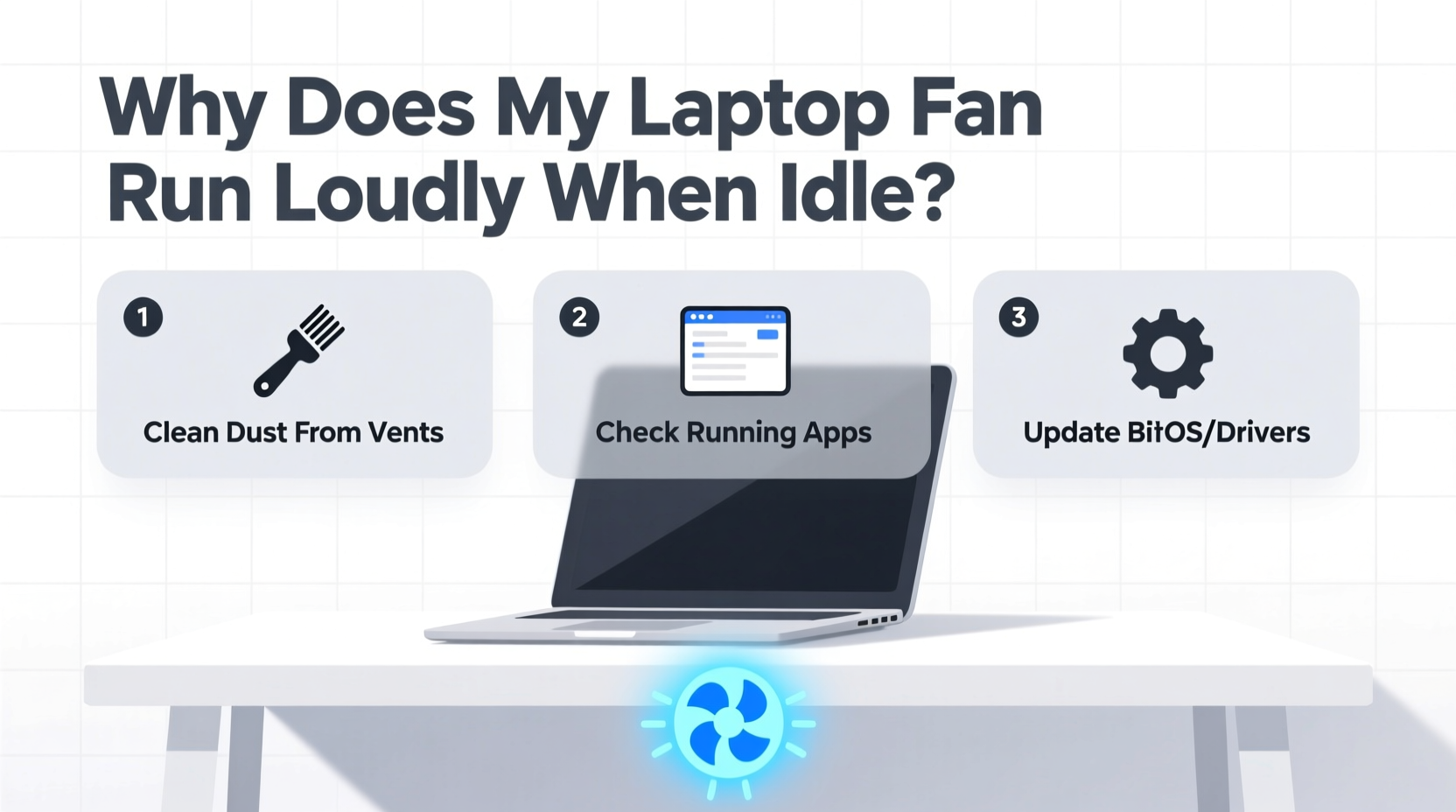
The primary function of a laptop fan is heat dissipation. When internal temperatures rise—due to processing load, poor ventilation, or background tasks—the fan spins faster to prevent overheating. But if your laptop is doing little to no work and the fan still runs aggressively, something is forcing the system to generate more heat than expected.
Common culprits include:
- Background processes consuming CPU: Hidden applications or system services may be using significant processing power without your knowledge.
- Dust accumulation inside the chassis: Over time, dust blocks air vents and insulates heat-generating components, reducing cooling efficiency.
- Faulty or outdated drivers: Incorrect power management or graphics drivers can cause unnecessary GPU/CPU load.
- Aggressive power plans: High-performance power modes keep the processor active even during idle periods.
- Malware or crypto-mining scripts: Malicious software can hijack system resources silently.
Before jumping into hardware cleaning or professional repair, test simpler software-based solutions first. Many users resolve fan noise with just a few configuration changes.
Step-by-Step Guide to Diagnose and Fix Fan Noise
Follow this structured approach to identify and eliminate the root cause of your noisy fan.
- Open Task Manager (Windows) or Activity Monitor (Mac)
Check which processes are using the most CPU. Sort by CPU usage and look for anything above 10–15% while idle. Common offenders include updaters, browsers with multiple tabs, or Adobe Creative Cloud services. - End Unnecessary Tasks
Select any non-essential process using high CPU and click “End Task.” Observe if the fan slows down within seconds. If it does, you’ve found a contributor. - Restart Your Laptop
A simple reboot clears temporary memory leaks and resets background services. After restarting, monitor fan behavior before launching any programs. - Update Your Operating System and Drivers
Outdated system software can cause inefficient resource management. Go to Settings > Update & Security (Windows) or System Settings > Software Update (Mac) and install pending updates. Also update BIOS and chipset drivers from your manufacturer’s support site. - Adjust Power Settings
Navigate to Control Panel > Hardware and Sound > Power Options (Windows), or System Settings > Battery (Mac). Switch from “High Performance” to “Balanced” or “Power Saver” mode. This reduces CPU clock speed during low activity, lowering heat output. - Disable Startup Programs
Too many apps launching at boot increases background load. In Task Manager, go to the Startup tab and disable non-critical entries like Skype, Spotify, or cloud sync tools. - Scan for Malware
Run a full system scan using Windows Defender or a trusted third-party antivirus. Some malware operates stealthily, mining cryptocurrency or logging keystrokes, all while spiking CPU usage.
If the fan remains loud after completing these steps, move on to hardware-related checks.
Hardware and Environmental Factors That Increase Fan Speed
Even with optimized software, physical conditions play a major role in thermal performance.
Dust Buildup and Ventilation Issues
Dust acts as insulation around the CPU, GPU, and heat sinks, trapping heat and forcing the fan to compensate. Laptops used on beds, couches, or carpets are especially prone to blocked intake vents located on the bottom.
Clean your laptop every 6–12 months using compressed air. Shut down the device, unplug it, and gently blow air into the side and bottom vents at a 45-degree angle. Avoid using vacuum cleaners, as they can generate static electricity.
Surface Type Matters
Soft surfaces restrict airflow. Always use your laptop on a hard, flat surface like a desk or lap desk. Consider investing in a cooling pad with external fans for prolonged usage sessions.
Failing Thermal Paste or Hardware Degradation
Over time, the thermal paste between the CPU and heatsink dries out, reducing heat transfer efficiency. This forces the fan to spin faster to achieve the same cooling effect. Reapplying thermal paste is an advanced fix best done by technicians unless you’re experienced with disassembly.
“Over 60% of fan noise complaints we see in repair shops stem from dust-clogged vents or degraded thermal interface materials.” — David Lin, Senior Technician at TechCare Pro
Tips and Best Practices to Prevent Future Overheating
Prevention is far easier than repair. Incorporate these habits to maintain optimal thermal performance:
- Keep your laptop away from direct sunlight and hot environments (e.g., cars in summer).
- Use lightweight browser extensions like uBlock Origin to reduce script load.
- Regularly uninstall unused software that may run background services.
- Monitor temperatures using free tools like HWMonitor (Windows) or iStat Menus (Mac).
- Set automatic disk cleanup and defragmentation (for HDDs) to reduce system strain.
Quick Maintenance Checklist
✅ Quick Fixes to Try Today
- Open Task Manager and sort by CPU usage.
- End tasks consuming more than 10% CPU at idle.
- Reboot the laptop and observe fan behavior.
- Switch power plan to “Balanced” or “Power Saver.”
- Disable unnecessary startup programs.
- Run a full antivirus scan.
- Clean exterior vents with compressed air.
- Place laptop on a hard, flat surface.
Real-World Example: Sarah’s Overheating Work Laptop
Sarah, a freelance graphic designer, noticed her Dell XPS 13 began making jet-engine-like noises even when she wasn’t working. She’d close Illustrator and leave only a document open, yet the fan kept running.
After trying several steps, she opened Task Manager and discovered that “Core Sync,” a background process from Adobe Creative Cloud, was using 38% CPU continuously. Despite not actively syncing files, the service was stuck in a loop. She ended the task, disabled Core Sync from startup, and saw immediate improvement. The fan noise dropped to near silence within minutes.
This case highlights how a single misbehaving application—even from reputable software suites—can create disproportionate thermal load. Regular monitoring prevents such issues from escalating.
Do’s and Don’ts: Managing Laptop Temperature
| Do | Don’t |
|---|---|
| Use your laptop on hard, flat surfaces for proper airflow. | Place your laptop on pillows, blankets, or your lap directly. |
| Clean vents every 6 months with compressed air. | Insert sharp objects into vents to remove dust. |
| Update operating system and drivers regularly. | Ignore system update notifications for extended periods. |
| Install ad blockers to reduce browser CPU usage. | Leave 20+ browser tabs open indefinitely. |
| Use cooling pads during intensive tasks. | Expect passive cooling to suffice on older or powerful laptops. |
Frequently Asked Questions
Is it harmful if my laptop fan runs constantly?
Occasional constant fan operation under load is normal. However, continuous high-speed spinning at idle can indicate poor thermal management, leading to premature wear on the fan motor and potential long-term damage to internal components due to sustained heat exposure.
Can a virus really make my laptop fan loud?
Yes. Some malware, particularly crypto-mining scripts, exploit your CPU to mine digital currency in the background. These programs max out processor usage, generating significant heat and triggering aggressive fan response. A sudden increase in fan noise without apparent cause warrants a malware scan.
Should I replace my laptop if the fan is noisy?
Not necessarily. Fan noise is rarely a reason to replace a functioning laptop. Most cases are fixable via cleaning, software optimization, or replacing the fan itself—a relatively inexpensive repair. Only consider replacement if the motherboard or cooling system is damaged beyond economical repair.
Final Thoughts and Action Steps
A loud laptop fan during idle periods is not something you should ignore. While it might seem like a minor inconvenience, it often reflects deeper inefficiencies in system performance or hardware condition. Left unchecked, chronic overheating can shorten your laptop’s lifespan and degrade overall responsiveness.
The fixes outlined here—from checking CPU usage and adjusting power settings to cleaning vents and managing startup apps—are accessible to all users, regardless of technical skill. Most solutions take less than 30 minutes and cost nothing. By acting early, you preserve both performance and peace of mind.
Start today: Open your task manager, identify what’s running in the background, and clean your workspace. Small adjustments now can prevent costly repairs or replacements later.




 浙公网安备
33010002000092号
浙公网安备
33010002000092号 浙B2-20120091-4
Comments
No comments yet. Why don't you start the discussion?