
Laptop fans are designed to keep internal components cool, but when they run nonstop—even during light tasks—it can be distracting, reduce battery life, and signal underlying performance issues. While occasional high-speed spinning is normal under heavy load, constant fan activity often points to preventable problems. The good news? Most causes can be addressed at home with simple, effective steps. Understanding the root causes and applying targeted fixes allows you to restore quiet operation and extend your laptop’s lifespan.
Understanding Laptop Cooling Systems
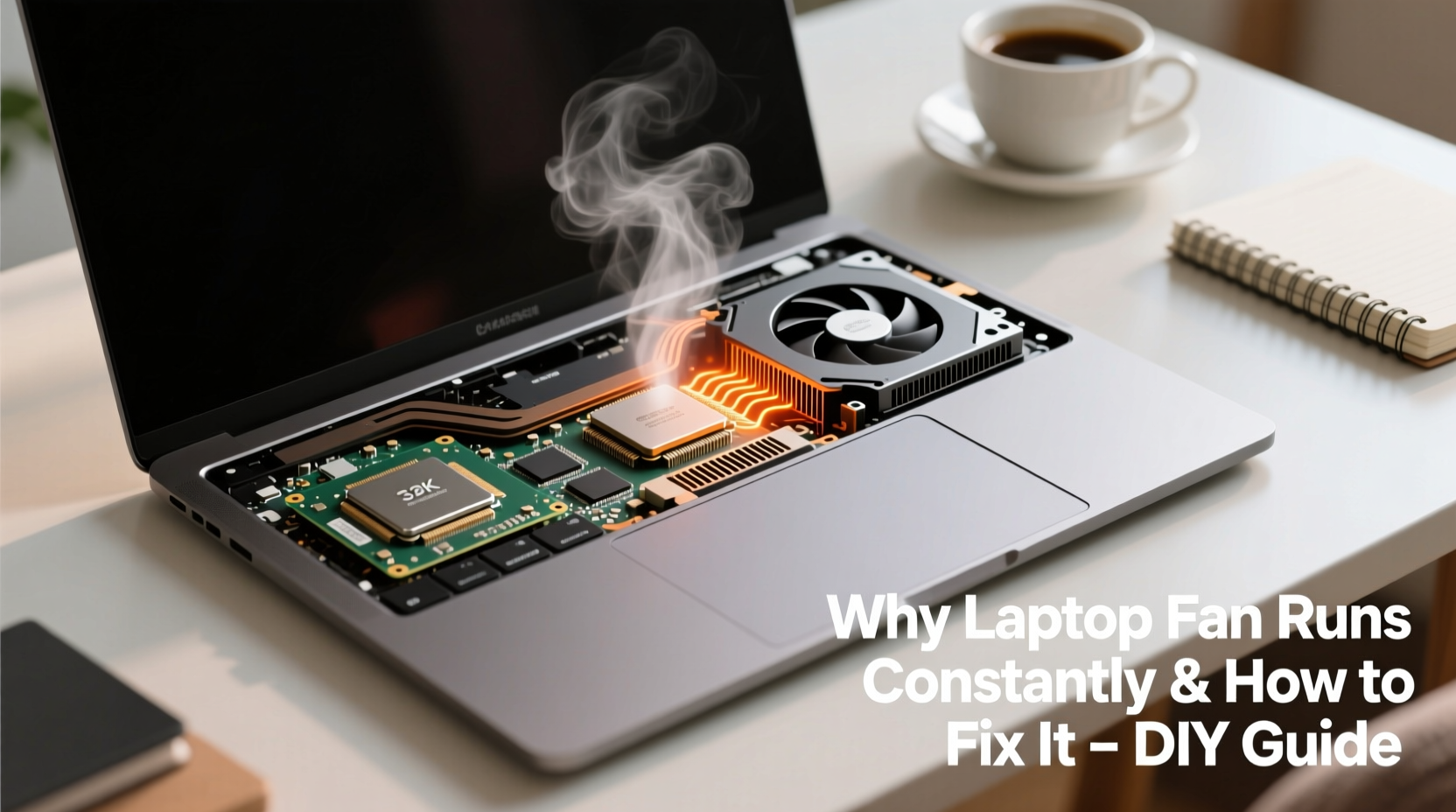
Laptops rely on passive and active cooling methods to manage heat generated by the CPU, GPU, and other components. The fan pulls in cooler air and expels hot air through vents, usually located on the sides or bottom. When temperatures rise, the system automatically increases fan speed. This response is governed by thermal sensors and firmware logic.
However, if the fan runs at high RPMs even when you're only browsing the web or typing a document, something is disrupting the balance. Common culprits include dust buildup, software overload, poor ventilation, outdated drivers, or failing hardware. Unlike desktops, laptops have limited airflow and compact designs, making them more prone to overheating.
“Laptops are engineered for efficiency, not endurance under stress. Constant fan noise often reflects misuse or neglect, not inevitable hardware failure.” — Dr. Alan Zhou, Thermal Systems Engineer
Common Causes of Constant Fan Operation
Before attempting fixes, identify what’s triggering excessive fan use. Below are the most frequent reasons:
- Dust and debris buildup: Over time, dust clogs air vents and heatsinks, reducing airflow and insulating heat.
- High CPU/GPU usage: Background apps, malware, or resource-heavy programs can push processors to their limits.
- Poor ventilation: Using a laptop on soft surfaces like beds or couches blocks intake vents.
- Outdated BIOS or drivers: Firmware bugs or inefficient power management can cause incorrect thermal responses.
- Ambient temperature: Hot rooms make cooling less efficient, forcing fans to work harder.
- Failing thermal paste: On older laptops, dried-out thermal paste reduces heat transfer from the CPU to the heatsink.
- Background processes: Windows updates, antivirus scans, or cloud sync tools may run silently but consume significant resources.
Step-by-Step Guide to Calm Your Laptop Fan
Follow this structured approach to diagnose and resolve fan issues safely and effectively.
- Check current system load
Open Task Manager (Ctrl+Shift+Esc) and sort by CPU, Memory, and Disk usage. Identify any process consuming more than 20–30% consistently. End unnecessary tasks. - Scan for malware
Run a full system scan using Windows Defender or a trusted third-party antivirus. Malware often runs hidden mining scripts that overwork the CPU. - Clean external vents
Power off the laptop. Use compressed air to blow out dust from all vents. Hold the can upright and use short bursts to avoid moisture buildup. - Elevate the laptop
Place it on a hard, flat surface. Use a laptop stand or even a small book to improve airflow underneath. - Adjust power settings
Go to Control Panel > Power Options. Select \"Balanced\" or \"Power Saver.\" Avoid \"High Performance,\" which maximizes processor speed and heat output. - Update system software
Check for Windows updates. Also, visit your laptop manufacturer’s support site to download the latest BIOS, chipset, and fan control drivers. - Disable startup bloatware
In Task Manager, go to the Startup tab. Disable non-essential programs like updaters, chat apps, or utilities that launch at boot. - Monitor internal temperatures
Download a free tool like HWMonitor or Core Temp. Check idle and load temperatures. CPU temps above 85°C under load indicate cooling problems.
When to Consider Internal Cleaning
If external cleaning doesn’t help, internal dust accumulation may be the issue. This requires opening the back panel—a task feasible for confident users but risky if mishandled.
“Opening your laptop voids warranty in some cases, but a thorough internal clean can drop operating temps by 10–15°C.” — Lisa Tran, Independent PC Technician
If proceeding:
- Use a Phillips screwdriver and anti-static wrist strap.
- Remove the back cover carefully.
- Use compressed air to clean the fan blades, heatsink fins, and surrounding areas.
- Reassemble and test.
Do’s and Don’ts: Laptop Cooling Best Practices
| Do | Don't |
|---|---|
| Use your laptop on hard, flat surfaces | Place it on beds, pillows, or blankets |
| Clean vents every 2–3 months | Ignore visible dust in intake grills |
| Keep ambient room temperature moderate | Use the laptop in direct sunlight or hot cars |
| Update BIOS and drivers regularly | Assume fan noise is “normal” long-term |
| Use a cooling pad for extended sessions | Rely solely on cooling pads to fix deeper issues |
Real Example: Fixing a Noisy Work Laptop
Mark, a freelance graphic designer, noticed his three-year-old laptop fan running constantly, even when idle. It disrupted video calls and drained his battery quickly. He followed these steps:
First, he opened Task Manager and found a background rendering app consuming 70% CPU. He uninstalled it. Next, he cleaned the side vents with compressed air—visible dust blew out. Still, the fan spun frequently. He downloaded HWMonitor and saw CPU temps hitting 92°C during light use.
Suspecting internal buildup, he watched a disassembly tutorial for his model, opened the back panel, and cleaned the fan and heatsink. After reassembly, idle temps dropped from 68°C to 47°C, and the fan ran quietly unless editing large files. No professional repair was needed, and his productivity improved.
Tips for Long-Term Fan Health
Maintaining a cool-running laptop isn’t a one-time fix. Incorporate these habits into your routine:
- Limit multitasking: Running multiple browser tabs, design tools, and communication apps simultaneously increases thermal load.
- Lower screen brightness: Reduces power draw and heat generation.
- Enable battery saver mode: Throttles performance slightly but significantly reduces heat and fan noise.
- Unplug when charged: Continuous charging can contribute to battery heat, indirectly affecting system temps.
- Use lightweight alternatives: Replace resource-heavy software where possible (e.g., use Firefox instead of Chrome if memory use is high).
When Software Settings Make a Difference
Some laptops come with built-in fan control utilities—like Dell Power Manager, Lenovo Vantage, or ASUS MyASUS. These allow you to switch between performance modes:
- Quiet Mode: Limits CPU speed and caps fan noise.
- Balanced Mode: Optimal for daily use.
- Performance Mode: Best for gaming or video editing—expect louder fans.
Switching to Quiet Mode during office work or reading can dramatically reduce fan activity without noticeable slowdowns.
FAQ: Common Questions About Laptop Fan Noise
Is it bad if my laptop fan runs all the time?
Constant fan operation under heavy use is normal. However, if it runs loudly during basic tasks, it indicates inefficiency—either due to heat buildup, software issues, or hardware strain. Prolonged overheating can shorten component lifespan, so addressing the cause is important.
Can I turn off the fan manually?
No—and you shouldn’t. The fan is critical for preventing thermal damage. Disabling it, even temporarily, risks permanent hardware failure. Instead, address the root cause of overheating.
How often should I clean my laptop?
For most users, cleaning external vents every 2–3 months is sufficient. If you work in dusty environments or use the laptop daily, consider an internal clean every 12–18 months. Always power off and unplug before cleaning.
Final Checklist: Restore Quiet Operation
Use this actionable checklist to systematically address fan issues:
- ✅ Open Task Manager and end high-CPU processes
- ✅ Run a full antivirus scan
- ✅ Clean all external vents with compressed air
- ✅ Place laptop on a hard, elevated surface
- ✅ Switch to a power-saving plan
- ✅ Disable unnecessary startup programs
- ✅ Update Windows, BIOS, and device drivers
- ✅ Monitor temperatures with HWMonitor or Core Temp
- ✅ Consider internal cleaning if temps remain high
- ✅ Use manufacturer-specific fan control software if available
Conclusion: Take Control of Your Laptop’s Performance
A constantly running laptop fan isn’t just annoying—it’s a warning sign your device is working harder than it should. With careful diagnosis and consistent maintenance, most overheating issues can be resolved without costly repairs. By understanding how heat builds up and what triggers aggressive cooling, you gain control over your laptop’s longevity and performance.
Start today: spend 20 minutes checking your system load, cleaning the vents, and adjusting power settings. Small actions lead to quieter operation, better battery life, and a smoother computing experience. Share your success story or ask questions in the comments—help others keep their laptops cool and quiet.




 浙公网安备
33010002000092号
浙公网安备
33010002000092号 浙B2-20120091-4
Comments
No comments yet. Why don't you start the discussion?