
If your laptop fan is roaring even when you're not running any major applications, it’s more than just annoying—it could signal deeper performance or hardware issues. While fans are designed to cool internal components, excessive noise during idle periods often points to background processes consuming CPU, memory, or disk resources without your awareness. Understanding why this happens and how to diagnose the root cause can restore quiet operation and extend your device’s lifespan.
Laptops today are engineered for efficiency, but they’re also expected to handle constant connectivity, updates, and background tasks. Over time, these invisible operations accumulate, leading to thermal stress and increased fan activity. The good news is that most cases of loud fan noise during inactivity can be traced, managed, and resolved using built-in tools and smart maintenance habits.
Understanding Laptop Fan Behavior
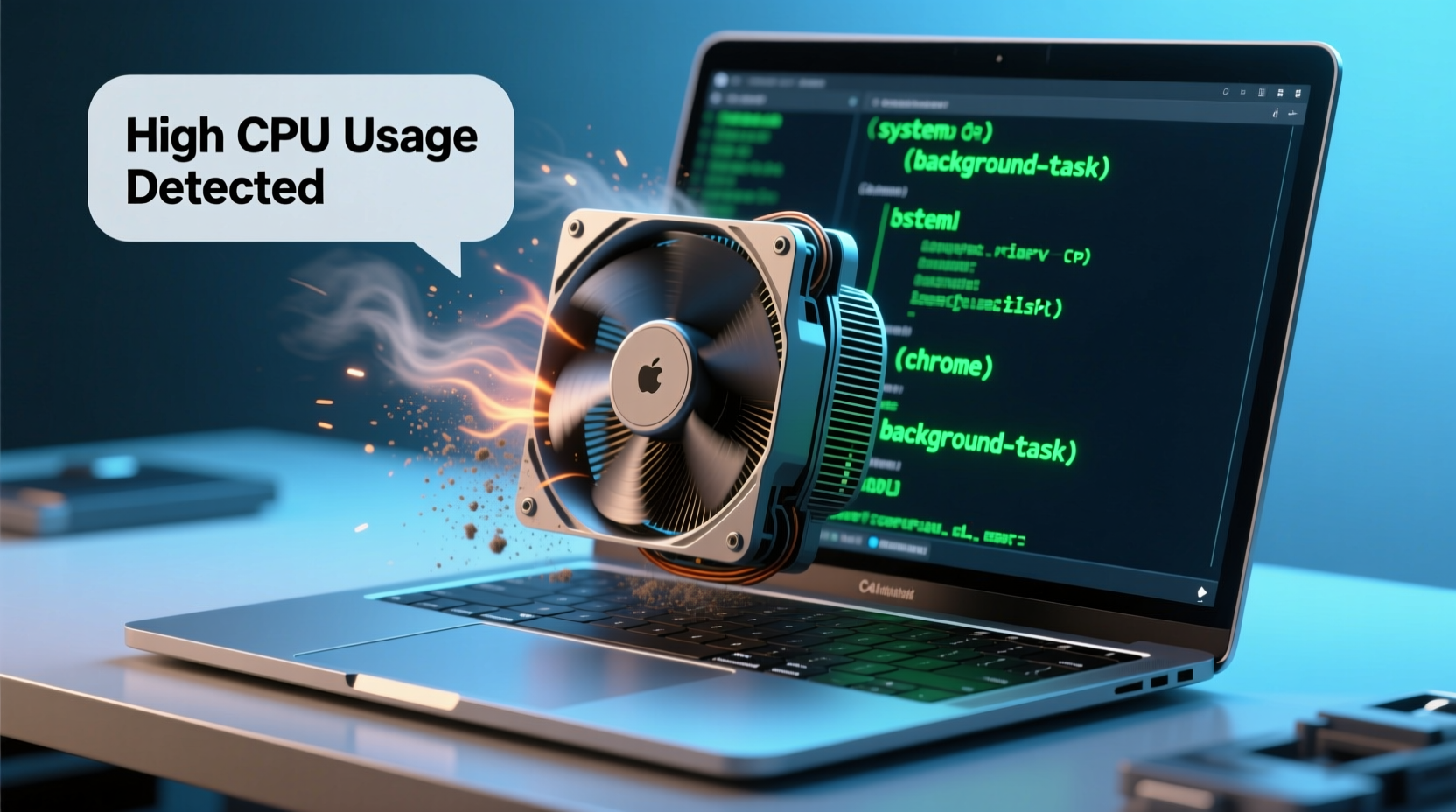
Laptop fans activate based on temperature readings from internal sensors. When the CPU, GPU, or other components heat up—due to high usage or poor ventilation—the system increases fan speed to dissipate heat. However, fans shouldn’t run at full speed when the machine appears idle. Persistent loud fan noise suggests one or more components are under sustained load, even if no visible programs are open.
Common triggers include:
- Background software updates (Windows, drivers, apps)
- Malware or cryptocurrency miners
- Overactive antivirus scans
- Resource-heavy startup programs
- Hardware degradation (e.g., dust buildup, failing cooling system)
The key is distinguishing between normal thermal response and abnormal behavior caused by hidden processes.
How to Identify Hidden Processes Using Task Manager
Windows Task Manager is the first tool you should use to investigate unexpected resource consumption. It provides real-time data on CPU, memory, disk, and network usage by individual processes.
- Press Ctrl + Shift + Esc to open Task Manager directly.
- Click “More details” if you see a simplified view.
- Navigate to the “Processes” tab.
- Sort columns by clicking “CPU,” “Memory,” or “Disk” to identify top consumers.
Look beyond obvious names like Chrome or Adobe Reader. Some entries may appear cryptic, such as:
svchost.exe– Legitimate Windows service host, but multiple instances can spike CPU.Runtime Broker– Manages app permissions; usually low impact unless malfunctioning.Antimalware Service Executable– Real-time protection scanning; can cause high disk usage.SearchIndexer.exe– Windows search indexing; may slow systems during large file scans.
If a process consistently uses over 20% CPU while you're idle, research its purpose before terminating it. Right-click the process and select “Search online” to verify legitimacy.
Using Resource Monitor for Deeper Insight
For advanced diagnostics, launch Resource Monitor:
- In Task Manager, go to the “Performance” tab.
- Click “Open Resource Monitor” at the bottom.
- Check the “CPU,” “Disk,” and “Network” tabs for granular activity.
This tool reveals which services and modules are actively calling system resources, helping pinpoint misbehaving background tasks.
Common Culprits Behind Excessive Fan Noise
Not all high-resource processes are malicious, but some are known to create unnecessary load:
| Process Name | Purpose | Typical Impact | Solution |
|---|---|---|---|
| Antimalware Service Executable | Windows Defender real-time scanning | High disk/CPU during scans | Schedule scans off-peak; exclude non-critical folders |
| Windows Modules Installer (TrustedInstaller) | Installs OS updates | Spikes CPU and disk | Let updates finish; disable automatic installs temporarily |
| OneDrive Sync | Cloud file synchronization | Continuous disk usage | Pause sync or limit bandwidth |
| Adobe Acrobat Updater | Checks for PDF reader updates | Runs daily, consumes CPU | Disable auto-updates in preferences |
| Crypto-mining malware | Illegally uses CPU/GPU for mining | Persistent 80–100% CPU usage | Run full antivirus scan; remove infected files |
“Many users assume their laptop is ‘just old,’ but in over 60% of fan noise cases, we find hidden background processes or outdated thermal paste as the primary cause.” — Dr. Alan Reyes, Senior Hardware Engineer at TechCare Labs
Mini Case Study: The Mysterious CPU Spike
A freelance writer reported her laptop fan spinning loudly every evening, despite only having a browser open. Initial checks showed no active downloads or videos. Using Task Manager, she discovered dllhost.exe consuming 58% CPU. After researching, she found it was linked to a third-party thumbnail preview add-on for image files. Disabling the extension dropped CPU usage to 6%, and the fan returned to normal. This case highlights how seemingly minor software enhancements can have outsized impacts on system performance.
Step-by-Step Guide to Reduce Fan Noise
Follow this systematic approach to diagnose and resolve loud fan issues:
- Reboot and Check Baseline
Restart your laptop and wait five minutes. Open Task Manager to see baseline CPU and disk usage. Anything above 10% without user activity warrants investigation. - Disable Startup Programs
In Task Manager, go to the “Startup” tab. Disable non-essential apps like Spotify, Skype, or cloud storage tools that don’t need to launch at boot. - Scan for Malware
Run a full system scan using Windows Security or a trusted third-party antivirus. Malware often hides in background processes and can silently max out CPU. - Update Drivers and BIOS
Outdated chipset or fan control drivers may cause improper thermal regulation. Visit your manufacturer’s support site and install the latest firmware. - Clean Internal Components
Dust accumulation blocks airflow and insulates heat. If comfortable, open the bottom panel (after powering off) and gently clean vents with compressed air. For sealed designs, seek professional cleaning. - Adjust Power Settings
Go to Control Panel > Power Options. Select “Balanced” or “Power Saver” mode instead of “High Performance,” which forces CPUs to run hotter. - Monitor Temperatures
Use free tools like HWMonitor or Core Temp to track CPU and GPU temperatures. Idle temps should stay below 50°C. Consistently higher readings suggest cooling failure.
Preventive Maintenance Checklist
To avoid recurring fan issues, follow this monthly checklist:
- ✅ Reboot your laptop at least once a week to clear cached processes.
- ✅ Review Task Manager for unfamiliar or high-usage processes.
- ✅ Run a malware scan using updated definitions.
- ✅ Clean exterior vents with compressed air.
- ✅ Uninstall unused programs, especially those with background services.
- ✅ Check battery health; swollen batteries can press against internal components and impede cooling.
- ✅ Ensure operating system and critical drivers are up to date.
Frequently Asked Questions
Is it harmful if my laptop fan runs loudly all the time?
Prolonged high-speed fan operation isn’t immediately dangerous, but it indicates thermal stress. Over time, excessive heat degrades battery life, slows performance, and can damage solder joints or chipsets. Address the root cause rather than ignoring the noise.
Can a BIOS update fix fan noise issues?
Yes. Manufacturers occasionally release BIOS updates that improve thermal management algorithms or correct fan speed calibration. Always check your laptop model’s support page for firmware updates—but never interrupt a BIOS update, as it can brick your device.
Why does my fan run loud after a Windows update?
Windows updates often trigger background indexing, driver reconfiguration, or telemetry reporting. These processes can last several hours. If fan noise persists beyond 24 hours, investigate via Task Manager for lingering update-related services.
Conclusion: Take Control of Your Laptop’s Performance
A loud laptop fan during idle periods isn’t something you should simply tolerate. It’s a symptom of underlying inefficiencies—whether software bloat, malware, dust buildup, or outdated firmware. By taking a methodical approach to monitoring system resources and eliminating unnecessary background activity, you can restore quiet operation and protect your hardware from premature wear.
Start today by opening Task Manager and observing what’s really running behind the scenes. Small adjustments in startup settings, power modes, and maintenance routines can yield dramatic improvements in both acoustics and performance. Remember, a cooler laptop isn’t just quieter—it’s faster, safer, and built to last.




 浙公网安备
33010002000092号
浙公网安备
33010002000092号 浙B2-20120091-4
Comments
No comments yet. Why don't you start the discussion?