
Laptop fans are designed to keep internal components cool, especially during intensive tasks. But when the fan kicks into high gear while your machine appears to be doing nothing—no browser tabs open, no programs running—it’s not just annoying; it can signal underlying issues. Excessive fan noise at idle is more common than many users realize, affecting productivity, concentration, and even long-term hardware health. Understanding the root causes and knowing how to respond can save you from unnecessary repairs or premature replacement.
The truth is, a loud fan doesn’t always mean your laptop is overheating. It could stem from software inefficiencies, dust buildup, outdated drivers, or misconfigured power settings. This article breaks down the most frequent reasons behind persistent fan activity during idle periods and provides actionable steps to diagnose and resolve them effectively.
Common Causes of Loud Fan Noise at Idle
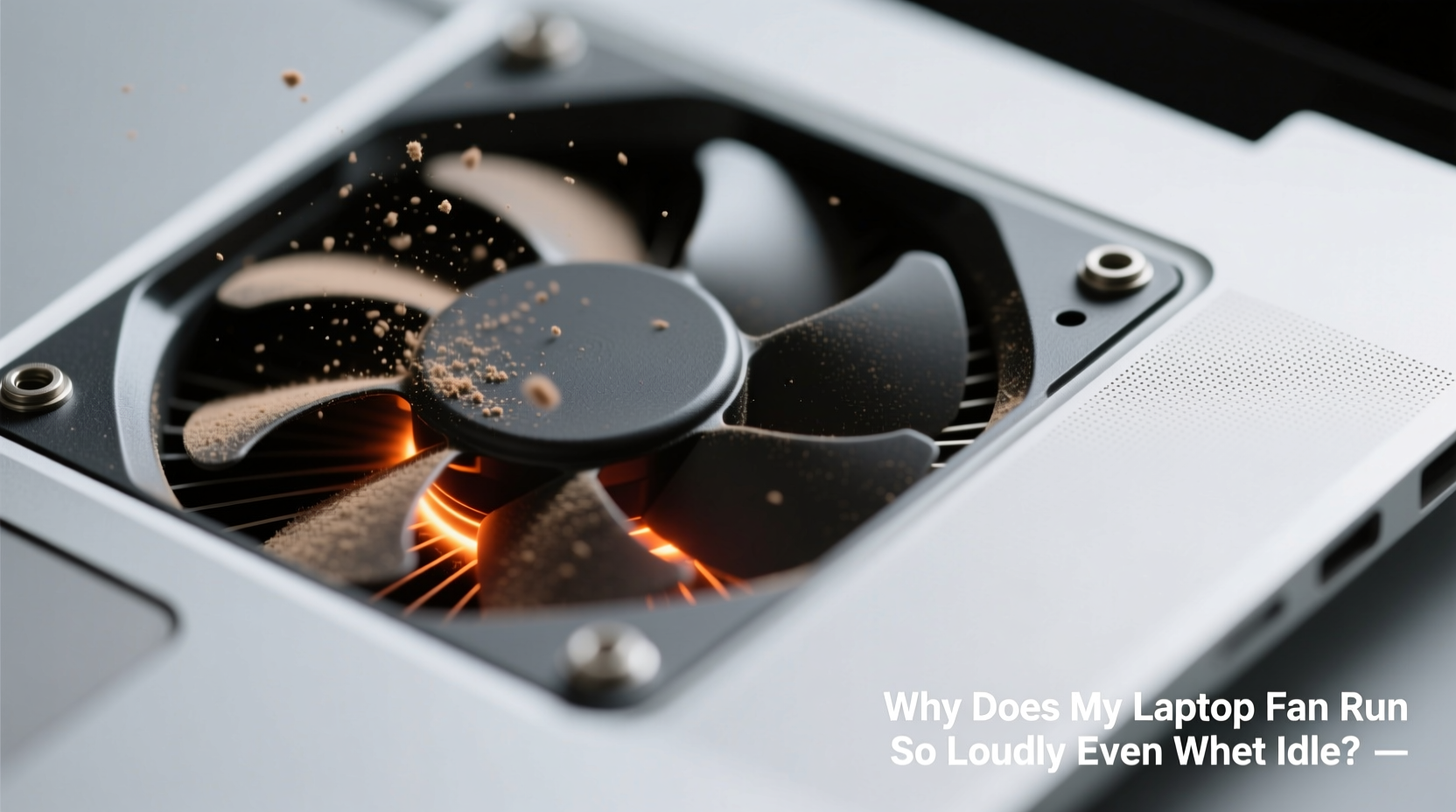
A laptop fan spinning loudly when the system should be quiet often points to hidden background processes or environmental factors. Below are the primary culprits:
- Background Processes and High CPU Usage: Even when you're not actively using your laptop, applications like antivirus scans, cloud sync tools (e.g., OneDrive, Dropbox), or system updates may consume significant CPU resources.
- Dust and Debris Buildup: Over time, dust clogs air vents and heatsinks, reducing airflow and forcing the fan to work harder to maintain safe temperatures.
- Poor Ventilation: Using your laptop on soft surfaces like beds or couches blocks intake vents, leading to rapid heat accumulation.
- Outdated BIOS or Drivers: Firmware and driver bugs can cause incorrect thermal readings or improper fan control logic.
- Failing Hardware: A malfunctioning temperature sensor or degraded thermal paste between the CPU and heatsink can trigger false overheating alerts.
- Power Plan Settings: Aggressive performance modes prioritize speed over efficiency, keeping the processor active and generating excess heat even at rest.
How to Diagnose the Real Cause
Before attempting fixes, confirm what's actually driving the fan activity. A systematic approach ensures you don’t waste time cleaning hardware if the issue is purely software-related.
- Monitor System Temperatures: Tools like HWMonitor, Core Temp, or Open Hardware Monitor display real-time CPU and GPU temperatures. If temps exceed 70–80°C at idle, there’s likely a cooling problem. <
- Analyze CPU and Disk Usage: Open Task Manager and observe usage patterns over several minutes. Look for processes consistently consuming more than 5–10% CPU without user input.
- Check for Malware: Some malware disguises itself as legitimate processes but runs intensive computations in the background (e.g., crypto-mining scripts). Run a full scan with Windows Defender or a trusted third-party tool.
- Inspect Physical Condition: Examine the fan exhaust vent for visible dust. Listen closely—grinding or clicking sounds suggest mechanical wear.
- Test on Battery vs. AC Power: Plug in your laptop and note any change in fan behavior. Some systems increase performance (and thus heat output) only when charging.
“Many users assume their laptop is broken when the fan roars, but 60% of cases I see are resolved with simple BIOS updates or power setting adjustments.” — David Lin, Senior Laptop Technician at TechCare Solutions
Step-by-Step Guide to Reduce Fan Noise
Follow this structured process to address both software and hardware contributors to excessive fan noise.
Step 1: Optimize Power Settings
Windows defaults to “Balanced” mode, which sometimes allows aggressive CPU scaling. Switch to a cooler profile:
- Go to Control Panel > Hardware and Sound > Power Options.
- Select Change plan settings, then click Change advanced power settings.
- Under “Processor power management,” set “Maximum processor state” to 90–95% on battery and plugged in.
- Set “System cooling policy” to “Passive” when on battery and “Active” when plugged in.
Step 2: Clean Background Processes
Unnecessary startup programs increase idle load. Disable non-essential ones:
- Press Ctrl + Shift + Esc to open Task Manager.
- Switch to the Startup tab.
- Right-click entries like Adobe Updater, Spotify, or Skype and select Disable.
Step 3: Update Critical Software
Ensure all firmware and drivers are current:
- BIOS/UEFI: Visit your manufacturer’s support site (Dell, HP, Lenovo, etc.), enter your model number, and download the latest BIOS update.
- Chipset & Fan Control Drivers: Install updates via the same support portal.
- Operating System: Run Windows Update until no further patches are available.
Step 4: Physically Clean the Laptop
Dust is a silent killer of cooling efficiency. For best results:
- Shut down and unplug the laptop. Remove the battery if possible.
- Use compressed air to blow out vents—hold cans upright to avoid moisture spray.
- Aim at intake grills (usually along sides or bottom) and exhaust ports (typically rear or side).
- For heavy buildup, consider professional disassembly and internal cleaning every 12–18 months.
Step 5: Reapply Thermal Paste (Advanced)
If your laptop is over two years old, factory-applied thermal paste may have dried out. Replacing it improves heat transfer significantly. This requires opening the chassis and accessing the CPU/GPU—only recommended for experienced users or technicians.
Do’s and Don’ts: Cooling Best Practices
| Do’s | Don’ts |
|---|---|
| Use your laptop on hard, flat surfaces to ensure proper airflow. | Place your laptop on pillows, blankets, or your lap where vents get blocked. |
| Clean vents every 3–6 months depending on environment. | Use vacuum cleaners near vents—they generate static that can damage components. |
| Keep ambient room temperature below 25°C (77°F). | Leave your laptop in direct sunlight or hot cars. |
| Enable automatic maintenance and regular reboots. | Ignore persistent high idle temperatures above 75°C. |
Mini Case Study: Sarah’s Overheating Ultrabook
Sarah, a freelance writer, noticed her slim Dell XPS 13 began making jet-engine-like noises after six months of use—even when typing in a blank Word document. Initially, she assumed it was normal. But the constant distraction affected her focus.
She followed basic diagnostics: CPU usage hovered around 15%, mostly from Microsoft OneDrive syncing large photo backups. She paused the sync and disabled OneDrive from startup. Noise dropped slightly, but the fan still spun up frequently.
Next, she checked temperatures using Core Temp and found idle CPU temps averaging 78°C. After researching, she realized ultrabooks like hers are prone to dust accumulation due to tight internal spacing. She took it to a repair shop where technicians opened the unit, cleaned the fan assembly, and reapplied thermal paste.
Post-cleaning, idle temperatures fell to 52°C, and fan noise became nearly inaudible. The fix cost $45 but extended her laptop’s usable life by years.
FAQ
Is it bad if my laptop fan runs constantly?
Not necessarily. Fans are designed to run intermittently or continuously under certain conditions. However, constant high-speed operation at idle suggests inefficiency or a problem. Prolonged stress can shorten fan lifespan and indicate poor thermal management.
Can a virus make my fan loud?
Yes. Malware such as cryptominers uses your CPU intensively without your knowledge, increasing heat output and triggering sustained fan activity. Unusual slowness, high CPU usage, or unknown processes in Task Manager may point to infection.
Should I use a cooling pad?
Cooling pads can help, especially for gaming laptops or models with known thermal limitations. However, they’re not a substitute for internal cleanliness or proper ventilation. Choose one with adjustable fan speeds and adequate airflow alignment with your laptop’s vents.
Expert Checklist: Silence Your Laptop Fan
Use this checklist to methodically eliminate causes of loud fan noise:
- ✅ Check Task Manager for abnormal CPU/Disk usage at idle
- ✅ Run a full antivirus and anti-malware scan
- ✅ Update BIOS, chipset drivers, and operating system
- ✅ Adjust power plan settings to limit max processor state
- ✅ Disable unnecessary startup programs
- ✅ Clean external vents with compressed air
- ✅ Evaluate ambient temperature and usage surface
- ✅ Monitor temperatures with HWMonitor or similar tool
- ✅ Schedule professional internal cleaning if over 1 year old
- ✅ Consider thermal paste replacement for older devices
Conclusion
A loud laptop fan during idle periods isn't something you should simply tolerate. It’s a symptom—sometimes minor, occasionally serious—that deserves attention. Whether caused by rogue software, dust accumulation, or outdated firmware, each factor is addressable with the right knowledge and tools. By taking proactive steps to monitor performance, optimize settings, and maintain hardware hygiene, you can restore quiet operation and extend your device’s longevity.




 浙公网安备
33010002000092号
浙公网安备
33010002000092号 浙B2-20120091-4
Comments
No comments yet. Why don't you start the discussion?