
Random keystrokes appearing on your screen can be more than just an annoyance—they can disrupt work, corrupt documents, and make basic computing frustrating. If your laptop keyboard is typing random letters without your input, you're not alone. This issue affects users across brands like Dell, HP, Lenovo, and Apple, and while the cause may vary, most cases are solvable with targeted troubleshooting. Understanding the root causes—from hardware malfunctions to software conflicts—empowers you to diagnose and resolve the problem efficiently.
Common Causes of Random Typing on Laptop Keyboards
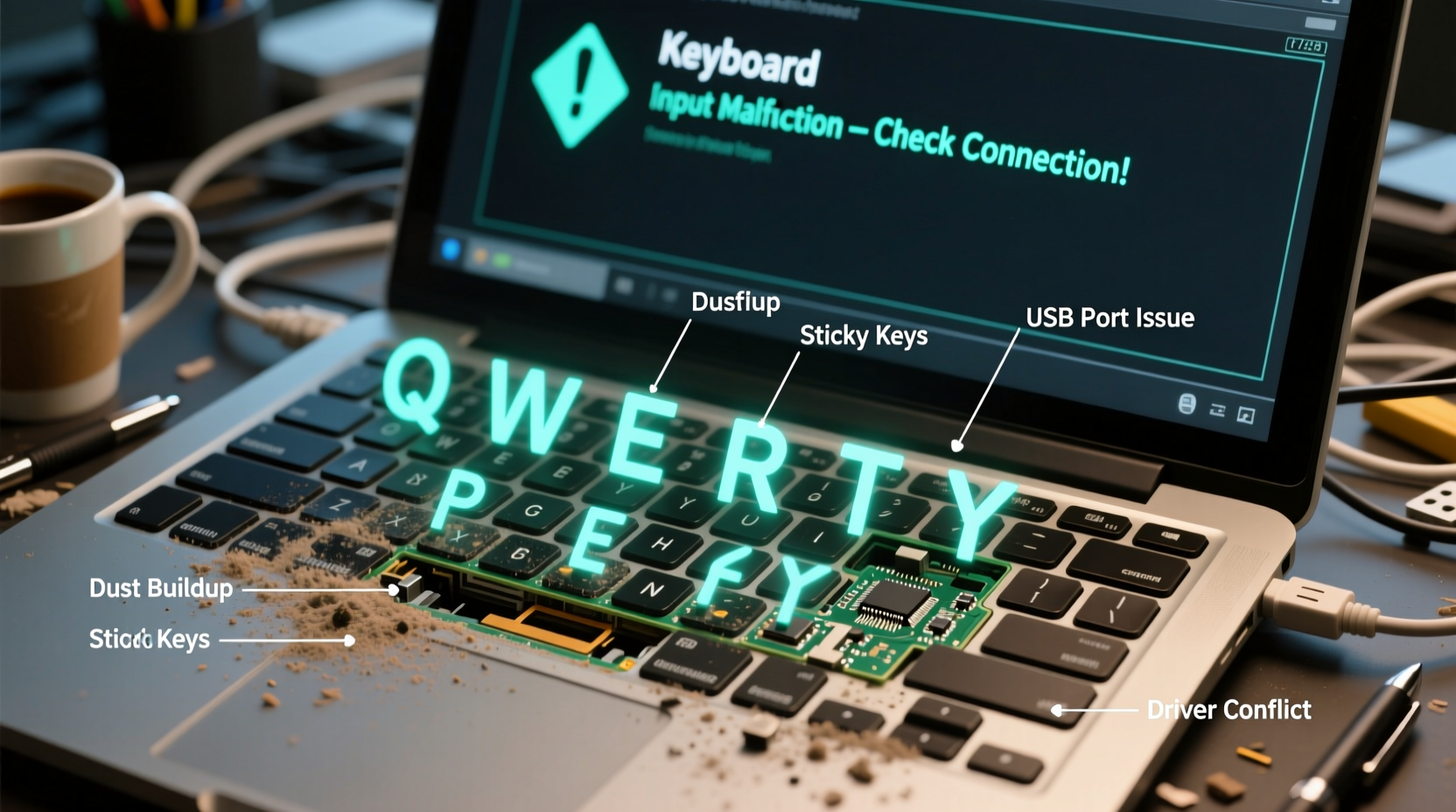
Laptop keyboards are complex input devices with mechanical and electrical components working in tandem. When they begin behaving erratically, the source could stem from multiple areas. Identifying the underlying reason is the first step toward resolution.
- Physical debris: Crumbs, dust, or liquid spills can lodge beneath keys, causing them to stick or register false inputs.
- Sticky or damaged keys: Worn-out or physically damaged keys may remain depressed or trigger intermittently.
- Driver issues: Outdated, corrupted, or incompatible keyboard drivers can misinterpret input signals.
- Malware infection: Certain types of malware simulate keystrokes or hijack input processes.
- Software conflicts: Background applications, especially those with global hotkeys (e.g., clipboard managers, translation tools), may interfere with normal keyboard behavior.
- Hardware failure: Internal circuitry damage, aging components, or manufacturing defects can lead to erratic performance.
- External peripherals: Connected USB keyboards, mice, or docking stations might introduce signal interference.
Before jumping to conclusions, rule out simple explanations. For instance, a pet walking across the keyboard or accidental palm presses during touchpad use might mimic random typing. However, if the issue persists without user interaction, deeper investigation is warranted.
Step-by-Step Troubleshooting Guide
Follow this systematic approach to isolate and resolve the cause of random keyboard input. Start with the simplest fixes and progress to advanced diagnostics.
- Restart your laptop: A temporary software glitch may be causing phantom inputs. Restarting clears memory and resets system processes.
- Disconnect external devices: Unplug all USB devices, Bluetooth peripherals, and docking stations. Reconnect one at a time to identify interference sources.
- Check for stuck keys: Visually inspect the keyboard. Press each key gently and release. Listen for unusual resistance or delayed response.
- Clean the keyboard: Turn off the laptop, tilt it at a 75-degree angle, and use compressed air to blow out debris. Avoid spraying liquids directly onto keys.
- Boot into Safe Mode: On Windows, hold Shift while clicking Restart, then choose Troubleshoot > Advanced Options > Startup Settings > Restart > Enable Safe Mode. If the keyboard works normally in Safe Mode, a third-party app is likely the culprit.
- Update or reinstall keyboard drivers: Open Device Manager (Windows), expand \"Keyboards,\" right-click your keyboard, and select \"Update driver.\" If that fails, uninstall the device and restart to let Windows reinstall it automatically.
- Scan for malware: Run a full system scan using Windows Defender or a trusted antivirus program. Malware such as keyloggers or remote access trojans can simulate keystrokes.
- Check language and keyboard layout settings: Accidental changes to input language (e.g., switching to Dvorak or a foreign layout) can make keystrokes appear random. Verify your layout in Settings > Time & Language > Language & Region.
- Test in another OS environment: Boot from a Linux live USB (e.g., Ubuntu). If the issue persists, it points strongly to hardware failure.
- Use an external keyboard: Connect a USB or Bluetooth keyboard. If it functions correctly, the built-in keyboard is likely faulty.
When to Suspect Firmware or Motherboard Issues
In rare cases, firmware corruption or motherboard-level faults can cause persistent keyboard anomalies. Symptoms include:
- Random typing even when no operating system is loaded (e.g., in BIOS).
- Frequent unresponsiveness or delayed input across multiple OS installations.
- Error messages related to embedded controller (EC) failure.
If these apply, consider updating your laptop’s BIOS/UEFI firmware via the manufacturer’s support site. Proceed with caution—improper flashing can permanently damage the system.
Do’s and Don’ts: Keyboard Care and Maintenance
Preventing future issues starts with proper maintenance. The following table outlines best practices and common mistakes.
| Do’s | Don’ts |
|---|---|
| Use compressed air every 2–3 months to clean under keys | Use household cleaners or excessive moisture on the keyboard |
| Keep drinks and food away from your workspace | Press keys aggressively or use sharp objects to clean |
| Regularly update your OS and drivers | Ignore persistent sticking or double-pressing keys |
| Enable on-screen keyboard as backup when troubleshooting | Install untrusted software with keyboard access permissions |
| Back up data frequently if experiencing system instability | Disassemble the keyboard unless experienced in hardware repair |
Real-World Example: Resolving a Persistent Typing Glitch
Sarah, a freelance writer using a three-year-old HP laptop, began noticing her document filling with random characters like “llllll” and “zxcvbn” while she was away from the desk. Initially, she assumed a software bug and restarted several times, but the issue recurred within minutes.
She followed a structured diagnosis:
- First, she disconnected her wireless mouse and USB hub—no change.
- She rebooted into Safe Mode and opened Notepad. No random typing occurred.
- This indicated a software conflict. She reviewed startup apps and discovered a recently installed clipboard manager with aggressive hotkey monitoring.
- After uninstalling the app, the random inputs stopped completely.
Sarah later learned the app had a known bug affecting certain keyboard models. Her experience underscores the importance of isolating variables methodically rather than replacing hardware prematurely.
“Over 60% of reported ‘faulty keyboard’ cases we see in tech support turn out to be software or configuration issues.” — Mark Tran, Senior Support Engineer at TechFix Solutions
Comprehensive Checklist for Immediate Action
Use this checklist to quickly assess and address random typing behavior:
- ☐ Restart the laptop to clear temporary glitches
- ☐ Inspect for visibly stuck or damaged keys
- ☐ Clean the keyboard with compressed air
- ☐ Disconnect all external devices and test
- ☐ Boot into Safe Mode and test keyboard input
- ☐ Run a full malware scan using updated antivirus software
- ☐ Check and correct keyboard layout in system settings
- ☐ Update or reinstall keyboard drivers via Device Manager
- ☐ Test with an external USB keyboard
- ☐ Boot from a live Linux USB to rule out OS-specific issues
- ☐ Back up critical data if instability continues
- ☐ Contact manufacturer support or a certified technician if hardware failure is suspected
Frequently Asked Questions
Can a virus make my keyboard type by itself?
Yes, certain types of malware, particularly remote access trojans (RATs) or keyloggers, can simulate keyboard input to execute commands or steal data. If you suspect malware, disconnect from the internet and run a deep system scan using reputable antivirus software.
Why does my laptop type 'e' repeatedly even when I’m not pressing it?
This is often caused by a physically stuck 'e' key due to debris or wear. Try cleaning around the key with compressed air. If the key feels spongy or doesn’t rebound properly, internal membrane damage may require professional repair or keyboard replacement.
Is it safe to remove laptop keyboard keys for cleaning?
While possible, removing keys carries risk. Many laptop keys use scissor-switch mechanisms that can break if pried improperly. Use a plastic spudger or tweezers gently, and photograph the layout first. Avoid doing this on delicate ultrabooks unless necessary.
Conclusion: Take Control of Your Keyboard’s Performance
Random typing on your laptop keyboard is rarely a mystery once you know where to look. Most issues stem from preventable causes like debris buildup, outdated drivers, or conflicting software. By applying systematic troubleshooting—from basic cleaning to driver updates and malware scans—you can restore reliable input without costly repairs. In cases of confirmed hardware failure, early detection prevents further complications like data loss or system instability.
Don’t accept erratic behavior as inevitable. With the right knowledge and tools, you can maintain a responsive, accurate keyboard throughout your laptop’s lifespan. If you’ve resolved a tricky keyboard issue or have a unique solution, share your experience below—your insight could help others regain control of their devices.




 浙公网安备
33010002000092号
浙公网安备
33010002000092号 浙B2-20120091-4
Comments
No comments yet. Why don't you start the discussion?