
It seems counterintuitive: you plug in your laptop expecting better performance, only to find it running slower than when on battery. This frustrating issue affects users across brands—Dell, HP, Lenovo, Apple, and more—and often goes unnoticed until productivity suffers. The truth is, a plugged-in laptop doesn’t automatically mean peak performance. In fact, certain power settings, thermal behaviors, and background processes can trigger throttling or reduced CPU speeds, even with full charge. Understanding the root causes is the first step toward reclaiming your machine’s speed.
Understanding Power Management and Performance Modes
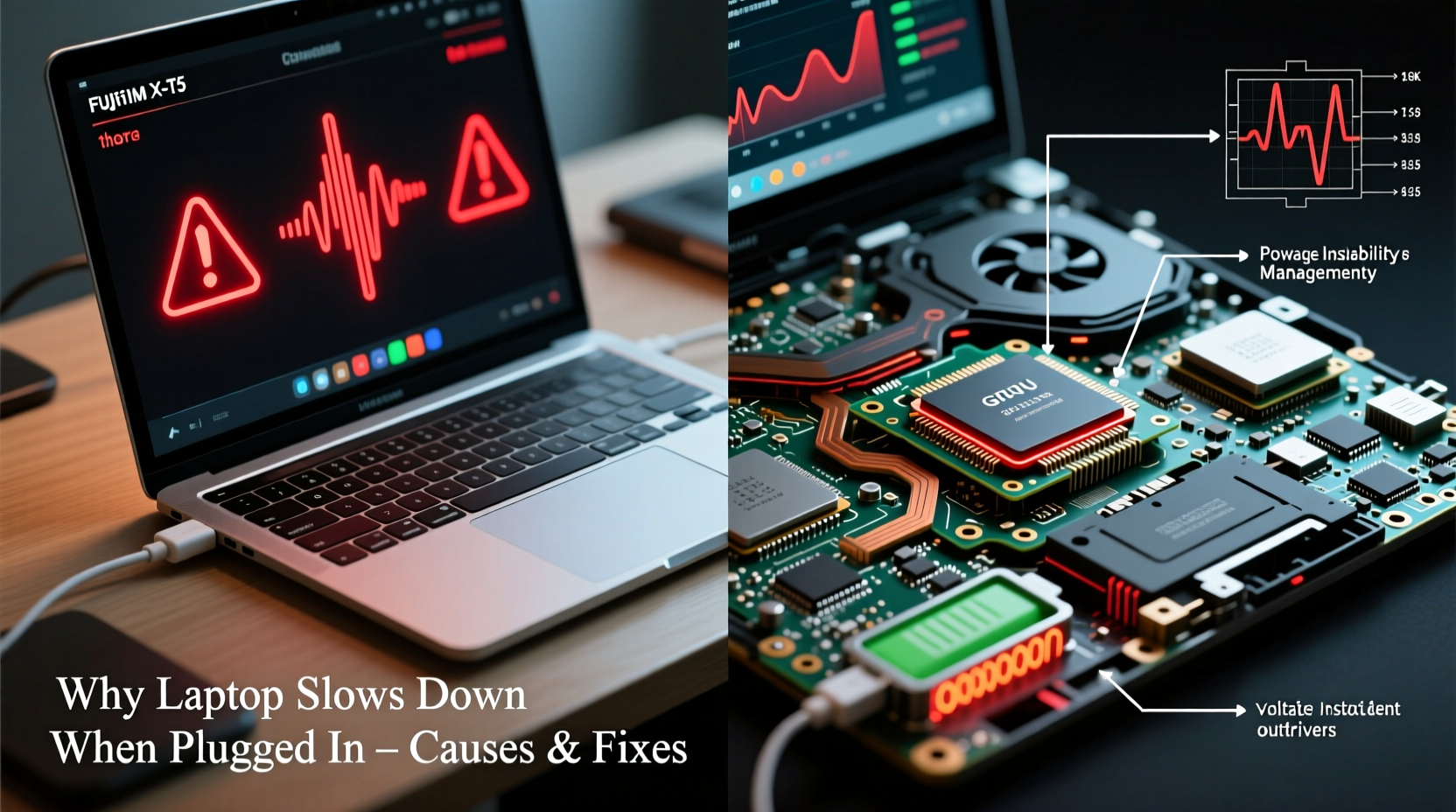
Laptops are designed to balance performance and energy efficiency. When running on battery, systems often limit CPU clock speeds, reduce screen brightness, and disable non-essential background tasks to conserve power. Conversely, when plugged in, users expect maximum performance. However, this isn't always how the system behaves due to misconfigured power plans or manufacturer defaults.
Modern operating systems like Windows and macOS use dynamic power schemes that adjust processor behavior based on usage, temperature, and power source. For instance, Windows has three default power plans: Balanced, Power Saver, and High Performance. The \"Balanced\" plan, which most users rely on, may actually limit CPU performance when plugged in if the system detects thermal stress or if OEM-specific settings override standard behavior.
“Many laptops ship with aggressive thermal throttling profiles that prioritize longevity over performance—even when AC power is available.” — Dr. Alan Reeves, Senior Systems Engineer at TechInsight Labs
Common Causes of Slowed Performance When Plugged In
The slowdown isn’t random. It typically stems from one or more technical factors built into the hardware-software ecosystem. Below are the most frequent culprits:
1. Aggressive Thermal Throttling
When a laptop is charging, especially while under load, heat generation increases. Many systems respond by reducing CPU frequency (throttling) to prevent overheating. Ironically, being plugged in can lead to higher internal temperatures, triggering protective measures that degrade performance.
2. Misconfigured Power Plans
OEMs sometimes install custom power management software (e.g., Dell Power Manager, Lenovo Vantage, HP CoolSense) that alters default behavior. These tools may cap CPU performance when plugged in to extend battery lifespan or reduce fan noise, inadvertently slowing the system.
3. Battery Charging Optimization Features
Some laptops feature “adaptive charging” or “battery health mode,” which limits charging beyond 80% and adjusts system performance to reduce strain on the battery. While beneficial for longevity, these features can indirectly affect processing power allocation.
4. GPU Switching Issues
Gaming and workstation laptops often have dual GPUs: an integrated Intel/AMD chip for efficiency and a discrete NVIDIA/AMD card for performance. Some models fail to switch correctly to the high-performance GPU when plugged in due to driver bugs or incorrect settings in graphics control panels.
5. Background Processes Triggered by Charging
Operating systems and third-party apps may initiate maintenance tasks—such as updates, backups, or virus scans—when the device is plugged in and presumed idle. These processes consume CPU, RAM, and disk I/O, leading to perceived sluggishness.
Step-by-Step Guide to Diagnose and Fix the Issue
Follow this structured approach to identify and resolve the cause of your laptop's slowdown when connected to power.
- Check Your Active Power Plan
Navigate to Control Panel > Hardware and Sound > Power Options (Windows). Ensure you're using \"High Performance\" or a custom plan that allows 100% processor state. - Adjust Advanced Power Settings
Click \"Change plan settings\" > \"Change advanced power settings.\" Expand \"Processor power management\" and set both:- Minimum processor state: 5%
- Maximum processor state: 100%
- Monitor CPU Frequency
Use tools like HWiNFO, Core Temp, or Task Manager (Performance tab) to observe CPU clock speed. If clocks drop significantly when plugged in despite low usage, throttling is likely occurring. - Inspect for Overheating
Check CPU/GPU temperatures using SpeedFan or Open Hardware Monitor. Sustained temps above 85°C indicate cooling issues. Clean vents, ensure proper airflow, and consider repasting thermal compound if necessary. - Update BIOS and Drivers
Visit your manufacturer’s support site and update:- BIOS/UEFI firmware
- Chipset drivers
- Graphics drivers
- Power management utilities
- Disable Conflicting Software
Uninstall or reconfigure OEM power tools that override Windows settings. For example, disable \"Battery Conservation Mode\" in Lenovo Vantage or \"Quiet Mode\" in Dell Power Manager if they restrict performance. - Test with Minimal Load
Restart the laptop, unplug all peripherals, log in, and avoid launching apps. Plug in and monitor responsiveness. If performance improves, background processes were the culprit.
Do’s and Don’ts: Best Practices for Optimal Performance
| Do’s | Don’ts |
|---|---|
| Use the High Performance power plan when plugged in for work or gaming | Leave battery optimization modes enabled during intensive tasks |
| Regularly clean air vents and fans to prevent heat buildup | Place laptop on soft surfaces like beds or couches while charging |
| Set maximum processor state to 100% in advanced power settings | Ignore BIOS updates, especially those related to thermal management |
| Monitor CPU clock speeds and temperatures under load | Assume the problem is software-related without checking thermal data |
| Disable automatic maintenance tasks during critical work sessions | Run multiple resource-heavy apps immediately after plugging in |
Real-World Example: A Developer’s Productivity Breakdown
Jamal, a freelance software developer using a mid-range HP laptop, noticed his code compilation times doubled after plugging in—an absurd trend given he expected faster builds. Initially assuming a virus, he ran scans with no results. After monitoring CPU usage, he discovered his processor was capped at 1.2 GHz when charged, despite being capable of 3.6 GHz bursts.
Digging deeper, Jamal found HP Support Assistant had silently enabled \"Battery Care Mode,\" limiting charge to 80% and reducing CPU performance to \"extend battery life.\" Though well-intentioned, this setting crippled his workflow. Disabling the mode and switching to the High Performance power plan restored full speed. His compile time dropped from 3 minutes back to 1 minute 20 seconds—all without hardware changes.
This case highlights how automated features, meant to help, can harm performance if not properly understood or configured.
Expert Tips and Preventive Measures
Sustained performance requires proactive habits. Here are key strategies to maintain speed whether on battery or AC power:
- Use a cooling pad – Especially for thin-and-light or gaming laptops, external cooling helps prevent thermal throttling when plugged in.
- Avoid overcharging myths – Modern lithium-ion batteries don’t suffer from “overcharging,” but keeping them at 100% for days can accelerate wear. Use manufacturer-recommended charge limits only if prioritizing long-term battery health over performance.
- Pin critical apps to taskbar – Reduce startup delays caused by slow disk access during boot-up after plugging in.
- Disable startup bloatware – Use Task Manager > Startup tab to disable unnecessary programs that launch when powered on.
Frequently Asked Questions
Can a faulty charger cause my laptop to slow down?
Not directly. However, if the charger delivers unstable voltage or insufficient wattage (e.g., using a lower-rated USB-C adapter), the system may enter a low-power state or fail to charge properly, triggering performance restrictions. Always use the manufacturer-specified power adapter.
Why does my fan run louder when plugged in, yet the laptop feels slower?
This paradox occurs when the CPU tries to boost performance but is quickly throttled by heat. The fan ramps up to cool the system, but thermal constraints force the processor to reduce speed repeatedly. It’s a sign of inadequate cooling or dust buildup, not improved performance.
Is it safe to run my laptop at 100% performance all the time?
Yes, within normal operating conditions. Laptops are designed to handle full load, provided cooling is adequate. However, continuous high usage will generate more heat and may slightly reduce component lifespan over years. For daily tasks, balanced settings are sufficient; reserve 100% mode for demanding applications like video editing or gaming.
Action Checklist: Restore Your Laptop’s Plugged-In Speed
- ✅ Verify current power plan (use High Performance)
- ✅ Set maximum processor state to 100% for both battery and plugged-in modes
- ✅ Monitor CPU clock speed and temperature using reliable tools
- ✅ Clean air vents and ensure proper ventilation
- ✅ Update BIOS, chipset, and graphics drivers
- ✅ Disable OEM battery conservation or quiet modes
- ✅ Check for background processes triggered by charging
- ✅ Test performance before and after each change to isolate fixes
Conclusion: Take Control of Your Laptop’s True Potential
Your laptop should perform at its best when plugged in—not regress. The slowdown many experience is rarely a hardware flaw, but rather a combination of hidden settings, thermal limitations, and outdated configurations. By auditing your power settings, monitoring system behavior, and applying targeted fixes, you can eliminate this bottleneck permanently.
Don’t accept sluggishness as inevitable. Modern laptops are powerful machines, but they require informed users to unlock their full capabilities. Apply the steps outlined here, share your results, and empower others to do the same. A faster, more responsive computing experience is just a few settings away.




 浙公网安备
33010002000092号
浙公网安备
33010002000092号 浙B2-20120091-4
Comments
No comments yet. Why don't you start the discussion?