
It defies logic: you plug in your laptop expecting a burst of power and improved performance, only to notice it running slower than before. This phenomenon frustrates users across brands and operating systems—Windows, macOS, and even Linux. You’d assume that being connected to a stable power source would unlock full processing potential, not hinder it. Yet, many experience lag, stuttering, or reduced responsiveness the moment they connect the charger.
The root causes are often hidden in plain sight—buried in power plans, thermal behavior, firmware settings, or misunderstood battery management features. What makes this issue especially tricky is that standard troubleshooting steps like closing apps or restarting rarely help. The slowdown isn’t due to software bloat alone; it’s tied to how your system interprets “plugged in” status and adjusts performance accordingly.
This article dives into the technical and behavioral reasons behind this paradox, revealing not just *why* it happens, but how to fix it with practical, counterintuitive solutions most users overlook.
Understanding Power Plans and Performance Profiles
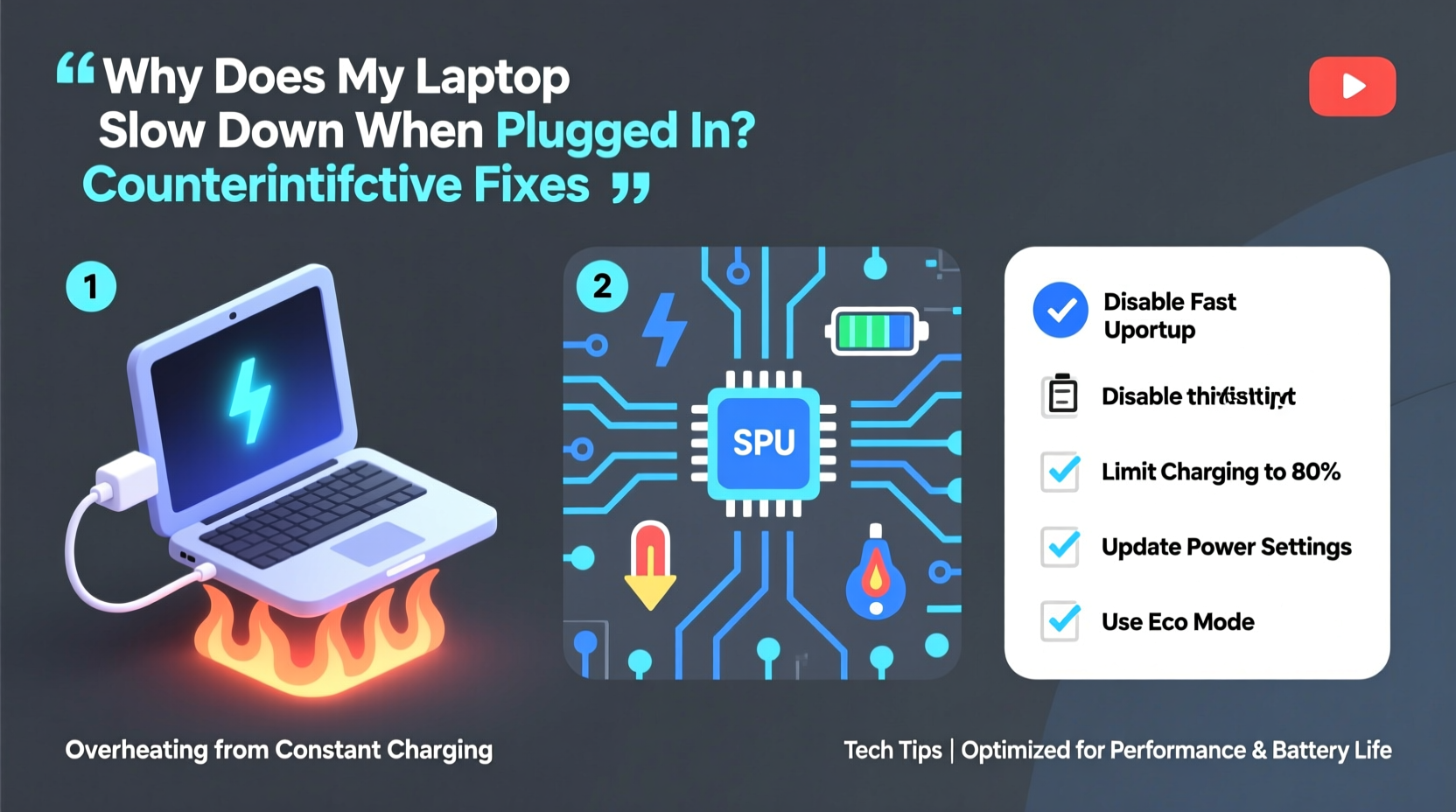
Modern laptops use dynamic power management to balance performance, heat, and battery life. When unplugged, the system defaults to a “balanced” or “power saver” mode to conserve energy. Plugging in should trigger a switch to “high performance,” but sometimes the opposite occurs due to misconfigured or corrupted power plans.
Windows, for example, allows different CPU behavior based on whether the device is on battery or AC power. A common culprit is when the “Maximum Processor State” under AC power is mistakenly capped below 100%. This forces the CPU to operate at reduced clock speeds despite having ample power.
To check this on Windows:
- Open Control Panel > Hardware and Sound > Power Options.
- Select your active plan and click “Change plan settings.”
- Click “Change advanced power settings.”
- Expand “Processor power management” and check both “On battery” and “Plugged in” values for “Maximum processor state.”
- Ensure “Plugged in” is set to 100%.
If this value is lower—say, 90% or 85%—your CPU will throttle even when charging, causing noticeable lag during multitasking or demanding applications.
Thermal Throttling: The Hidden Performance Killer
One of the most counterintuitive reasons for slowdowns when plugged in is heat. Charging generates additional thermal load, especially if the laptop is simultaneously performing CPU-intensive tasks. Many laptops lack sufficient cooling headroom to handle both charging and peak workloads, leading to thermal throttling.
When temperatures rise, the CPU automatically reduces its clock speed to prevent damage. This means that even though more power is available, the system must scale back performance to stay within safe thermal limits. Ironically, the act of plugging in can initiate a chain reaction: higher power draw → increased heat → thermal throttling → perceived sluggishness.
This effect is amplified in thin-and-light laptops where thermal design is constrained. A study by NotebookCheck found that certain ultrabooks experienced up to 30% performance loss under sustained load while charging due to inadequate heat dissipation.
“Thermal design is often the bottleneck in modern laptops. More power doesn’t always mean better performance—if the system can’t dissipate the heat, it will throttle regardless of charge status.” — Dr. Lin Chen, Thermal Systems Engineer at Mobile Compute Labs
Real-World Example: The Overheating Student
Consider Maria, a university student using her Dell XPS 13 for video editing. On battery, she noticed smooth playback and quick rendering. But every time she plugged in to ensure full charge during long sessions, her timeline began stuttering. She assumed the charger was faulty. After monitoring temperatures with HWInfo, she discovered her CPU was hitting 97°C when plugged in—triggering aggressive throttling. The solution? Using a cooling pad and adjusting her workspace ventilation. Performance returned instantly.
Firmware and Manufacturer-Specific Power Management
Some laptop manufacturers implement proprietary power-saving technologies that behave unpredictably. Lenovo’s Vantage, HP’s Dynamic Boost, and Dell’s Power Manager include features designed to extend battery life or manage charge cycles—but these can inadvertently limit performance when plugged in.
For instance, certain models feature a “Battery Saver” mode that remains active even when charging, capping CPU/GPU output to reduce wear on the battery. Similarly, ASUS laptops with “Silent Mode” may auto-enable when plugged in if system conditions match predefined thresholds, muting fans and reducing clock speeds.
These features are often silent—no notification appears when they activate—making them difficult to diagnose without diving into manufacturer utilities.
Step-by-Step: Diagnose and Fix Firmware-Level Throttling
- Open your laptop manufacturer’s control panel (e.g., Lenovo Vantage, HP Command Center).
- Navigate to power or performance settings.
- Look for modes like “Optimized,” “Best Performance,” or “High Performance.” Select one.
- Disable any battery preservation or quiet mode features.
- Reboot and test performance while plugged in.
This sequence bypasses OS-level settings and ensures firmware agrees with your performance expectations.
Counterintuitive Fixes That Actually Work
The most effective solutions aren’t always obvious. Below are five lesser-known but highly effective strategies to resolve plugged-in slowdowns.
1. Unplug to Reboot, Then Plug Back In
Sounds absurd, but resetting the power management controller can clear erroneous states. Shut down the laptop, unplug the charger, wait 30 seconds, then plug it back in and power on. This forces the system to re-evaluate its power profile and often resolves phantom throttling.
2. Use a Lower-Wattage Charger
Paradoxically, using a lower-wattage adapter (e.g., 45W instead of 65W) can reduce heat generation and prevent thermal throttling. High-wattage chargers deliver more current, increasing internal temperatures. If your workload doesn’t require full GPU/CPU utilization, a smaller charger may yield smoother performance.
3. Disable Adaptive Brightness When Plugged In
Adaptive brightness sensors can cause micro-stutters as the display adjusts. These small delays accumulate and affect perceived system responsiveness. Go to Settings > System > Display and turn off “Change brightness automatically when lighting changes.”
4. Update BIOS and Chipset Drivers
Firmware updates often include fixes for power delivery and thermal management logic. Check your manufacturer’s support site for the latest BIOS version. Similarly, outdated chipset drivers can misreport power states to the OS, leading to incorrect performance scaling.
5. Swap USB-C Ports (If Applicable)
On laptops with multiple USB-C/Thunderbolt ports, not all support full power delivery. Plugging into a non-primary port may result in inconsistent power negotiation, causing the system to remain in a hybrid power state that limits performance. Always use the port marked with a lightning bolt or “PD” symbol for optimal results.
Do’s and Don’ts: Quick Reference Table
| Action | Do | Don’t |
|---|---|---|
| Power Plan Settings | Set max processor state to 100% when plugged in | Leave it at default if unsure |
| Charging Behavior | Use the correct wattage and primary charging port | Use third-party or underpowered chargers |
| Thermal Management | Elevate laptop for airflow; use cooling pads | Place on soft surfaces like beds or couches |
| Firmware Features | Disable silent or eco modes during heavy workloads | Assume all OEM features improve performance |
| Driver Maintenance | Update BIOS and chipset drivers regularly | Ignore firmware update notifications |
FAQ: Common Questions About Plugged-In Slowdowns
Why does my laptop run slower on AC power than on battery?
This usually indicates a misconfigured power plan, thermal throttling, or an active power-saving mode in firmware. While rare, some systems prioritize battery longevity over performance even when charging, especially if “battery health” features are enabled.
Can a bad charger cause performance issues?
Yes. A failing or low-quality charger may deliver unstable voltage, prompting the system to enter a protective low-power state. Even if the laptop charges, inconsistent power delivery can force CPU throttling to maintain stability.
Does enabling “High Performance” mode drain the battery faster?
Only when actively using demanding applications. Modern CPUs use dynamic scaling—running at full speed only when needed. On battery, setting the plan to “High Performance” won’t constantly max out the CPU, but it removes artificial caps that could otherwise limit responsiveness.
Comprehensive Checklist: Restore Full Performance When Plugged In
- ✅ Verify that “Maximum Processor State” is 100% under “Plugged In” in Power Options
- ✅ Disable battery conservation, silent mode, or eco modes in OEM software
- ✅ Monitor CPU temperature with tools like HWInfo or Core Temp
- ✅ Clean air vents and ensure proper airflow around the laptop
- ✅ Update BIOS and chipset drivers from the manufacturer’s website
- ✅ Test with a different, known-good charger of correct wattage
- ✅ Use the primary USB-C/charging port marked for power delivery
- ✅ Disable adaptive brightness and background apps consuming resources
- ✅ Perform a power reset: shut down, unplug, hold power button for 30 seconds
- ✅ Consider undervolting (advanced): reduce CPU voltage to lower heat without losing speed
Conclusion: Take Control of Your Laptop’s True Potential
Your laptop shouldn’t punish you for plugging it in. The expectation of better performance when connected to power is not just reasonable—it’s fundamental to how these devices are engineered. When slowdowns occur under AC power, it’s a sign of misalignment between hardware capabilities and software/firmware behavior.
By understanding the interplay of power plans, thermal dynamics, and manufacturer-specific settings, you regain control. The fixes outlined here go beyond surface-level tweaks—they address the underlying mechanisms that silently govern performance. Most importantly, they empower you to diagnose and resolve issues that generic tech support scripts often miss.




 浙公网安备
33010002000092号
浙公网安备
33010002000092号 浙B2-20120091-4
Comments
No comments yet. Why don't you start the discussion?