
It’s a strange but increasingly common experience: you’re sitting at your desk working, everything appears normal, and the moment you stand up, your monitor screen begins to flicker. The display may dim, flash, or momentarily go black before stabilizing again. While this behavior can be unsettling, it’s rarely a sign of imminent hardware failure. Instead, it often points to environmental interference, grounding issues, or subtle electrical imbalances in your workspace setup. Understanding the root causes—and knowing how to diagnose and resolve them—can restore stability to your display and prevent long-term damage to sensitive components.
Understanding the Physics Behind Screen Flickering
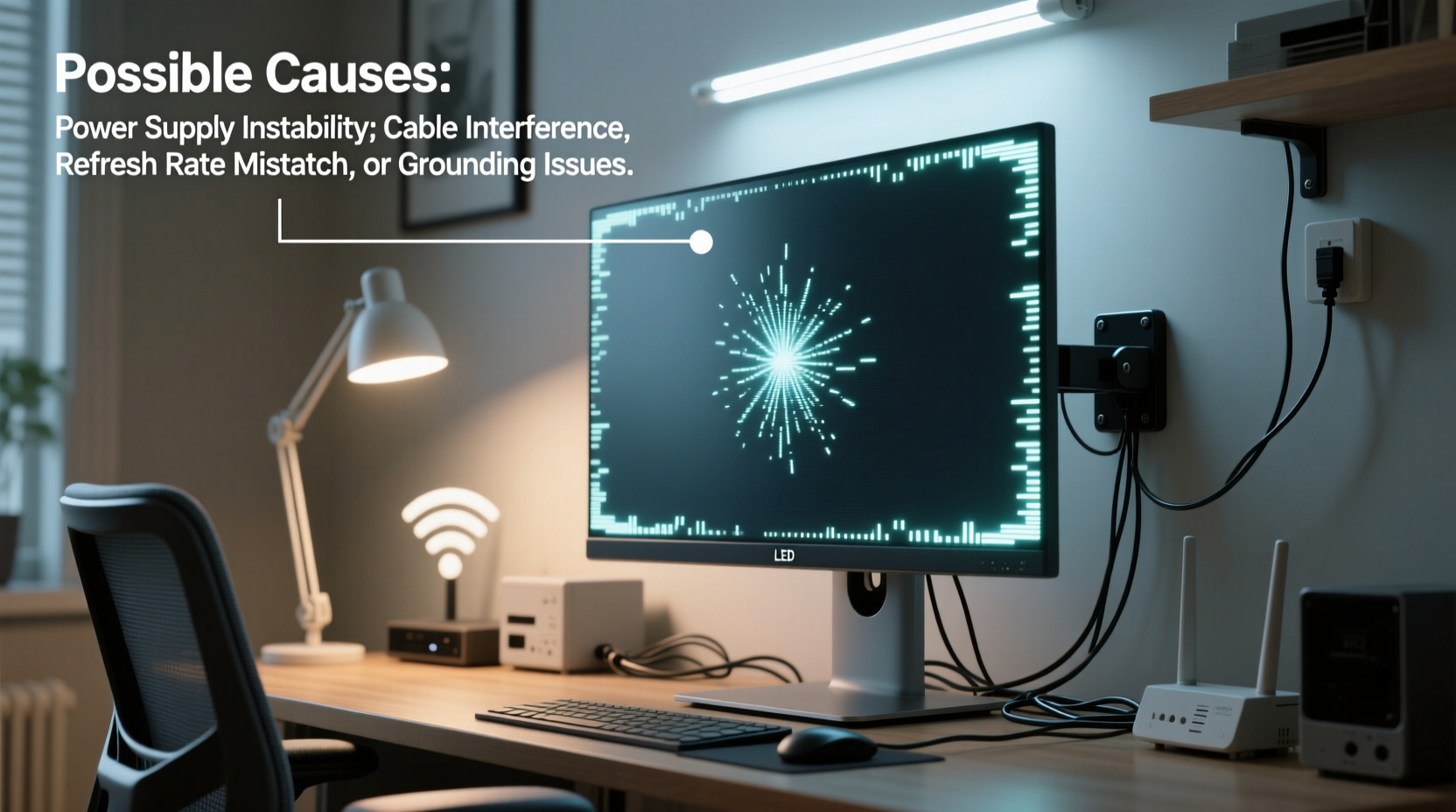
Monitor flickering is typically caused by disruptions in the power supply or signal transmission between your computer and display. When you stand up, your body acts as a conductor or insulator, depending on your footwear, flooring material, and proximity to grounded objects. This shift in capacitance or electromagnetic field can influence nearby electronics, especially if they're already operating near the edge of electrical instability.
Modern monitors use switching power supplies and high-frequency backlight drivers (especially LED-backlit models), both of which are sensitive to voltage fluctuations. If your monitor or its power circuit lacks sufficient filtering or grounding, even minor changes in ambient electromagnetic conditions—such as those introduced by human movement—can induce transient disturbances.
This phenomenon is more pronounced in environments with:
- Unshielded cables
- Poorly grounded outlets
- High levels of electromagnetic interference (EMI) from appliances or wiring
- Static-prone flooring like carpet
“Human bodies can act as floating conductors that redistribute electric fields in a room. In setups with marginal grounding, standing or moving near electronics can trigger detectable voltage shifts.” — Dr. Alan Reeves, Electrical Engineer & EMI Consultant
Common Causes of Movement-Induced Monitor Flickering
1. Grounding Issues in Power Supply
Inadequate grounding is one of the most frequent culprits. If your outlet isn’t properly grounded or your building has aging electrical infrastructure, your monitor may float at a slightly different electrical potential than other devices. When you stand, especially on carpet, static charge builds on your body. As you move closer to or away from the monitor, this charge can induce small currents in unshielded circuits, causing flickering.
2. Loose or Damaged Cables
VGA, HDMI, DisplayPort, or power cables that are frayed, loosely connected, or poorly shielded can intermittently lose signal integrity. Your body's movement might subtly shift cables through air displacement or vibration, especially if they rest on a desk prone to resonance.
3. Electromagnetic Interference (EMI)
Devices such as fluorescent lights, space heaters, refrigerators, or even Wi-Fi routers emit electromagnetic fields. If your monitor cable runs parallel to power cords or near such devices, it can pick up interference. Standing up may alter your position relative to these sources, changing the interference pattern and affecting screen stability.
4. Static Electricity Discharge
If you're wearing synthetic clothing or walking on a carpeted floor, your body accumulates static charge. When you rise from a chair, especially a rolling office chair, friction generates several thousand volts of static electricity. Though not always perceptible, this charge can couple capacitively with nearby electronics, disrupting low-voltage control signals in the monitor.
5. Faulty or Low-Quality Power Strip or Surge Protector
Cheap power strips often lack proper noise filtering and surge suppression. They may also have loose internal contacts that react to vibrations or minor shifts in load distribution. Standing up could cause a tiny jolt transmitted through the floor, momentarily affecting connections inside the strip.
Step-by-Step Troubleshooting Guide
Follow this systematic approach to identify and eliminate the source of flickering:
- Isolate the Monitor: Disconnect all peripherals except the power and video cable. Use only the primary system driving the display.
- Switch Video Cables: Replace your current cable (HDMI, DP, etc.) with a known high-quality, shielded version. Avoid coiling excess length.
- Change Connection Ports: Plug the video cable into a different port on both the GPU and monitor to rule out port defects.
- Test on Another Outlet: Move the monitor to a different room or circuit, preferably one with confirmed grounding.
- Bypass Power Strips: Connect the monitor directly to a wall outlet using a short, heavy-gauge power cord.
- Check for EMI Sources: Turn off nearby lights, chargers, or appliances one by one while observing the screen during movement.
- Ground Yourself: Touch a metal faucet or grounded appliance before standing. If flickering stops, static is likely involved.
- Update Firmware/Drivers: Ensure your GPU drivers and monitor firmware are up to date—some flickering issues stem from software-level timing glitches.
Do’s and Don’ts: Managing Monitor Stability
| Do’s | Don’ts |
|---|---|
| Use shielded, certified video and power cables | Run video cables alongside power cords |
| Plug critical devices into grounded outlets | Use daisy-chained extension cords or multi-plug adapters |
| Install a UPS with EMI filtering for sensitive setups | Ignore flickering—early signs can escalate to permanent damage |
| Wear anti-static footwear or use a grounding mat | Allow dust buildup inside monitor vents (can affect internal grounding) |
| Regularly inspect cables for wear and tear | Assume the issue is “just the monitor” without testing variables |
Real-World Example: A Home Office Case Study
Mark, a remote software developer in Chicago, reported that his dual-monitor setup would flicker every time he stood from his desk. The issue didn’t occur when others moved nearby, only when he did. After replacing cables and testing on multiple computers, the problem persisted. A technician discovered that Mark’s office was on a dedicated circuit with outdated two-prong outlets—no ground connection.
Further investigation revealed that his anti-static office chair, combined with wool carpet, generated significant static buildup. When he rose, the discharge wasn't arcing visibly but was inducing micro-currents in the ungrounded monitor chassis. Installing a grounded outlet and switching to a conductive floor mat resolved the flickering instantly. Additionally, replacing his HDMI cables with STP (Shielded Twisted Pair) versions prevented residual interference.
This case underscores how seemingly unrelated factors—flooring, seating, and building wiring—can combine to create elusive technical issues.
Preventive Measures and Long-Term Solutions
Solving flickering isn’t just about fixing the immediate symptom—it’s about creating an electromagnetically stable workspace. Consider these long-term strategies:
- Upgrade to a grounded electrical system: Hire a licensed electrician to install grounded outlets, especially in home offices with multiple high-sensitivity devices.
- Use a line-conditioning UPS: Devices like the APC Smart-UPS or CyberPower CP series filter noise and stabilize voltage, protecting against both surges and micro-fluctuations.
- Implement ESD-safe practices: Use anti-static wrist straps during maintenance, place humidity above 40% (dry air increases static), and consider conductive flooring tiles in critical workspaces.
- Reroute cables strategically: Keep data cables perpendicular to power lines where they cross. Use cable trays or conduits to maintain separation.
- Choose monitors with robust EMI shielding: Look for certifications like FCC Class B, TCO Certified, or CE EMC Directive compliance.
Frequently Asked Questions
Can my body really affect my monitor’s display?
Yes. The human body stores and redistributes electrical charge. In electrically noisy or poorly grounded environments, your movement can alter local electromagnetic fields enough to disrupt sensitive electronics like monitors, particularly if shielding is inadequate.
Why does this only happen when I stand up and not when someone else walks by?
The effect depends on individual factors: shoe material, clothing fabric, body mass, and personal static accumulation. You may generate more charge than others due to synthetic fibers in your clothes or rubber-soled shoes on carpet, making your movements uniquely disruptive.
Is screen flickering dangerous?
Occasional flickering due to environmental factors isn’t immediately dangerous, but persistent issues can stress internal components, degrade capacitors, and shorten the monitor’s lifespan. Chronic exposure to unstable power may also harm connected devices like GPUs.
Action Plan Checklist
Use this checklist to methodically address and eliminate flickering:
- ✅ Test monitor on a different, grounded outlet
- ✅ Replace video and power cables with high-quality, shielded versions
- ✅ Eliminate use of power strips or extensions temporarily
- ✅ Inspect for nearby EMI sources (lights, motors, transformers)
- ✅ Update graphics drivers and monitor firmware
- ✅ Check that all cable connections are tight and secure
- ✅ Introduce a humidifier to reduce static in dry environments
- ✅ Consult an electrician to verify proper grounding in your workspace
Conclusion: Take Control of Your Digital Environment
Your monitor shouldn’t behave unpredictably based on your posture. While flickering when standing may seem trivial or quirky, it’s a symptom of deeper electrical or environmental imbalances that, left unaddressed, can affect performance, comfort, and equipment longevity. By applying targeted diagnostics and implementing thoughtful improvements—from better cabling to proper grounding—you transform your workspace into a stable, reliable environment.
Don’t dismiss unusual behaviors as “just how tech works.” Modern displays are precision instruments deserving of clean power and careful setup. Start with one change today—swap a cable, test an outlet, adjust your chair—and observe the difference. Small actions lead to significant improvements in both functionality and peace of mind.




 浙公网安备
33010002000092号
浙公网安备
33010002000092号 浙B2-20120091-4
Comments
No comments yet. Why don't you start the discussion?