
Autocorrect is one of those smartphone features designed to help—until it doesn’t. You’re typing a quick message to a friend, and suddenly “duck” replaces an entirely innocent word. Or worse: you meant to say “I’ll be there soon,” but your phone insists on changing “soon” to “moon.” If you’ve ever stared at your screen in disbelief after hitting send, you're not alone. Millions of users battle erratic autocorrect behavior daily. The good news? Most of these issues stem from simple misconfigurations or misunderstood settings—and they’re fixable.
Autocorrect isn’t inherently flawed. In fact, when properly calibrated, it can significantly improve typing speed and reduce errors. But when it starts replacing words unpredictably, ignoring your corrections, or learning inappropriate replacements, frustration builds fast. The root causes are often overlooked personalization settings, outdated dictionaries, or even third-party keyboard interference. Understanding how autocorrect works—and how to take control of it—is the first step toward regaining confidence in your mobile typing experience.
How Autocorrect Actually Works (And Why It Fails)
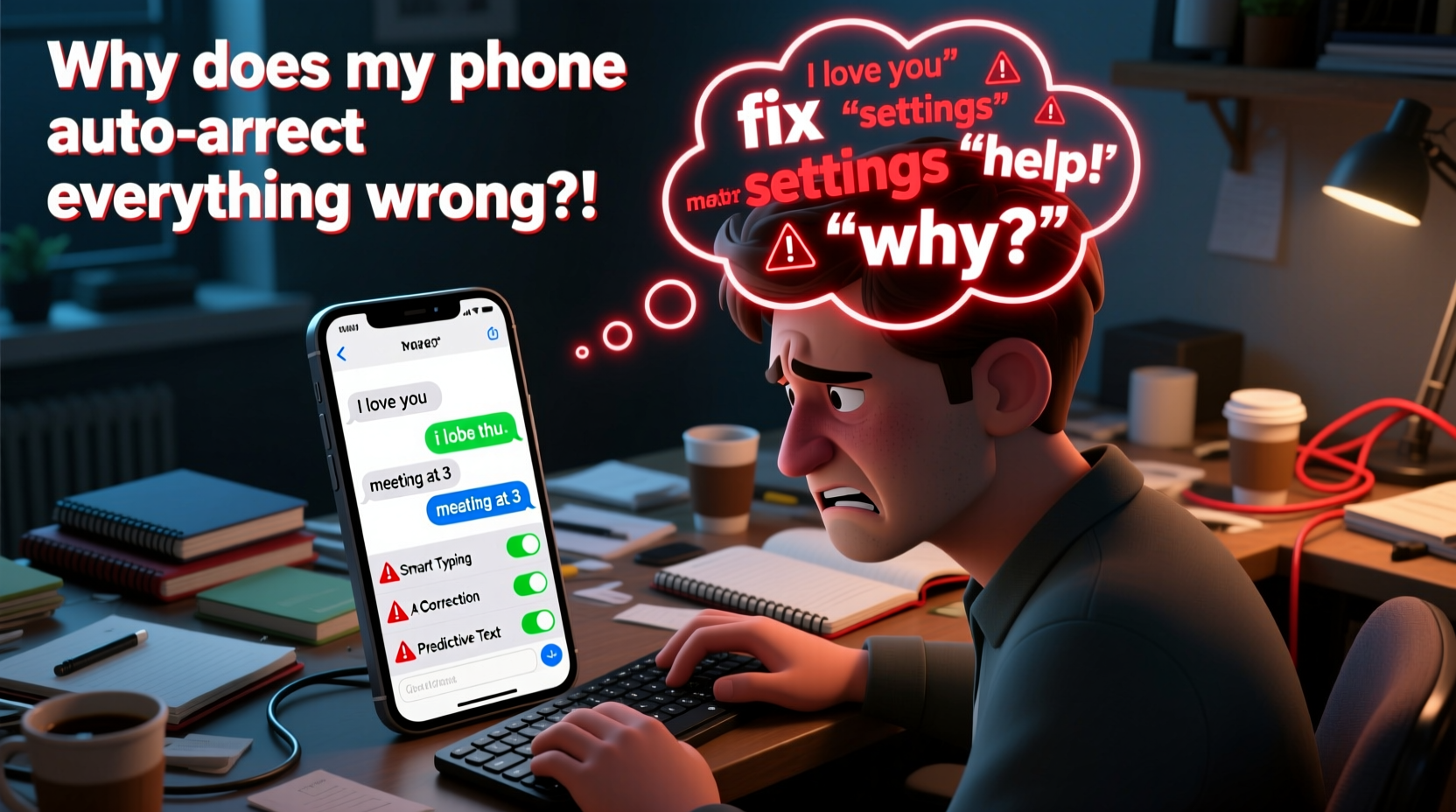
Modern smartphones use predictive text engines powered by machine learning. These systems analyze your typing patterns, commonly used phrases, app context, and language models to anticipate what you’re about to type. On both iOS and Android, this engine evolves over time based on your input. That means every time you accept or reject a suggestion, tap a predicted word, or manually correct a typo, the system learns.
However, this learning process can go off track. For example, if you accidentally accept an incorrect suggestion once—say, choosing “bake” instead of “make”—your phone may begin prioritizing that substitution in future sentences. Over time, these small errors compound, leading to increasingly bizarre or inaccurate predictions. Additionally, some devices import generic language models that don’t account for regional slang, technical terms, or proper nouns unique to your life.
“Autocorrect failures are rarely due to broken software—they’re usually symptoms of poor user calibration. Most people never adjust their dictionary or reset learned inputs, so the system drifts.” — Dr. Lena Tran, Human-Computer Interaction Researcher, MIT Media Lab
The key takeaway? Autocorrect isn’t guessing randomly. It’s making educated predictions based on flawed data—often data *you* unintentionally taught it.
Step-by-Step Guide to Fixing Autocorrect Settings
Before resorting to drastic measures like resetting your phone, follow this systematic approach to recalibrate your autocorrect behavior across major platforms.
1. Reset Your Keyboard Dictionary (iOS & Android)
Clearing your personalized dictionary removes all custom words and learned corrections. This gives the system a clean slate to relearn your preferences accurately.
- iOS: Go to Settings > General > Transfer or Reset iPhone > Reset > Reset Keyboard Dictionary. Enter your passcode if prompted.
- Android (Gboard): Open Settings > System > Languages & input > Virtual keyboard > Gboard > Dictionary > Personal dictionary. Tap the three-dot menu and select Reset all languages.
Note: This will erase any custom shortcuts or added terms (e.g., nicknames, work jargon). You’ll need to re-add them intentionally later.
2. Disable Auto-Correction Temporarily for Testing
To determine whether the issue lies with prediction logic or spelling correction, turn off auto-correction temporarily while keeping spell check active.
- iOS: Settings > General > Keyboard > toggle off “Auto-Correction”
- Android (Gboard): Gboard Settings > Text correction > toggle off “Auto-correction”
Type several messages without auto-correction enabled. If typos remain visible but no longer get replaced incorrectly, the core issue is likely overzealous prediction—not spelling accuracy.
3. Review and Edit Custom Shortcuts
Many users unknowingly create problematic text replacements. For instance, setting “omw” to expand to “On my way!” is helpful—but having “the” automatically change to “then” due to a mistyped shortcut ruins readability.
| Platform | Path to Manage Shortcuts | Action |
|---|---|---|
| iOS | Settings > General > Keyboard > Text Replacement | Delete entries where “Phrase” contains short or common words |
| Android (Gboard) | Gboard Settings > Dictionary > Personal dictionary > [Language] > Shortcut | Edit or remove conflicting abbreviations |
Focus especially on removing shortcuts involving articles (“a”, “an”, “the”), pronouns (“I”, “me”), or prepositions (“in”, “on”). These are prime candidates for unintended substitutions.
4. Re-Train the Keyboard With Intentional Use
After resetting, spend 5–10 minutes actively typing common phrases correctly. Avoid accepting suggestions unless they match exactly. Let the system observe accurate usage patterns.
Common Mistakes That Worsen Autocorrect Behavior
Even with optimal settings, certain habits sabotage autocorrect performance. Recognizing these pitfalls helps prevent recurring issues.
- Rushing through corrections: Tapping a suggested word just to move on trains the AI that the suggestion was correct—even if it wasn’t.
- Using multiple keyboards: Switching between Gboard, SwiftKey, and stock keyboards confuses learning models and fragments data.
- Ignoring language settings: Having multiple languages enabled simultaneously (e.g., English + Spanish) causes mixed predictions and strange word swaps.
- Installing untrusted keyboard apps: Third-party apps may collect data or override system defaults, leading to unpredictable behavior.
One overlooked factor is punctuation spacing. If you frequently type two spaces after a period, some keyboards interpret this as a signal to insert a capitalized next word—even mid-sentence. Modern best practice recommends using only one space, which aligns better with predictive algorithms.
Real Example: How Sarah Fixed Her “Duck” Problem
Sarah, a project manager in Chicago, found herself constantly apologizing after sending emails where “duck” replaced “luck” or “truck.” Colleagues joked about her “bird-themed communication,” but internally, she felt embarrassed and frustrated. She assumed it was a glitch—until she discovered a hidden shortcut she’d created months earlier during a typing test.
While experimenting with Gboard’s gesture typing, she had set “dl” to auto-expand to “duck lol” as a joke. She forgot about it, but her phone didn’t. From then on, any time she typed “delayed,” “dull,” or “develop,” the keyboard would replace the beginning with “duck.” Only after reviewing her personal dictionary did she find and delete the rogue shortcut.
She also reset her keyboard dictionary and disabled secondary languages she wasn’t actively using. Within a day, her autocorrect stabilized. Now, she types confidently—and keeps her humor offline.
Expert Tips for Long-Term Autocorrect Health
Maintaining reliable autocorrect requires periodic maintenance, much like updating software or clearing cache files. Here are actionable strategies backed by usability experts.
“Think of your keyboard like a colleague: it learns from repetition. Reward correct behavior, discourage mistakes, and give it clear boundaries.” — Marcus Lee, UX Lead at Google Input Tools
✅ Tips Box: Daily Habits to Improve Autocorrect Accuracy
Tip: Add professional titles, client names, and industry terms to your personal dictionary before big meetings or email campaigns.
Tip: Use voice dictation occasionally to train phonetic recognition—this indirectly improves text prediction accuracy.
📋 Checklist: Monthly Autocorrect Maintenance Routine
- Review and clean up text replacement shortcuts
- Check that only necessary languages are enabled
- Verify auto-correction and capitalization settings are consistent
- Remove any learned words that appear incorrect
- Test typing in a notes app to spot lingering issues
Frequently Asked Questions
Can I completely turn off autocorrect without losing spell check?
Yes. Both iOS and Android allow you to disable auto-correction while keeping spell check (red underlines for misspelled words) active. This gives you visual feedback without unwanted word replacements. Navigate to keyboard settings and toggle off “Auto-Correction” while leaving “Check Spelling” enabled.
Why does my phone keep changing words I’ve already corrected?
This typically happens when the system hasn’t fully learned that your manual edit was intentional. To fix it, avoid retyping the same word repeatedly with corrections. Instead, long-press the incorrect suggestion and choose “Remove” or “Edit” to permanently exclude it. Also ensure you haven’t accidentally created a text replacement rule causing the swap.
Does using a Bluetooth keyboard affect my phone’s autocorrect?
Not directly. External keyboards bypass the on-screen predictive engine, so you won’t see suggestions or experience auto-replacement while using them. However, your phone continues to learn from touchscreen typing sessions. For consistency, apply the same settings across all input methods if possible.
Conclusion: Take Control of Your Typing Experience
Autocorrect doesn’t have to be a source of stress. Behind its occasional absurdity lies a powerful tool designed to make communication faster and more efficient. The frustration arises not from the technology itself, but from neglect—settings left untouched, bad habits uncorrected, and minor errors allowed to snowball into systemic confusion.
By understanding how predictive text learns, taking deliberate steps to reset and retrain it, and maintaining regular hygiene around your keyboard settings, you can transform autocorrect from a digital nuisance into a silent ally. It won’t be perfect overnight, but with intentionality, it will get better every day—just like you.




 浙公网安备
33010002000092号
浙公网安备
33010002000092号 浙B2-20120091-4
Comments
No comments yet. Why don't you start the discussion?