
Autocorrect is designed to make typing faster and more accurate, but when it starts replacing correctly spelled words with unintended ones, it can be more frustrating than helpful. Whether you're sending a text that turns “duck” into something far less polite or trying to type a name only for it to morph into a random suggestion, incorrect autocorrections disrupt communication and damage credibility. The good news: most of these issues are fixable. By understanding why autocorrect misbehaves and adjusting your device’s settings accordingly, you can regain control over your typing experience.
Why Autocorrect Changes Words Incorrectly
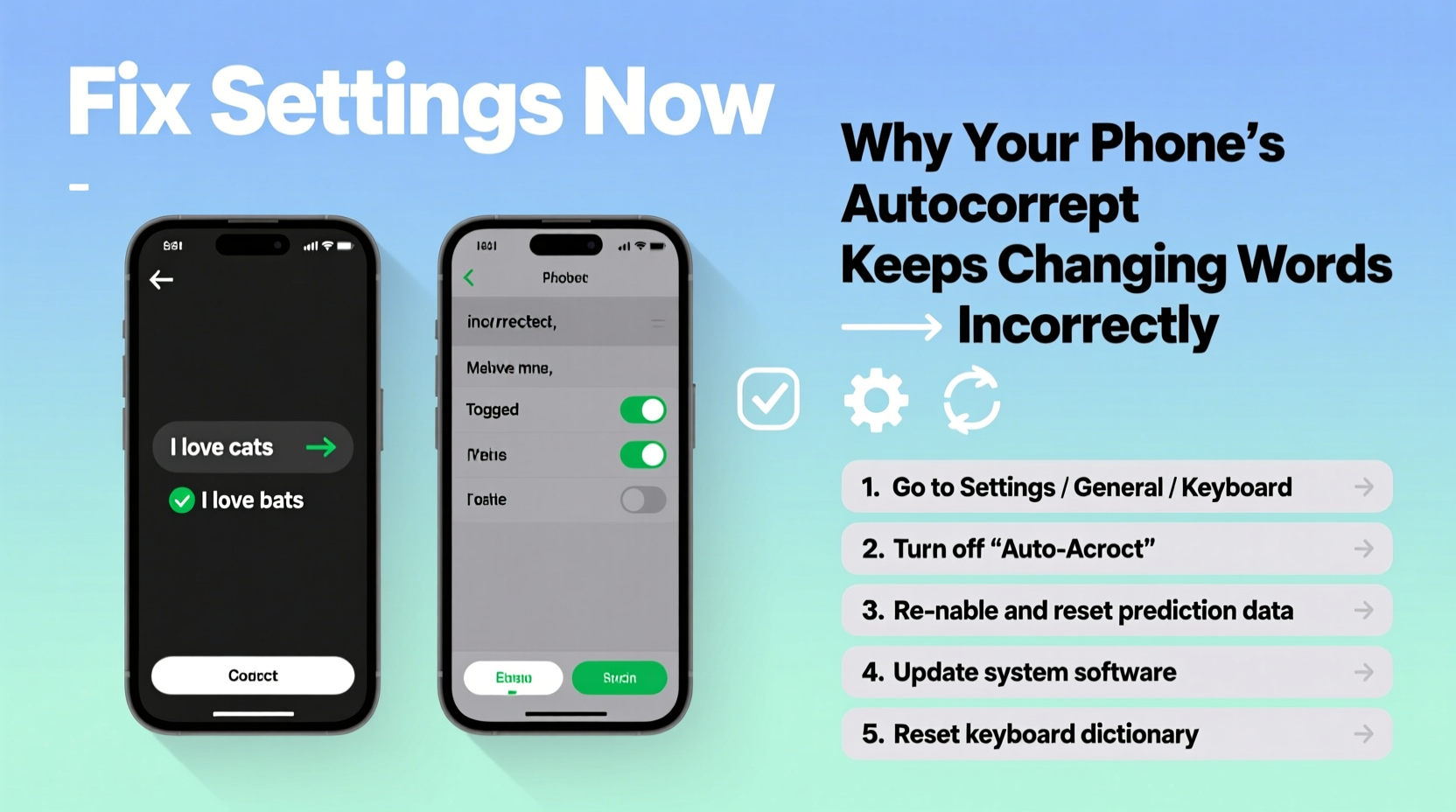
Autocorrect relies on predictive algorithms trained on vast datasets of common language usage. While generally effective, these systems aren’t perfect. They often fail in context-sensitive situations, especially when dealing with proper nouns, slang, technical terms, or regional dialects. The root causes of persistent incorrect corrections include:
- Overactive prediction engine: Your phone may prioritize speed over accuracy, swapping words before you finish typing.
- Poor dictionary training: If your device hasn't learned your vocabulary—like names, job titles, or niche interests—it defaults to common alternatives.
- Keyboard sensitivity: On-screen keyboards sometimes register unintended taps, triggering false corrections.
- Language model conflicts: Having multiple languages enabled can confuse the system, leading to inappropriate substitutions.
- Data corruption: In rare cases, the internal dictionary cache becomes corrupted, causing erratic behavior.
“Autocorrect errors stem from a mismatch between user intent and algorithmic assumptions. Personalizing your keyboard settings closes that gap.” — Dr. Lena Patel, Human-Computer Interaction Researcher at MIT
Step-by-Step Guide to Fix Autocorrect Settings (iOS & Android)
The solution lies not in disabling autocorrect entirely—but in fine-tuning it. Follow this comprehensive guide to adjust settings on both major platforms.
For iPhone Users (iOS 16 and later)
- Navigate to Settings > General > Keyboard.
- Toggle off Auto-Correction temporarily to test if the issue persists without it.
- Re-enable Auto-Correction and instead disable Prediction if suggestions above the keyboard distract or interfere.
- Tap Text Replacement and add frequently used words or phrases (e.g., your name, partner’s name, company title).
- To reset the dictionary: Go to Settings > General > Transfer or Reset iPhone > Reset > Reset Keyboard Dictionary. You’ll need to re-enter your passcode.
- After resetting, type normally for a few days to allow iOS to relearn your habits.
For Android Users (Samsung, Google Pixel, etc.)
- Open Settings > System > Languages & input > Virtual keyboard.
- Select your active keyboard (e.g., Gboard, Samsung Keyboard).
- Tap Text correction or Smart typing, depending on your device.
- Adjust the following:
- Set Suggest corrections to “On for correct spelling only.”
- Lower the Correction strength slider to reduce aggressive changes.
- Turn off Auto-replace if it's overriding intended words too quickly.
- Go to Personal dictionary and add custom entries under your language (e.g., English US).
- To clear learned words: Find Clear personal data or Reset suggestions within the keyboard settings.
Checklist: Optimize Your Phone’s Autocorrect Performance
Use this checklist weekly until your typing feels natural again:
- ✅ Add at least 3 personal words to your dictionary (names, nicknames, job roles).
- ✅ Disable multitap correction if your phone registers double-taps as typos.
- ✅ Ensure only one primary language is set as default in keyboard preferences.
- ✅ Test typing speed: Slow down slightly to see if corrections improve.
- ✅ Update your OS and keyboard app—bugs are often patched in updates.
- ✅ Avoid installing third-party keyboards unless absolutely necessary; they may lack optimization.
Do’s and Don’ts of Managing Autocorrect Behavior
| Do | Don’t |
|---|---|
| Add specialized vocabulary like medical terms, brand names, or foreign words to your personal dictionary. | Assume all misspellings are your fault—some are due to flawed prediction logic. |
| Regularly review suggested replacements to identify recurring errors. | Keep predictive text maxed out if it interferes with creative or technical writing. |
| Use voice typing sparingly for long-form content where context matters. | Rely solely on autocorrect in professional emails or legal documents. |
| Reset the keyboard dictionary every 6 months to prevent outdated learning. | Ignore firmware updates—they often contain critical language model fixes. |
Real Example: How Sarah Fixed Her Constant Name Misspellings
Sarah, a freelance graphic designer, kept facing embarrassment when texting clients. Every time she typed “Kaitlin,” her iPhone changed it to “kitten.” She tried retyping slowly, deleting and retrying, but the correction persisted. After researching, she discovered that iOS had never learned her client’s name. She opened Settings > General > Keyboard > Text Replacement and added an entry: Phrase = “Kaitlin”, Shortcut = “Kaitlin”. Within minutes, the word stopped being altered. She also added variations of other client names and industry terms like “Figma” and “branding deck.” Over two weeks, her error rate dropped by over 80%. This small adjustment saved her time and preserved professionalism in her messages.
Frequently Asked Questions (FAQ)
Can I turn off autocorrect for just one app?
No, autocorrect settings apply system-wide on both iOS and Android. However, some apps like Microsoft Word or Grammarly offer their own correction layers that can override or complement device-level settings. In such cases, you can disable in-app corrections while keeping general phone settings intact.
Why does autocorrect change words even when I type them correctly?
This usually happens because the algorithm predicts what you *intend* to type based on partial input. For example, typing “their” might get replaced with “there” if the latter appears more frequently in your history. It can also occur if the word isn’t in your device’s recognized dictionary. Adding it to your personal dictionary resolves this issue permanently.
Will resetting my keyboard dictionary delete my saved passwords or messages?
No. Resetting the keyboard dictionary only clears learned words, phrase predictions, and typing habits. It does not affect passwords stored in iCloud Keychain or Google Password Manager, nor does it impact messages, contacts, or notes. Your personal data remains secure and accessible.
Advanced Tips for Power Users
If basic adjustments don’t resolve persistent issues, consider these advanced strategies:
- Switch input methods: Try switching from tap-typing to glide typing (swipe) or vice versa. Some users find glide typing reduces accidental corrections since it bypasses individual key presses.
- Use alternate keyboards: Gboard (Android/iOS) and SwiftKey (cross-platform) offer superior customization, including cloud-synced dictionaries and AI-driven context awareness.
- Train your model: Intentionally type difficult words correctly multiple times. Devices use repetition to reinforce learning.
- Disable auto-capitalization selectively: If your phone insists on capitalizing after certain abbreviations (e.g., “i.e.”), go into settings and toggle off automatic capitalization to reduce cascade errors.
- Monitor third-party app interference: Some clipboard managers or accessibility tools modify text input behind the scenes. Temporarily disable them to check for conflicts.
“People underestimate how much their digital tone is shaped by tiny text errors. One misplaced correction can alter meaning—and perception.” — Marcus Tran, UX Communication Lead at Adobe
Conclusion: Take Control of Your Typing Experience
Autocorrect should serve you—not sabotage your message. Persistent incorrect word changes are rarely unavoidable glitches; they’re symptoms of misconfigured settings or under-trained language models. By auditing your keyboard preferences, personalizing your dictionary, and applying targeted fixes, you can eliminate most frustrations. Remember, technology adapts best when guided intentionally. Don’t accept constant corrections as normal. Adjust your settings today, add your unique vocabulary, and reclaim precision in every message you send.




 浙公网安备
33010002000092号
浙公网安备
33010002000092号 浙B2-20120091-4
Comments
No comments yet. Why don't you start the discussion?