
It’s a common scenario: you’re navigating through an unfamiliar city, relying heavily on GPS, when suddenly your phone starts to feel uncomfortably warm—sometimes even too hot to hold. This isn’t just a minor annoyance; excessive heat can degrade battery life, slow performance, and in extreme cases, trigger automatic shutdowns. Understanding why GPS use causes your device to overheat—and knowing how to respond quickly—is essential for both safety and longevity of your smartphone.
The truth is, GPS usage places a significant strain on multiple components inside your phone. Unlike simple app browsing, location services demand constant communication with satellites, cellular towers, and Wi-Fi networks while simultaneously processing real-time data. This multi-system workload generates heat. But not all heat is equal, and not every situation calls for panic. The key lies in identifying the root causes and applying practical cooling strategies before damage occurs.
Why GPS Triggers Phone Overheating
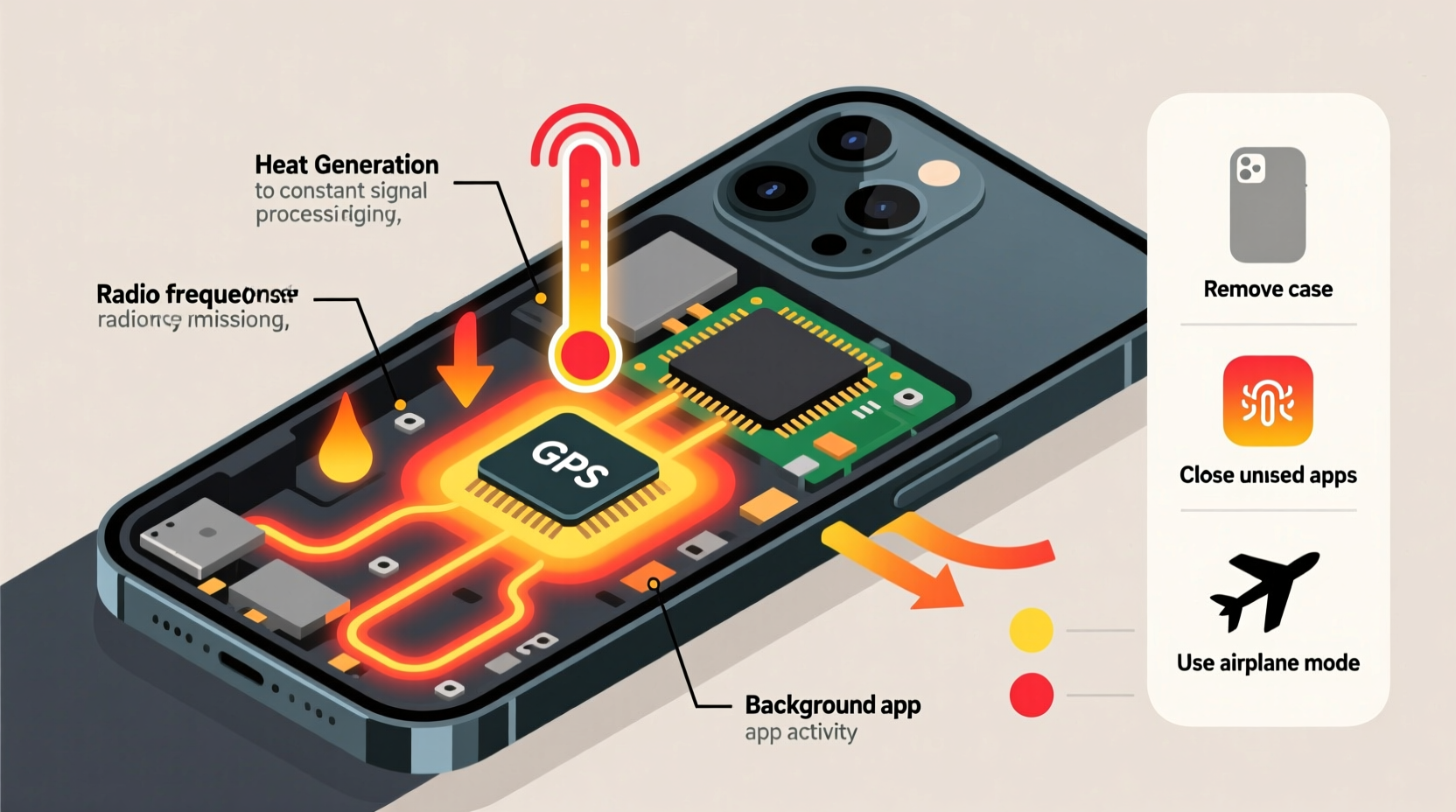
When you activate GPS or navigation apps like Google Maps or Waze, your phone engages several hardware systems at once:
- GPS receiver: Constantly communicates with orbiting satellites to determine your precise location.
- Processor (CPU/GPU): Renders maps, calculates routes, and updates turn-by-turn directions in real time.
- Display: Stays bright and active, often at maximum brightness if used outdoors.
- Cellular and Wi-Fi radios: Download map tiles, traffic updates, and live rerouting data.
- Vibration and audio modules: Provide alerts and voice guidance.
All these components draw power from the battery and generate heat as a byproduct. When operating simultaneously for extended periods—especially in poorly ventilated environments—the cumulative effect raises internal temperatures rapidly.
“Smartphones are designed to manage heat, but sustained high-load tasks like GPS navigation push thermal limits, particularly in older models or direct sunlight.” — Dr. Alan Reyes, Mobile Systems Engineer at TechInsight Labs
How Heat Affects Your Phone’s Performance
Modern smartphones include thermal sensors that monitor internal temperature. Once a threshold is reached—typically between 35°C and 45°C (95°F–113°F)—the system initiates protective measures:
- Reduced processor speed to lower energy consumption.
- Limited background activity and app refresh.
- Dimming screen brightness automatically.
- In extreme cases, forced shutdown to prevent hardware damage.
While these safeguards protect the device, they come at a cost: sluggish response times, delayed GPS updates, and interrupted navigation. In one documented case, a driver using GPS in summer conditions reported repeated app crashes after 20 minutes of continuous use. Upon inspection, the phone's surface temperature exceeded 50°C (122°F), triggering thermal throttling.
Mini Case Study: Long-Distance Commuter Overheats Device
Jamal, a rideshare driver in Phoenix, Arizona, relies on GPS for eight hours daily. During peak summer months, he noticed his three-year-old Android phone frequently shutting down mid-route. He initially blamed software bugs, but testing revealed a clear pattern: shutdowns occurred only during long trips in direct sun, especially when charging simultaneously. After switching to a vent-mounted holder, disabling unnecessary apps, and using a reflective windshield shade, his phone’s average operating temperature dropped by 8°C, eliminating unexpected shutdowns.
Fast Ways to Cool Down an Overheated Phone
If your phone feels hot to the touch, immediate action can prevent further heating and restore normal function. Do not ignore warning signs such as lagging performance, dimming screen, or sudden battery drain.
Step-by-Step Guide to Rapid Cooling
- Stop using GPS-intensive apps immediately. Close navigation apps completely via the app switcher.
- Turn off screen and disable auto-brightness. Lower brightness manually or enable airplane mode temporarily.
- Remove the phone case. Many protective cases trap heat; removing them improves air circulation.
- Move to a cooler environment. Get out of direct sunlight. If indoors, go near an air-conditioned vent.
- Do NOT place in freezer or refrigerator. Rapid temperature changes cause condensation, which can damage circuits.
- Allow passive cooling for 10–15 minutes. Let the phone rest without interaction to dissipate heat naturally.
- Avoid charging until cooled. Charging adds more heat; wait until the device returns to normal temperature.
Preventive Measures to Reduce GPS-Related Heating
Prevention is far more effective than emergency cooling. Implementing proactive habits reduces strain on your phone and maintains consistent performance during navigation.
Checklist: Prevent GPS Overheating
- ✅ Download offline maps before departure to minimize data fetching.
- ✅ Use car vent mounts instead of dashboard placements.
- ✅ Disable Bluetooth, hotspot, and background apps when not needed.
- ✅ Keep software updated—manufacturers often release thermal management patches.
- ✅ Use power-saving mode during long drives.
- ✅ Replace bloated navigation apps with lightweight alternatives (e.g., OsmAnd, HERE WeGo).
- ✅ Clean dust from charging port and speakers to maintain airflow.
Do’s and Don’ts Table: Managing Phone Temperature During GPS Use
| Do’s | Don’ts |
|---|---|
| Use airplane mode with GPS enabled (if supported) | Leave phone in direct sunlight on a dashboard |
| Download maps for offline use | Run multiple navigation apps simultaneously |
| Enable battery saver mode | Charge while exposed to high ambient heat |
| Restart phone periodically to clear memory | Use thick silicone or leather cases during navigation |
| Keep vents around the device unobstructed | Ignore persistent overheating warnings |
“Offline mapping cuts data dependency by up to 70%, significantly reducing CPU and radio load during travel.” — Maria Lin, Senior Developer at OpenMobile Foundation
FAQ: Common Questions About GPS and Phone Heat
Can GPS permanently damage my phone?
Occasional overheating won’t cause permanent damage thanks to built-in thermal protection. However, frequent exposure to high temperatures—especially above 45°C (113°F)—can degrade battery capacity over time and weaken solder joints on internal components. Consistently letting your phone overheat may shorten its lifespan by months or even years.
Does using GPS consume more battery than other apps?
Yes. GPS is among the most battery-intensive features on smartphones. Studies show continuous GPS use can deplete a full charge in 4–6 hours, depending on signal strength and app efficiency. Combined with screen-on time and network data, GPS becomes a major contributor to both power drain and heat generation.
Is it safe to use GPS while charging in the car?
It can be risky under certain conditions. Charging adds heat, and when combined with GPS processing and sunlight exposure, temperatures can spike dangerously. If you must charge while navigating, use a low-wattage charger (5W), ensure good ventilation, and avoid fast-charging modes. Consider pre-charging your phone before departure when possible.
Optimizing GPS Settings for Cooler Operation
Beyond physical handling, adjusting software settings plays a crucial role in minimizing heat buildup. Most users leave default configurations untouched, unknowingly forcing their phones into inefficient operation modes.
On Android devices, navigate to Settings > Location > Location Services > Google Location Accuracy. Disabling “Improve Location Accuracy” turns off Wi-Fi and Bluetooth scanning, which reduces background activity. Similarly, on iPhones, go to Settings > Privacy & Security > Location Services and set navigation apps to “While Using the App” rather than “Always”.
Additionally, disable motion calibration, nearby device scanning, and personalized ads in location settings. These features continuously track movement and proximity, adding invisible load to the system even when navigation isn’t active.
Conclusion: Stay Cool, Stay Navigated
Your phone getting hot during GPS use is a sign of heavy system demand—not necessarily malfunction. But ignoring it can lead to reduced battery health, slower performance, and unreliable navigation when you need it most. By understanding the mechanics behind the heat and adopting smart usage habits, you can keep your device running efficiently and safely.
Start today: download offline maps, optimize your settings, choose better mounting locations, and never underestimate the value of a few minutes of rest for an overheated phone. Small changes make a big difference in both comfort and device longevity.




 浙公网安备
33010002000092号
浙公网安备
33010002000092号 浙B2-20120091-4
Comments
No comments yet. Why don't you start the discussion?