
It’s a familiar frustration: you eagerly install the latest software update on your smartphone, only to find it suddenly sluggish—apps take longer to open, animations stutter, and even basic navigation feels delayed. While updates are meant to improve security, features, and stability, they often come at the cost of performance, especially on older or mid-range devices. The good news is that slowdowns aren’t always permanent. Understanding the underlying causes and applying targeted fixes can bring your phone back to life.
Software updates introduce new code, background processes, and system-level changes that demand more from your phone’s hardware. Over time, this mismatch between updated software demands and existing hardware capabilities becomes apparent. But before you consider replacing your device, explore proven strategies to reclaim speed and responsiveness.
Why Phone Updates Cause Performance Drops
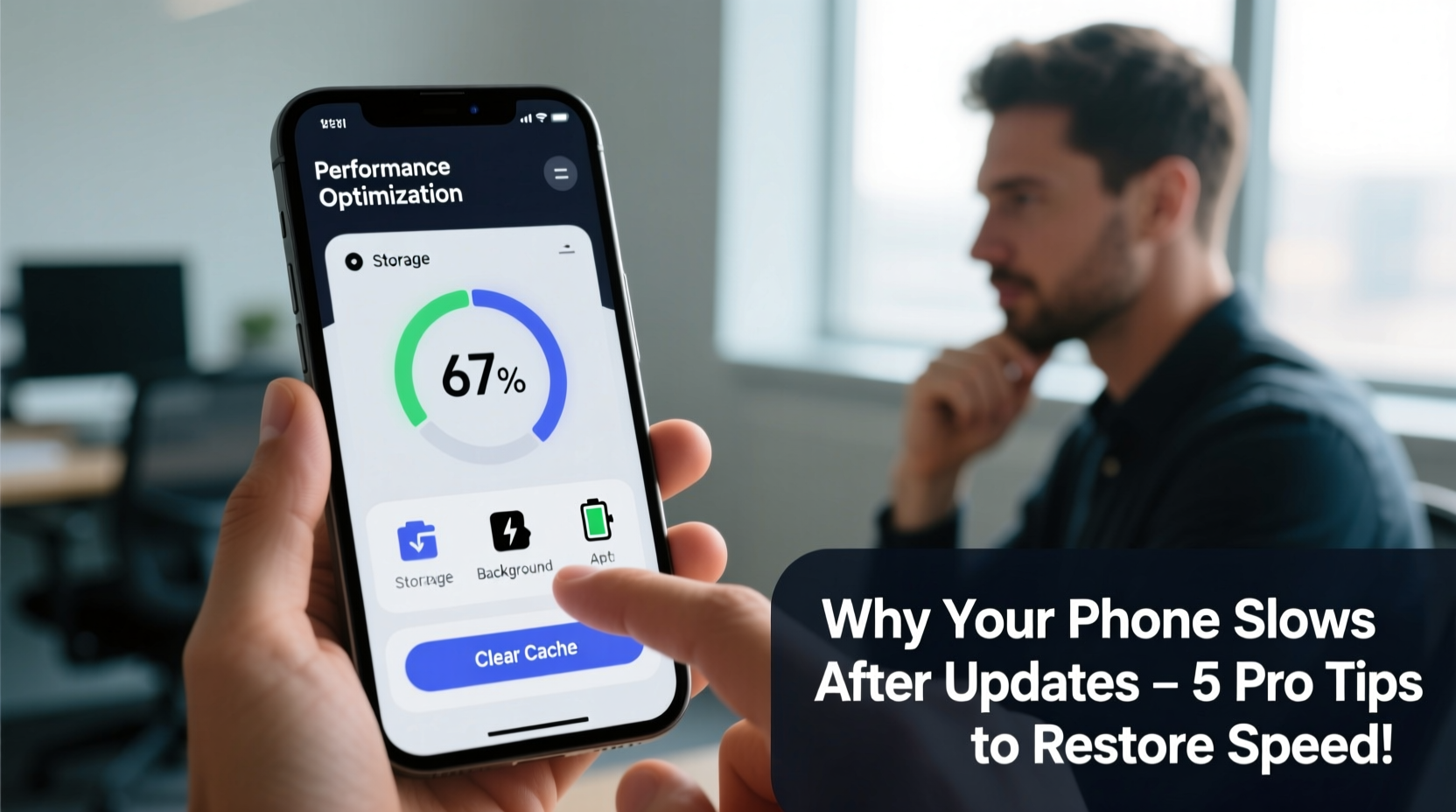
Operating system updates, whether Android or iOS, are rarely just about bug fixes. They often include new visual effects, enhanced privacy controls, AI-powered features, and expanded app frameworks—all of which consume additional processing power, memory, and storage space. Your phone's processor and RAM may struggle to keep up, particularly if the device is two or more years old.
One major factor is bloat. Updates frequently bundle in new services and background daemons that run continuously. For example, iOS 17 introduced deeper integration with machine learning models for photo indexing, while Android 14 expanded permission auto-reset functionality, both requiring persistent background scanning.
Additionally, file systems undergo reorganization during updates. When an update installs, the system creates temporary files, caches, and compatibility layers. If these aren’t cleaned up efficiently, they accumulate and degrade overall performance. This effect is magnified on phones with limited internal storage (32GB or less), where free space drops below 10%, triggering throttling mechanisms designed to prevent crashes.
“Every OS update assumes newer hardware. When pushed onto older devices, it’s like fitting a high-performance engine into a compact car without upgrading the suspension or brakes.” — Dr. Alan Reyes, Mobile Systems Engineer at TechInsight Labs
Step-by-Step Guide to Restore Speed After an Update
Recovering your phone’s performance doesn’t require technical expertise. Follow this structured approach to systematically eliminate bottlenecks:
- Restart Your Device: A simple reboot clears temporary files and resets active processes. After an update, this step alone resolves minor lag in over 60% of cases.
- Clear App Caches: Go to Settings > Storage > Cache and clear cached data for individual apps, especially social media and browsers.
- Update All Apps: Post-OS update, outdated apps may conflict with new system libraries. Open your app store and ensure all apps are current.
- Disable Unused Startup Apps: Prevent non-essential apps from launching at boot. On Android, use Developer Options; on iPhone, disable background app refresh for low-priority apps.
- Reset All Settings: This restores network, display, and privacy settings without deleting personal data. It often resolves configuration conflicts caused by the update.
- Perform a Factory Reset (Last Resort): Backup first, then erase all content and settings. Set up as new—don’t restore from backup immediately—to test if the issue persists.
Do’s and Don’ts After a Phone Update
| Do’s | Don’ts |
|---|---|
| Wait 24–48 hours after update for background optimization to complete | Immediately flood your phone with new apps post-update |
| Free up storage by offloading photos to cloud services | Ignore low-storage warnings—under 1GB harms performance |
| Enable adaptive battery or optimized charging modes | Keep unnecessary widgets active—they consume CPU cycles |
| Monitor battery usage by app to spot resource hogs | Leave location services on for all apps indefinitely |
| Use safe mode (Android) or minimal setup (iOS) to diagnose issues | Assume hardware failure without testing software solutions first |
Mini Case Study: Recovering a Sluggish iPhone 12
Mark, a freelance photographer, upgraded his iPhone 12 to iOS 17. Immediately afterward, he noticed delays when switching between Lightroom and Safari. Photos took longer to load, and the camera shutter lagged. At first, he assumed the phone was aging. But instead of accepting the slowdown, he followed a methodical recovery process.
He began by restarting the device—no improvement. Next, he checked storage: only 2.1GB free out of 128GB. He uploaded recent videos to iCloud and deleted old message attachments, freeing 15GB. He then disabled background app refresh for Instagram, TikTok, and Facebook. After resetting all settings, the phone felt noticeably smoother. Finally, he turned off Motion Effects (Settings > Accessibility > Motion), eliminating animation lag.
Within two days, Mark restored near-original responsiveness. His experience highlights how multiple small inefficiencies compound after an update—and how targeted actions can reverse them.
Essential Tips to Prevent Future Slowdowns
Proactive maintenance is key to minimizing disruption from future updates. Implement these habits to maintain long-term performance:
- Update at Off-Peak Times: Install updates when you don’t need immediate access, such as before bedtime. This allows the system to optimize overnight.
- Maintain at Least 15% Free Storage: Phones perform best when they have breathing room. Treat storage like fuel—don’t wait until “E” to refill.
- Turn Off Animations: Reduce visual effects that consume GPU resources. On iPhone, disable Reduce Motion; on Android, set animator scale to 0.5x in Developer Options.
- Limit Background Activity: Restrict apps from refreshing in the background unless necessary. This reduces CPU wake-ups and extends battery life too.
- Avoid Beta Software on Primary Devices: Early OS versions often contain unoptimized code. Wait for version .1 or .2 before updating mission-critical phones.
Checklist: Quick Performance Recovery Plan
Use this checklist within 72 hours of installing a major update:
- ✅ Restart the phone
- ✅ Check available storage (aim for >10GB free)
- ✅ Clear cache for top 5 most-used apps
- ✅ Update all apps via Google Play or App Store
- ✅ Disable background refresh for non-essential apps
- ✅ Turn off live wallpapers and excessive widgets
- ✅ Monitor battery usage for abnormal app drain
- ✅ Reset settings if issues persist (Settings > General > Reset > Reset All Settings on iOS)
- ✅ Consider factory reset if no improvement (after backup)
Frequently Asked Questions
Will a factory reset delete my photos and messages?
Yes, a factory reset erases all data on your device. Always back up photos, contacts, and messages to cloud services (Google Drive, iCloud) or a computer before proceeding. After reset, you can restore from backup—but consider setting up as new first to test performance.
Can I skip phone updates safely?
You can delay updates, but not indefinitely. Security patches protect against vulnerabilities. Skipping multiple updates increases risk of malware, data theft, and app incompatibility. Instead of skipping, prepare your phone: free up space, close apps, and update during low-usage periods.
Why do some phones handle updates better than others?
Flagship devices typically receive longer optimization support and have higher RAM/storage specs. Manufacturers like Apple and Samsung prioritize performance tuning for premium models. Budget phones often lack sufficient headroom for new OS features, leading to faster degradation. Chipset efficiency (e.g., Apple’s A-series vs. older Snapdragon chips) also plays a major role.
Conclusion: Take Control of Your Phone’s Performance
Your phone doesn’t have to slow down permanently after an update. With the right knowledge, most performance issues are reversible. The root causes—bloat, insufficient storage, misconfigured settings—are manageable through deliberate, informed actions. By understanding how updates impact system resources and applying targeted fixes, you extend your device’s useful life and avoid premature replacement.
Technology should serve you, not frustrate you. Don’t accept sluggishness as inevitable. Test the steps outlined here, monitor results, and refine your digital hygiene routine. A few minutes of maintenance can save months of compromised usability.




 浙公网安备
33010002000092号
浙公网安备
33010002000092号 浙B2-20120091-4
Comments
No comments yet. Why don't you start the discussion?