
If your phone keeps dropping its Wi-Fi connection at home, you're not alone. Millions of users experience this frustrating issue daily—streaming cuts out, video calls freeze, and downloads stall unexpectedly. While it may seem like a hardware flaw or a problem with your phone, the truth is that most Wi-Fi disconnections stem from easily correctable settings, environmental interference, or router behavior. The good news? With a few targeted adjustments, you can restore a stable, reliable connection without spending a dime on new equipment.
Wi-Fi instability isn't always about signal strength. Modern smartphones are designed to switch networks intelligently, but sometimes those automatic decisions backfire. From power-saving modes to outdated firmware, multiple factors can trigger intermittent disconnections. This guide walks through the root causes and delivers practical, tested solutions that work across Android and iOS devices.
Understanding Why Phones Drop Wi-Fi Connections
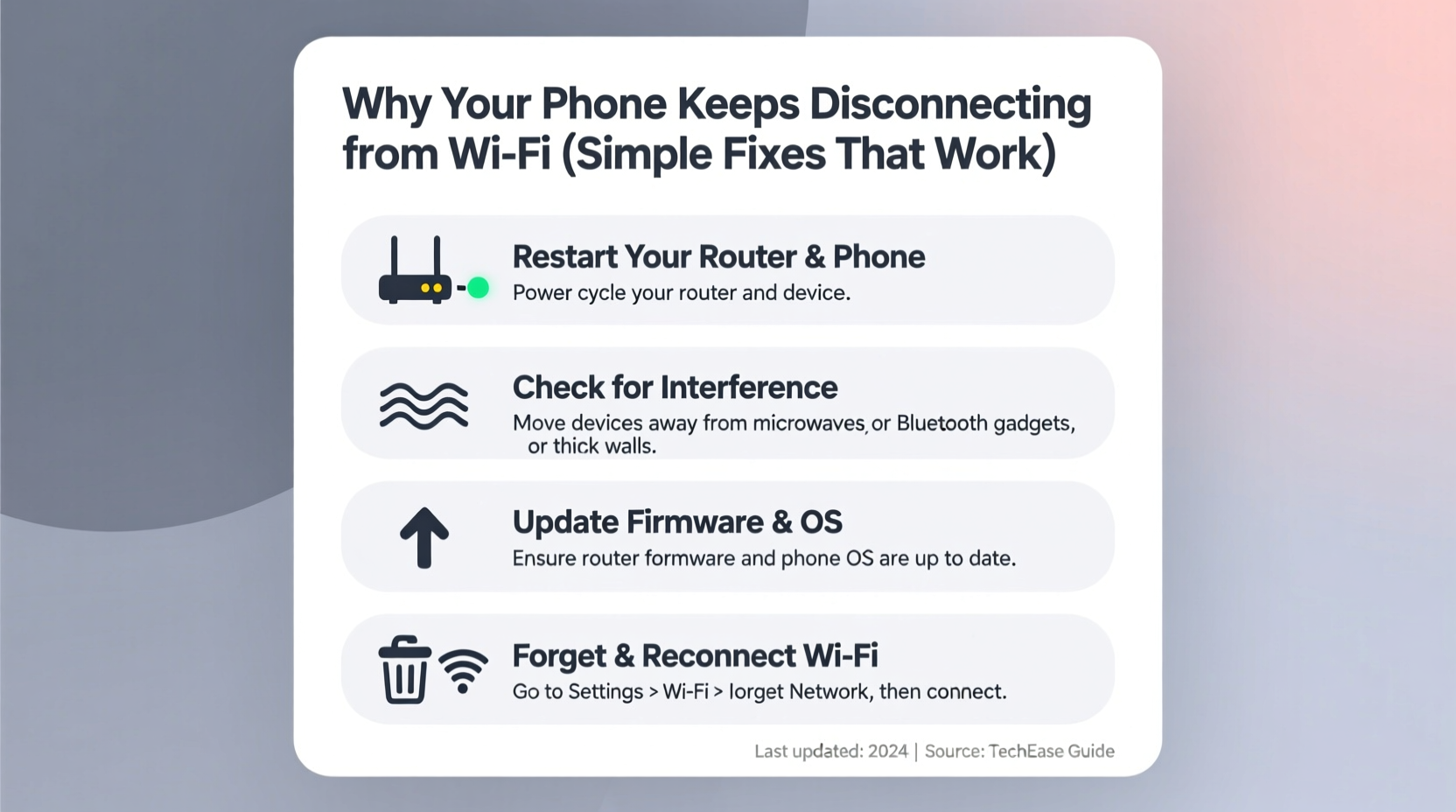
Before jumping into fixes, it helps to understand what’s happening behind the scenes. Your phone doesn’t just “lose” Wi-Fi randomly—it actively decides to disconnect based on network performance, device settings, or physical interference. Common triggers include:
- Weak signal strength: Distance from the router or thick walls can degrade connectivity.
- Network congestion: Too many devices using the same band (especially 2.4 GHz) cause interference.
- Router firmware bugs: Outdated software can lead to inconsistent client management.
- Phone power-saving features: Aggressive battery optimization may disable Wi-Fi when idle.
- IP address conflicts: Duplicate addresses on the network force disconnections.
- Auto-switching between bands: Dual-band routers may mismanage handoffs between 2.4 GHz and 5 GHz.
“Most Wi-Fi issues aren’t with the phone or the router alone—they’re in how the two communicate. Small configuration changes often resolve 90% of dropouts.” — Rajiv Mehta, Network Systems Engineer at NetSecure Labs
Step-by-Step Guide to Restore Stable Wi-Fi
Follow this structured troubleshooting process to identify and eliminate the cause of your disconnections. Start from the top and work down—each step builds on the last.
- Reboot your phone and router. A soft reset clears temporary glitches. Unplug your router for 30 seconds, then restart both devices.
- Check for obstructions. Move closer to the router. Avoid placing phones near microwaves, cordless phones, or metal objects that interfere with signals.
- Forget and rejoin the network. On your phone, go to Wi-Fi settings, tap your network, and select “Forget.” Then reconnect by entering the password again.
- Disable Wi-Fi auto-switching. On Android: Settings > Wi-Fi > Advanced > Switch to mobile data (turn off). On iPhone: Settings > Wi-Fi > Tap “i” next to network > Auto-Join (enable), and toggle off “Ask to Join Networks.”
- Assign a static IP address. Prevents IP conflicts. In Wi-Fi settings, change IP from DHCP to Static and manually assign an address outside the router’s DHCP range (e.g., 192.168.1.100 if the range is .10–.50).
- Update your phone’s OS and router firmware. Check for system updates on your phone. For the router, log into its admin panel (usually 192.168.1.1) and look for firmware updates.
- Change the router’s channel. Use a Wi-Fi analyzer app to find the least congested 2.4 GHz channel (preferably 1, 6, or 11) and set it manually in the router settings.
Common Fixes That Actually Work
Some solutions are more effective than others. Below are the most reliable fixes reported by users and verified through technical testing.
Turn Off Wi-Fi Power Saving Mode
Phones often reduce Wi-Fi activity to save battery. This can cause the radio to sleep too deeply, missing network pings.
- Android: Settings > Battery > Battery Optimization > Select your Wi-Fi app or system UI > Don’t optimize.
- iOS: Settings > Wi-Fi > Enable “Low Data Mode” only if needed; otherwise, ensure Background App Refresh is on for critical apps.
Use 5 GHz Instead of 2.4 GHz
The 5 GHz band is faster and less prone to interference from household appliances. However, it has shorter range. If you're near the router, connect to 5 GHz. Many dual-band routers broadcast separate SSIDs (e.g., “HomeNet-2G” and “HomeNet-5G”). Manually connect to the 5 GHz version.
Enable Router QoS (Quality of Service)
QoS prioritizes traffic for important devices. In your router settings, assign higher priority to your phone’s MAC address. This prevents bandwidth hogs (like smart TVs) from starving your phone’s connection.
Reduce Network Overload
Too many connected devices strain the router. Disconnect unused gadgets—old tablets, IoT sensors, or guest phones. Consider setting up a guest network for visitors to reduce load on your primary network.
| Issue | Quick Fix | Effectiveness |
|---|---|---|
| Intermittent drops | Forget & rejoin network | High |
| Battery optimization cutting Wi-Fi | Disable Wi-Fi sleep mode | Very High |
| Slow speeds with frequent disconnects | Switch to 5 GHz band | High (if within range) |
| Multiple devices causing lag | Enable QoS or limit connections | Moderate to High |
| Router freezing every few hours | Update firmware or replace if outdated | Critical |
Real Example: How Sarah Fixed Her Nighttime Disconnections
Sarah, a remote worker in Austin, noticed her iPhone kept losing Wi-Fi every evening around 7 PM. Video calls would freeze, and messages failed to send. She tried restarting her phone repeatedly, but the issue returned daily.
After checking her router logs, she discovered that her smart TV and son’s gaming console were coming online simultaneously, overwhelming the 2.4 GHz band. Using the Wi-Fi Analyzer app, she found her network was on Channel 6, shared by three neighbors. She changed her router to Channel 1 and renamed her 5 GHz network so her phone could prioritize it. She also disabled “Wi-Fi Assist” on her iPhone, which was switching to cellular data unnecessarily.
Within a day, her disconnections stopped. “I didn’t realize how much other devices affected my phone,” she said. “Now my Wi-Fi is rock solid—even during family movie night.”
Essential Checklist: Fix Wi-Fi Disconnects in Under 20 Minutes
Use this checklist to quickly diagnose and resolve your issue:
- ✅ Reboot your phone and router
- ✅ Move closer to the router to test signal stability
- ✅ Forget the Wi-Fi network and reconnect
- ✅ Disable Wi-Fi auto-switch to mobile data (Android) or Wi-Fi Assist (iOS)
- ✅ Turn off battery optimization for Wi-Fi services
- ✅ Connect to the 5 GHz band if available and within range
- ✅ Update your phone’s operating system
- ✅ Log into your router and check for firmware updates
- ✅ Change the Wi-Fi channel to a less crowded one (use an analyzer app)
- ✅ Assign a static IP to your phone to prevent conflicts
Frequently Asked Questions
Why does my phone disconnect from Wi-Fi when locked?
This is typically due to aggressive power-saving settings. When the screen turns off, the phone may put the Wi-Fi radio to sleep. To fix this, disable Wi-Fi sleep on Android (in advanced Wi-Fi settings) or turn off Low Power Mode on iPhone if it’s interfering. Also, ensure “Keep Wi-Fi on during sleep” is enabled.
Does a factory reset fix Wi-Fi issues?
Sometimes—but it should be a last resort. A factory reset wipes all settings and apps, which can eliminate deep software conflicts. However, try all other fixes first. If you do reset, back up your data and reconfigure Wi-Fi carefully afterward.
Can a bad router cause only my phone to disconnect?
Yes. Routers manage each connected device individually. If your phone uses an older Wi-Fi standard (like 802.11n) and the router prioritizes newer ones (like 802.11ac), it might deprioritize or time out your device. Updating the router’s firmware or adjusting client management settings often resolves this.
Final Thoughts: Take Control of Your Connection
Wi-Fi disconnections don’t have to be a daily annoyance. Most issues stem from small, overlooked settings rather than broken hardware. By understanding how your phone and router interact, you gain the power to create a seamless, stable connection. The fixes outlined here require no technical degree—just patience and a methodical approach.
Start with the basics: reboot, forget the network, and disable power-saving features. Then move to advanced steps like static IPs and channel optimization. Keep your devices updated, minimize interference, and monitor usage patterns. Over time, you’ll develop a sense of what works best for your home setup.




 浙公网安备
33010002000092号
浙公网安备
33010002000092号 浙B2-20120091-4
Comments
No comments yet. Why don't you start the discussion?