
If you've noticed your phone playing the same notification sound twice in quick succession, you're not imagining things — and you're definitely not alone. This peculiar issue affects both Android and iOS users, often without any obvious cause. The double chime can be distracting, especially during work or late at night, and may even make you think a message was sent twice. The good news is that this problem is usually not hardware-related but stems from software settings, app behaviors, or system-level conflicts. With a few targeted adjustments, most users can eliminate the echo effect permanently.
The root of the issue lies in how modern smartphones manage notifications across multiple layers: operating system alerts, individual app settings, accessibility features, and sometimes third-party apps. When these systems overlap or misfire, they can trigger the same sound more than once. Understanding where and why this duplication occurs is key to fixing it efficiently.
Common Causes of Double Notification Sounds
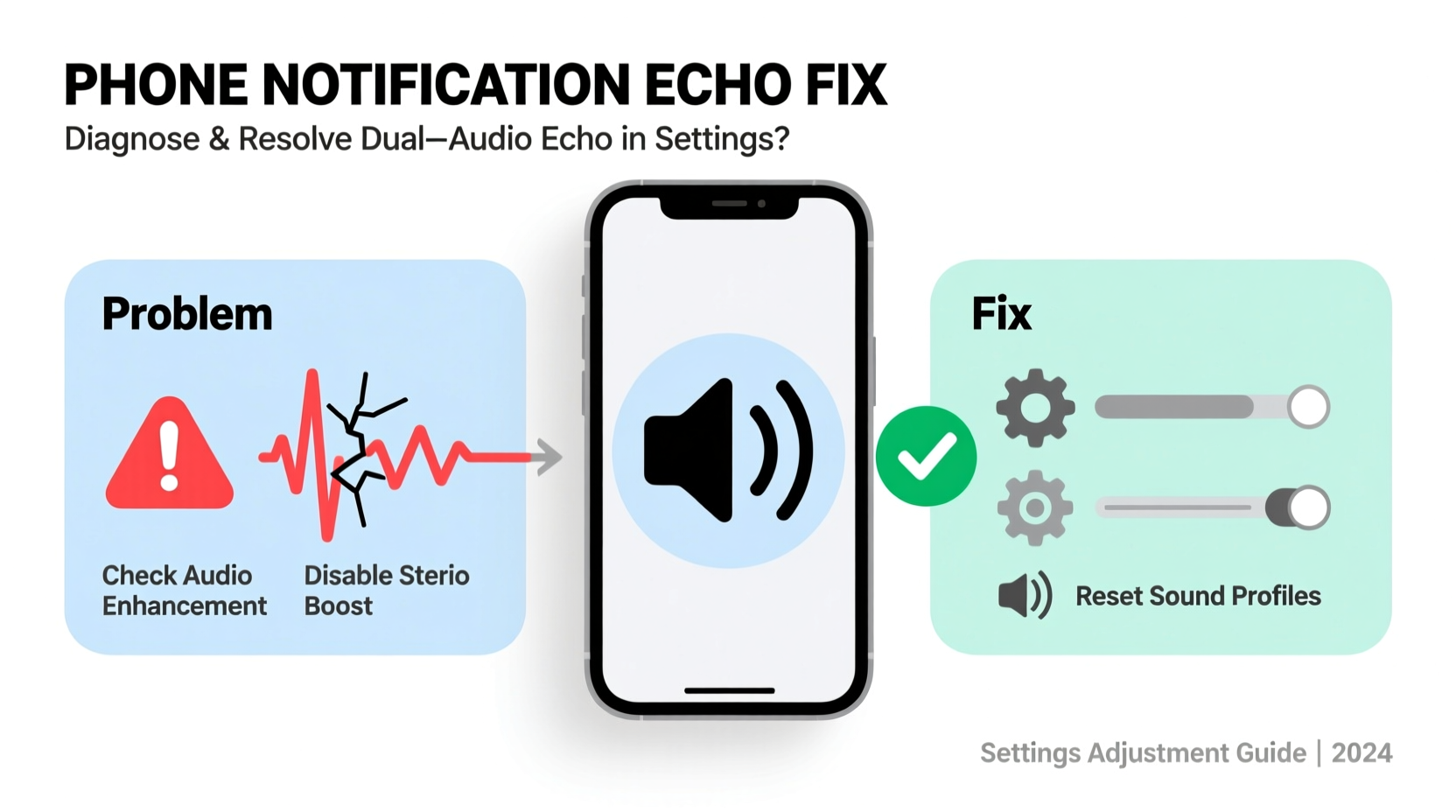
The phenomenon of a notification sound echoing twice isn't random. It typically results from one or more of the following technical triggers:
- Duplicate alert systems: Some apps send both a push notification and an SMS or email alert, each with its own sound.
- Accessibility features: Features like “Sound Amplifier” (Android) or “LED Flash for Alerts” (iOS) can inadvertently trigger secondary audio cues.
- App-specific notification channels: On Android, apps can create multiple notification categories, each with independent sound settings.
- Third-party messaging apps: Apps like WhatsApp, Messenger, or Telegram might sync notifications with default SMS apps, causing overlap.
- System bugs after updates: OS updates occasionally reset or duplicate notification preferences.
- Buggy firmware or manufacturer skins: Samsung, Xiaomi, and other brands layer custom software over Android, which can introduce glitches.
While frustrating, none of these are permanent issues. Most can be resolved through careful inspection of your device’s notification architecture.
Step-by-Step Fix: Android Devices
Android's open notification system offers flexibility but increases the risk of duplication. Follow this sequence to isolate and resolve the issue:
- Check App Notification Channels
Go to Settings > Apps & Notifications > [App Name] > Notifications. Look for multiple active channels (e.g., \"Messages,\" \"Promotions,\" \"Reminders\"). Disable any that play sounds unnecessarily. - Disable Duplicate Messaging Apps
If you use both SMS and a third-party app (like Google Messages and WhatsApp), ensure only one is set as default. Go to Settings > Apps > Default Apps > SMS App and select just one. - Turn Off Sound Amplifier or Audio Effects
Navigate to Settings > Accessibility > Hearing Enhancements. Disable “Sound Amplifier,” “Mono Audio,” or “Live Transcribe” if enabled. - Clear Cache for Messaging Apps
In Settings > Apps > [App Name] > Storage, tap “Clear Cache.” This resets temporary data that might be triggering duplicate alerts. - Update or Reinstall Problematic Apps
Outdated apps may have known bugs. Visit the Google Play Store, update all messaging apps, or uninstall and reinstall them if the issue persists. - Check Dual SIM Settings
If using dual SIM, ensure both lines aren’t set to alert for the same app. Go to Settings > Network & Internet > SIMs and review notification permissions per line.
Manufacturer-Specific Fixes
Brands like Samsung and Xiaomi add extra layers that can contribute to the issue:
- Samsung: Disable “Bixby Routines” if set to play sounds on notification arrival.
- Xiaomi: In MIUI, go to Settings > Notifications & Control Center > App Notification and disable “Floating Notifications” or “Lock Screen Notifications” if duplicated.
- OnePlus/Oppo: Check “Zen Mode” or “Do Not Disturb” exceptions — misconfigured rules can replay alerts.
iOS Fix: Why iPhone Notifications Play Twice
iOS is generally more consistent, but double notification sounds still occur — particularly when syncing across Apple devices or due to Mail/Message configurations.
- Disable iMessage Forwarding Conflicts
If you receive texts on iPhone and Mac/iPad simultaneously, the same alert may play on multiple devices. Go to Settings > Messages > Text Message Forwarding and disable devices you don’t need. - Check Email Push Settings
Multiple accounts (Gmail, Outlook, iCloud) may alert for the same message. Open Settings > Mail > Accounts, then adjust fetch schedules under “Fetch New Data.” Set non-priority accounts to “Manual” fetch. - Review Notification Styles Per App
Tap Settings > Notifications > [App]. Ensure “Sounds” is enabled only once. Avoid enabling both “Lock Screen” and “Notification Center” if they trigger separate chimes. - Turn Off Haptic Feedback Echo
Some users report that “Haptic Alerts” combined with sound create a perceived echo. Try disabling Settings > Sounds & Haptics > System Haptics. - Reset All Settings
As a last resort, go to Settings > General > Transfer or Reset iPhone > Reset > Reset All Settings. This clears notification preferences without deleting data.
“Duplicate notification sounds are rarely a hardware flaw. They’re almost always a configuration conflict between apps or system services.” — David Lin, Mobile Software Engineer at a leading Android OEM
Checklist: How to Stop Double Notification Sounds
- ✅ Audit all notification channels in your main apps (Messaging, Email, Social Media)
- ✅ Disable redundant accessibility features (Sound Amplifier, Live Transcribe)
- ✅ Confirm only one SMS app is set as default (Android)
- ✅ Turn off notification mirroring across devices (iCloud, Samsung Flow, etc.)
- ✅ Update all apps and OS to latest version
- ✅ Clear cache for messaging apps (Android)
- ✅ Test by sending yourself a message or email
Real Example: Sarah’s Samsung Galaxy S23 Fix
Sarah, a project manager in Chicago, began receiving double pings every time she got a text. At first, she thought her colleagues were accidentally resending messages. After ruling that out, she noticed the echo only happened with SMS — not WhatsApp or Slack.
She followed the steps above and discovered that her Samsung Messages app had two active notification channels: “Default” and “Spam Prevention Alerts.” Both were set to play the same ringtone. She disabled sound on the latter. Additionally, she found that “Bixby Routines” was configured to announce new messages aloud, creating a secondary chime.
After turning off Bixby’s voice response and muting the spam channel, the double sound stopped immediately. A simple fix saved her from constant distraction during client calls.
Comparison Table: Do’s and Don’ts for Fixing Echoing Notifications
| Action | Do | Don’t |
|---|---|---|
| Managing App Sounds | Customize sounds per notification channel | Enable sound on every sub-channel |
| Using Accessibility Tools | Use mono audio or amplifiers only if needed | Leave experimental features enabled indefinitely |
| Device Syncing | Sync notifications selectively across devices | Allow all devices to alert for same message |
| Software Updates | Install updates promptly | Ignore repeated bug reports from other users |
| Troubleshooting | Test fixes incrementally | Reset phone immediately without diagnosis |
Frequently Asked Questions
Can a virus cause my phone to play notification sounds twice?
No credible malware causes double notification sounds. This behavior is almost always due to settings, app conflicts, or system bugs. However, if you notice unusual battery drain or pop-ups alongside the sound issue, run a security scan using Google Play Protect (Android) or install a trusted iOS antivirus tool.
Why do only certain apps trigger the double sound?
This usually means those apps have multiple active notification categories or are syncing with another service. For example, Gmail might alert once for IMAP and again via Google Chat integration. Review the app’s notification settings individually to identify overlapping alerts.
Will resetting my phone fix the double notification issue?
A full factory reset will likely fix it, but it’s excessive and unnecessary. Start with targeted fixes like clearing app cache or adjusting notification channels. Reserve a reset only if all else fails and you’ve ruled out third-party app interference.
Conclusion: Silence the Echo for Good
The annoyance of a double notification sound is understandable — it disrupts focus and creates false urgency. But as we’ve seen, the solution doesn’t require technical expertise or costly repairs. By methodically reviewing your app settings, disabling redundant features, and understanding how your OS handles alerts, you can restore clean, single-tone notifications.
Start with the checklist provided, test one fix at a time, and document what works. Most users resolve the issue within 15 minutes. Once fixed, consider setting up a monthly review of your notification preferences to prevent future clutter. Your phone should inform you — not interrupt you.




 浙公网安备
33010002000092号
浙公网安备
33010002000092号 浙B2-20120091-4
Comments
No comments yet. Why don't you start the discussion?