
It’s a familiar scenario: you’re relying on Google Maps for turn-by-turn directions, perhaps during a long road trip or while navigating an unfamiliar city. Suddenly, your phone grows uncomfortably warm—sometimes hot enough to make you worry about battery life or hardware damage. This isn’t just a minor annoyance; sustained overheating can degrade your device’s performance and lifespan. So why does this happen? And more importantly, what can you do about it?
The truth is, Google Maps navigation pushes multiple systems in your smartphone to work simultaneously at high intensity. While the app itself is efficient, the underlying processes it triggers are inherently demanding. Understanding these demands—and how to manage them—can help you avoid excessive heat buildup and keep your phone functioning smoothly.
How Navigation Tasks Strain Your Phone’s Hardware
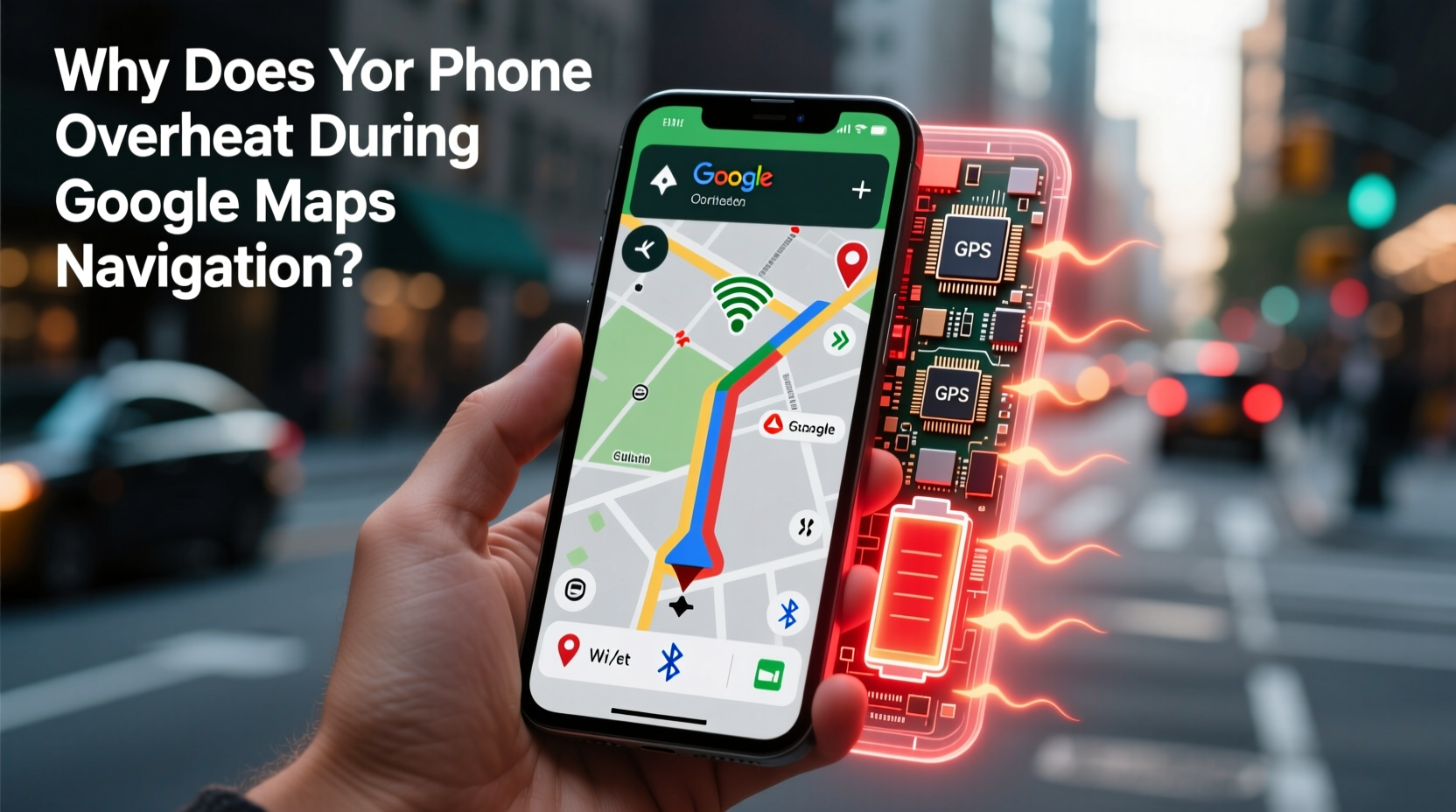
When you launch Google Maps for navigation, your phone activates several resource-intensive components all at once. Unlike passive apps that merely display information, navigation requires continuous real-time data processing across multiple subsystems:
- GPS (Global Positioning System): Constantly triangulates your position using satellite signals, which requires sustained power from the radio processor.
- Cellular Data & Wi-Fi: Downloads live traffic updates, reroutes based on congestion, and streams map tiles—all requiring active network connectivity.
- Screen Display: The screen remains bright and active for extended periods, especially if auto-brightness is disabled or set high.
- Processor (CPU/GPU): Renders 3D views, calculates routes, processes voice commands, and animates transitions in real time.
- Sensors: Accelerometer, gyroscope, and magnetometer feed data to improve location accuracy indoors or in tunnels.
Each of these components generates heat individually. When operating together continuously—as they do during navigation—the cumulative thermal output can overwhelm your phone’s passive cooling system.
Environmental and Usage Factors That Worsen Overheating
Hardware strain alone doesn’t tell the whole story. External conditions and user behavior significantly influence how quickly a phone heats up.
Ambient Temperature and Sunlight Exposure
Using your phone in a hot car—especially during summer—creates a perfect storm. Dashboard-mounted phones absorb direct sunlight, raising surface temperatures well above safe operating levels. Even moderate outdoor temperatures (above 30°C / 86°F) can impair thermal regulation when combined with internal heat generation.
Poor Ventilation Due to Cases or Mounts
Thick silicone or leather cases trap heat instead of allowing dissipation. Similarly, tightly enclosed car mounts limit airflow around the device. Phones rely on passive cooling through conduction and radiation; blocking these pathways leads to faster temperature rise.
Battery Age and Health Degradation
As lithium-ion batteries age, their internal resistance increases. This inefficiency causes them to generate more heat during both charging and high-power usage. A phone with less than 80% battery health will typically run hotter under the same workload compared to a newer device.
“Smartphones aren’t designed to sustain peak performance indefinitely. Prolonged navigation without breaks forces components into thermal throttling, which degrades user experience.” — Dr. Rajiv Mehta, Mobile Systems Engineer at MIT Media Lab
Do’s and Don’ts: Managing Heat During Navigation
| Do’s | Don’ts |
|---|---|
| Use airplane mode if offline maps are sufficient | Leave the phone in direct sunlight |
| Remove thick protective cases during long drives | Run other GPS-heavy apps simultaneously (e.g., fitness trackers) |
| Lower screen brightness manually | Charge the phone aggressively while navigating |
| Take short breaks every 60–90 minutes to let the phone cool | Ignore persistent overheating warnings |
| Download offline maps in advance | Use fast chargers during navigation |
Step-by-Step Guide to Prevent Overheating During Navigation
Follow this sequence before and during navigation to minimize heat accumulation and maintain optimal performance.
- Download Offline Maps: Open Google Maps, search for your destination area, tap the location name, and select “Download” to save the region. This reduces reliance on constant data streaming.
- Close Background Apps: Swipe away unnecessary apps from recent tasks to free RAM and reduce CPU contention.
- Adjust Screen Settings: Lower brightness to 50% or below and disable adaptive brightness to prevent sudden spikes in power draw.
- Remove Phone Case: Take off insulating cases, particularly those made of rubber or thick plastic.
- Position Away from Direct Sunlight: Use a vent mount or shade-mounted bracket instead of placing the phone on the dashboard.
- Disable Unnecessary Features: Turn off Bluetooth, hotspot, and Wi-Fi if not needed. Enable only cellular data for essential updates.
- Enable Battery Saver Mode: On Android, go to Settings > Battery > Battery Saver. On iPhone, enable Low Power Mode. This limits background activity and processor speed.
- Monitor Temperature: If the screen dims unexpectedly or displays a warning like “Temperature too high,” pause navigation immediately.
- Allow Cooling Breaks: Stop using the phone for 10–15 minutes every hour during extended trips to allow natural cooldown.
- Avoid Charging Mid-Use: If possible, delay charging until after your journey. Charging + navigation doubles thermal stress.
Real-World Example: A Commuter’s Experience
Consider Sarah, a daily commuter driving 90 minutes each way between her home in suburban Denver and downtown Boulder. She noticed her Pixel 6 frequently shut down during winter commutes despite cold outside temperatures. After investigating, she realized the issue wasn’t ambient cold but rather poor ventilation: her phone was encased in a rugged OtterBox and mounted directly on the heated dashboard.
The combination of internal processing heat, solar gain through the windshield, and restricted airflow caused internal temperatures to spike. By switching to a lighter case, downloading offline maps, and relocating the mount to the air vent, she reduced average operating temperature by nearly 12°C (22°F). Her phone no longer triggered thermal warnings, and battery drain decreased by 30%.
Frequently Asked Questions
Can overheating permanently damage my phone?
Yes. Repeated exposure to high temperatures accelerates battery degradation, reduces storage lifespan, and may cause temporary shutdowns or permanent component failure. Lithium-ion batteries begin degrading faster above 35°C (95°F), and sustained operation above 45°C (113°F) poses serious risks.
Does using Google Maps in walking mode also cause overheating?
Less so than driving navigation. Walking mode typically uses lower screen brightness, shorter session durations, and less frequent route recalculations. However, prolonged use—such as hiking with GPS tracking—can still generate noticeable heat, especially in direct sunlight.
Is it safer to use another navigation app instead?
Most major navigation apps (Apple Maps, Waze, Here WeGo) impose similar hardware demands. The difference lies in optimization. For example, Waze includes social features that increase data usage, potentially generating more heat. Google Maps offers better offline support, which can actually reduce thermal load when used correctly.
Optimizing App Settings for Cooler Performance
Google Maps includes built-in settings that, when adjusted, can significantly reduce system load:
- Turn Off Live View: Augmented reality navigation consumes extra GPU and camera resources. Disable it via Settings > Navigation Settings > AR Guidance.
- Limit Voice Prompts: Reduce frequency of verbal instructions to decrease audio processing cycles.
- Disable Traffic Alerts: If you're on a predictable route, turning off real-time traffic updates cuts down on background data polling.
- Use 2D Map View: Switch from 3D or Satellite view to standard 2D mode to reduce graphical rendering demands.
Additionally, enabling “Battery-Powered Navigation” in Google Maps (available on some Android devices) automatically adjusts routing frequency and sensor usage when battery drops below 20%, helping manage both energy consumption and heat production.
Long-Term Device Care Strategies
Preventing overheating isn’t just about immediate fixes—it’s also about cultivating habits that extend your phone’s health over time.
- Regular Software Updates: OS and app updates often include thermal management improvements and efficiency optimizations.
- Battery Health Monitoring: Check battery health monthly (via Settings or third-party tools). Replace the battery if capacity falls below 80%.
- Cool Storage Habits: Never leave your phone in a parked vehicle, even for short periods. Interior temperatures can exceed 70°C (158°F) on sunny days.
- Use Efficient Chargers: Avoid cheap or uncertified chargers that may deliver unstable current, increasing resistive heating.
“Modern smartphones balance performance and safety, but users must respect thermal limits. Think of your phone like a sports car—it’s built for bursts of power, not endless redline operation.” — Lin Zhao, Senior Product Manager at Qualcomm
Conclusion: Navigate Smarter, Not Harder
Your phone heating up during Google Maps navigation is common—but not inevitable. By understanding the technical demands of GPS, screen usage, and real-time data processing, you can take proactive steps to mitigate heat buildup. Simple changes like removing bulky cases, downloading offline maps, and avoiding direct sunlight make a measurable difference.
More than just comfort, managing temperature protects your device’s longevity and reliability. In extreme cases, unchecked overheating can lead to automatic shutdowns, reduced battery life, or irreversible hardware issues. But with mindful usage and smart preparation, you can enjoy seamless navigation without sacrificing your phone’s health.




 浙公网安备
33010002000092号
浙公网安备
33010002000092号 浙B2-20120091-4
Comments
No comments yet. Why don't you start the discussion?