
Many smartphone users have noticed a persistent yellow or warm tint on their screens during evening hours—even after turning off night mode. This can be frustrating, especially when you're trying to view photos, read content, or watch videos with accurate color representation. The issue often stems from overlapping features designed to reduce blue light exposure, but which may not always respond as expected when toggled. Understanding the root causes and learning how to fully disable these functions is key to restoring a natural, balanced display.
The yellowish hue is typically intentional—part of a broader effort by manufacturers to promote better sleep hygiene by reducing blue light emissions in the evening. However, when these settings don’t turn off cleanly or are triggered by secondary systems, they can create confusion. This article breaks down exactly why your screen appears yellow at night, explores hidden settings that might still be active, and provides a comprehensive guide to regaining full control over your display’s appearance.
Understanding Blue Light Reduction and Color Temperature
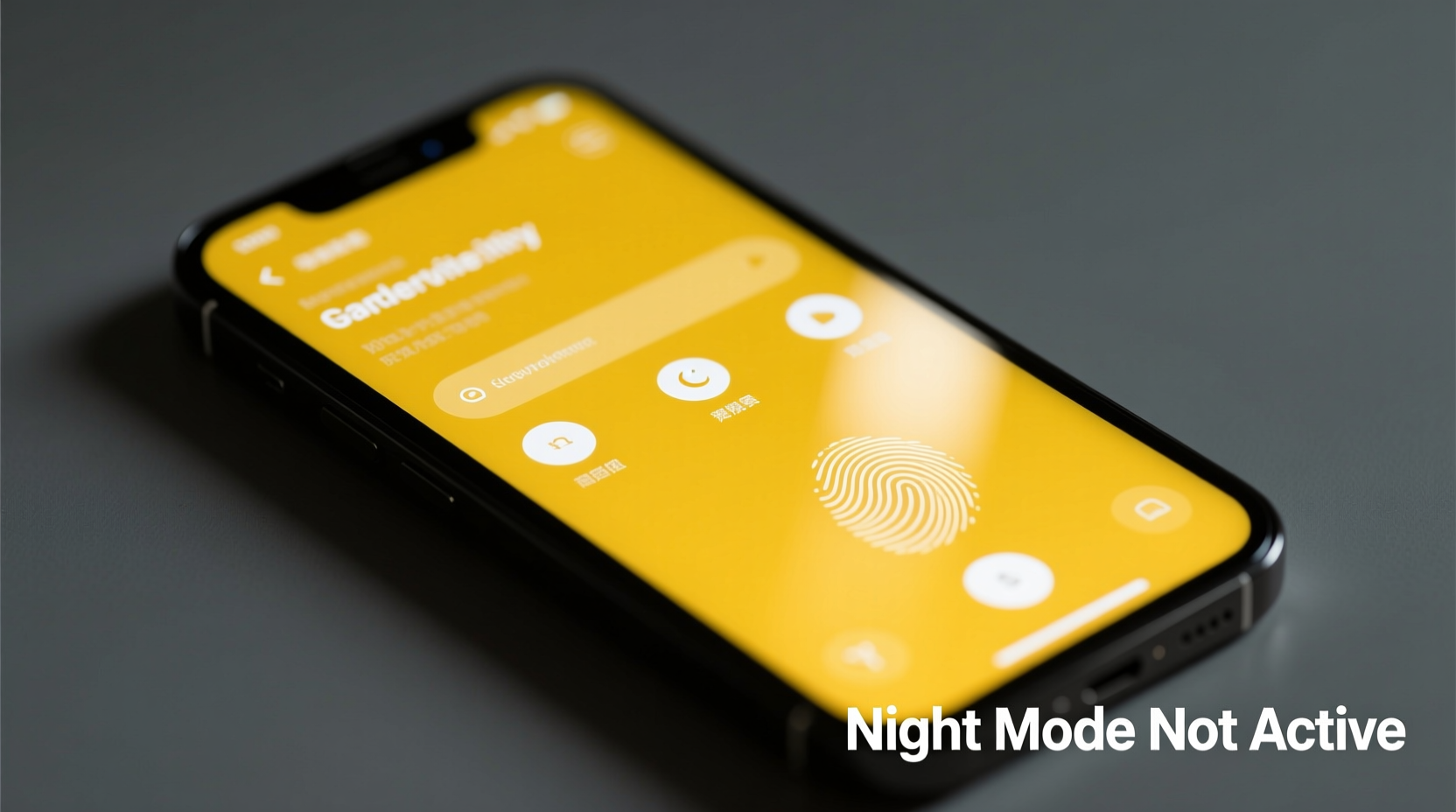
Modern smartphones use adaptive display technologies that adjust screen characteristics based on time of day, ambient lighting, and user habits. One major component of this system is blue light reduction, commonly known as \"night mode,\" \"warm mode,\" or \"blue light filter.\" These features shift the color temperature of the screen toward the warmer (more yellow/red) end of the spectrum.
Blue light, particularly in the 400–500 nm wavelength range, has been shown in studies to interfere with melatonin production—the hormone responsible for regulating sleep. As a result, tech companies integrated software solutions to minimize evening exposure. Apple calls this feature “Night Shift,” while Android devices use names like “Night Light” or “Blue Light Filter.”
However, simply disabling these modes through the quick settings panel doesn’t always restore the screen to its original state. Why? Because multiple layers of automation and synchronization may still be influencing the display behind the scenes.
“Even when night mode appears off, background services or scheduled routines can re-enable warmth filters without visible notification.” — Dr. Lena Patel, Display Systems Researcher at MobileTech Insights
Hidden Settings That Keep Your Screen Yellow
Disabling night mode from the notification shade or display menu may seem sufficient, but several underlying settings can override your preference:
- Scheduled Activation: Many phones automatically reactivate night mode based on sunset-to-sunrise timing pulled from your location data. Even if you manually disable it, it will return at dusk unless the schedule is adjusted or turned off completely.
- Adaptive Brightness & Display Tuning: Some devices include AI-driven display optimization that subtly warms the screen in low-light environments regardless of night mode status.
- Third-Party Apps: Applications like f.lux, Twilight, or reading apps with built-in filters can run independently and apply overlays that mimic night mode.
- Dark Mode Integration: On certain Android skins (e.g., Samsung One UI), enabling dark mode can trigger accompanying color shifts that persist beyond intended functionality.
- Accessibility Features: Options such as “Color Correction” or “Display Comfort” (available on some Samsung and Google Pixel devices) include warmth adjustments tied to circadian rhythms.
Step-by-Step Guide to Fully Disable Night Mode and Restore Natural Colors
To ensure your phone screen no longer turns yellow at night, follow this detailed sequence. These steps cover iOS and Android platforms comprehensively.
- Open Display Settings: Navigate to Settings > Display (Android) or Settings > Display & Brightness (iOS).
- Locate Night Mode Function:
- iOS: Tap “Night Shift” and verify it's set to “Off.”
- Android: Look for “Night Light,” “Blue Light Filter,” or similar under display options.
- Disable Scheduling: Within the night mode settings, check the schedule option. Change it from “Sunset to Sunrise” or “Custom Schedule” to “Never” or “Off.”
- Reset Color Intensity: If there's a warmth adjustment slider (common on Android), drag it all the way to the left (cooler side) to eliminate residual yellow tones.
- Review Accessibility Settings: Go to Settings > Accessibility > Display & Text Size (iOS) or Settings > Accessibility > Vision (Android). Disable any features labeled “Color Filters,” “Display Comfort,” or “Reduce White Point” if enabled.
- Check for Third-Party Apps: Open your app drawer and look for tools like f.lux, Twilight, or e-ink simulators. Uninstall or disable them if running in the background.
- Restart Your Device: After making changes, reboot your phone to clear any cached display states that might be maintaining the old color profile.
- Test Screen Appearance: View a white webpage or photo in a dim room. The background should appear neutral—not yellow, pink, or overly blue.
Troubleshooting Persistent Warmth
If the screen remains yellow after completing the above steps, consider:
- Using a calibration tool within developer options (on Android) to reset color balance.
- Checking for firmware updates—some bugs related to night mode persistence are resolved in OS patches.
- Resetting display settings to default (often found under “Display > Advanced > Reset” on Samsung devices).
Comparison: Automatic vs. Manual Control Over Screen Temperature
| Feature | Automatic Mode | Manual Mode |
|---|---|---|
| Activation | Begins at sunset or low ambient light | Only when user enables it |
| Control Level | Limited; follows algorithm | Full user control over intensity and timing |
| Consistency | May conflict with manual preferences | Stable once configured |
| Best For | Users prioritizing eye comfort and sleep | Content creators, photographers, or those needing true color accuracy |
| Risk of Residual Tint | High—if not fully disabled | Low—if properly managed |
Real Example: Sarah’s Late-Night Editing Problem
Sarah, a freelance graphic designer, began noticing that her iPhone displayed images with an odd yellow cast every evening. She would edit client logos expecting crisp whites, only to receive complaints the next morning about incorrect color rendering. Initially, she assumed it was a hardware defect or aging OLED panel.
After testing her files on other devices, she realized the issue was isolated to her phone. Digging into settings, she found that although Night Shift was turned off in the Control Center, it was still set to activate automatically from sunset to sunrise under Settings > Display & Brightness > Night Shift. Additionally, the “Color Temperature” slider was skewed toward warm, leaving a faint tint even during brief activations.
By disabling the schedule, resetting the slider, and turning off “Auto-Brightness” temporarily for color-critical work, Sarah restored accurate screen output. She now keeps Night Shift off entirely during project deadlines and only enables it manually for casual browsing.
Comprehensive Checklist: Eliminate Unwanted Yellow Tint
Use this checklist to systematically eliminate all possible sources of unwanted screen warming:
- ☐ Turn off Night Shift / Night Light in display settings
- ☐ Set night mode schedule to “Never” or “Off”
- ☐ Adjust warmth slider to coolest setting
- ☐ Disable “Color Filters” in Accessibility settings
- ☐ Turn off “Display Comfort” or “Eye Comfort Shield” (if available)
- ☐ Close or uninstall third-party blue light filtering apps
- ☐ Disable adaptive brightness if causing inconsistent color shifts
- ☐ Restart the device after changes
- ☐ Verify screen neutrality using a white background test
- ☐ Update operating system to latest version
Frequently Asked Questions
Does disabling night mode affect battery life?
No, night mode does not significantly impact battery consumption. The color shift involves software-level pixel adjustments rather than changes in power draw. On OLED screens, darker themes save more energy than color temperature settings.
Why does my screen look yellow even when night mode is off and no schedule is active?
This could be due to an active third-party app, a stuck color filter overlay, or a bug in the display driver. Try restarting the device or checking developer options for any active color correction profiles. Firmware updates often resolve such glitches.
Can I keep night mode benefits without the yellow tint?
Yes. Instead of relying on strong warmth filters, consider lowering screen brightness, using dark mode interfaces, or wearing blue-blocking glasses. These methods reduce eye strain without distorting screen colors, preserving visual accuracy for professional tasks.
Conclusion: Take Full Control of Your Display Experience
The yellowish appearance of your phone screen at night isn’t random—it’s the result of well-intentioned but sometimes overzealous software features. While designed to support healthier screen habits, these tools can interfere with usability when not fully understood or properly managed. By auditing your settings across multiple menus, disabling automated triggers, and verifying your changes with real-world tests, you can reclaim a neutral, accurate display at any hour.
Don’t let hidden schedules or background apps dictate how your screen looks. True customization comes from awareness and deliberate configuration. Whether you’re editing photos, reading articles, or just enjoying a video, your phone should reflect reality—not an unintended golden haze.




 浙公网安备
33010002000092号
浙公网安备
33010002000092号 浙B2-20120091-4
Comments
No comments yet. Why don't you start the discussion?